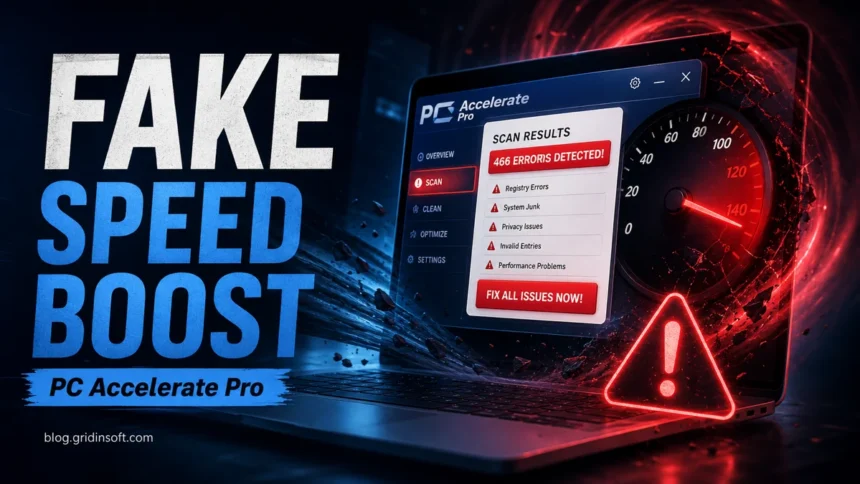
PC Accelerate Pro, also seen as PC Accelerate, is a potentially unwanted PC optimizer that often uses alarming scan results to push users toward a paid cleanup. It is not the same as a destructive file-infecting virus, but it can slow the computer, show intrusive prompts, change browser or startup behavior, and resist normal removal. The safest fix is to uninstall the optimizer, check for bundled programs that arrived with it, reset affected browsers, and then run a full malware scan for leftovers.
If your cleanup started with a fake app marketplace rather than a PC optimizer, the PC App Store removal guide covers the related PUA path: failed uninstallers, startup entries, browser changes, and bundled leftovers.
What is PC Accelerate Pro?
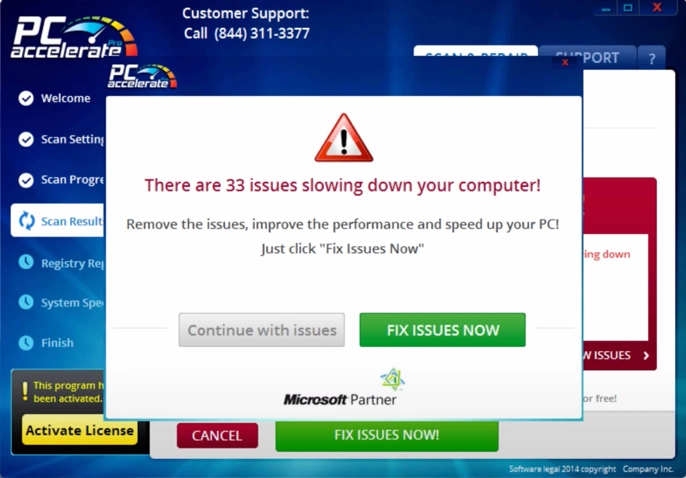
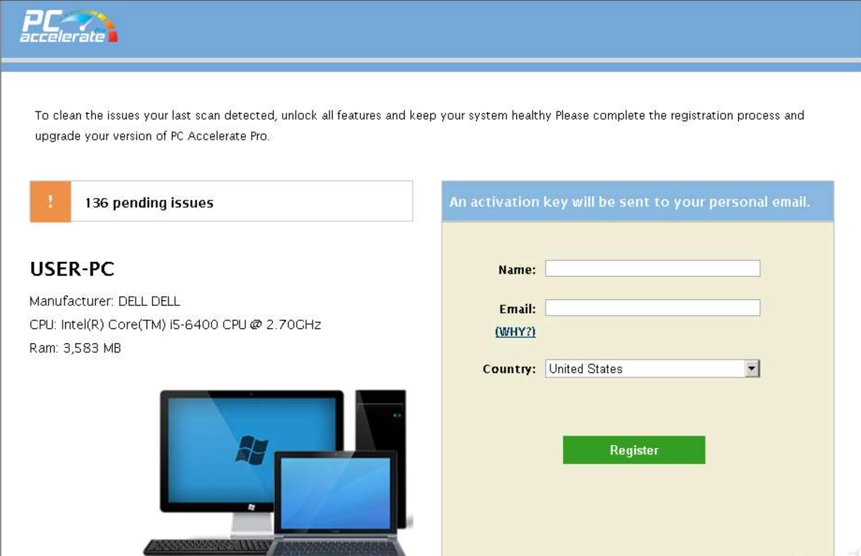
PC Accelerate Pro is a potentially unwanted program that mimics a legitimate PC tuning utility. It usually claims to scan Windows for performance problems, registry errors, junk files, privacy issues, or system instability. The scan result then presents a large number of issues and asks the user to pay before the alleged problems can be fixed.
That behavior is why many users search for it as a virus. Microsoft describes potentially unwanted applications as software that may slow the device, display unexpected ads, or install other unwanted software, even when the app is not classified as classic malware. PC Accelerate Pro fits that risk pattern because the cleanup promise is paired with pressure, bundled installation, and persistence.
Some users see related optimizer names or companion apps installed at the same time. When reviewing Programs and Features, Apps, Task Manager, Startup apps, and browser extensions, look not only for PC Accelerate or PC Accelerate Pro, but also for suspicious speedup, support, driver, cleaner, coupon, or app-store entries that appeared on the same day.
Why the Scan Looks Convincing
The ordinary case from the user perspective is that PC Accelerate starts by itself and immediately switches to scanning. The interface is designed to make the computer look unhealthy: progress bars, warning colors, long issue lists, and a prominent repair button. In testing, the scan also made a virtual machine noticeably sluggish, which makes the performance warning feel more believable to a user who is already worried.
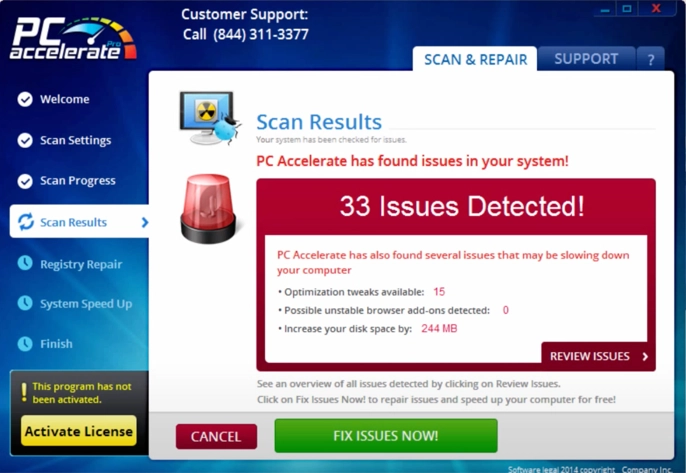
The results should be treated cautiously. Fake or low-value optimizers commonly exaggerate harmless registry entries, temporary files, or normal configuration details. A real Windows performance problem should be diagnosed from symptoms, Event Viewer errors, disk health, startup load, browser extensions, and malware scan results, not from a single scare-style optimizer screen.
How PC Accelerate Gets Installed
PC Accelerate is often installed through bundled freeware, misleading download buttons, fake update pages, cracked-software installers, or app-store style downloaders. The wanted program is visible, while the optimizer offer is hidden behind preselected options, small print, or a confusing install flow. This is also why PC Accelerate may appear together with adware, browser redirects, coupon extensions, or other cleanup utilities.
The distribution model is the core problem. Even if the user clicked through an installer, consent may not have been meaningful when the extra offer was buried, disguised, or bundled with unrelated software. That is enough reason to remove the optimizer and review the system for other unwanted components.
Is PC Accelerate a Virus?
PC Accelerate Pro is better described as a potentially unwanted application or fake optimizer than as a traditional virus. A virus usually replicates by infecting files. PC Accelerate instead relies on misleading cleanup claims, persistence, bundled installation, and paid repair pressure. The practical advice is still similar: do not pay for the warning screen, do not ignore repeated popups, and do not assume that removing only the visible app removes every bundled component.
If the program came from a cracked game, unofficial installer, fake update, or torrent bundle, treat the incident as broader than one optimizer. In that case, scan the whole device, change passwords from a clean device if browser data may have been exposed, and remove unknown startup entries or extensions.
How to Remove PC Accelerate Pro
Start with the normal uninstall path, then check the places where this kind of software tends to leave components behind.
- Close the running app. Open Task Manager, end PC Accelerate Pro or any suspicious optimizer process, then try the uninstall again.
- Uninstall suspicious programs. In Windows Settings, open Apps, sort by install date, and remove PC Accelerate, PC Accelerate Pro, and other unknown cleaners, support tools, coupon apps, or app stores installed on the same day.
- Check startup entries. In Task Manager or Settings, disable startup items that point to the optimizer, a random support app, or an unknown speedup utility.
- Reset affected browsers. Remove unknown extensions, restore the default search engine and homepage, and reset the browser if redirects or popups continue. If browser settings were changed, see the browser hijacker cleanup notes.
- Run a full security scan. Use a trusted anti-malware scanner to find leftovers, bundled PUA, and related adware. A manual uninstall often removes only the visible program.
GridinSoft Anti-Malware can scan for PC Accelerate leftovers, bundled unwanted programs, browser-hijacker traces, and other security-tool alerts that may have arrived with the same installer. Use the scan after manual uninstall steps, especially if the app returns after reboot.
After uninstalling the suspicious app or deleting the visible threat, use Gridinsoft Anti-Malware to check hidden files, startup entries, scheduled tasks, bundled apps, browser changes, and other persistence points that can restore malware.
Download Anti-MalwareIf PC Accelerate Will Not Uninstall
If the uninstaller does nothing, the program opens again after reboot, or the name is missing from the app list, use this fallback sequence.
- Restart into Safe Mode with Networking. This prevents many unwanted startup components from loading.
- Remove same-day apps first. Sort installed apps by date and remove every unknown optimizer, driver updater, browser assistant, or support app installed with PC Accelerate.
- Check common leftovers. Review folders under
C:\Program Files,C:\Program Files (x86), andC:\Users\Publicfor obvious PC Accelerate or suspicious optimizer folders. Do not delete Windows system folders. - Scan before deleting random files. If you are not sure what a file is, upload it to a scanner or run a full system scan instead of guessing.
- Use System Restore only as a fallback. If the system restore point was created before the unwanted app arrived, restoring can help, but you should still scan afterward.
How to Avoid Similar Fake Optimizers
Download software from the original vendor or a trusted store, choose custom installation when it is offered, and decline unrelated utilities. In Windows Security, keep reputation-based protection and potentially unwanted app blocking enabled when available. That setting helps block apps and downloads that match known unwanted-application behavior.
FAQ
Should I pay for PC Accelerate Pro to fix the errors?
No. Do not pay because the scan results may be exaggerated, low-value, or designed to create urgency. Remove the optimizer and diagnose real Windows performance problems separately.
Why does PC Accelerate come back after I remove it?
It may have a running process, startup entry, scheduled task, companion app, or bundled installer leftover. Remove same-day suspicious programs and run a full scan after uninstalling the visible app.
Can PC Accelerate steal passwords?
PC Accelerate itself is usually discussed as a PUA or fake optimizer, not a confirmed password stealer. However, if it arrived through a cracked installer or fake download, other malware may have arrived with it, so scan the full system and protect important accounts.
Is PC Accelerate the same as PC Accelerate Pro?
Users and removal guides often use both names for the same unwanted optimizer family or closely related variants. Search for both names when checking installed apps, startup entries, and leftover folders.
References
- Microsoft Support. “Protect your PC from potentially unwanted applications.” Microsoft, accessed June 6, 2026. https://support.microsoft.com/en-US/security/protect-your-pc-from-potentially-unwanted-applications
- Microsoft Learn. “How Microsoft identifies malware and potentially unwanted applications.” Microsoft, updated 2026, accessed June 6, 2026. https://learn.microsoft.com/en-us/unified-secops/criteria