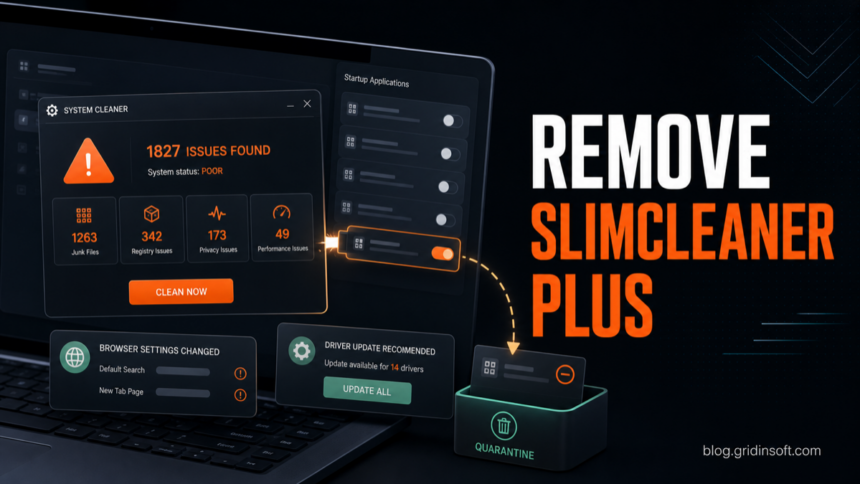
SlimCleaner Plus is not a Windows component. If it appeared after another download, keeps reporting hundreds or thousands of “issues,” asks you to pay before fixing them, or arrived near DriverUpdate, WebCompanion, browser search changes, or other PUP detections, remove the visible app first and then check the startup, scheduled-task, browser, and leftover-file paths that can make the prompts return.
What to remove first
- Uninstall SlimCleaner Plus from Windows Settings. Do this before deleting folders by hand.
- Check for related utilities. DriverUpdate, DriverToolkit-style driver updaters, browser helpers, and WebCompanion-style apps may have arrived in the same bundle.
- Review startup and scheduled tasks. A leftover task can relaunch a cleaner window after reboot.
- Restore browser settings. Search, homepage, new-tab, extensions, and notification permissions are common co-install cleanup points.
- Reboot and rescan. The cleanup is not finished until the cleaner window and related detections stop returning.
Is SlimCleaner Plus a Virus?
SlimCleaner Plus is better treated as a potentially unwanted application, not as proof that every file from the vendor is a classic virus. The risk comes from the behavior users usually notice: exaggerated cleanup warnings, paid repair prompts, bundled driver-updater components, browser changes, and leftovers that remain after a normal uninstall.
That distinction matters. You should not panic-delete random Windows files, but you also should not trust a cleaner just because it uses system-sounding language. Remove the unwanted program, check what else arrived the same day, and use a security scan if prompts, detections, or browser changes come back.
Why SlimCleaner Plus Often Appears With Other PUPs
Cleaner and driver-updater bundles often travel together. A user may remember installing a converter, free utility, driver helper, or “fix” button, then later see SlimCleaner Plus, SlimWare DriverUpdate, WebCompanion, or a browser-helper app in the installed-apps list. Search results for this topic are full of old forum threads and removal videos because the problem is not one file; it is the combination of visible app, startup entry, scheduled task, browser change, and downloaded installer.
If DriverUpdate or another driver tool appeared too, use our fake driver updater cleanup guide for the broader driver-warning workflow. If WebCompanion changed browser behavior, the Adaware Web Companion removal guide covers that specific component.
Remove SlimCleaner Plus From Windows
- Close SlimCleaner Plus first. Exit the tray icon if it is running. If the window will not close, open Task Manager and end only the SlimCleaner/SlimWare cleaner process, not unrelated Windows processes.
- Uninstall the visible app. Open Settings -> Apps -> Installed apps. Search for SlimCleaner Plus, SlimCleaner, SlimWare Utilities, DriverUpdate, Driver Updater, WebCompanion, and other utilities installed on the same date. Uninstall only the items you do not want or do not recognize.
- Reboot once. A reboot separates the main uninstall from real leftovers. If the cleaner returns immediately, a startup entry, task, or companion app is still active.
- Check leftover folders after the reboot. Look for SlimCleaner or SlimWare folders under
C:\Program Files\SlimCleaner Plus,C:\Program Files (x86)\SlimWare Utilities,%LOCALAPPDATA%\SlimWare Utilities,%APPDATA%\SlimWare Utilities, and%PROGRAMDATA%\SlimWare Utilities. Delete leftovers only after the app is no longer listed in Installed apps. - Remove downloaded installers. Delete setup files such as
%USERPROFILE%\Downloads\SlimCleanerPlus*.exeor driver-updater installers you no longer trust, so the bundle is not installed again by accident.
Check Startup, Scheduled Tasks, and Registry Run Keys
Old SlimCleaner Plus advice often mentions Task Scheduler because a cleaner task can launch after sign-in or on a schedule. Open Task Scheduler and review the Task Scheduler Library for SlimCleaner, SlimWare, DriverUpdate, or unknown cleaner/updater tasks. Disable first if you are unsure, then delete the task only after you confirm it belongs to the unwanted app.
Also check Windows startup apps and Run keys if the prompts return:
- Settings -> Apps -> Startup for cleaner or driver-updater entries;
- Task Manager -> Startup apps for disabled or unknown launchers;
HKCU\Software\Microsoft\Windows\CurrentVersion\RunandHKLM\Software\Microsoft\Windows\CurrentVersion\Runif you are comfortable reviewing registry entries.
Do not delete registry entries by name alone. Confirm the path points to a SlimCleaner, SlimWare, or related unwanted-app folder. Export the key first if you are editing the registry manually.
Restore Browser Settings After a Cleaner Bundle
SlimCleaner Plus itself is a cleaner, but the same bundle can leave browser changes behind. Check Chrome, Edge, Firefox, and any browser you actually use:
- default search engine and new-tab page;
- extensions you did not install deliberately;
- site notification permissions for domains you do not recognize;
- managed browser policies that block normal search or extension changes;
- shortcuts that open a search page or promotional URL after the browser path.
If an extension or search provider keeps returning after you remove it, follow the separate browser extension persistence checklist. That problem usually means a policy, companion app, or scheduled task is reinstalling the browser component.
Scan If Prompts or PUP Detections Return
If SlimCleaner Plus came from a bundle, the visible uninstall may remove only the cleaner window. A helper task, startup entry, browser change, downloaded installer, or companion PUP can recreate the same alerts after reboot. Run a full Gridinsoft Anti-Malware scan after the manual uninstall when SlimCleaner Plus returns, a driver-updater prompt keeps appearing, browser settings changed, or a security tool still reports PUP activity.
The scan can help find detections, hidden files, startup entries, scheduled tasks, bundled apps, browser changes, and persistence. It cannot cancel a subscription, refund a payment, or prove that no other installer ever ran.
Browser reset can remove visible symptoms, but adware may keep a desktop app, extension source, notification permission, or startup task that brings pop-ups and redirects back.
Scan for cleaner leftoversWhat If You Paid or Entered Card Details?
Removing the program does not cancel a subscription or reverse a payment. If you paid for SlimCleaner Plus or another cleaner/driver updater and no longer want it, look for the purchase receipt, payment processor, or account portal and cancel through that channel. If the charge looks unauthorized, contact the card issuer or payment provider from a clean browser session.
Do not enter card details into another pop-up that appears during cleanup. Use the vendor or payment-provider site you can reach independently, not a button inside the warning window.
When to Reset or Reinstall Windows
A full Windows reset is usually unnecessary for a normal unwanted-cleaner install. Consider a reset or clean reinstall only if the PC also shows signs of deeper compromise: unknown remote-access tools, password theft, repeated malware detections after cleanup, browser policies you cannot remove, or system files modified by cracks, loaders, or fake updates. For a normal SlimCleaner Plus cleanup, uninstall, task/startup review, browser repair, reboot, and a second scan are the right first path.
FAQ
Should I remove SlimCleaner Plus?
Remove it if you did not clearly choose it, it shows alarming paid repair prompts, it appeared with driver updaters or browser helpers, or security software reports it as potentially unwanted.
Is SlimCleaner Plus the same as DriverUpdate?
No. They are separate utilities, but SlimCleaner Plus and DriverUpdate are commonly discussed in the same SlimWare/PUP cleanup cluster. If both appear, uninstall and check both sets of leftovers.
Why does SlimCleaner Plus come back after uninstall?
The usual causes are a scheduled task, startup entry, downloaded installer, companion PUP, or another cleaner/driver-updater component that was installed at the same time.
Should I delete SlimCleaner folders manually?
Use the normal uninstall first. Delete leftover folders only after reboot, when the app is no longer listed in Installed apps and the folder path clearly belongs to SlimCleaner or SlimWare.
Do I need a driver updater after removing SlimCleaner Plus?
Most home PCs do not need a third-party driver updater. Use Windows Update first, then the device or PC maker’s support page when you need a specific graphics, audio, chipset, printer, or laptop driver.
References
- Malwarebytes. “PUP.Optional.SlimCleanerPlus.” Malwarebytes Labs, accessed July 1, 2026. https://www.malwarebytes.com/blog/detections/pup-optional-slimcleanerplus
- Malwarebytes. “PUP.Optional.DriverUpdate.” Malwarebytes Labs, accessed July 1, 2026. https://www.malwarebytes.com/blog/detections/pup-optional-driverupdate
- Microsoft Learn Answers. “Is SlimCleaner Plus Really a Microsoft Partner as its Window Shows.” Microsoft, migrated support thread, accessed July 1, 2026. https://learn.microsoft.com/en-us/answers/questions/2695899/is-slimcleaner-plus-really-a-microsoft-partner-as