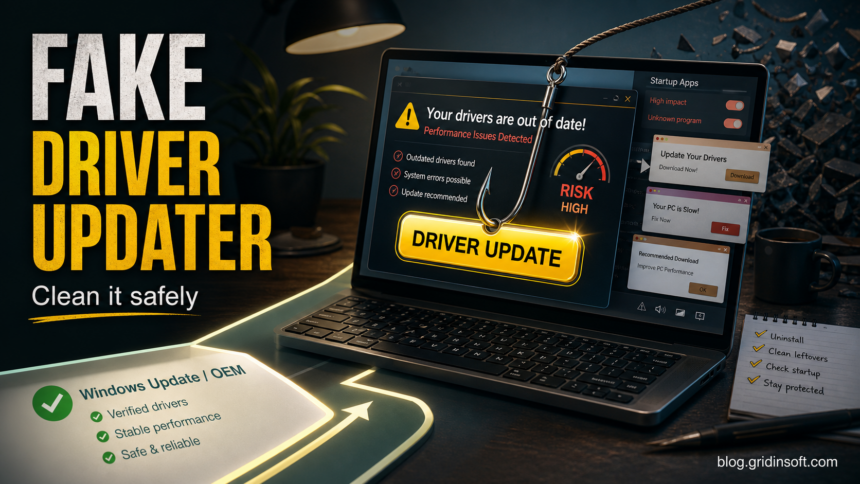
Fake driver updater warnings are usually not a sign that every driver on the PC is broken. Treat them as a cleanup problem first: identify the app or website creating the alert, uninstall the unwanted updater if you do not clearly need it, clean browser notifications and startup leftovers, then use Windows Update, Device Manager, or the hardware maker’s support page for real driver work. If the same leftover pattern appears after a PC optimizer rather than a driver updater, use the Advanced SystemCare Ultimate removal checklist to verify startup entries, scheduled tasks, and browser changes.
This guide is for users who see messages such as your drivers are out of date, driver update recommended, paid scan results, repeated browser pop-ups, or reminders from tools they do not remember installing. It does not claim that every third-party driver updater is malicious. The risk is higher when the tool arrived in a bundle, pushes payment before it explains the driver, changes browser settings, returns after uninstall, or keeps showing alerts after you close it.
Quick Check: Is It a Real Driver Issue or a Fake Updater?
Use this checklist before clicking an update button. A real driver problem usually points to a specific device in Device Manager, Windows Update, or the hardware vendor’s support app. A fake or unwanted updater usually speaks in broad warnings and wants you to install or buy something before it names the exact device, driver version, and source.
| What you see | What it usually means |
|---|---|
| Windows Update or Device Manager shows a named device and optional driver. | Use the built-in path first. It is the safer route for most home users. |
| A website pop-up says many drivers are outdated. | Close the tab. Check browser notification permissions and recent extensions. |
| A newly installed cleaner or updater reports dozens of problems immediately. | Uninstall the utility if you did not intentionally choose it. |
| The pop-up returns after uninstall or reboot. | Check Startup apps, Task Scheduler, services, browser settings, and leftover folders. If you are using Revo or another uninstaller for cleanup, review the Revo Uninstaller safety guide before deleting Registry or file leftovers. If the leftover is a random service such as ronewoSvc or ronewo.exe, verify the service path before removing it. |
| An exact app is involved, such as Outbyte Driver Updater, PCHelpSoft Driver Updater, SlimCleaner Plus, DriverToolkit, Driver Support One, or DriverPack. | Use the exact cleanup route first, such as the Outbyte Driver Updater removal guide, PCHelpSoft Driver Updater checklist, SlimCleaner Plus removal guide, or DriverToolkit removal guide, and avoid deleting random driver files by hand. |
How to Remove a Fake or Unwanted Driver Updater
Start with the parent application, not with random files named driver. Deleting driver files blindly can break printers, audio, Wi-Fi, touchpads, graphics, or licensing components. The goal is to remove the updater and its persistence, while leaving legitimate Windows and OEM drivers alone.
- Disconnect from the updater flow. Close the pop-up, do not pay from the warning screen, and do not download the suggested driver package from the alert.
- Uninstall the visible app. Open Settings -> Apps -> Installed apps and remove the driver updater, cleaner, optimizer, or recently installed bundle you do not want.
- Restart Windows. Reboot once before judging whether the warning is gone. Some uninstallers only finish after restart.
- Check Startup apps. Open Task Manager -> Startup apps and disable unknown updater entries, especially if the publisher is blank or the app name differs from the tool you removed.
- Check Task Scheduler. Look for recently created updater, scan, reminder, or agent tasks. Disable suspicious tasks first; delete them only when you are sure they belong to the unwanted app. The same logic applies to utility bundles such as ProW File Compressor when an unexpected setup prompt or startup entry keeps returning.
- Review services. In services.msc, look for an updater service tied to the app name, vendor folder, or agent process. Stop it and uninstall the parent app rather than deleting service files manually.
- Clean browser notifications. In Chrome, Edge, Firefox, or another browser, remove notification permissions for sites that show fake driver or PC-cleanup alerts.
- Check extensions and search settings. Remove extensions you did not install, then restore the homepage, new tab, and default search engine if they changed.
- Scan if alerts return. If pop-ups, startup entries, or security warnings return after uninstall, run a full Gridinsoft Anti-Malware scan to check for bundled apps, hidden files, scheduled tasks, browser changes, and persistence.
If the same warning keeps coming back, the visible updater may not be the only component. A bundle can leave a scheduled task, service, browser notification permission, extension, or helper process that recreates reminders after reboot. Gridinsoft Anti-Malware is useful at this point because the cleanup target is not a hardware driver; it is the unwanted app chain around the driver-updater warning.
If the process path is wrong, the name imitates a Windows component, or high CPU started after an unknown installer, scan for hidden miners, services, startup entries, and bundled components.
Scan for driver updater leftoversWhere to Get Drivers Safely
For most PCs, the safe order is simple: Windows Update first, then the device maker or PC maker, then Device Manager when you already know the exact device. Microsoft documents Windows Update and Device Manager as normal driver-update paths, and hardware vendors publish model-specific driver pages for graphics, audio, Wi-Fi, printers, chipsets, and firmware.
If a Synaptics touchpad helper is the problem, use the SynTPEnh.exe path, signature, and startup check before reinstalling the laptop maker’s touchpad package or disabling its enhancement features.
- Windows Update: use Settings -> Windows Update and optional driver updates when a device actually needs one.
- Device Manager: use it for a named device with a yellow warning, failed driver, rollback, or manual vendor package.
- OEM support page: use Dell, HP, Lenovo, ASUS, Acer, Intel, AMD, NVIDIA, Realtek, printer vendors, or the motherboard maker when you know the exact model.
- Vendor support app: use only the app from the PC or device maker, not a random ad or pop-up.
Do not install a driver just because a web page says it found hundreds of outdated drivers. If Windows is stable and the device works, updating every driver is often unnecessary. Driver updates matter most when they fix a known bug, security issue, hardware error, game or graphics problem, printer issue, Wi-Fi/Bluetooth issue, or a vendor-documented firmware problem.
When the Warning Names a Specific App
Some driver-updater cases deserve a targeted page because the cleanup clues are app-specific. Use these internal guides instead of treating every updater the same way:
- Quick Driver Updater removal covers qdu.exe, the skipuac and Logon tasks, recurring prompts, leftovers, and bad-driver recovery.
- Driver Support One Removal covers DSOneWeb.exe, Agent tasks, browser leftovers, and DriverSupportBill.com billing confusion.
- PUABundler:Win32/DriverPack covers Defender’s DriverPack-related PUA detection lane.
- PUABundler:Win32/Rostpay is useful when DriverHub or Tesla Browser context appears in a Defender PUA alert.
- Are PnP Windows Drivers Safe? explains normal plug-and-play driver behavior so you do not remove legitimate Windows drivers by mistake.
- Fake Virus Alert covers browser-notification warnings that pretend your PC has urgent driver or security problems.
- Should You Use a PC Cleaner? covers the broader cleaner/optimizer sales pattern behind many fake scan results.
- SlimCleaner Plus Removal covers SlimWare DriverUpdate prompts, WebCompanion co-installs, startup entries, browser changes, and leftovers after uninstall.
WinZip Driver Updater, DriverHub, DriverPack, Driver Support One, and similar names should be judged by source, install history, behavior, and whether the user intentionally chose them. The same brand name in a search result is not enough to prove malware, and a clean-looking installer does not prove the bundle is useful for your PC.
If the exact app is PCHelpSoft Driver Updater, use the dedicated checklist for its scheduled task, downloaded Driver_Updater_setup.exe files, Start Menu shortcuts, and related installer-updater leftovers. If the same cleanup started with SlimWare DriverUpdate, SlimCleaner Plus, or DriverToolkit, follow the exact product page first and use this hub only for the broader fake-updater pattern.
If the Driver Warning Is a Browser Pop-Up
A driver warning that appears only inside Chrome, Edge, Firefox, or another browser is often a notification permission or ad page, not a Windows driver tool. In that case, uninstalling driver files will not help.
- Open the browser’s site settings and remove notification permissions for unknown sites.
- Clear recent suspicious extensions, especially shopping, search, PDF, coupon, video, or cleaner extensions you did not choose.
- Reset the homepage, new tab, and search provider if they changed.
- Check installed apps for a bundle installed on the same day the pop-ups started.
- If the browser keeps reopening the same warning page, follow a browser hijacker cleanup path.
What Not to Do
- Do not click the pop-up’s update, fix, or download button.
- Do not pay from a scare screen just to remove a warning.
- Do not delete files from
C:\Windows\System32\DriverStore,C:\Windows\System32\drivers, or OEM driver folders unless you know exactly what they are. - Do not install several driver updaters to see which one reports more problems.
- Do not assume a driver updater found in a bundle is safe because it uses real hardware terms.
FAQ
Are all driver updaters malware?
No. Some driver tools are legitimate, especially vendor tools from your PC or hardware maker. The problem is with scare-based, bundled, or unwanted updaters that exaggerate issues, push payment, change browser settings, or return after uninstall.
Should I update every driver Windows has?
No. Update drivers when Windows Update, Device Manager, the OEM support page, or a real device problem gives you a reason. Updating every driver from a third-party scan can create more risk than benefit.
Why do driver update pop-ups keep coming back?
The visible app may leave a startup entry, scheduled task, service, browser notification permission, or extension. Clean those persistence points after uninstalling the parent app.
Can I just delete driver updater files?
Uninstall the parent app first. Deleting random files can leave broken services behind or remove legitimate device drivers. If you need file-level cleanup, verify the path, publisher, creation time, and related tasks before removing anything.
What if DriverPack or DriverHub appears in a Defender alert?
Use the exact detection and app context. DriverPack-related PUA detections and DriverHub/Rostpay cases already have dedicated Gridinsoft guides, so follow the exact page instead of using a generic cleanup checklist.
References
- Microsoft Support. “Update drivers through Device Manager in Windows.” Microsoft, accessed June 24, 2026. https://support.microsoft.com/en-us/windows/update-drivers-through-device-manager-in-windows-ec62f46c-ff14-c91d-eead-d7126dc1f7b6
- Microsoft Support. “Automatically get recommended and updated hardware drivers.” Microsoft, accessed June 24, 2026. https://support.microsoft.com/en-us/windows/automatically-get-recommended-and-updated-hardware-drivers-0549a8d9-4842-8acb-75fa-a6faadb62507