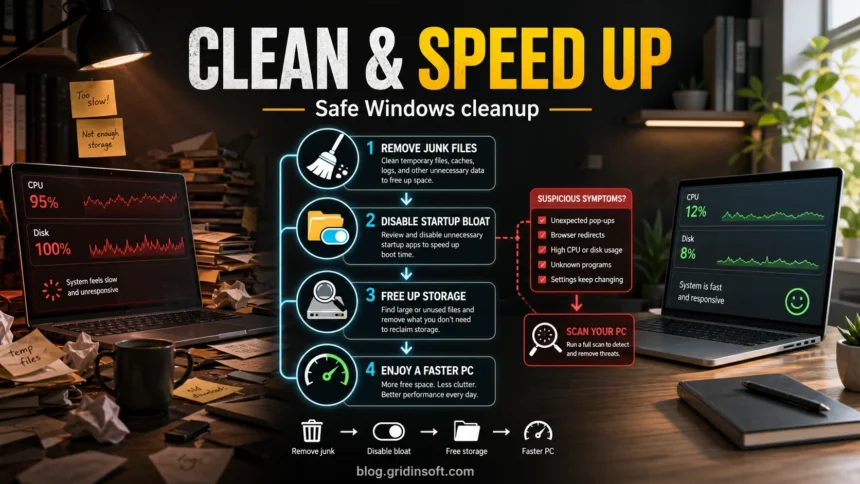
A slow Windows PC usually gets faster when you fix the biggest bottleneck first: full storage, too many startup apps, high CPU or memory use, overheating, or unwanted software that keeps coming back after a reboot. Start with Windows’ built-in cleanup tools, remove only what you understand, and scan for malware if pop-ups, browser redirects, unknown startup entries, or high CPU return after normal cleanup.
This guide keeps the order safe. You do not need a one-click optimizer, a registry cleaner, or a driver updater to make a PC faster. You need a short check, a careful cleanup pass, and a malware scan when the symptoms look suspicious.
Quick Cleanup Order
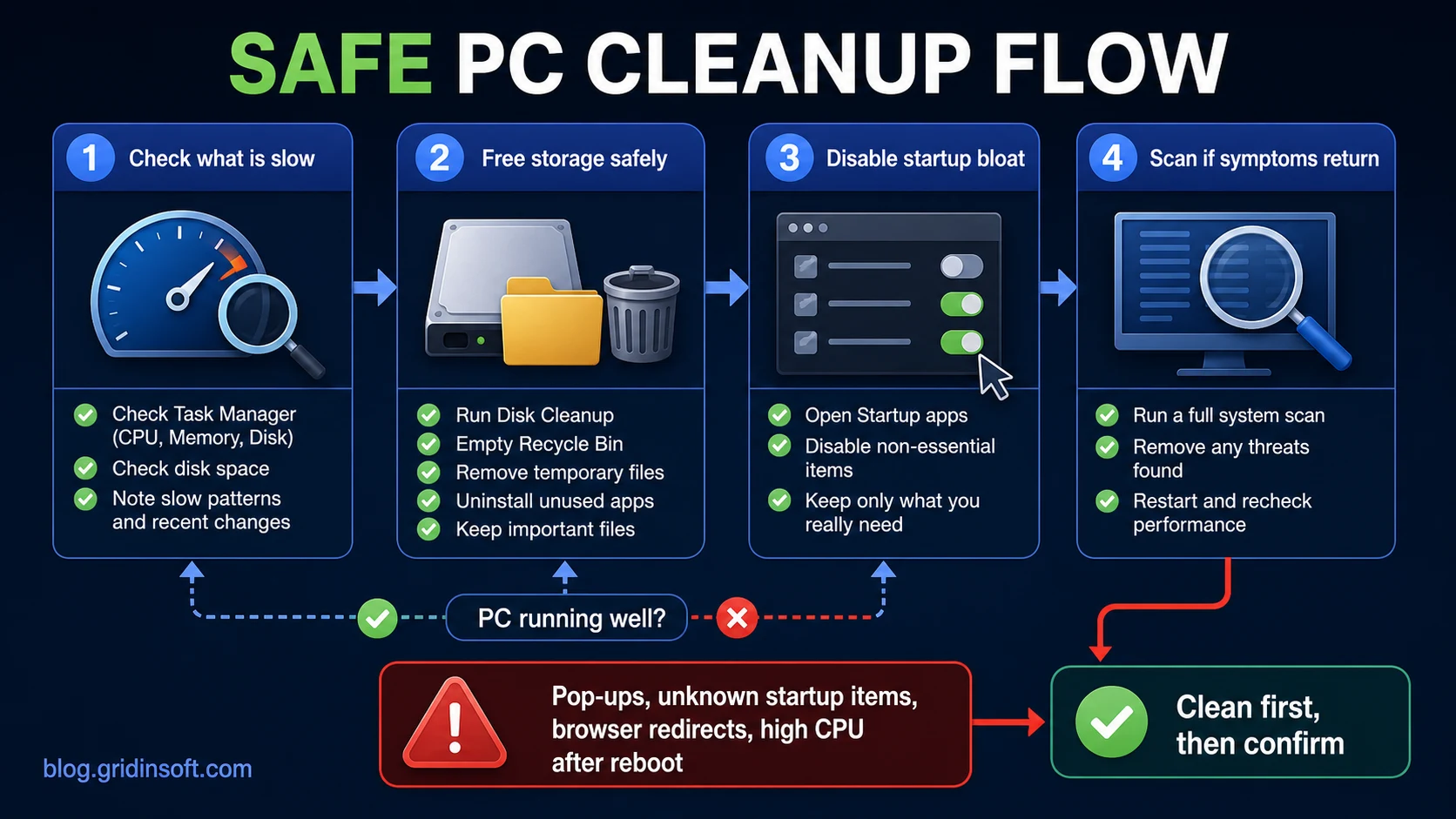
- Open Task Manager and identify what is actually slow: CPU, memory, disk, startup impact, or network.
- Free storage with Windows Storage Sense, Cleanup recommendations, and Disk Cleanup.
- Uninstall apps you no longer use instead of deleting program folders manually.
- Disable non-essential startup apps, then restart and test performance.
- Update Windows and drivers from Windows Update or the hardware vendor.
- Clean dust from vents and fans if the PC is hot, loud, or randomly restarting.
- Scan for malware if the slowdown returns, the browser changes by itself, or unknown apps/startup items appear.
1. Check What Is Slow First
Press Ctrl + Shift + Esc to open Task Manager. On the Processes tab, sort by CPU, Memory, and Disk. This tells you whether the PC is slow because an app is using resources, the disk is full, Windows is updating, or a background process is stuck.
| What you see | What to do first |
|---|---|
| Disk stays near 100% | Free storage, pause heavy sync, check Windows Update, and restart once. |
| Memory is full | Close unused apps, remove browser tabs/extensions, and disable startup bloat. |
| CPU is high after every reboot | Check the process name, startup items, and scan if it is unknown or in a strange path. If the process is avgcsrva.exe, verify AVG path/signature before deleting anything. |
| PC is hot or fans are loud | Clean vents, check airflow, and stop heavy tasks before deeper troubleshooting. |
| Pop-ups, redirects, or settings return | Treat it as possible adware, PUA, or malware persistence and scan before changing more settings. |
If the machine mainly feels slow during browsing, also check extensions and homepage/search settings. A browser hijacker can waste CPU, force redirects, and bring back unwanted search pages after a reset. Use the browser hijacker removal guide if search or notification settings keep changing.
2. Free Storage Safely
Low disk space can make Windows feel slow because updates, swap files, browser cache, and temporary files have less room to work. On Windows 11, go to Settings -> System -> Storage. Review Cleanup recommendations, then remove temporary files, Recycle Bin items, old update leftovers, and large files you no longer need.
Turn on Storage Sense if you want Windows to clean temporary files and Recycle Bin items automatically. For a one-time deeper cleanup, search for Disk Cleanup, run it as administrator, choose the system drive, and review Clean up system files. Do not delete personal folders, app folders, or Windows directories manually just because they look large.
If System & reserved expands by gigabytes and ordinary cleanup does not hold, check for the exact CapabilityAccessManager.db-wal storage issue before removing more apps or temporary files.
If the only problem is storage, the older Windows disk-space cleanup guide can help with more file-specific decisions. Keep this page for the broader speed-up workflow.
3. Remove Apps and Startup Bloat
Unused apps slow a PC in two ways: they take storage and they may start services, updaters, tray icons, scheduled tasks, or browser extensions in the background. Open Settings -> Apps -> Installed apps, uninstall software you no longer use, and restart before judging the result.
Next, open Task Manager -> Startup apps. Disable apps with high startup impact when you do not need them every time Windows starts. Keep security software, touchpad/audio utilities, backup tools, VPNs you use, and hardware tools you understand. If an entry has a random name, no publisher, or a path under %TEMP%, %APPDATA%, or %LOCALAPPDATA%, do not simply disable and forget it. Inspect it and scan the system. If the item is a recognizable updater such as jusched.exe Java Update Scheduler, verify its path and publisher before deciding whether to keep or disable it.
Avoid third-party driver updaters and “PC booster” tools. They often exaggerate harmless findings, push paid fixes, or install extra software. If you are unsure whether a cleaner app itself is safe, read Should You Use a PC Cleaner? Safe Windows Cleanup vs Scams.
If an Instant System Health Boost pop-up is what prompted the cleanup, identify its sending website or app first. Stopping that offer and fixing a measured performance problem are separate tasks.
4. Update Windows and Drivers the Safe Way
Install Windows updates from Settings -> Windows Update. For graphics, chipset, printer, and network drivers, prefer Windows Update, the PC maker, or the hardware vendor. Do not use random driver bundles from ads, file-sharing pages, or pop-up “driver scan” sites.
If the PC became slow after a driver, update, or app install, do not keep changing many things at once. Restart, check Task Manager again, and note what changed. If you see crashes, random restarts, or overheating, use the PC randomly restarting checklist before running stress tests or deleting files.
5. Clean Dust and Heat Problems
Physical dust matters when fans are loud, the PC shuts down under load, games stutter after a few minutes, or the laptop feels hot even during light work. Turn the PC off, unplug it, and use compressed air to clear vents and fans. Do not use a household vacuum directly on the motherboard or fan blades, and do not spin fans aggressively with air pressure.
Desktops are usually easier to clean than laptops. If a laptop is still overheating after vent cleaning, the issue may be dried thermal paste, blocked internal fins, a failing fan, or a battery/power mode problem. In that case, normal software cleanup will not solve the root cause.
6. Scan If Symptoms Return After Cleanup
Normal cleanup should make the PC more predictable. If the same slowdown returns after reboot, or if you also see pop-ups, browser redirects, unknown extensions, changed search settings, blocked security sites, or unfamiliar startup entries, treat the slowdown as a security symptom instead of a housekeeping problem.
Gridinsoft Anti-Malware is useful at this point because it checks more than visible apps. It can find detections, hidden files, startup entries, scheduled tasks, bundled apps, browser changes, and persistence that may recreate the slowdown after you remove the obvious clutter. Run a full scan after the basic cleanup pass, review the detections, and remove only what the scan identifies as unwanted or malicious.
If the process path is wrong, the name imitates a Windows component, or high CPU started after an unknown installer, scan for hidden miners, services, startup entries, and bundled components.
Scan for hidden startup itemsAfter removal, restart the PC and check Task Manager again. If CPU, disk, browser settings, or startup entries are now stable, you have a cleaner baseline. If symptoms return, write down the process name, file path, browser extension, or alert text and investigate that exact item instead of repeating random cleanup steps.
What Not to Clean Blindly
- Do not clean the registry with a generic registry cleaner. Removing the wrong keys can break apps or Windows features without improving speed.
- Do not delete files from System32, WinSxS, Program Files, or driver folders. Use Windows cleanup tools instead.
- Do not install several antivirus products at once. They can conflict and slow the PC further.
- Do not trust pop-ups that claim hundreds of urgent errors. Fake cleaners and scareware use that pressure to sell fixes or install unwanted apps.
- Do not disable every startup item. Disable what you recognize; investigate unknown entries.
How Often Should You Clean a PC?
For most home PCs, do a light cleanup once a month: review startup apps, empty obvious temporary files, remove unused programs, and check available storage. Clean dust every few months if the PC sits on the floor, runs hot, or lives in a dusty room. Scan sooner if performance changes suddenly or the slowdown appears together with ads, redirects, unknown apps, or security warnings.
FAQ
Will cleaning temporary files make my computer faster?
It can help when the drive is nearly full or Windows needs room for updates, cache, and virtual memory. If storage is already healthy, startup apps, background processes, heat, or malware are more likely to matter.
Should I use a PC cleaner app?
Use Windows’ built-in cleanup tools first. Be careful with one-click cleaners that promise dramatic speed gains, registry fixes, or urgent paid repairs. They may remove too much, exaggerate harmless issues, or install extra software.
Can malware make a PC slow?
Yes. Adware, browser hijackers, coin miners, loaders, and bundled unwanted apps can use CPU, disk, network, browser settings, or startup tasks. If cleanup does not last after reboot, scan the system before changing more Windows settings.
Is it safe to disable startup apps?
Yes, when you recognize the app and do not need it at sign-in. Keep security software and hardware utilities you rely on. Investigate random names, unknown publishers, or startup entries from temporary/profile folders.
References
- Microsoft Support. “Free up drive space in Windows.” Microsoft, accessed June 15, 2026. https://support.microsoft.com/en-us/windows/free-up-drive-space-in-windows-85529ccb-c365-490d-b548-831022bc9b32
- Microsoft Support. “Configure Startup applications in Windows.” Microsoft, accessed June 15, 2026. https://support.microsoft.com/en-us/windows/configure-startup-applications-in-windows-115a420a-0bff-4a6f-90e0-1934c844e473
- Microsoft Support. “Protect your PC from unwanted software.” Microsoft, accessed June 15, 2026. https://support.microsoft.com/en-us/windows/protect-your-pc-from-unwanted-software-074a2d74-02db-03dd-8340-9e1822377856