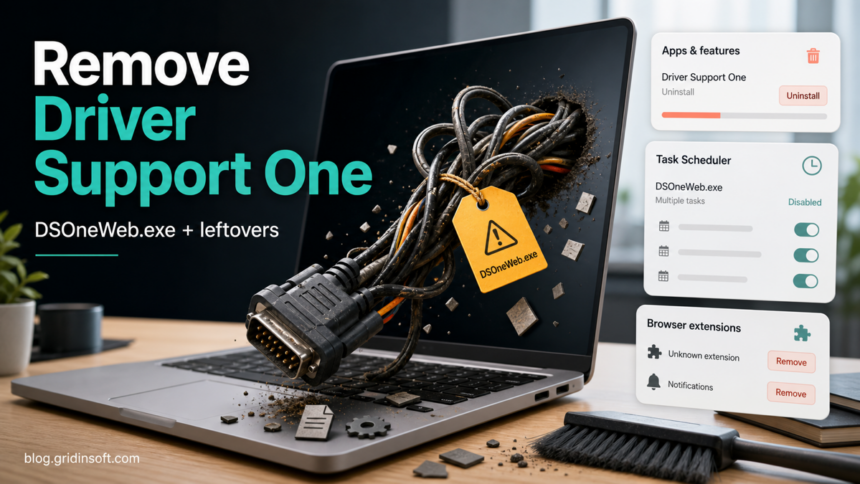
Driver Support One is not a Windows component. If it appeared after a download, keeps showing driver alerts, or leaves DSOneWeb.exe running after uninstall, remove the main app first and then check for leftovers in startup, scheduled tasks, browser add-ons, and notification permissions. The same workflow applies to PC optimizer leftovers; the Advanced SystemCare Ultimate cleanup guide shows how to verify ASCTray.exe-style startup entries and scheduled tasks after uninstall. Do not delete one file at random; remove the parent app and verify that the process does not return after reboot.
The common confusion is that Driver Support One looks driver-related, but Windows already handles most normal driver updates through Windows Update or the hardware maker. This is a troubleshooting and removal guide for users who do not want the app, did not clearly choose it, or still see leftovers after uninstall; it does not claim that every Driver Support One installation is malicious.
What Is Driver Support One?
Driver Support One is a third-party driver update utility. Its own uninstall page describes a Windows uninstall flow and says that removing Driver Support One also removes the PageBoost browser component, while a trackable cookie may remain until the browser clears it.1 Microsoft community answers also clarify that Driver Support One is not a Microsoft product.2
DSOneWeb.exe is the web/interface executable associated with Driver Support One. Gridinsoft’s file-analysis record for a Driver Support One installer identifies the product name, original filename, digital signature, and DSOneWeb metadata, which is useful when you are deciding whether the file belongs to this app or is a lookalike in the wrong folder.
- Expected app name: Driver Support One or Driver Support|ONE.
- Typical file clue:
DSOneWeb.exeunder a Driver Support One program folder. - Possible browser clue: PageBoost, Web Protection, a browser extension, or notification permissions that continue after uninstall.
- Billing clue: a charge or portal reference such as
DriverSupportBill.com. Removing the app does not automatically cancel a subscription or refund a charge.
Should You Remove It?
Remove Driver Support One if you did not intentionally install it, if it arrived with another download, if it keeps warning about outdated drivers, if DSOneWeb.exe runs when you are not using it, or if browser notifications and paid scan prompts continue after uninstall.
| What you see | What it usually means |
|---|---|
DSOneWeb.exe in Task Manager |
The Driver Support One web component is still running or restarting. |
| Driver Support One is listed in Installed apps | Use the normal Windows uninstall path before removing files manually. |
| A task, service, or startup entry mentions Driver Support, DSOne, Asurvio, or Solve iQ | A leftover may relaunch the app or its notification component. |
| Browser pop-ups continue after uninstall | Check extensions, site notifications, and browser data, not only the Windows app list. |
| A billing charge appears after removal | Handle it through the vendor account/billing channel and your card issuer; app cleanup alone will not cancel billing. |
1. Remove Driver Support One From Windows
- Disconnect from any untrusted download page or pop-up that opened the installer.
- Open Settings > Apps > Installed apps.
- Search for Driver Support One, Driver Support|ONE, PageBoost, Web Protection, Asurvio, or a recently installed driver-support tool.
- Choose Uninstall and let the uninstaller finish. Microsoft documents Settings, Start menu, and Control Panel as normal Windows uninstall paths.3
- Restart Windows before judging whether the cleanup worked.
If the uninstaller hangs, close the app first from Task Manager. End DSOneWeb.exe only to let the uninstaller run; do not treat ending the process as the full fix.
2. Check DSOneWeb.exe and Startup Leftovers
After reboot, open Task Manager and search for DSOneWeb.exe, Driver Support, Asurvio, or Solve iQ. If the process returns, check the places that commonly relaunch unwanted utilities:
- Startup apps: Settings > Apps > Startup, or the Startup tab in Task Manager.
- Scheduled tasks: open
taskschd.mscand inspect tasks whose names or actions mention Driver Support, DSOne, Asurvio, Solve iQ, or PageBoost. - Services: open
services.mscand look for a Driver Support One or updater service. Disable only entries you can tie to the removed app. - Program folders: check whether folders such as
C:\Program Files (x86)\Driver Support One\orC:\ProgramData\Asurvio\DSOneWeb\remain after uninstall.
Do not delete a folder while an uninstall is still running. If a folder remains after reboot and no matching service, task, or process is active, move it to a temporary quarantine folder first instead of permanently deleting it. That gives you a rollback path if the folder belonged to software you still use.
3. Remove Browser Extensions and Notifications
Driver Support One cleanup often feels incomplete because the Windows app and the browser component are separate symptoms. The official uninstall page mentions PageBoost and cookies, so check the browser even when Windows says the app is gone.
- Open Chrome, Edge, or Firefox extensions and remove unknown driver-support, PageBoost, coupon, search, or web-protection entries.
- Open browser notification settings and remove sites you do not recognize, especially sites that send driver, antivirus, or subscription warnings.
- Clear cookies and site data for
driversupport.comif you no longer use the service. - Check the homepage, new tab page, and default search engine. If a browser policy prevents changes, follow the broader browser hijacker cleanup guide.
4. Scan If It Returns or Came From a Bundle
If Driver Support One came with a free installer, PDF tool, PC cleaner, browser add-on, or fake driver warning, the visible app may not be the only component. Bundled utilities often leave scheduled tasks, startup entries, browser changes, or notification permissions that recreate the alerts after reboot. If the same bundle also installed SlimCleaner Plus, use the SlimCleaner Plus removal guide for the cleaner-specific uninstall, task, and browser checks.
Run a full Gridinsoft Anti-Malware scan after the manual uninstall when DSOneWeb.exe returns, several browsers are affected, Windows blocks suspicious activity, or other unwanted apps appeared on the same day. The scan can help find bundled or unwanted components, hidden files, startup entries, scheduled tasks, and browser changes. It cannot cancel a subscription, restore money, or prove that nothing else ever ran.
If the process path is wrong, the name imitates a Windows component, or high CPU started after an unknown installer, scan for hidden miners, services, startup entries, and bundled components.
Scan for Driver Support One leftoversYou can also compare a suspicious installer or leftover executable with the Gridinsoft Driver Support One file-analysis record. For the website itself, the Gridinsoft driversupport.com reputation report gives domain-level risk signals. Treat those reports as context, not as permission to keep an app you did not want.
5. Update Drivers Safely After Removal
After removing a driver updater, do not replace it with another random driver tool. For most home PCs, use Windows Update first, then the device maker’s support page when you need a specific graphics, audio, chipset, printer, or laptop utility. The fake driver updater cleanup guide covers the broader pop-up, browser-notification, and startup-leftover checklist, while the plug-and-play driver safety guide explains when built-in Windows drivers are enough and when an OEM package is worth installing.
If a pop-up claims many drivers are outdated, verify the claim manually. Device Manager warnings, the hardware vendor’s site, and Windows Update are stronger signals than a paid scan result from an app you did not choose.
6. What About DriverSupportBill.com Charges?
App removal and billing are separate. If you see a charge from DriverSupportBill.com or a similar descriptor, sign in only through the vendor’s official site that you type yourself, not through a pop-up or search ad. Save screenshots of the charge and cancellation request, then contact the card issuer if you cannot identify or cancel the subscription.
Do not enter card details into a browser warning, a fake support chat, or a page that opened from a driver scan alert. If you already shared payment or account information through a suspicious page, change the related passwords and watch the card for follow-up charges.
FAQ
Is Driver Support One malware?
Driver Support One is a third-party driver utility, not a built-in Windows file. Treat it as unwanted if it arrived without clear consent, pushes paid driver alerts, leaves DSOneWeb.exe running, or returns after uninstall.
Is DSOneWeb.exe safe?
DSOneWeb.exe can be the legitimate web component of Driver Support One when it is in the app’s program folder and matches the vendor metadata. It is still safe to remove the parent app if you do not want Driver Support One. A copy in a strange folder, an unsigned copy, or a copy that returns after uninstall should be checked before you trust it.
Why does Driver Support One come back after I uninstall it?
The usual causes are a running process, startup entry, scheduled task, browser extension, site notification permission, or another bundled app that reinstalls it. Reboot, then check those locations instead of deleting only one executable.
Does uninstalling Driver Support One cancel billing?
No. Uninstalling the app removes software from Windows, but it does not automatically cancel a subscription or refund a charge. Handle billing through the official account channel and your card issuer.
Should I use a driver updater after removing it?
Usually no. Use Windows Update and the hardware manufacturer’s support page first. Third-party driver updaters add unnecessary installer and bundled-software risk for most home users.
References
- Driver Support. “Uninstall Instructions for DriverSupport ONE.” DriverSupport.com, accessed June 23, 2026. https://www.driversupport.com/dsone-uninstall-guide/
- Microsoft Q&A. “Getting rid of Driver Support One.” Microsoft Learn, May 1, 2024, accessed June 23, 2026. https://learn.microsoft.com/en-us/answers/questions/2386947/getting-rid-of-driver-support-one
- Microsoft Support. “Uninstall or remove apps and programs in Windows.” Microsoft, accessed June 23, 2026. https://support.microsoft.com/en-us/windows/uninstall-or-remove-apps-and-programs-in-windows-4b55f974-2cc6-2d2b-d092-5905080eaf98