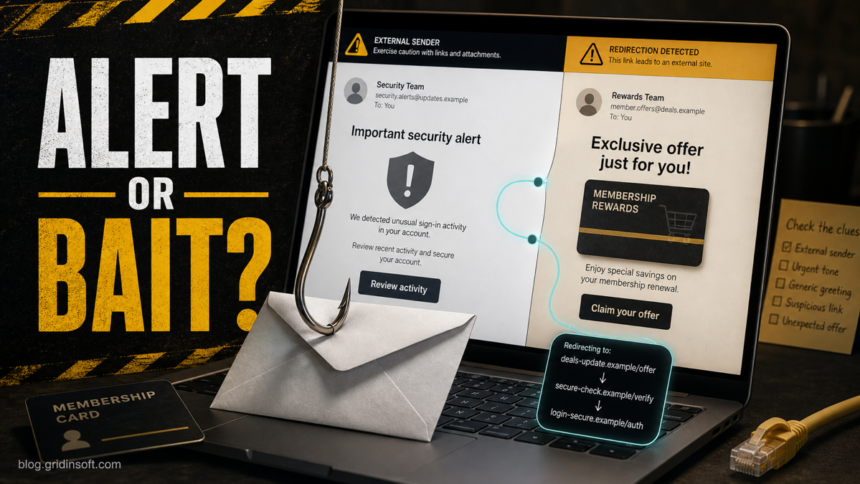
An Office365alerts email that mixes Microsoft 365 alert wording with Costco rewards, BT account warnings, gift cards, payment checks, or other brand offers should be treated as phishing until you verify it outside the message. Real Microsoft 365 alert notifications can exist, especially for business tenants, but a familiar sender name is not enough proof. Do not use the email button. Open the Microsoft Defender or Microsoft Purview portal manually, check whether the alert exists there, and then handle any Costco or BT claim through the official brand site instead of the email link.
This is the same rule we recommend for suspicious phishing emails: the safest link is the one you type or open from a known bookmark, not the one supplied by an unexpected message.
Why This Email Is Confusing
The name Office365alerts sounds close to real Microsoft 365 security and compliance notifications. Microsoft 365 tenants can generate alerts from policies, and administrators may receive email notifications when configured alert conditions are met [1]. That legitimate context is what makes the scam lane effective: a fake message can borrow Microsoft security language, then pivot into a Costco membership lure, a BT billing scare, or a button that points somewhere unrelated.
For a personal mailbox, a sudden Office365alerts message about a retailer or telecom account is already suspicious. For a work mailbox, it still needs portal verification. A real Microsoft 365 alert should be visible in the tenant’s security or compliance portal, with the impacted user, alert policy, severity, and incident details. A fake email usually pushes the reader to click first and verify later.
Fast Safety Check
Before you click anything, check the message as if it were hostile:
- Sender identity: inspect the full email address and authentication results, not only the display name. Spoofing and abused cloud services can make sender names look convincing.
- Link destination: hover or copy the link without opening it. A real Microsoft 365 alert should not route through random shorteners, file-sharing pages, parked domains, or lookalike login pages.
- Brand mismatch: Costco rewards, BT bills, Microsoft 365 alerts, and password warnings do not naturally belong in one unexplained message. Mixed-brand urgency is a phishing signal.
- Attachment pressure: do not open invoices, HTML files, ZIP archives, OneNote files, or password-protected documents from an alert you did not verify.
- Credential request: never enter a Microsoft password, one-time code, recovery code, card number, or BT/Costco login from an email button.
Two Common Microsoft 365 Phishing Lures
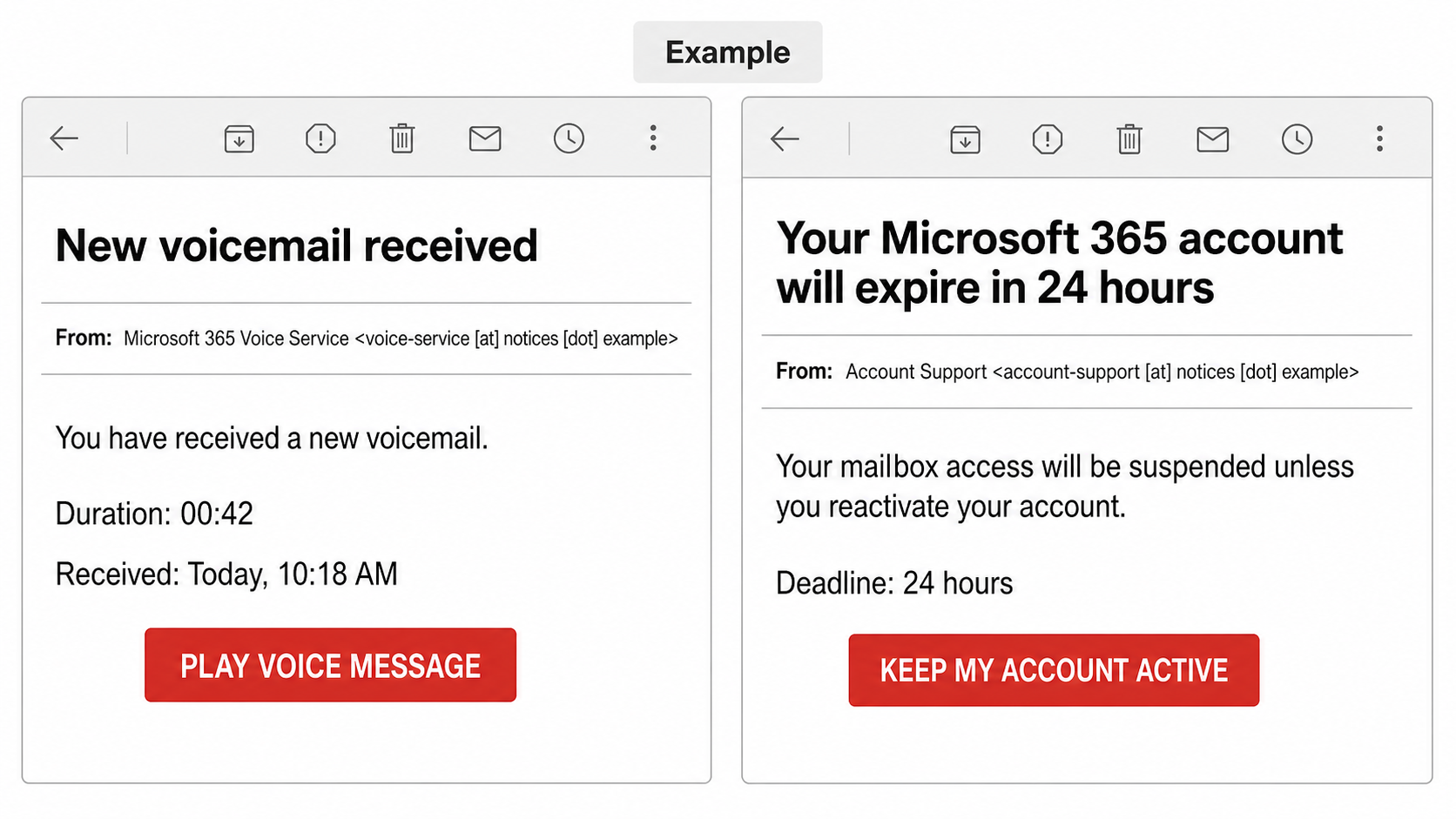
Fake voicemail and account-expiry emails use different stories, but the path is usually the same: an unexpected notification creates urgency, a button opens an unfamiliar page, and a Microsoft-style sign-in asks for credentials. Verify the claim from a saved Microsoft, company SSO, Teams, or phone-system portal instead of the message.
Fake Microsoft 365 Voicemail Email
Example:
Subject: New voicemail received
Sender: Microsoft 365 Voice Service <voice-service [at] notices [dot] example>
You have received a new voicemail.
Duration: 00:42
Received: Today, 10:18 AM
Button: PLAY VOICE MESSAGE
An unexpected play button, an HTML attachment, or a request to sign in on an unrelated domain is a phishing signal. Do not test the button. Open Teams, Outlook, or your organization’s phone portal from a saved bookmark and look for the message there. If it is absent, use Outlook’s Report > Report phishing command [4] and notify your workplace IT or security team.
Microsoft 365 Account Will Expire in 24 Hours Email
Example:
Subject: Your Microsoft 365 account will expire in 24 hours
Sender: Account Support <account-support [at] notices [dot] example>
Your mailbox access will be suspended unless you reactivate your account.
Deadline: 24 hours
Button: KEEP MY ACCOUNT ACTIVE
A deadline in the email is not proof that the account, password, or subscription is actually expiring. Open your normal Microsoft account, Microsoft 365, or company SSO portal from a saved bookmark and check the account or subscription status there. Work or school users should send the original message to IT/security through the approved reporting process; administrators can confirm the tenant state without using the email link.
If You Entered Microsoft Credentials
- Use a clean device or trusted saved portal to change the password immediately.
- Tell your workplace IT/security team if this was a work or school account. Ask them to revoke active sessions and review sign-in activity.
- Review registered MFA methods and remove anything you do not recognize; re-register MFA if your administrator instructs you to.
- Check mailbox forwarding, inbox rules, sent mail, and connected apps for changes you did not make.
- If the lure also made you open an attachment, install an app or extension, or run a file, scan the device before using the new password there.
\n\n
If the message is specifically about an unusual Microsoft sign-in, compare it with our Microsoft unusual sign-in email guide. That page covers Microsoft account alerts, while this article focuses on the Office365alerts + brand-lure combination.
How To Verify A Real Microsoft 365 Alert
Use the portal, not the email link:
- Open a fresh browser tab and manually go to the Microsoft security portal your organization uses.
- Sign in only from the known Microsoft domain, preferably through your normal company SSO flow.
- Go to the alerts or incidents area and search for the alert title, user, timestamp, or policy name from the email.
- Check whether the alert has a matching severity, affected mailbox, and activity trail. A real alert should have tenant context, not only a generic button.
- If you are not an administrator, forward the suspicious email to your IT or security team as an attachment and ask them to verify it in the tenant portal.
If nothing exists in the portal, treat the email as phishing. If the portal confirms a real alert but the email also contains odd Costco or BT wording, handle the Microsoft alert in the portal and report the email separately because the message may be a forwarded, altered, or maliciously mixed lure.
If The Email Mentions Costco Or BT
Brand lures often try to create a second reason to click: a membership renewal, reward, bill, refund, account closure, delivery issue, or payment failure. The safe response is separate verification.
| Message claim | Safer action |
|---|---|
| Costco reward, renewal, survey, gift card, or payment notice | Do not use the email link. Open Costco from a bookmark or typed address and compare the message with Costco’s current scam examples [2]. |
| BT bill, mailbox warning, account closure, or password check | Do not reply or download attachments. Open BT directly or forward the suspicious message to BT’s phishing reporting address if it claims to be from BT [3]. |
| Microsoft 365 alert plus a retail or telecom offer | Verify the Microsoft alert in the portal first. Mixed brands in one urgent message are a strong reason to quarantine or report the email. |
What To Do If You Clicked
Your next step depends on what happened after the click:
- You only opened the page: close it, do not grant notification permissions, and clear the suspicious tab from browser history if it keeps reopening.
- You entered a Microsoft password or one-time code: change the password from the official Microsoft page, revoke unfamiliar sessions, check MFA methods, and tell your workplace security team if it was a work account.
- You entered Costco, BT, card, or banking details: change the affected password from the official site, contact the card issuer or bank, and watch for follow-up scams.
- You downloaded or opened a file: disconnect from risky networks if the file ran, remove the download, check startup items and browser extensions, and scan the device with a trusted security tool.
- You allowed browser notifications: remove the suspicious site’s notification permission and reset the affected browser profile if pop-ups continue.
Gridinsoft Anti-Malware can help when the email led to a downloaded attachment, fake document viewer, browser extension, or recurring pop-ups. For broader message triage, use the phishing checklist first; for device cleanup after a file or extension, run a full scan and remove detected components.
After uninstalling the suspicious app or deleting the visible threat, use Gridinsoft Anti-Malware to check hidden files, startup entries, scheduled tasks, bundled apps, browser changes, and other persistence points that can restore malware.
Download Anti-MalwareHow To Report The Message
For a work Microsoft 365 mailbox, report the message to your internal security team or use the reporting workflow your organization provides. Preserve headers if the team asks for them. If the lure claims to be from Costco or BT, use the brand’s official reporting instructions rather than replying to the sender.
Administrators should also review whether similar messages reached other users, whether any user clicked, and whether the same sender, URL, subject, or attachment hash appears elsewhere in the tenant. If the campaign used QR codes, use the same caution described in our QR code phishing guide. If the sender domain looks spoofed, our email spoofing prevention guide explains the SPF, DKIM, and DMARC side.
FAQ
Is [email protected] always legitimate?
No. It can be associated with real Microsoft 365 notifications in some contexts, but sender text alone is not proof. Verify the alert from the Microsoft portal or your organization’s security team before clicking.
Why would a Microsoft 365 alert mention Costco or BT?
It usually should not, unless the brand name appears inside a quarantined or detected phishing message. If the email itself uses Costco or BT wording to push a reward, bill, renewal, or login, treat it as a phishing lure.
Should I forward the suspicious email?
For work accounts, forward it as an attachment to your IT or security team if that is your company’s reporting process. For brand-specific lures, use the official reporting route published by the brand.
Do I need a malware scan after opening the email?
Reading the email alone is usually lower risk. Run a scan if you opened an attachment, installed anything, allowed browser notifications, downloaded a file, or see redirects, pop-ups, or security warnings after the click.
The same verification rule applies to mailbox storage warnings: our Insufficient Email Capacity scam guide shows how fake quota alerts push users toward credential theft.
References
- Microsoft Learn. “Alert policies in Microsoft 365.” Microsoft, updated June 1, 2026, accessed June 11, 2026. https://learn.microsoft.com/en-us/defender-xdr/alert-policies
- Costco Customer Service. “Currently Known Scams.” Costco Wholesale, accessed June 11, 2026. https://customerservice.costco.com/app/answers/answer_view/a_id/9770/~/currently-known-scams
- BT Help. “Is this a genuine BT email? How to spot spam, phishing and spoofing.” BT, accessed June 11, 2026. https://www.bt.com/help/email/email-security/what-is-a-phishing-scam–is-the-email-i-have-received-genuine-
- Microsoft Support. “Phishing and suspicious behavior in Outlook.” Microsoft, accessed August 18, 2026. https://support.microsoft.com/en-US/Outlook/mail/phishing-and-suspicious-behavior-in-outlook