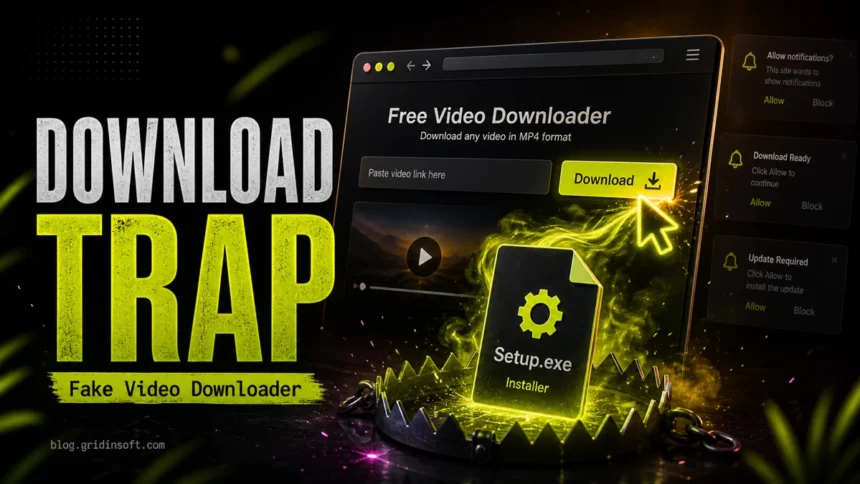
Most people searching for a YouTube video downloader virus are not dealing with the video file itself. The risky part is the fake downloader page or installer: Setup.exe, YTDownloader.exe, a browser extension, notification permission, fake codec prompt, or bundled unwanted program. If the question is about loader.to, en.loader.to, ytdlp.online, or a similar converter page, treat the site as a trust decision first: do not run any EXE, APK, browser extension, or notification prompt just to download a media file. Stop running the download, keep the file name and path for reference, uninstall the suspicious app, clean browser permissions and extensions, check startup entries, then scan Windows before you sign back in to important accounts.
The same bundle logic applies to codec packs: if Infatica appeared after a K-Lite install, follow our K-Lite Codec Pack Infatica removal guide before reinstalling media tools from another source.
A real MP4 file is different from a downloader installer. If your question is only whether the downloaded video file itself can be malware, use our MP4 malware safety checklist. This guide is for the riskier situation: you clicked a downloader button, accepted a prompt, installed a tool, or now see pop-ups, redirects, unknown extensions, or security alerts.
First, Decide What Actually Ran
| What happened | Risk and next step |
|---|---|
| You only pasted a video URL into a web page and closed it. | Lower risk. Clear the page from history if it was shady, remove any notification permission you granted, and do not download its installer. |
The site downloaded an .mp4 file only. |
Check the real extension and scan the file before opening it. Do not install a codec, player, or helper app from the same page. |
The site downloaded Setup.exe, Free YouTube Downloader.exe, ytdownloader.exe, Box.exe, or a similar program. |
High risk. Treat it as software, not a video. If it ran, follow the full cleanup path below. |
| Chrome, Edge, or Firefox started showing pop-ups, search redirects, or a new extension. | Likely browser-side PUA or adware. Remove extensions, reset site permissions, and check browser policies. |
| The file returns after deletion, opens PowerShell, or creates scheduled tasks. | Possible persistence. Check startup locations and scan the system before using passwords on that PC. |
If the file is YTDownloader.exe or Free YouTube Downloader.exe
Do not judge the file by the downloader name alone. Check where it lives, whether it starts with Windows, whether it added browser helper components, and whether it created scheduled tasks. Old YTDownloader-style adware commonly used startup entries and bundled browser components, while newer fake downloader pages may use the same naming pattern for unrelated malware. Treat the name as a clue, then verify the path, publisher, startup behavior, and scan result before deciding it is safe.
Why Fake Downloader Pages Are Risky
Search results for video downloaders mix legitimate tools, ad-heavy converter pages, old PUA removal guides, and security reports. ASEC documented a campaign where fake YouTube video download pages redirected users from a download button to advertising or malware download pages; the follow-on chain used PowerShell, NodeJS, and Task Scheduler to install proxyware such as DigitalPulse or Honeygain components without clear consent.[1]
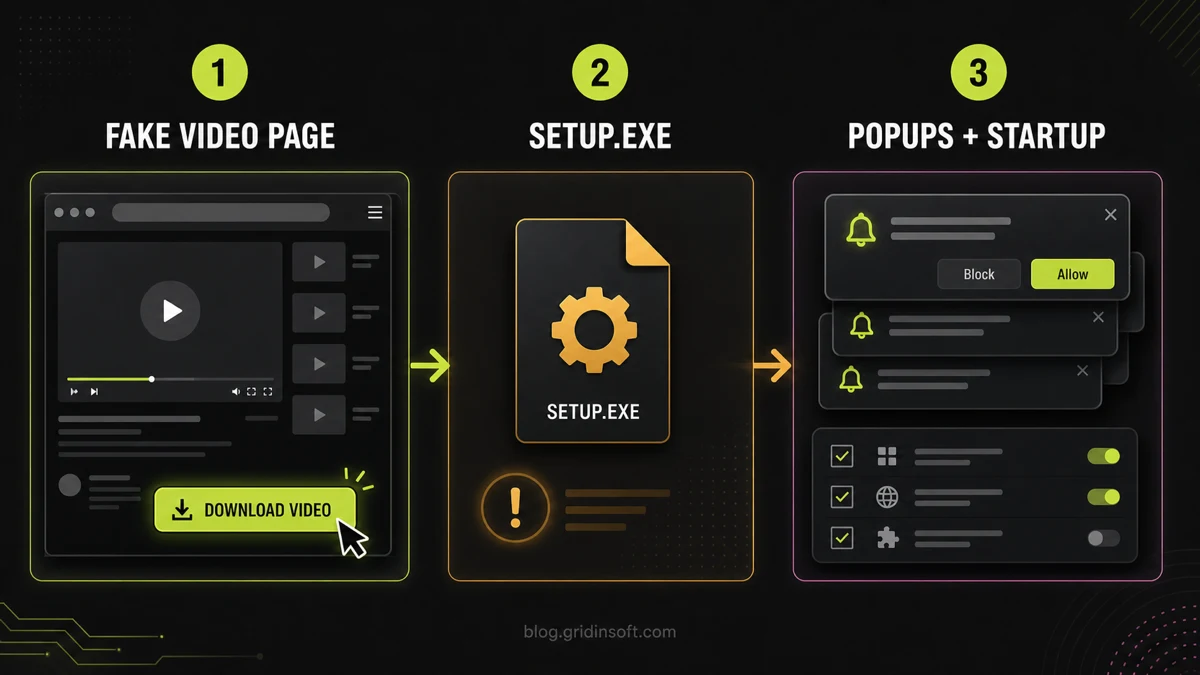
Setup.exe, then browser pop-ups and startup items appear.That does not mean every downloader search result is malware. The practical problem is trust: a random converter page can show multiple fake buttons, push browser notifications, redirect through ads, or swap a video download for an executable. YouTube’s own help pages describe official download options for videos you uploaded and offline viewing through YouTube features, not a blanket approval for third-party download sites.[2]
If the cleanup turns up upWire.exe, wire.exe, or a Trojan.Proxy alert, use the focused upWire.exe Trojan.Proxy removal guide to check proxy settings, services, firewall rules, and account-session risk.
Check Loader.to, En.loader.to, and YTDLP.online Before You Click
Exact downloader domains need a different answer than a generic “is YouTube downloading safe” question. The site may only be an ad-heavy web converter, but the risk rises when it asks for an installer, browser extension, APK, notification permission, or account/session data.
loader.to- Current safety read: The Gridinsoft scanner currently marks loader.to as a suspicious website with a 35/100 trust score and a blacklist warning.
- Safer next step: Do not run helper installers, APKs, or extension prompts from the page. If you already used it, clear site notifications, check Downloads for executables, and scan anything that ran.
en.loader.to- Current safety read: The en.loader.to subdomain shows the same 35/100 warning pattern in the Gridinsoft scanner.
- Safer next step: Treat it as a high-caution converter page. Avoid signing in, entering payment data, allowing notifications, or accepting any “required” player/codec prompt.
ytdlp.online- Current safety read: The Gridinsoft scanner currently gives ytdlp.online a mixed 61/100 trust score rather than a clean, established trust signal.
- Safer next step: Do not assume the name means it is the official yt-dlp project. Avoid pasting private or cookie-protected URLs and do not install extra helpers from pop-ups.
yt-dlp- Current safety read: The official yt-dlp project is a command-line audio/video downloader project; a web page using a similar name is a third-party service unless the project itself identifies it as official.[6]
- Safer next step: Verify the source before downloading. A real open-source tool does not make every “yt-dlp online” clone, mirror, ad, or installer safe.
If the page only converted a URL and you downloaded a normal media file, the immediate risk is lower. If it pushed an executable, changed browser settings, created redirects, or keeps showing pop-ups, follow the cleanup steps below instead of trying another converter.
Immediate Steps If You Clicked the Download
- Do not run the installer again. If the file is still in Downloads, leave it there until you record the exact name, path, publisher, and time downloaded.
- Disconnect if suspicious activity is active. Use airplane mode or unplug Ethernet if you see outbound alerts, PowerShell windows, forced browser redirects, or unknown account sign-ins.
- Show real file extensions. A name like
video.mp4.exe,download.mp4.scr, orsetup.lnkis not a video. - Check Downloads, Temp, and AppData. Look for newly created EXE, MSI, BAT, CMD, PS1, JS, VBS, SCR, LNK, ZIP, or ISO files from the same time window.
- If Windows says the file is open, identify the holder first. Use our locked suspicious file cleanup checklist before force-deleting it.
- Scan the file and the system. Run your installed security tool, then use Gridinsoft Anti-Malware for a second-opinion cleanup scan if the installer ran, changed the browser, or came from an ad-heavy converter page.
Remove Downloader Apps and Browser Changes
Start with the obvious installed items, then move to browser permissions. Fake downloader flows commonly leave more than one component: a Windows app, a browser extension, notification permission, search redirect, or helper process.
- Uninstall unknown downloader apps. Open Installed apps and remove anything added at the same time as the download. Watch for generic names like Video Downloader, Free Downloader, Media Player, Video Converter, Search App, Update Service, or Optimizer.
- Remove suspicious browser extensions. In Chrome, Edge, and Firefox, remove extensions tied to downloading, coupons, search, video conversion, PDF tools, or unknown publishers.
- Revoke notification permissions. Google Chrome documents notification controls for individual sites; remove sites you do not recognize, especially downloader domains that kept showing pop-ups.[3]
- Check search engine, homepage, and new tab settings. If they revert after you change them, look for browser policies or a Windows startup item restoring them.
- Clear browser sync only when needed. If the unwanted extension returns on another device, remove it from the browser account and then re-enable sync carefully.
If you see any suspicious applications that you don't remember installing, you should remove them as well.
- Right-click the Start button and select Installed Apps (or Apps & Features).
- Scroll through the list to find suspicious app or any other unfamiliar program.
- Click the three dots (...) next to it and select Uninstall.
- Open Finder and go to the Applications folder.
- Locate suspicious app or any app you don't recognize.
- Drag it to the Trash.
- Empty the trash to remove it permanently.
- Go to Settings > Apps > See all apps.
- Find suspicious app or any suspicious app in the list.
- Tap on it and select Uninstall.
- Launch Chrome.
- Click the three dots (...) in the top right corner.
- Select Extensions > Manage Extensions.
- Click Remove next to the extension you want to delete.
Quick Access: Type chrome://extensions/ in the address bar.
- Open Safari.
- In the menu bar, click Safari and select Settings (or Preferences).
- Click on the Extensions tab.
- Select the extension and click Uninstall.
- Click the menu button, select Add-ons and themes.
- Go to the Extensions tab.
- Click the three dots (...) next to the extension and select Remove.
Quick Access: Type about:addons in the address bar.
- Launch Microsoft Edge.
- Click the three dots (...) in the top right corner.
- Select Extensions.
- Find the extension and click Remove.
Quick Access: Type edge://extensions/ in the address bar.
- Launch Brave browser.
- Click the menu icon > Extensions.
- Find the extension and click Remove.
Quick Access: Type brave://extensions/ in the address bar.
- Launch Opera.
- Click the Opera logo in the top left corner.
- Select Extensions > Extensions.
- Click the X or Remove button next to the extension.
Quick Access: Type opera://extensions/ in the address bar.
- Tap on the three dots (...) in the top right corner and Choose Settings.

- Choose Reset and Clean up and Restore settings to their original defaults.

- Tap Reset settings.

Quick Access: Type chrome://settings/reset in the address bar.
- Open Safari.
- In the menu bar, click Safari > Clear History.
- Select all history and click Clear History.
- Go to Safari > Settings (or Preferences).
- Click the Privacy tab and select Manage Website Data... > Remove All.
- In the Advanced tab, check Show features for web developers.
- In the menu bar, select Develop > Empty Caches.
- Launch Brave browser.
- Click the menu icon in the top right corner and select Settings.
- Click Additional settings > Reset settings.
- Tap Restore settings to their original defaults.
- Confirm by clicking Reset settings.
Quick Access: Type brave://settings/reset in the address bar.
- In the upper right corner tap the three-line icon and Choose Help.

- Choose More Troubleshooting Information.

- Choose Refresh Firefox... then Refresh Firefox.

Quick Access: Type about:support and click Refresh Firefox.
- Tap the three dots.

- Choose Settings.

- Tap Reset Settings, then Click Restore settings to their default values.

Quick Access: Type edge://settings/reset in the address bar.
- Launch the Opera browser.
- Click the Opera menu button in the top left corner and select Settings.
- Scroll down to the Advanced section in the left sidebar and click Reset and clean up.
- Click Restore settings to their original defaults.
- Click Reset settings to confirm.
Quick Access: Type opera://settings/reset in the address bar.
After reset, verify that YouTube video downloader is no longer set as your default search engine or homepage.
Check Startup, Scheduled Tasks, and Services
If the installer ran, do not stop at deleting the downloaded file. ASEC’s case shows why: the visible download can be only the first step, while persistence lives in Task Scheduler or scripts.[1] Microsoft Sysinternals Autoruns is useful here because it shows startup locations, services, drivers, browser helper objects, codecs, scheduled tasks, and other auto-start entries; its VirusTotal option can help triage unknown files by hash.[4]
- Open Task Manager and review Startup apps for new or generic entries.
- Open Task Scheduler and sort tasks by date if possible. Look for downloader, updater, cleanup, defrag, video, media, or random-name tasks created around the incident.
- Check
%AppData%,%LocalAppData%,%ProgramData%,%TEMP%, and the Startup folders for recently created scripts or launchers. - Use Autoruns carefully: hide Microsoft entries, review unsigned or unknown third-party entries, and do not delete drivers or services you cannot identify.
- If a suspicious file is locked, Microsoft PowerToys File Locksmith can show which process is using selected files or directories.[5]
When to Change Passwords
Rotate passwords from a clean device if the downloader installer ran, your browser was modified, you saw unknown extensions, or security software reported an infostealer, Trojan, downloader, proxyware, or credential-related detection. Start with email, Google, Microsoft, banking, password manager, Steam, Discord, and social accounts. Also revoke unknown sessions where those services provide a session list.
If the page only downloaded a file and you never opened it, password rotation is usually not the first step. Scan the file, remove site permissions, and monitor account alerts instead.
Scan and Finish Cleanup
After manual cleanup, run a full system scan. Gridinsoft Anti-Malware can help detect adware, PUA bundles, downloader leftovers, proxyware components, browser hijacker traces, and suspicious startup items that a fake video downloader may have left behind. Reboot once, scan again if alerts return, and confirm that browser settings no longer reset themselves.

Downloader pop-ups or startup entries keep coming back?
After removing suspicious apps, extensions, and notification permissions, scan for bundled components, scheduled tasks, proxyware, and hidden leftovers from the fake download flow.
FAQ
Can a YouTube video downloader give me a virus?
Yes. The risk usually comes from a fake site, bundled installer, browser extension, notification prompt, or executable file, not from the normal act of watching a YouTube video.
Is a downloaded MP4 from YouTube automatically dangerous?
No. A real MP4 is a media file. The danger rises when the file is actually an executable, comes from a shady converter, arrives inside an archive, or requires a fake codec or player install.
Should I delete Setup.exe immediately?
If you have not run it, deleting it after recording the name and path is reasonable. If it ran or refuses deletion, first check what process is holding it and scan the system for persistence.
Why do pop-ups continue after I close the downloader site?
You may have allowed browser notifications or installed an extension. Remove the site from notification permissions, delete suspicious extensions, and reset the browser if settings keep returning.
Is ytdlp.online the official yt-dlp site?
No. Treat ytdlp.online as a third-party web service using a similar name, not as the official yt-dlp project. If a page asks for an installer, private URL, browser permission, or account data, verify the source first and scan any downloaded file.
References
- AhnLab Security Intelligence Center. “Proxyware Malware Being Distributed on YouTube Video Download Site.” ASEC, published July 29, 2025, modified September 11, 2025, accessed May 31, 2026. https://asec.ahnlab.com/en/89574/
- YouTube Help. “Download YouTube videos that you’ve uploaded.” Google Help, accessed May 31, 2026. https://support.google.com/youtube/answer/56100?hl=en
- Google Chrome Help. “Use notifications to get alerts.” Google Help, accessed May 31, 2026. https://support.google.com/chrome/answer/3220216?hl=en
- Microsoft Learn. “Autoruns for Windows.” Sysinternals, accessed May 31, 2026. https://learn.microsoft.com/en-us/sysinternals/downloads/autoruns
- Microsoft Learn. “File Locksmith utility for Windows.” PowerToys, updated 2026, accessed May 31, 2026. https://learn.microsoft.com/en-us/windows/powertoys/file-locksmith
- yt-dlp project. “yt-dlp/yt-dlp: A feature-rich command-line audio/video downloader.” GitHub, accessed June 11, 2026. https://github.com/yt-dlp/yt-dlp
Downloader pop-ups or startup entries keep coming back?
After removing suspicious apps, extensions, and notification permissions, scan for bundled components, scheduled tasks, proxyware, and hidden leftovers from the fake download flow.