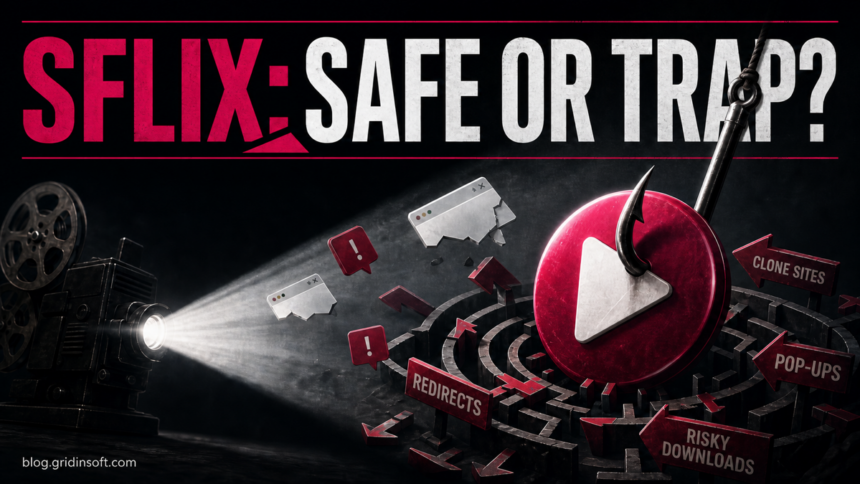
SFlix should not be treated as safe. The name is used across changing streaming domains, so it does not identify one stable, verified service. The page you open, embedded player, advertising chain, redirect destination, and downloaded file may all be controlled separately. If you only opened the page and closed it, the risk is usually lower. If you clicked Allow, installed a player or extension, ran an APK or executable, or entered a password or card number, take the matching recovery steps below.
This guide does not list working SFlix mirrors. It explains how to judge what happened without revisiting the page and how to clean up pop-ups, notifications, downloads, apps, extensions, and exposed accounts.
Why the SFlix Name Is Not a Safety Verdict
SFlix is a frequently copied streaming brand, not a security certificate. A familiar name, copied interface, HTTPS padlock, functioning video, or old bookmark cannot prove that the current hostname is controlled by the same operator or that its advertising and player partners are safe.
The Office of the United States Trade Representative’s 2025 Notorious Markets Review identifies sflix.to and sflix2.to among sites related to the VIDSRC/MEGACLOUD streaming network.[1] That official record helps explain why several domains can share the SFlix identity. It does not mean every present or future SFlix-looking hostname has the same content, ownership, or threat status.
A scan of one URL is also a point-in-time result. It cannot automatically verify a player loaded from another host, a pop-under opened after a click, a rotating advertisement, a future redirect, or a file downloaded from a different domain.
Your SFlix Risk Depends on What You Did
| What happened | Risk and what to do |
|---|---|
| You only opened the page | Close it. If you accepted no permission, downloaded nothing, and entered no data, extensive account recovery is usually unnecessary. Check that no extra tab or download remains. |
| You clicked Play, a CAPTCHA, or a close button | Close every new tab or app-store page. Do not follow a virus warning, support number, update, survey, or verification prompt shown by the redirect. |
| You clicked Allow | Remove notification permission for every unfamiliar site. Notifications can continue after the SFlix tab is closed and may impersonate antivirus or system alerts. |
| You downloaded but did not run a file | Do not open it to “check.” Delete it or inspect it safely. Treat an unknown player, codec, browser update, extension package, APK, archive, disk image, or executable as untrusted. |
| You installed or ran something | Remove the new app or extension, run a full malware scan, review browser and startup changes, reboot, and scan again if redirects or warnings return. |
| You entered a password | From a clean device, change that password anywhere it was reused, revoke active sessions, and enable multi-factor authentication. |
| You entered card details | Contact the card issuer using the number on the card or official banking app. Ask about locking or replacing the card and monitor transactions. |
Signs an SFlix Page Is a Clone or Redirect Trap
Do not use successful playback as proof of safety. Leave the page when you see any of these behaviors:
- Play opens a different domain or an app store. The redirect is part of the risk, even if returning to the original tab eventually starts the video.
- A CAPTCHA tells you to click Allow. Browser notification permission is not required to prove you are human or to play a movie.
- The page requires a player, codec, extension, VPN, APK, or update. A browser stream should not require unknown software supplied by an advertisement or redirect.
- A “free account” requires card verification. Do not submit payment data to confirm age, identity, location, or a free trial.
- A countdown claims the device has viruses. A web page cannot diagnose the computer through a dramatic animation. Close the tab and use a security tool you opened yourself.
- The address changes unexpectedly. A spelling variation, new top-level domain, copied wordmark, or familiar page layout is not evidence that the destination is official.
- Closing an ad creates another tab. Fake close buttons and invisible overlays can trigger the same redirect as the Play button.
These signs show that the page is making unsafe requests. They do not prove that every visitor was infected. The correct response depends on whether a permission was granted, a file ran, or data was submitted.
What to Do After SFlix Redirects or Pop-Ups
- Close the tabs without interacting with the warning. Do not use a phone number, download button, Back-button trap, or “continue” control inside the page. Close the tab or browser window instead.
- Check Downloads. Sort by time and remove anything you did not intentionally request. Do not rely on a movie-like filename; show the real file extension first.
- Review startup pages and the default search engine. Remove unfamiliar pages that appeared after the visit.
- Review extensions. Remove add-ons installed for streaming, captions, downloading, search, coupons, a “secure player,” or a VPN unless you independently chose and verified them.
- Clear the affected site’s data. Remove cookies and site storage for the unfamiliar SFlix or redirect domains. Clearing all browser history is not a substitute for removing permissions and extensions.
- Scan if behavior persists. Repeated redirects after the browser restarts, unknown extensions returning, new apps, security-tool alerts, or changed browser policies justify a full device scan.
Google lists persistent new tabs, redirects to unfamiliar pages, returning extensions, and fake infection alerts among signs of unwanted software or malware in Chrome.[2] A single pop-under during the visit may be an ad-chain event; the same behavior continuing on unrelated sites suggests a browser or device change that needs investigation.
Remove SFlix Notification Spam
Website notifications are different from ordinary pop-up windows. They can appear at the edge of the desktop or in the notification center after the original tab is gone. Microsoft notes that an allowed site can continue sending Edge notifications even when Edge is closed.[3]
- Open the browser’s site-permission settings.
- Find Notifications and review the allowed list.
- Remove or block every unfamiliar SFlix, player, CAPTCHA, advertising, or redirect hostname.
- Review pop-up and redirect permissions separately; do not leave an unfamiliar site in the allowed list.
- If alerts continue, check other installed browsers and Windows notification settings, then review extensions and apps.
If sflix keeps showing unwanted pop-ups, you likely granted it permission to send notifications. To stop them, you need to revoke that permission in your browser settings.
- Copy and paste this into the address bar:
chrome://settings/content/notifications - Scroll down to the Allowed to send notifications list.
- Find sflix.
- Click the three dots (...) next to it and select Remove (or Block).
- Open Safari and go to Settings (or Preferences).
- Click the Websites tab and select Notifications on the left.
- Find sflix in the list on the right.
- Select it and click Remove (or change "Allow" to "Deny").
- Copy and paste this into the address bar:
about:preferences#privacy - Scroll down to Permissions and click Settings... next to Notifications.
- Type sflix in the search bar or find it in the list.
- Select the site and click Remove Website.
- Copy and paste this into the address bar:
edge://settings/content/notifications - Look under the Allow section.
- Find sflix.
- Click the three dots (...) next to it and select Remove (or Block).
- Copy and paste this into the address bar:
brave://settings/content/notifications - Scroll to the Allowed to send notifications list.
- Find sflix.
- Click the three dots (...) and select Remove (or Block).
- Copy and paste this into the address bar:
opera://settings/content/notifications - Check the Allowed to send notifications list.
- Find sflix.
- Click the three dots next to it and select Remove.
Do not click the notification itself to identify the sender. Open browser settings directly and inspect the permission list there.
If You Downloaded or Installed Something
A file that was downloaded but never opened has not had the same opportunity to change the system as a file that ran. Keep it closed. Our guide to checking whether an EXE is safe explains how to inspect a Windows download without launching it.
If you ran an installer, APK, script, archive contents, or browser extension, remove the visible item and then check what it may have added:
- new browser extensions, notification permissions, startup pages, search providers, or managed policies;
- newly installed applications, remote-support tools, download managers, players, or “security” helpers;
- startup entries, scheduled tasks, services, and background processes created near the download time;
- security exclusions or settings changed without a clear reason;
- recurring redirects, fake alerts, high resource use, blocked outbound traffic, or accounts reporting new sessions.
- Launch Chrome.
- Click the three dots (...) in the top right corner.
- Select Extensions > Manage Extensions.
- Click Remove next to the extension you want to delete.
Quick Access: Type chrome://extensions/ in the address bar.
- Open Safari.
- In the menu bar, click Safari and select Settings (or Preferences).
- Click on the Extensions tab.
- Select the extension and click Uninstall.
- Click the menu button, select Add-ons and themes.
- Go to the Extensions tab.
- Click the three dots (...) next to the extension and select Remove.
Quick Access: Type about:addons in the address bar.
- Launch Microsoft Edge.
- Click the three dots (...) in the top right corner.
- Select Extensions.
- Find the extension and click Remove.
Quick Access: Type edge://extensions/ in the address bar.
- Launch Brave browser.
- Click the menu icon > Extensions.
- Find the extension and click Remove.
Quick Access: Type brave://extensions/ in the address bar.
- Launch Opera.
- Click the Opera logo in the top left corner.
- Select Extensions > Extensions.
- Click the X or Remove button next to the extension.
Quick Access: Type opera://extensions/ in the address bar.
Open Extensions/Add-ons again and remove any entry linked to sflix or clearly out of place.
If you see sflix or other suspicious applications that you don't remember installing, you should remove them as well.
- Right-click the Start button and select Installed Apps (or Apps & Features).
- Scroll through the list to find sflix or any other unfamiliar program.
- Click the three dots (...) next to it and select Uninstall.
- Open Finder and go to the Applications folder.
- Locate sflix or any app you don't recognize.
- Drag it to the Trash.
- Empty the trash to remove it permanently.
- Go to Settings > Apps > See all apps.
- Find sflix or any suspicious app in the list.
- Tap on it and select Uninstall.
Deleting the visible download may leave a bundled app, loader, startup entry, scheduled task, service, browser policy, or extension behind. After the manual review, run a full Gridinsoft Anti-Malware scan to check for detections and persistence, remove what is found, reboot, and repeat the scan if the activity returns.
If You Entered a Password or Card Number
Use a clean device for account and payment recovery. Do not return to the SFlix page to look for a cancellation link or support contact.
- Password entered: change it at the real service, change every reused copy, revoke other sessions, and enable MFA. Review recovery email, phone, forwarding, and connected-app settings.
- Payment details entered: contact the issuer through the official app or number on the card. Ask whether the card should be locked or replaced, and monitor pending charges.
- Browser extension or app also installed: complete device cleanup before entering new passwords on that device. An untrusted extension may read page contents or sessions.
- A crypto wallet was connected or seed words entered: disconnect the site, revoke risky approvals, and move remaining assets using a clean device and a newly secured wallet when necessary.
Do HTTPS, a Clean Scan, an Ad Blocker, or a VPN Make SFlix Safe?
No single signal verifies the whole experience:
- HTTPS encrypts the connection to one hostname; it does not prove the site, ad, redirect, or download is trustworthy.
- A clean URL report describes the checked hostname at that time; it does not certify every SFlix clone or embedded third party.
- An ad blocker may reduce pop-ups but cannot validate a login form, downloaded file, extension, or a redirect that still opens.
- A VPN changes the network route or visible IP address; it does not remove malware, make a fake form legitimate, or turn a risky installer into a safe one.
For the wider pattern, see our free movie streaming site scam guide. The 123Movies safety guide explains a similar clone ecosystem, while the fake virus alert guide covers redirects that impersonate local security warnings.
How to Avoid the Same Trap
- Use licensed services and bookmarks created from a verified source.
- Keep the browser, operating system, and security software updated.
- Leave site notifications blocked unless a trusted site has a real reason to send them.
- Never install a player, codec, extension, APK, or update offered by a streaming page or advertisement.
- Do not use a main password or payment card for “free” access verification.
- Do not revisit the page to reproduce the redirect. Use browser history, notification settings, and download timestamps instead.
FAQ
Can SFlix give my device a virus?
The main risk comes from redirects, fake Play or CAPTCHA controls, notification permission, extensions, APKs, player downloads, and files that are installed or run. Merely opening and closing the page is lower risk, but it does not make the site trustworthy.
What if I clicked Allow on an SFlix page?
Remove every unfamiliar sender from the browser’s notification permissions and review pop-up and redirect permissions separately. If alerts continue, check other browsers, extensions, installed apps, and browser policies.
Should I scan after an SFlix redirect?
A scan is most important if you downloaded or ran a file, installed an app or extension, allowed a suspicious prompt, or redirects and security warnings continue after restarting the browser. A single closed redirect with no other action is lower risk.
Is the SFlix app safe?
The name alone is not enough to verify an app. Check the exact store listing, developer, requested permissions, signing information, and download source. Do not sideload an APK offered by a streaming page, pop-up, or redirect.
Does a VPN stop SFlix malware?
No. A VPN can change the network path, but it cannot validate a clone, block every malicious redirect, inspect an installer, remove an unwanted extension, or protect data typed into a fake form.
References
- Office of the United States Trade Representative. “2025 Review of Notorious Markets for Counterfeiting and Piracy.” Executive Office of the President of the United States, 2026, accessed July 23, 2026. ustr.gov
- Google. “Remove unwanted ads, pop-ups and malware — Computer.” Google Chrome Help, accessed July 23, 2026. support.google.com
- Microsoft. “Manage website notifications in Microsoft Edge.” Microsoft Support, accessed July 23, 2026. support.microsoft.com