PresentMon_x64.exe is usually a legitimate performance-monitoring component, not a Windows system file. A common copy runs from C:\Program Files\NVIDIA Corporation\FrameViewSDK\bin\PresentMon_x64.exe and feeds frame-rate or hardware-overlay data. Do not judge it only by the Intel-origin PresentMon name or your GPU brand. Open its file location, check the signature and parent package, then change the overlay or monitoring app that launched it.
If the process suddenly uses noticeable CPU, memory, or keeps the fans active, ending it is a safe reversible test. The process may return while its owning service or overlay remains enabled; deleting the EXE is not a reliable fix.
What PresentMon_x64.exe Does
PresentMon collects frame-presentation timing and related CPU, GPU, and display-latency data. Intel maintains the open-source PresentMon project, but that does not mean every file bearing the name came from an Intel graphics-driver installation. The technology is designed for different graphics APIs and hardware vendors, and other applications can integrate it.
NVIDIA says FrameView uses PresentMon for its analytics. That is why the exact PresentMon_x64.exe filename is commonly associated with the NVIDIA FrameView SDK folder. Other benchmarking or overlay tools may use PresentMon code, a service, or a differently named console binary. The owner folder and parent process are stronger evidence than the filename alone.
| What you find | What it means and what to do |
|---|---|
NVIDIA Corporation\FrameViewSDK\bin |
Usually the NVIDIA FrameView SDK copy. Turn off the related performance overlay/capture feature, update the NVIDIA package, or uninstall the optional FrameView SDK if you do not use it. |
| An Intel PresentMon installation | Quit the PresentMon capture/overlay application first. Update or uninstall that application if the process misbehaves. |
| Another benchmark or overlay folder | Change capture, telemetry, or startup settings in that owner application. Do not delete a shared component behind the app’s back. |
Temp, a random profile folder, System32, or an unrelated app folder |
Verify the digital signature and parent process. An unexplained or invalidly signed copy needs a security check. |
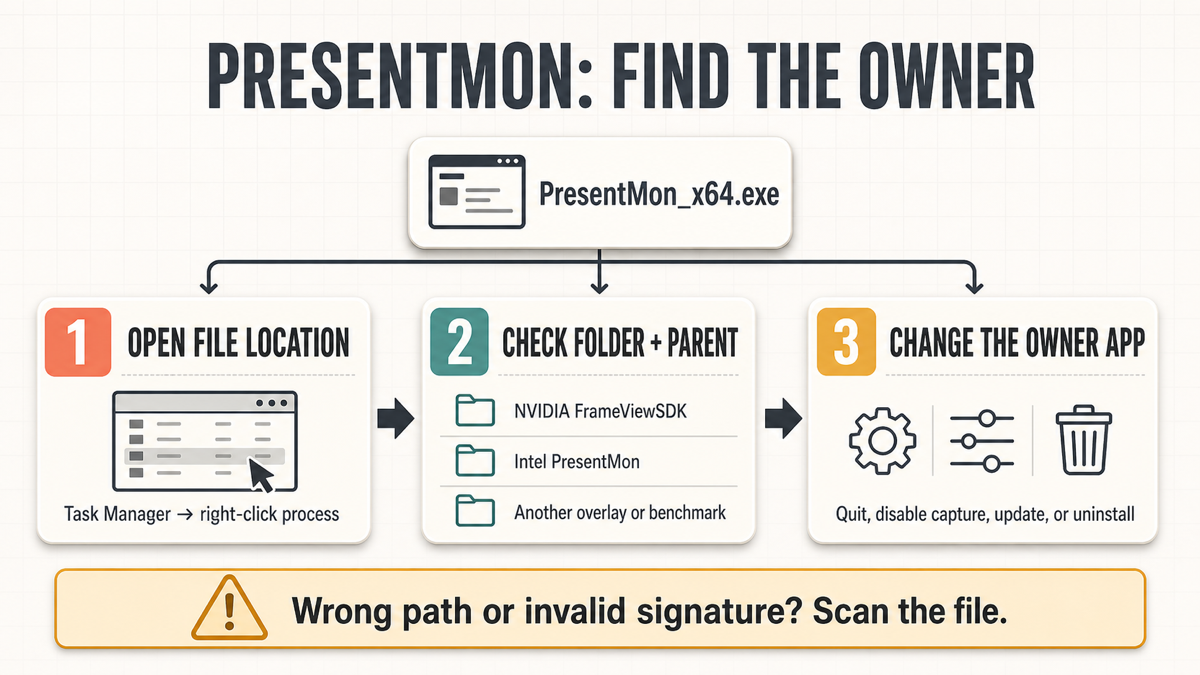
Find Which App Started PresentMon_x64.exe
- Open Task Manager with
Ctrl+Shift+Esc. On the Details tab, findPresentMon_x64.exe. - Right-click the process and choose Open file location. Keep that folder open; it is the best first clue to the owner.
- Right-click the file, open Properties → Digital Signatures, and inspect the signer. A valid signature supports the package identity, but it does not replace the folder and parent-process checks.
- In Task Manager, Process Explorer, or the owning app, identify the parent service or overlay. A FrameView SDK service, Intel PresentMon component, or known benchmark package explains why the process is running.
- Change the setting in that owner application. Disable its performance overlay, capture, telemetry, or startup feature; update it; or uninstall the optional package if you no longer need it.
Windows PowerShell can report the signature without changing the file: Get-AuthenticodeSignature -LiteralPath "C:\Program Files\NVIDIA Corporation\FrameViewSDK\bin\PresentMon_x64.exe". Microsoft documents the command as a way to retrieve a file’s Authenticode signature and status.
Can You End PresentMon_x64.exe?
Yes. Ending a legitimate PresentMon capture process normally stops the current measurement or overlay session; it does not remove your display driver or damage Windows. Save any benchmark capture you need, end the task, and watch CPU use for several minutes.
If the process returns, an owner service, game overlay, benchmark, or startup item launched it again. That restart is a configuration clue, not proof that the process is malware. Use the owner folder to decide which application to change.
How to Stop PresentMon at Startup
Do not start by deleting PresentMon_x64.exe or applying registry priority hacks. Use the least disruptive owner-specific option:
- Disable the overlay or performance capture. In the owner application, turn off FPS, latency, telemetry, or automatic capture features you do not use.
- Check Startup apps. Open Settings → Apps → Startup and disable the identified benchmark or overlay application, not an unrelated graphics component.
- Update the owner package. A fixed service or overlay build is safer than keeping a damaged or obsolete executable.
- Repair or reinstall the owner. If crashes, CPU spikes, or memory growth started after an update, remove and reinstall that specific optional package.
- Uninstall only what is optional. If the path belongs to NVIDIA FrameView SDK and you never use FrameView or a dependent overlay, uninstall that package through Windows Installed apps. Do not remove the whole graphics driver just to stop one capture component. If the separately registered
FvSvcis the process you are investigating, use the nvfvsdksvc_x64.exe service guide to verify its path and test it reversibly first.
Fix High CPU, Memory Use, or Loud Fans
A short spike while a game or overlay starts can be normal. Sustained use at the desktop, growing memory, recurring crashes, or fan noise needs an owner-app repair. Follow this order:
- End
PresentMon_x64.exeonce and confirm whether CPU temperature, fan speed, or frame pacing returns to normal. - Turn off the owning overlay or capture feature and reboot. If the process stays gone, the monitor was the trigger.
- Update or cleanly reinstall the owner package. Avoid downloading a replacement EXE from a file database.
- Check whether two monitoring tools are capturing the same game. Keep one overlay active during testing.
- If the whole graphics stack is unstable, continue with the owner/vendor repair path. Our guides to NVIDIA Web Helper and NVIDIA Container explain how to isolate neighboring NVIDIA processes without labeling every helper as malware.
Do not assume that seeing PresentMon on an AMD system means AMD installed the exact NVIDIA-named file. PresentMon itself supports multiple hardware vendors, but the folder and signer must identify the package on your PC. A previous NVIDIA installation, a benchmark utility, or another overlay can remain after hardware changes.
When PresentMon_x64.exe Deserves a Malware Check
The legitimate filename can be copied by unrelated software, so treat context—not the name—as the security decision. Investigate when the file runs from C:\Windows\System32, a random Temp or user-profile subfolder, has no valid expected signature, starts from an unrelated parent, appeared after an unknown installer, or recreates itself through an unfamiliar scheduled task or startup entry.
First, compare the path and signature with the package you actually installed. Use our broader guide to check whether an EXE file is safe. If the suspicious copy already ran, a full Gridinsoft Anti-Malware scan can check for hidden files, startup entries, scheduled tasks, bundled applications, and other persistence that deleting one visible file would miss.
If the process path is wrong, the name imitates a Windows component, or high CPU started after an unknown installer, scan for hidden miners, services, startup entries, and bundled components.
Scan a suspicious copyFAQ
Is PresentMon_x64.exe a virus?
Usually not. A copy inside a known performance-monitoring package such as NVIDIA FrameView SDK, with a matching valid signature and parent, is normally legitimate. A wrong-path or invalidly signed copy needs investigation.
Why is an Intel project running on an NVIDIA or AMD PC?
Intel maintains the open-source PresentMon project, while multiple vendors and tools can use its frame-timing technology. The installed owner may be NVIDIA FrameView, Intel PresentMon, or another overlay or benchmark.
Will ending PresentMon_x64.exe hurt my graphics driver?
Ending the task normally stops only the active monitoring or overlay session. The owning service or app may restart it. Use the owner application’s settings for a lasting change.
Why does PresentMon_x64.exe keep coming back?
An enabled overlay, capture service, benchmark, or startup app is launching it again. Open the file location and change that owner instead of repeatedly killing or deleting the process.
Should I uninstall NVIDIA FrameView SDK?
You can uninstall the optional package if the file belongs to its folder and you do not use FrameView or software that depends on it. Update or disable the overlay first when you are unsure.
References
- GameTechDev/Intel. “PresentMon.” GitHub, accessed August 4, 2026. https://github.com/GameTechDev/PresentMon
- NVIDIA. “Download FrameView App.” NVIDIA, accessed August 4, 2026. https://www.nvidia.com/en-us/geforce/technologies/frameview/
- Microsoft. “Get-AuthenticodeSignature.” Microsoft Learn, accessed August 4, 2026. https://learn.microsoft.com/en-us/powershell/module/microsoft.powershell.security/get-authenticodesignature