GoMovies is not one stable service whose safety can be judged once. The name appears across different domains, mirrors, embedded players, and unofficial apps, so the exact address and what the page asks you to do matter more than the GoMovies label. Treat a GoMovies-branded page as untrusted if it opens other tabs, requests notification access, asks for a player or extension, requests payment or account details, or tells you to run a “verification” command. Closing a redirected tab usually does not mean the device is infected; downloading, installing, granting permission, entering data, or running a command changes the response.
Is GoMovies safe to use?
There is no useful blanket “safe GoMovies site” verdict. A domain can change owners, content, advertising partners, and redirect chains, while unrelated operators can reuse the same brand. HTTPS only protects the connection to the current domain; it does not prove that the operator, player, download, advertisement, or next redirect is trustworthy.
The safest decision is not to rely on a free-streaming clone for a login, card payment, app, browser extension, media player, codec, APK, or software update. If you only opened a page and closed it without granting permissions or running anything, the practical risk is much lower than after an install or fake verification flow.
| What happened | Risk and next action |
|---|---|
| You opened the page, then closed it | Usually a browser-session event, not proof of infection. Close unexpected tabs and check the Downloads list. |
| A Play button opened ads or redirects | Do not interact with the new page. Close it and review browser permissions if prompts appeared. |
| You clicked Allow for notifications | The site can send scam alerts after the tab is closed. Remove its notification permission. |
| You downloaded a player, extension, APK, ZIP, or installer | Do not open it. Delete it from Downloads and scan the file or device. |
| You installed or ran something | Remove the app or extension, run a full malware scan, reboot, and scan again if symptoms return. |
| You entered a password or card | Change the password from a clean device, end sessions, enable MFA, and contact the card issuer if payment data was submitted. |
Why GoMovies clones and redirects are difficult to judge
A brand search can lead to old domains, mirrors, unrelated pages, and sites that copy the same logo or layout. Even a clean result for one address cannot certify every GoMovies-branded page or the third-party advertising and player frames it loads. That is why lists of “official mirrors” age badly and can send readers to a different operator later.
Check the full hostname, not just the word GoMovies. Look for unexpected subdomains, misspellings, a different top-level domain, forced notification prompts, a player that opens a new tab, and requests to install an extension or application. A page that claims a VPN, account, special codec, browser update, or human-verification command is required before playback is asking for more trust than a video page should need.
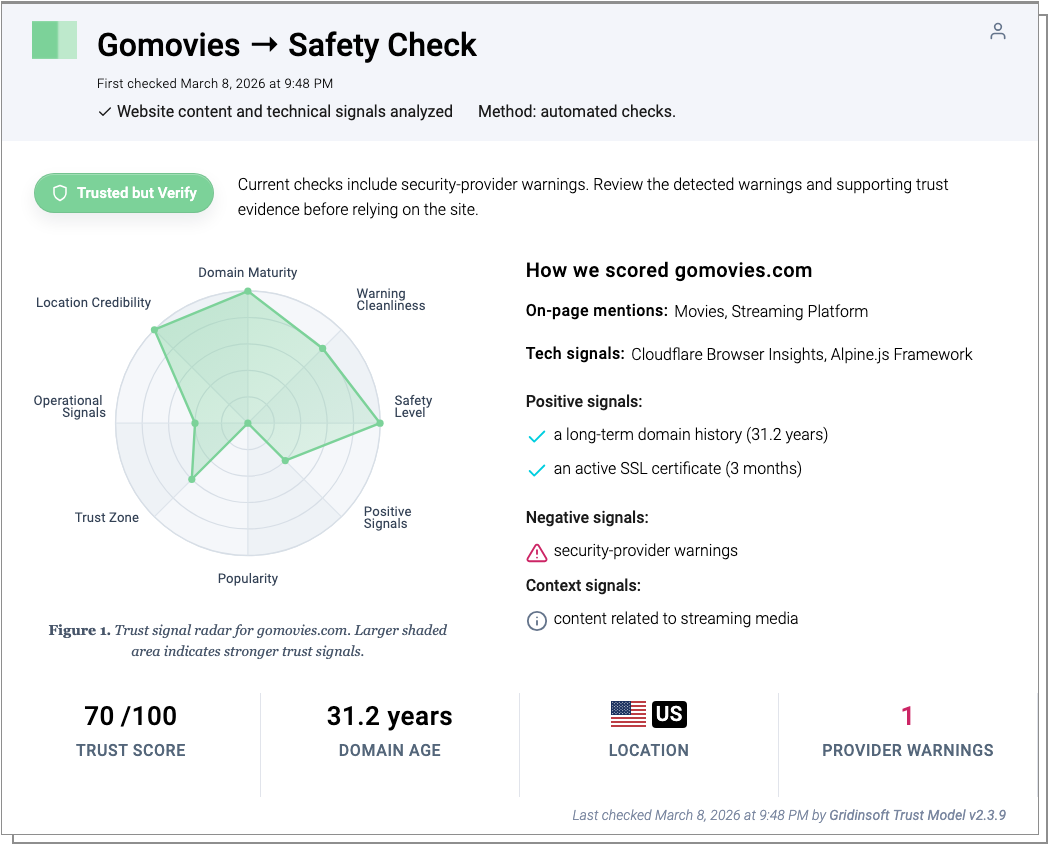
The report above is a point-in-time check of gomovies.com only. It recorded a 70/100 trust score and one security-provider warning on March 8, 2026. That result neither approves other GoMovies domains nor guarantees that this domain, its embedded content, or later redirects remain unchanged. Use the Gridinsoft Website Reputation Checker report as one input, and re-check the exact address you actually visited.
Fake Play buttons and “verify you are human” commands
A Play button that opens another tab is not merely annoying when the destination tries to make you run code. Microsoft documented malvertising in which interactions on free or pirated movie pages redirected visitors to ClickFix lures. Those pages used fake verification instructions to make people launch commands, and one observed chain installed the Lumma information stealer.
Never press Win+R, open PowerShell or Terminal, paste clipboard content, or run a command because a streaming page says it will unlock a video or prove you are human. A real browser verification does not require you to execute a local command. If you already followed those instructions, disconnect the device from the network, use a different clean device to secure important accounts, and complete the malware and session-recovery steps below.
How to remove GoMovies notifications, extensions, and downloads
- Close the site and every tab it opened. Do not click buttons inside a fake virus alert. If a tab refuses to close, end the browser from Task Manager or Force Quit, then reopen it without restoring that tab.
- Review Downloads. Delete unexpected installers, archives, APKs, “players,” codecs, and update files. If the file was downloaded but not opened, follow the safer checks in our suspicious-download guide.
- Remove website notification permission. Block the exact domain and any unfamiliar site added during the same session.
If gomovies keeps showing unwanted pop-ups, you likely granted it permission to send notifications. To stop them, you need to revoke that permission in your browser settings.
- Copy and paste this into the address bar:
chrome://settings/content/notifications - Scroll down to the Allowed to send notifications list.
- Find gomovies.
- Click the three dots (...) next to it and select Remove (or Block).
- Open Safari and go to Settings (or Preferences).
- Click the Websites tab and select Notifications on the left.
- Find gomovies in the list on the right.
- Select it and click Remove (or change "Allow" to "Deny").
- Copy and paste this into the address bar:
about:preferences#privacy - Scroll down to Permissions and click Settings... next to Notifications.
- Type gomovies in the search bar or find it in the list.
- Select the site and click Remove Website.
- Copy and paste this into the address bar:
edge://settings/content/notifications - Look under the Allow section.
- Find gomovies.
- Click the three dots (...) next to it and select Remove (or Block).
- Copy and paste this into the address bar:
brave://settings/content/notifications - Scroll to the Allowed to send notifications list.
- Find gomovies.
- Click the three dots (...) and select Remove (or Block).
- Copy and paste this into the address bar:
opera://settings/content/notifications - Check the Allowed to send notifications list.
- Find gomovies.
- Click the three dots next to it and select Remove.
- Remove suspicious extensions. Delete extensions installed for playback, ad blocking, search, captions, or access unless you independently verified the publisher and store listing.
- Launch Chrome.
- Click the three dots (...) in the top right corner.
- Select Extensions > Manage Extensions.
- Click Remove next to the extension you want to delete.
Quick Access: Type chrome://extensions/ in the address bar.
- Open Safari.
- In the menu bar, click Safari and select Settings (or Preferences).
- Click on the Extensions tab.
- Select the extension and click Uninstall.
- Click the menu button, select Add-ons and themes.
- Go to the Extensions tab.
- Click the three dots (...) next to the extension and select Remove.
Quick Access: Type about:addons in the address bar.
- Launch Microsoft Edge.
- Click the three dots (...) in the top right corner.
- Select Extensions.
- Find the extension and click Remove.
Quick Access: Type edge://extensions/ in the address bar.
- Launch Brave browser.
- Click the menu icon > Extensions.
- Find the extension and click Remove.
Quick Access: Type brave://extensions/ in the address bar.
- Launch Opera.
- Click the Opera logo in the top left corner.
- Select Extensions > Extensions.
- Click the X or Remove button next to the extension.
Quick Access: Type opera://extensions/ in the address bar.
Open Extensions/Add-ons again and remove any entry linked to gomovies or clearly out of place.
- Reset altered browser settings. Do this if the homepage, search engine, new-tab page, startup tabs, or managed-browser message changed.
- Tap on the three dots (...) in the top right corner and Choose Settings.
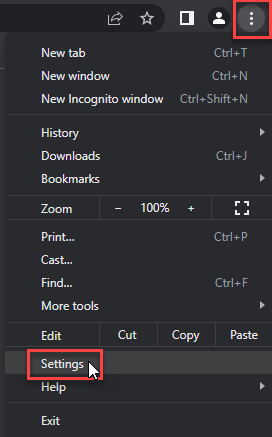
- Choose Reset and Clean up and Restore settings to their original defaults.
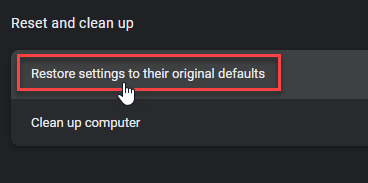
- Tap Reset settings.
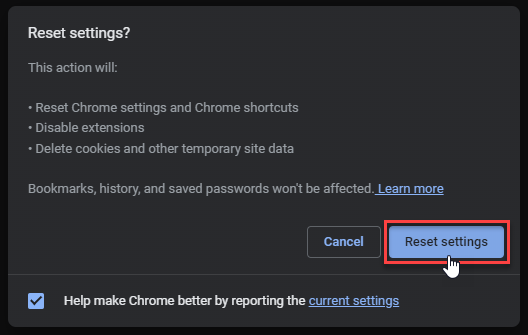
Quick Access: Type chrome://settings/reset in the address bar.
- Open Safari.
- In the menu bar, click Safari > Clear History.
- Select all history and click Clear History.
- Go to Safari > Settings (or Preferences).
- Click the Privacy tab and select Manage Website Data... > Remove All.
- In the Advanced tab, check Show features for web developers.
- In the menu bar, select Develop > Empty Caches.
- Launch Brave browser.
- Click the menu icon in the top right corner and select Settings.
- Click Additional settings > Reset settings.
- Tap Restore settings to their original defaults.
- Confirm by clicking Reset settings.
Quick Access: Type brave://settings/reset in the address bar.
- In the upper right corner tap the three-line icon and Choose Help.
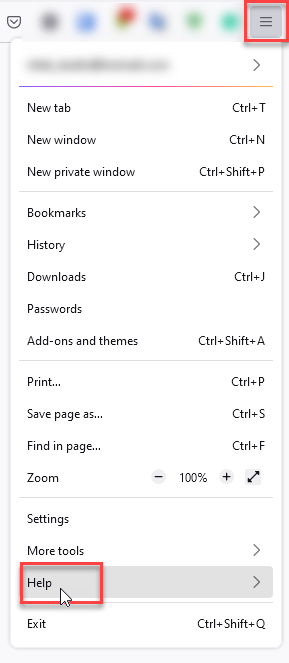
- Choose More Troubleshooting Information.
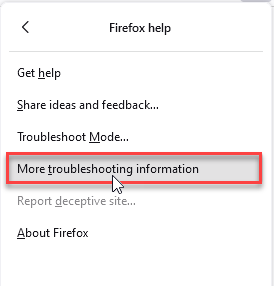
- Choose Refresh Firefox... then Refresh Firefox.
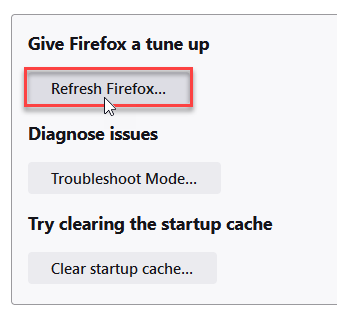
Quick Access: Type about:support and click Refresh Firefox.
- Tap the three dots.
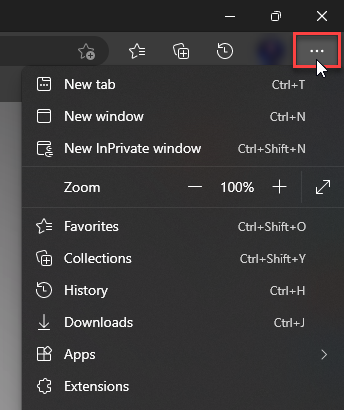
- Choose Settings.
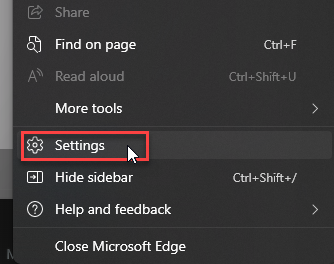
- Tap Reset Settings, then Click Restore settings to their default values.
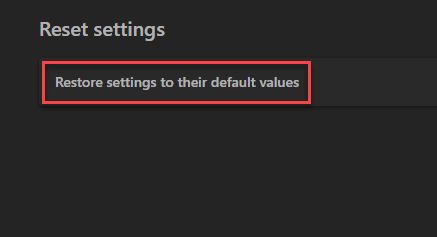
Quick Access: Type edge://settings/reset in the address bar.
- Launch the Opera browser.
- Click the Opera menu button in the top left corner and select Settings.
- Scroll down to the Advanced section in the left sidebar and click Reset and clean up.
- Click Restore settings to their original defaults.
- Click Reset settings to confirm.
Quick Access: Type opera://settings/reset in the address bar.
After reset, verify that gomovies is no longer set as your default search engine or homepage.
- Uninstall newly added apps. Sort installed applications by date and remove anything added with the player or download. Do not keep an app merely because it has a movie icon or a familiar GoMovies name.
- Run a full security scan if anything executed. A fake player or installer can add bundled software, startup entries, scheduled tasks, browser policies, or hidden files that remain after the visible download is deleted.
If a GoMovies download, app, extension, or verification command ran—or redirects return after reboot—use Gridinsoft Anti-Malware to check for malicious files, bundled applications, browser changes, scheduled tasks, and persistence. Remove detections, reboot, then scan again if the same symptom returns. A scan can find local leftovers, but it cannot restore passwords or payment details already sent to someone else.
If the page or email made you download an invoice, coupon, tracking app, browser extension, or support tool, scan the PC before opening it again or logging into sensitive accounts.
Scan after a GoMovies downloadWhat to do after entering a password or card
Malware cleanup and account recovery are separate jobs. If you entered a reused password, change it from a clean device, start with the email account that can reset other services, sign out other sessions, and enable multi-factor authentication. Change every other account that used the same password.
If you submitted card details, contact the issuer using the number printed on the card or the official banking app. Ask whether the card should be locked or replaced and monitor transactions. Do not call a “support” number shown by the streaming page, popup, or payment failure message.
How to reduce the risk next time
- Do not use mirror lists or search ads as proof that a GoMovies domain is official.
- Do not install a player, codec, extension, APK, profile, or certificate to watch a stream.
- Reject notification permission from entertainment sites that do not need it.
- Do not paste commands from a webpage into Run, PowerShell, Terminal, or Command Prompt.
- Keep the browser and operating system updated, and scan downloads before opening them.
- Use unique passwords and avoid entering payment details into a clone or redirect page.
A VPN can change the network path and visible IP address, but it does not inspect every download, make a clone legitimate, reverse a stolen password, or turn a malicious command into a safe one. For the broader pattern behind fake players and mirror sites, see our guide to free movie streaming site scams. You can also compare the related FMovies clone and cleanup risks and the LookMovie domain, pop-up, and payment risks without treating the brands as the same service.
FAQ
Can GoMovies infect my device just by opening a page?
Opening a page can expose the browser to malicious advertising or an exploit, but most common GoMovies-style incidents still require an interaction such as allowing notifications, downloading a file, installing an extension, or following a fake verification command. Close unexpected tabs, check Downloads and permissions, and scan if anything ran or symptoms continue.
Does a GoMovies popup mean I have malware?
No. A popup or redirect can be generated by the website or its advertising chain without a persistent infection. Repeated alerts after the browser is closed, new startup tabs, unknown extensions, changed search settings, or redirects on unrelated sites deserve a deeper check. Our fake virus alert guide explains how browser notifications imitate system warnings.
Is a downloaded movie file itself dangerous?
A normal video file is not the same as an installer, but misleading double extensions, shortcuts, archives, scripts, and fake codecs can disguise executable content. Show file extensions and verify the real file type. See our explanation of whether MP4 files can contain malware.
Does a VPN make GoMovies safe?
No. A VPN does not validate a clone, block every malicious advertisement, inspect an installer, remove a browser extension, or protect credentials entered into a phishing form. It should not be used as a substitute for verifying the exact domain and refusing risky prompts.
What if GoMovies keeps opening tabs after I leave?
First remove site notification permissions and unfamiliar extensions, then review startup pages and reset the browser if needed. If unrelated browsing still opens tabs, check the steps in Browser Opens Multiple Tabs by Itself? and run a full malware scan.
References
- Microsoft Threat Intelligence. “Think before you Click(Fix): Analyzing the ClickFix social engineering technique.” Microsoft Security Blog, August 21, 2025, accessed July 28, 2026. Microsoft Security Blog.
- U.S. Federal Trade Commission. “Malware from illegal video streaming apps: What to know.” Consumer Advice, May 2, 2019, accessed July 28, 2026. FTC Consumer Advice.
- Google. “Use notifications to get alerts.” Google Chrome Help, accessed July 28, 2026. Google Chrome Help.