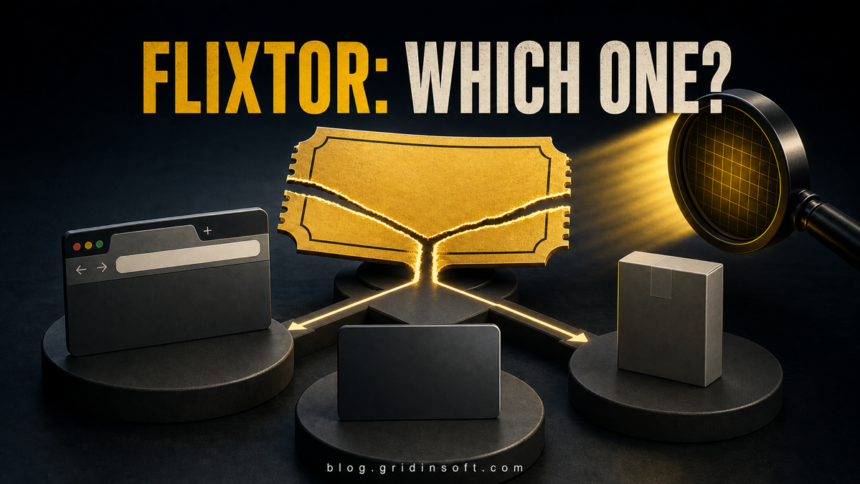
The Flixtor name alone is not a safety certificate. It appears on different websites, payment pages, mobile apps, and APK downloads that may have unrelated operators. A server-capacity or VIP-only message does not authenticate one of those endpoints. Do not enter card details or install anything until you have verified the exact domain, developer, package, permissions, and payment terms.
Opening a page does not automatically prove that your device is infected. The response changes if you were redirected, clicked Allow, downloaded a file, installed an app or extension, entered a password, or paid for “VIP” access. Use the matching branch below instead of revisiting the page to investigate it.
This distinction matters because even a clean point-in-time domain result cannot certify every advertising redirect, embedded player, future page change, similarly named app, or Flixtor-branded clone. A VPN can change your network route, but it cannot authenticate any of those endpoints.
Why one Flixtor verdict cannot cover every site or app
Google currently shows several similarly named mobile apps, APK listings, VIP pages, domain reports, reviews, and forum discussions. A familiar word, polished player, HTTPS padlock, high search position, or store listing does not prove that two products share an owner.
Judge the exact endpoint in front of you. For a website, record the complete hostname without opening additional links. For an app, compare the developer name, package identifier, requested permissions, privacy details, update history, and support contact. For a payment, check the merchant name, amount, renewal terms, and cancellation method before submitting anything.
| Signal | What it proves—and what it does not |
|---|---|
| HTTPS padlock | The connection is encrypted. It does not prove that the site is legitimate, safe, or connected to another Flixtor domain. |
| App-store listing | The app passed that store’s current process. It does not prove affiliation with a website or another similarly named app. |
| Old domain age | The hostname has existed for some time. Ownership, content, redirects, and payment behavior can still change. |
| Clean URL result | No checked provider reported a current problem at that moment. It does not cover another hostname, embedded ad, download, APK, or future state. |
| VPN connection | Your traffic exits through another server. The VPN does not validate the operator, block every malicious action, or undo a download or login. |
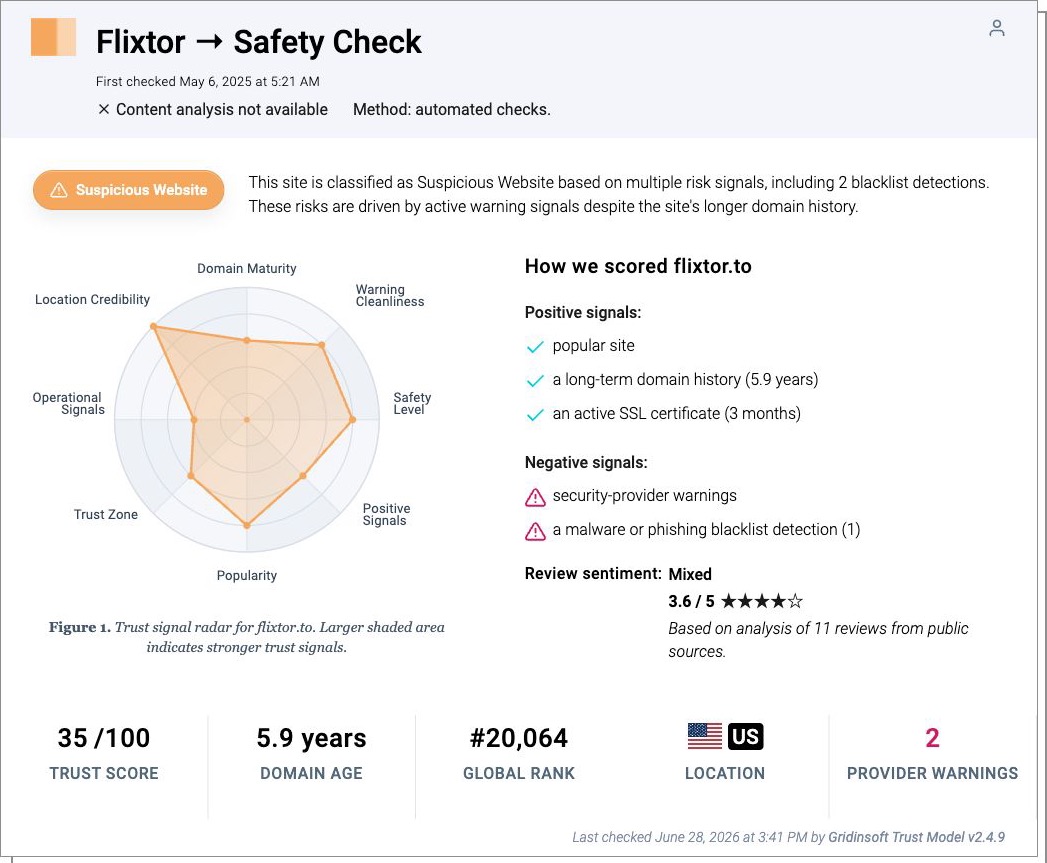
A current Gridinsoft Website Reputation Checker report for flixtor.to classified that exact hostname as suspicious and recorded two blacklist detections. That finding is useful for the named domain at the recorded time; it is not a blanket verdict for every site or app using the Flixtor name.
What happened? Use this response path
| What you did | Risk and what to do now |
|---|---|
| Only opened the page | Close it. Clear the site’s stored data if you want to remove local cookies. Infection is not established without another action or a separate security alert. |
| Saw a redirect, fake warning, or support number | Do not call, install a “player,” or follow a fix command. Close the tab without restoring it and review recent downloads. |
| Clicked Allow | Remove notification permission for the unfamiliar domain. Push messages can continue after the site is closed and are not proof of a system infection. |
| Downloaded a file but did not open it | Delete it, empty the relevant trash or recycle bin, and scan the file first if you need to identify it. Do not run it merely to see what it does. |
| Installed or ran a player, extension, app, or APK | Remove it, review browser and startup changes, and run a full device scan. Treat repeated redirects or alerts after cleanup as evidence that something remains. |
| Entered a password | From a clean device, change that password, revoke active sessions, enable multifactor authentication, and change every reused password. |
| Paid or entered card data | Save the transaction record, contact the card issuer promptly, ask about blocking or replacing the card, and dispute unauthorized or misleading charges. |
Is a Flixtor VIP payment safe?
Do not treat the word “VIP” as proof of a subscription relationship. A payment page is a separate trust decision from the streaming page that opened it. Stop if the checkout switches to an unrelated hostname, hides the final price, omits recurring-billing terms, shows no workable cancellation path, or requests cryptocurrency, gift cards, or another hard-to-reverse payment.
Before paying, verify all of the following without relying on a badge displayed by the seller:
- the exact merchant name that will appear on your statement;
- the full amount, currency, billing interval, trial conversion, and renewal date;
- a functioning cancellation method and support contact;
- whether the payment host matches the service you intended to use;
- whether the browser or password manager reports a known saved identity for that exact domain.
If you already paid and the charge is fraudulent, contact the issuing bank or card company and ask whether it can reverse the transaction. The U.S. Federal Trade Commission also recommends acting through the payment company as soon as possible.[3] Outside the United States, ask your bank about the local chargeback or card-replacement process.
Is Flixtor down, shut down, or limited to VIP users?
A page saying that free-user slots are full, server capacity has been reached, or only VIP members can continue proves only what that page claims at that moment. It does not authenticate the operator, payment host, domain, app, or APK, and it is not a safe reason to pay.
Status checked August 28, 2026: Public search results showed Flixtor-branded pages, an outage tracker, and user reports of domain or availability changes at the same time. That mix does not prove one operator, a single official current domain, or a service-wide shutdown.
Check the exact hostname you already have without following a search ad, forum mirror, or redirect to a new domain. A status tool can show that one hostname responds, but an “up” result does not make the page safe. If a familiar bookmark changes domains, opens a different checkout, or asks for an app, player, extension, or VIP payment, stop and repeat the identity and payment checks above.
What about a Flixtor app or APK?
A matching name and movie icon do not establish a shared developer. Search results can surface several unrelated app-store packages, old projects, sideloaded APKs, and pages that describe themselves as official. Verify the developer and package identifier, not only the display name.
Prefer the platform’s normal store and leave its security checks enabled. Google says Play Protect checks apps from Google Play, scans potentially harmful apps from other sources, and can warn, disable, or remove harmful apps.[2] Do not disable Play Protect or another platform warning merely because a download page tells you to.
Before installing, reject an app that asks for permissions unrelated to playback or discovery, such as Accessibility control, device administration, notification reading, SMS, contacts, a VPN profile, or the ability to install other apps. If you already sideloaded an APK, review those permissions and the app’s data use before opening it again.
Remove Flixtor pop-ups and notification spam
A browser notification can appear outside the original tab, so users often mistake it for a Windows or Android infection. Start with the permission that created the message. Remove every unfamiliar allowed site, then review extensions and startup pages. Our guide to disabling browser push notifications shows the browser-specific controls.
If Flixtor keeps showing unwanted pop-ups, you likely granted it permission to send notifications. To stop them, you need to revoke that permission in your browser settings.
- Copy and paste this into the address bar:
chrome://settings/content/notifications - Scroll down to the Allowed to send notifications list.
- Find Flixtor.
- Click the three dots (...) next to it and select Remove (or Block).
- Open Safari and go to Settings (or Preferences).
- Click the Websites tab and select Notifications on the left.
- Find Flixtor in the list on the right.
- Select it and click Remove (or change "Allow" to "Deny").
- Copy and paste this into the address bar:
about:preferences#privacy - Scroll down to Permissions and click Settings... next to Notifications.
- Type Flixtor in the search bar or find it in the list.
- Select the site and click Remove Website.
- Copy and paste this into the address bar:
edge://settings/content/notifications - Look under the Allow section.
- Find Flixtor.
- Click the three dots (...) next to it and select Remove (or Block).
- Copy and paste this into the address bar:
brave://settings/content/notifications - Scroll to the Allowed to send notifications list.
- Find Flixtor.
- Click the three dots (...) and select Remove (or Block).
- Copy and paste this into the address bar:
opera://settings/content/notifications - Check the Allowed to send notifications list.
- Find Flixtor.
- Click the three dots next to it and select Remove.
If a full-screen warning claims that your device is infected, do not call the number, download the offered tool, or paste commands into Terminal, PowerShell, or the Run dialog. Follow the safe-close steps in our fake virus alert guide.
- Launch Chrome.
- Click the three dots (...) in the top right corner.
- Select Extensions > Manage Extensions.
- Click Remove next to the extension you want to delete.
Quick Access: Type chrome://extensions/ in the address bar.
- Open Safari.
- In the menu bar, click Safari and select Settings (or Preferences).
- Click on the Extensions tab.
- Select the extension and click Uninstall.
- Click the menu button, select Add-ons and themes.
- Go to the Extensions tab.
- Click the three dots (...) next to the extension and select Remove.
Quick Access: Type about:addons in the address bar.
- Launch Microsoft Edge.
- Click the three dots (...) in the top right corner.
- Select Extensions.
- Find the extension and click Remove.
Quick Access: Type edge://extensions/ in the address bar.
- Launch Brave browser.
- Click the menu icon > Extensions.
- Find the extension and click Remove.
Quick Access: Type brave://extensions/ in the address bar.
- Launch Opera.
- Click the Opera logo in the top left corner.
- Select Extensions > Extensions.
- Click the X or Remove button next to the extension.
Quick Access: Type opera://extensions/ in the address bar.
Open Extensions/Add-ons again and remove any entry linked to Flixtor or clearly out of place.
If redirects continue after notification and extension cleanup, check search settings, managed browser policies, shortcuts, sync, and recently installed applications. Use the broader browser hijacker cleanup guide for that persistent branch.
- Tap on the three dots (...) in the top right corner and Choose Settings.
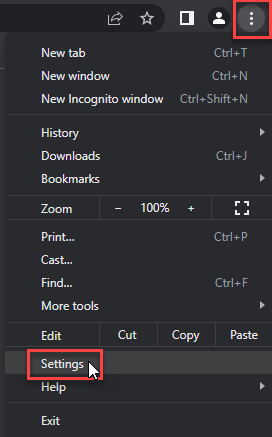
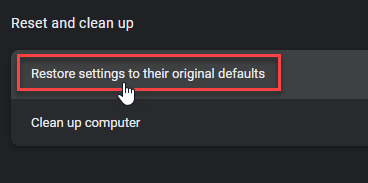
- Choose Reset and Clean up and Restore settings to their original defaults.
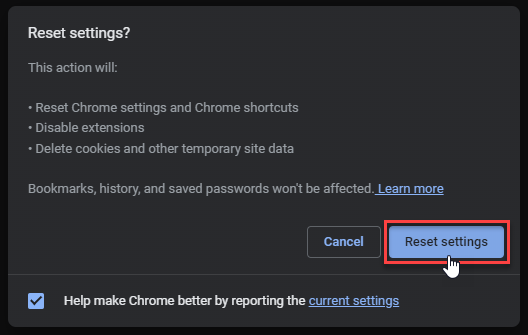
- Tap Reset settings.
Quick Access: Type chrome://settings/reset in the address bar.
- Open Safari.
- In the menu bar, click Safari > Clear History.
- Select all history and click Clear History.
- Go to Safari > Settings (or Preferences).
- Click the Privacy tab and select Manage Website Data... > Remove All.
- In the Advanced tab, check Show features for web developers.
- In the menu bar, select Develop > Empty Caches.
- Launch Brave browser.
- Click the menu icon in the top right corner and select Settings.
- Click Additional settings > Reset settings.
- Tap Restore settings to their original defaults.
- Confirm by clicking Reset settings.
Quick Access: Type brave://settings/reset in the address bar.
- In the upper right corner tap the three-line icon and Choose Help.
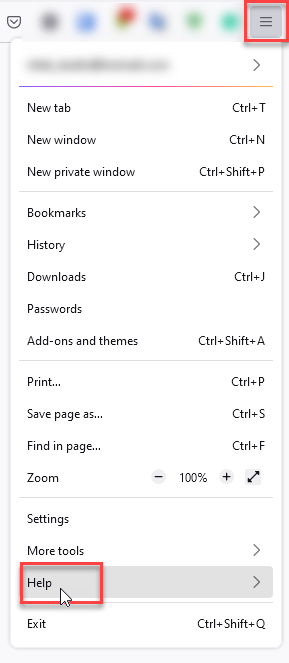
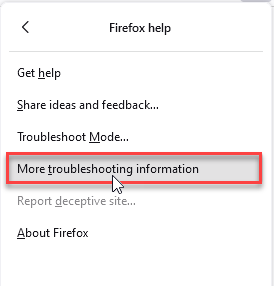
- Choose More Troubleshooting Information.
- Choose Refresh Firefox... then Refresh Firefox.
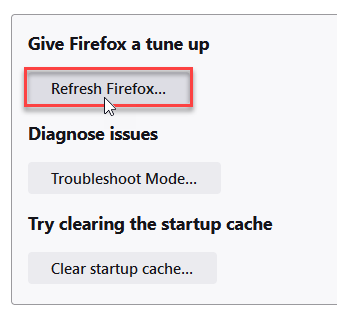
Quick Access: Type about:support and click Refresh Firefox.
- Tap the three dots.
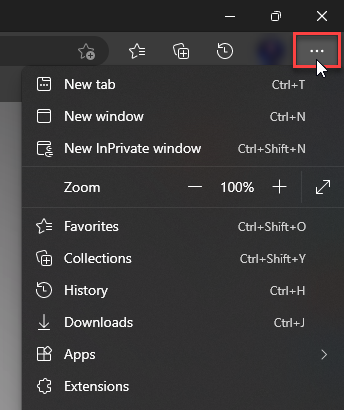
- Choose Settings.
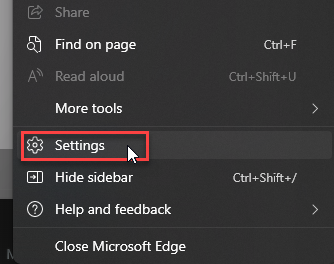
- Tap Reset Settings, then Click Restore settings to their default values.
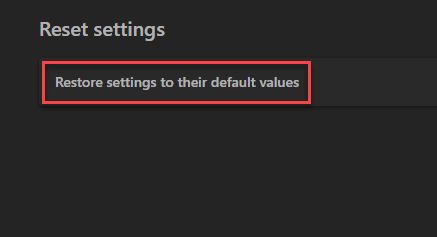
Quick Access: Type edge://settings/reset in the address bar.
- Launch the Opera browser.
- Click the Opera menu button in the top left corner and select Settings.
- Scroll down to the Advanced section in the left sidebar and click Reset and clean up.
- Click Restore settings to their original defaults.
- Click Reset settings to confirm.
Quick Access: Type opera://settings/reset in the address bar.
After reset, verify that Flixtor is no longer set as your default search engine or homepage.
If you downloaded, installed, or ran something
A download that was never opened is a lower-risk state than an executed installer. Delete the file without launching it. If you need to identify it, use the EXE safety checklist, scan the saved file, and preserve the result rather than testing the program on your main device. The downloaded-but-not-opened checklist explains that boundary.
If a player, extension, app, or APK ran, remove it through the operating system or browser first. On Windows, review new applications, extensions, startup entries, scheduled tasks, browser policies, and security exclusions created around the same time. Disconnect from the network if you see unknown remote-control activity, credential prompts, or continuing outbound alerts.
If you see Flixtor or other suspicious applications that you don't remember installing, you should remove them as well.
- Right-click the Start button and select Installed Apps (or Apps & Features).
- Scroll through the list to find Flixtor or any other unfamiliar program.
- Click the three dots (...) next to it and select Uninstall.
- Open Finder and go to the Applications folder.
- Locate Flixtor or any app you don't recognize.
- Drag it to the Trash.
- Empty the trash to remove it permanently.
- Go to Settings > Apps > See all apps.
- Find Flixtor or any suspicious app in the list.
- Tap on it and select Uninstall.
If you installed a Flixtor-branded APK, use Trojan Scanner for Android to inspect the Android app and other installed software. Review findings and confirm unwanted-app removal. A VIP claim or familiar streaming logo cannot establish that the app is safe.
The visible download may be only one part of the change. A bundled application, extension, startup entry, scheduled task, or browser modification can recreate redirects after the first item is removed. Run a full Gridinsoft Anti-Malware scan on Windows after execution, or when warnings and redirects return after the manual browser cleanup; remove detected leftovers, reboot, and scan again if symptoms recur.
Microsoft has documented scam-page and ClickFix activity triggered when users interacted with free or pirated movie-streaming sites.[1] That research describes an ecosystem risk, not proof that every Flixtor-branded page uses the same campaign. It is still a strong reason to reject fake CAPTCHAs, copied commands, and “required player” downloads.
If you entered a password or card number
Use a clean device for account recovery if you installed or ran anything. Start with the email account that can reset other accounts, then streaming, social, shopping, and financial accounts. Revoke active sessions and connected apps, enable multifactor authentication, and change every password that reused the exposed one. Our account recovery order helps prioritize those steps.
For card exposure, contact the issuer using the number on the card or the bank’s official app—not a phone number shown by the site. Ask about:
- locking or replacing the card;
- blocking recurring merchant charges;
- disputing an unauthorized, duplicated, or misleading payment;
- watching for small test charges and follow-on fraud.
Keep screenshots of the transaction, the merchant descriptor, the amount, and any cancellation attempt. Do not send additional money to someone who promises to unlock a refund.
Why a VPN or ad blocker is not a safety verdict
A VPN can hide traffic from the local network and change the visible IP address. An ad blocker can reduce some scripts and pop-ups. Neither one proves who operates a site, validates a VIP checkout, checks an APK’s developer, prevents every redirect, or protects a password voluntarily entered into a phishing form.
Likewise, a padlock only confirms encrypted transport to the current hostname. It does not make a misleading checkout, fake application, or malicious download legitimate. Use endpoint identity, permissions, payment terms, and your actual interaction state as the deciding evidence.
Safer rules for streaming-site lookalikes
- Do not search for a “working mirror” after a suspicious redirect or warning.
- Never install a player, codec, extension, profile, or APK to unlock a stream.
- Reject fake CAPTCHAs that ask you to click Allow, open a terminal, or paste a command.
- Do not reuse a password on an unverified site.
- Do not submit card data without clear merchant, price, renewal, and cancellation details.
- Check the exact hostname with a reputation service; do not generalize that result to other domains.
- Use the free movie streaming scam guide for the broader clone, fake-player, and subscription pattern.
For a related case where one name can refer to different domains, players, store apps, and sideloaded packages, use the FlixHQ source-verification and recovery guide.
FAQ
Is Flixtor safe to use?
The name is not enough to answer. Different sites and apps use similar Flixtor branding. Verify the exact endpoint and avoid payments, downloads, notification permission, and logins when its operator or developer cannot be confirmed.
Can opening a Flixtor page infect my device?
A visit alone does not prove infection. Risk increases if you followed a redirect, allowed notifications, downloaded or ran a file, installed an extension or app, entered credentials, or ignored a security warning.
Is Flixtor VIP safe to pay for?
Do not pay until the exact merchant, amount, renewal terms, cancellation method, and payment hostname are verified. If the charge is unauthorized or misleading, contact the card issuer promptly.
Is a Flixtor app or APK official?
A matching display name does not establish affiliation. Compare the developer, package identifier, permissions, privacy details, update history, and support contact. Avoid sideloaded APKs and do not disable platform protections to install one.
Does a server-capacity or VIP-only message prove the site is official?
No. It describes a rule claimed by that page, not a verified operator relationship. Do not use the message alone to trust a domain, checkout, app, or APK.
Is Flixtor shut down?
A failure at one hostname or reports from some users do not prove that every similarly named endpoint is offline or controlled by the same operator. Check only the exact hostname you already have, and do not follow a mirror or pay for VIP access merely to bypass an outage or capacity message.
Do Flixtor pop-ups mean I have malware?
Not necessarily. Some are webpage pop-ups or browser notifications. Remove the site’s notification permission and review extensions first. Scan the device if you ran a download, installed something, received a security alert, or the behavior returns after browser cleanup.
Does a VPN make Flixtor safe?
No. A VPN changes the network route; it does not authenticate a domain or app, validate a payment page, inspect every download, or protect credentials entered into a fake form.
References
- Microsoft Defender Security Research Team. “Think before you Click(Fix): Analyzing the ClickFix social engineering technique.” Microsoft Security Blog, August 21, 2025. microsoft.com.
- Google. “Use Google Play Protect to help keep your apps safe and your data private.” Android Help, accessed July 27, 2026. support.google.com.
- Federal Trade Commission. “What To Do if You Were Scammed.” Consumer Advice, accessed July 27, 2026. consumer.ftc.gov.