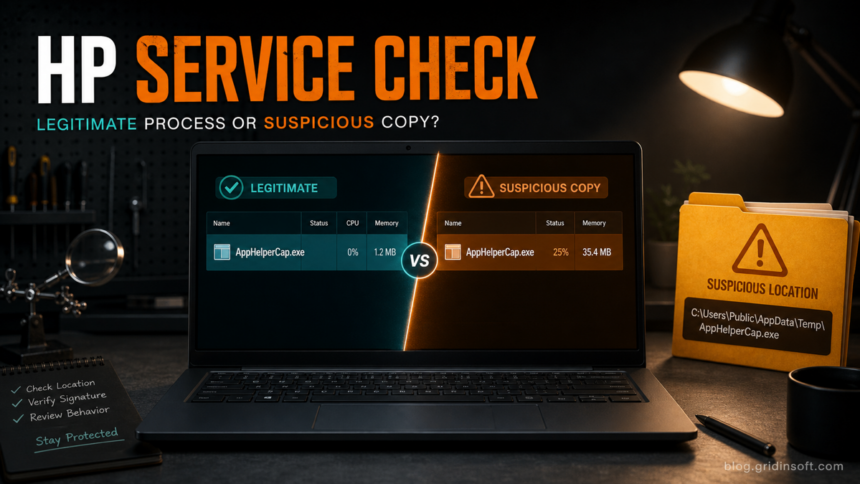
AppHelperCap.exe is usually the executable behind HP App Helper HSA Service on HP laptops, not malware by itself. Treat it as legitimate when it runs from the HP DriverStore component folder, is signed by HP Inc., and matches the service name HPAppHelperCap. Treat it as suspicious when the same filename runs from a user profile, Temp folder, Downloads folder, or another unexpected location, or when it returns after you disable HP services. The right response is to verify the file first, then repair or disable the HP feature only if it is causing high CPU, fan, battery, or network symptoms.
What AppHelperCap.exe Does
AppHelperCap.exe belongs to HP’s HSA service stack. On many HP and OMEN systems, those background services support HP helper apps, command-center features, diagnostics, system information, and sometimes gaming or network-helper components. It is not a Windows core process, so a clean Windows installation without HP software may not have it.
The normal service name to check is HPAppHelperCap, with the display name HP App Helper HSA Service. A commonly reported legitimate location is under a DriverStore folder like this:
C:\Windows\System32\DriverStore\FileRepository\hpcustomcapcomp.inf_amd64_...\x64\AppHelperCap.exeThe exact hash-like folder suffix varies by driver package and HP model. Do not decide by the suffix alone; decide by location, digital signature, service registration, and behavior.
How To Verify It Safely
- Open Task Manager, right-click AppHelperCap.exe, and choose Open file location.
- Confirm the path is inside
C:\Windows\System32\DriverStore\FileRepository\hpcustomcapcomp.inf_amd64_...\x64or another HP driver package path you can explain. - Right-click the file, open Properties, and check the Digital Signatures tab. A normal copy should be signed by HP Inc.
- Open Services and look for HP App Helper HSA Service or service name HPAppHelperCap.
- Use Microsoft Process Explorer when Task Manager does not show enough detail. It can show the command line, parent process, signature status, and loaded path for the running process.2
- Use Microsoft Autoruns only for review first. It helps you see whether a suspicious copy is registered for startup, but you should not delete HP service entries until you know what feature they support.3
If you are comparing other Windows vendor services, the same logic applies to entries such as RTKAudUService64.exe or driver-adjacent components like WinRing0x64.sys: location and signature matter more than the filename alone.
When AppHelperCap.exe Looks Suspicious
The file deserves a malware check when one or more of these signs appear:
- It runs from
C:\Users\...\AppData\...,Downloads,Temp, a removable drive, or a random folder. - The Digital Signatures tab is missing, invalid, or does not name HP Inc.
- The parent process is a script host, unknown launcher, cracked software installer, browser download, or archive extractor.
- The process recreates itself after you remove HP Support Assistant or disable the HP service.
- Security software reports blocked outbound traffic or recurring suspicious activity tied to that path.
- You see duplicate AppHelperCap.exe copies in both a normal HP DriverStore path and a user-writable folder.
A suspicious same-name copy should not be treated as a normal HP bug. Disconnect from untrusted networks, upload the file to a trusted file checker if appropriate, and scan the system before deleting random files by hand.
Fix High CPU, Fan, Battery, Or Network Symptoms
User reports and field troubleshooting show AppHelperCap.exe and HP App Helper HSA Service can appear in high-CPU cases, including DriverStore paths and service restarts that temporarily reduce CPU use. That does not make the service malicious. It means the HP helper stack may be stuck, outdated, or interacting badly with another HP feature.
- Restart the service once. Open
services.msc, find HP App Helper HSA Service, and restart it. If CPU drops only until the next boot, keep troubleshooting. - Update HP components from trusted channels. Use HP Support Assistant1, your model’s HP support page, or the Microsoft Store for HP/OMEN apps. Avoid driver bundles from third-party download sites.
- Check OMEN or network-helper features. If the issue started after using Network Booster, OMEN Gaming Hub, performance modes, or system-control tools, disable that feature first instead of deleting the service package.
- Repair before removing. If HP Support Assistant or OMEN features are broken, reinstall the related HP System Event Utility, HP Support Assistant, or OMEN component from HP channels for your exact model.
- Disable only if you do not need the feature. Setting the service to Manual or Disabled may stop CPU/network symptoms, but it can also break HP helper features, diagnostics, hotkeys, command-center panels, or OMEN controls.
- Do not manually delete DriverStore files. DriverStore folders are protected for a reason. Manual deletion can break driver servicing and make future updates harder.
If the performance issue is not tied to HP services, compare the symptoms with broader Windows performance cases such as DWM.exe high memory usage or service-host style background activity like WslService.exe.
If The File Is A Suspicious Copy
When AppHelperCap.exe fails the path or signature check, handle it like a suspicious executable rather than like a normal HP service bug.
- Do not run the file again and do not download “missing AppHelperCap.exe” replacements from random sites.
- Take a screenshot or note the path, signature status, parent process, and startup entry.
- Scan the file and the full system with a reputable security tool. Gridinsoft Anti-Malware is useful here when the same-name copy appears in a user-writable folder, returns after deletion, or follows a cracked installer or fake update.
- Review startup entries with Autoruns and remove only entries you can identify as suspicious. Leave legitimate HP service entries alone unless you intentionally disable an HP feature.
- After cleanup, reboot and confirm the only remaining AppHelperCap.exe instance is the expected HP-signed service, or that the service is gone because you intentionally removed the HP component.
After uninstalling the suspicious app or deleting the visible threat, use Gridinsoft Anti-Malware to check hidden files, startup entries, scheduled tasks, bundled apps, browser changes, and other persistence points that can restore malware.
Download Anti-MalwareWhat Not To Do
- Do not assume AppHelperCap.exe is malware just because it is not a Microsoft Windows core file.
- Do not use registry cleaners or driver-updater bundles to “fix” the service.
- Do not delete protected HP DriverStore folders manually.
- Do not follow guides that recommend removal without first checking the exact path and signature.
- Do not ignore a same-name copy in a user profile just because the filename also belongs to HP.
FAQ
Is AppHelperCap.exe a virus?
Usually no. AppHelperCap.exe is normally part of HP App Helper HSA Service on HP systems. It becomes suspicious when it runs from an unexpected folder, lacks an HP signature, or behaves like a persistent unwanted startup item.
Can I disable HP App Helper HSA Service?
You can disable it if you do not use the HP or OMEN features that depend on it, but test first. Disabling the service may affect HP helper apps, diagnostics, command-center features, hotkeys, or network/performance controls.
Why is AppHelperCap.exe using CPU?
High CPU usually points to a stuck HP helper service, outdated HP/OMEN component, driver-package issue, or a feature such as Network Booster. Restart the service once, update HP components from trusted channels, and verify the path before assuming malware.
Where should AppHelperCap.exe be located?
A common legitimate location is under C:\Windows\System32\DriverStore\FileRepository\hpcustomcapcomp.inf_amd64_...\x64. A copy in Downloads, Temp, AppData, or another user-writable folder should be investigated.
Should I remove AppHelperCap.exe?
Remove or disable it only after you confirm whether it is the legitimate HP service or a suspicious copy. For the legitimate service, repair or update HP software first. For an unsigned or misplaced copy, scan and clean the system.
References
- HP Inc. “HP Support Assistant.” HP Customer Support, updated May 14, 2026, accessed June 12, 2026. https://support.hp.com/us-en/help/hp-support-assistant
- Microsoft Sysinternals. “Process Explorer.” Microsoft Learn, updated May 7, 2026, accessed June 12, 2026. https://learn.microsoft.com/en-us/sysinternals/downloads/process-explorer
- Microsoft Sysinternals. “Autoruns for Windows.” Microsoft Learn, updated May 7, 2026, accessed June 12, 2026. https://learn.microsoft.com/en-us/sysinternals/downloads/autoruns