

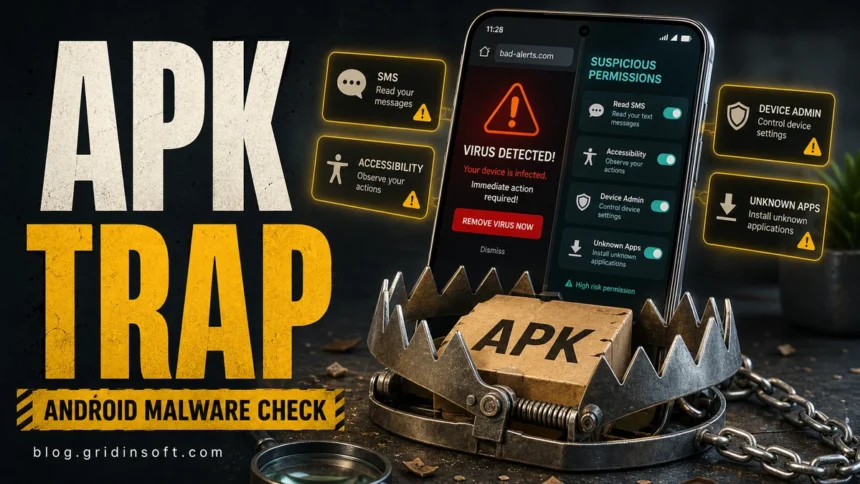
If your Android phone has started showing intrusive ads, unfamiliar apps, or suspicious permission requests, use Trojan Scanner to check what is installed and find out what needs attention. It helps identify malicious apps and dangerous downloads, highlights potential spyware risks, and guides you toward removing unwanted items. Instead of guessing which app caused the problem, start with a scan and review the findings.
Check your Android with Trojan Scanner
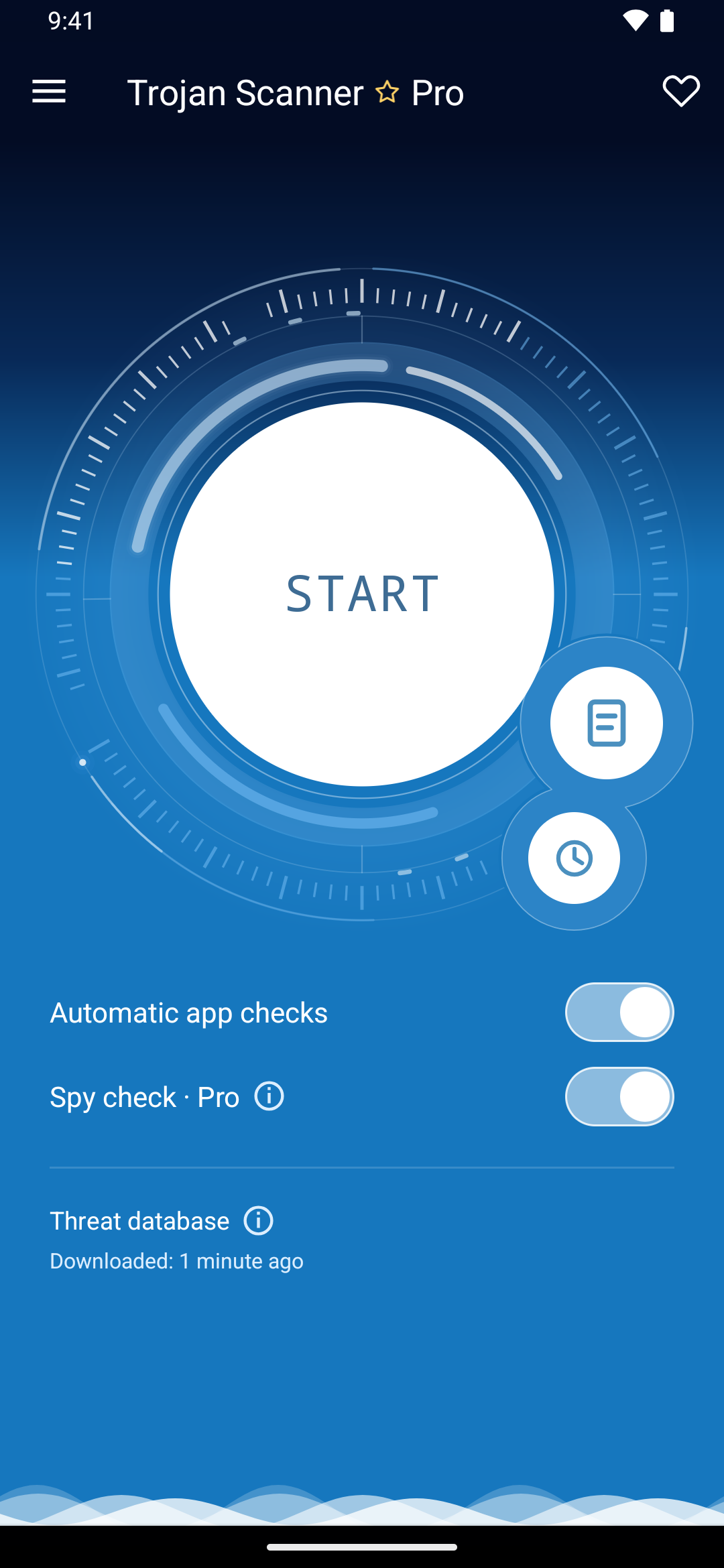
- Open Trojan Scanner and update its threat database.
- Tap Start and let the scan finish.
- Review the detected apps and files. Open each finding to see why it needs attention.
- Remove unwanted items, confirm Android’s prompts, and scan again.
If you do not have the app on this phone yet, get Trojan Scanner by Gridinsoft on Google Play or from the official Trojan Scanner website. If a suspicious app can control your screen or read banking messages, pause sensitive logins while you investigate.
When should you check your phone for malware?
Android malware often arrives disguised as something useful: a video player, a game modification, a cleaner, a VPN, or an update. The trouble may begin after installation, when the app starts displaying ads, asks for access to messages, or interferes with normal phone use.
Check the phone when you notice an app you do not recognize, pop-ups appearing over other apps, or unusual requests to control the screen or read notifications. Battery drain and overheating can have ordinary causes, so use them as a reason to investigate rather than as proof of infection. Our phone virus signs guide helps you compare the symptoms.
The useful question is what changed before the problem started. A “player” that appeared yesterday and now asks to read your messages deserves a closer look. Trojan Scanner helps you examine installed apps and downloads instead of relying on their names and icons. For examples of the threats involved, see types of Android malware.
How Trojan Scanner can help
- Find suspicious apps and files. Scan installed applications and supported downloads to identify known threats and items that need review.
- Look for signs of unwanted monitoring. Anti Spy highlights suspicious combinations of sensitive access, including in apps that hide their launcher icon. This gives you a place to start when you are concerned about surveillance.
- Check a download before installing it. Examine an APK or archive without opening the app it contains.
- Check a suspicious link before following it. Share or paste an unfamiliar link to check for warnings about phishing, scams, or known malicious domains.
- Keep track of the cleanup. Protection history lets you revisit previous results, while checks of new and updated apps help you notice problems after another installation.
Scan the phone and remove what should not be there
- Update the threat database. Open Trojan Scanner and use the update control before starting.
- Tap Start. Let it check the installed apps. Allow file access when offered if you also want supported downloads included.
- Wait for the scan to finish. If it is interrupted, complete another scan before judging the result.
- Open each finding. Read the app or file name and the reason for the warning. Pay particular attention to unfamiliar apps installed just before the symptoms began.
- Choose the removal action for unwanted items. Confirm the uninstall prompt in Android. Avoid excluding a finding simply to make the warning disappear.
- Scan again and check the phone’s behavior. Confirm that the app is gone and that the unwanted ads or other symptoms have stopped.
Use the finding to decide what to do next
A malware detection points you to an app or file that needs attention. A permission or Anti Spy warning helps you review whether an app’s access makes sense for its purpose. For example, a simple game asking to read messages deserves scrutiny. A risk warning alone does not establish that spying occurred.
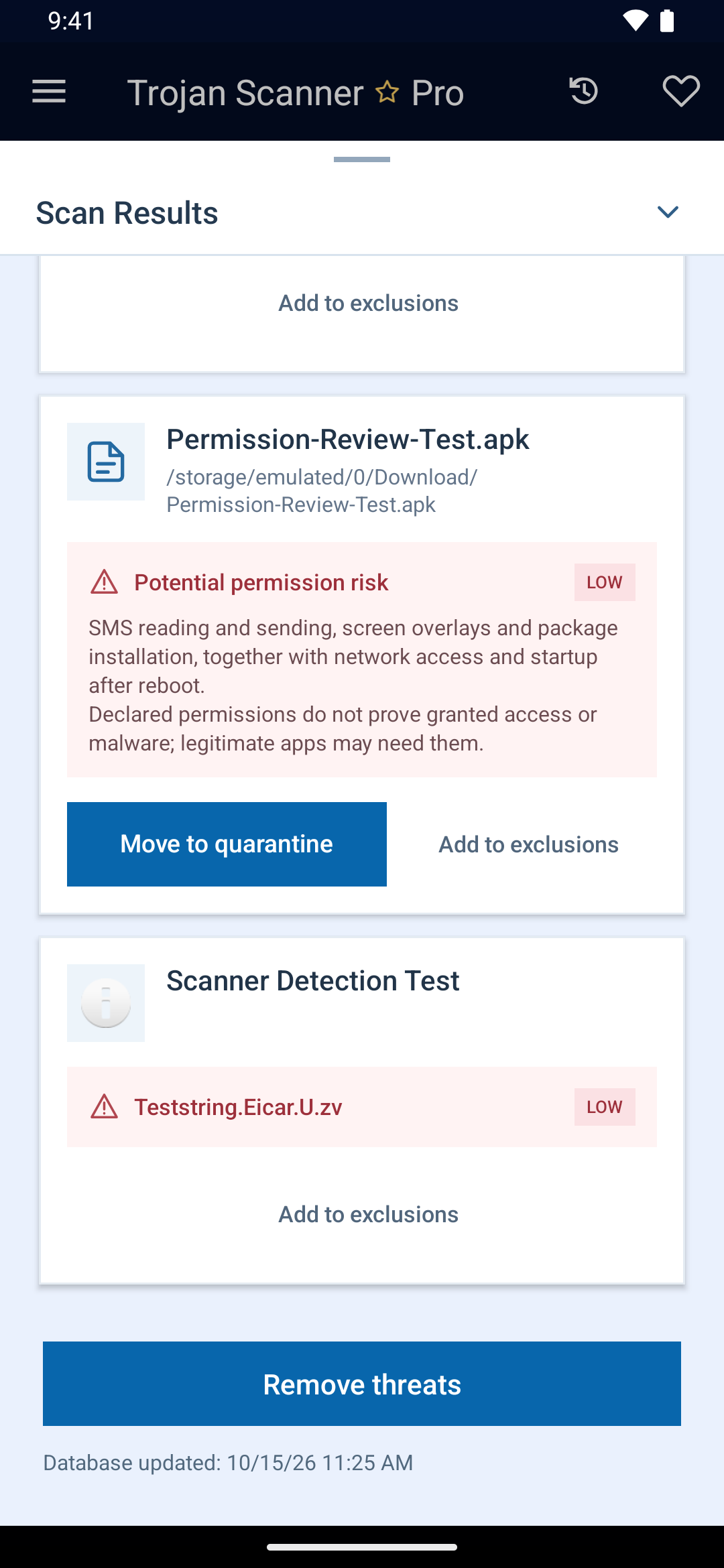
If you do not recognize an app, check its details before choosing an action. If you believe a trusted app was flagged incorrectly, ask Gridinsoft Support for help rather than blindly restoring or excluding it.
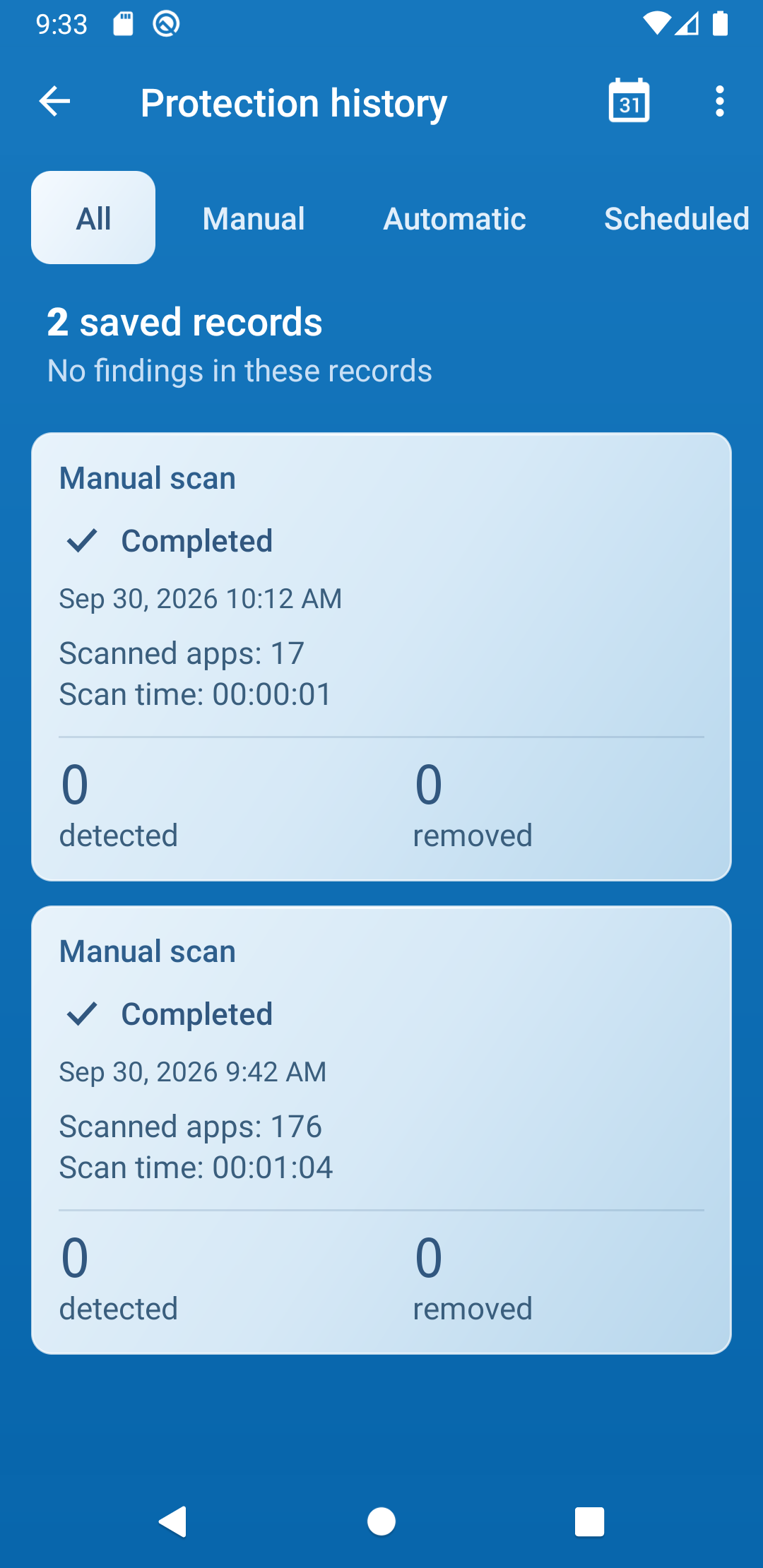
Use Protection history to revisit earlier findings and see what was removed. If the same problem returns, compare the results with any apps installed or updated afterward.
Check an APK before installing it
If someone sends you an APK or a website asks you to install a special player, check the download first. In Trojan Scanner, open Menu → Check a file → Choose file and select it. You can also check supported archives and app packages such as .zip, .apks, and .xapk.
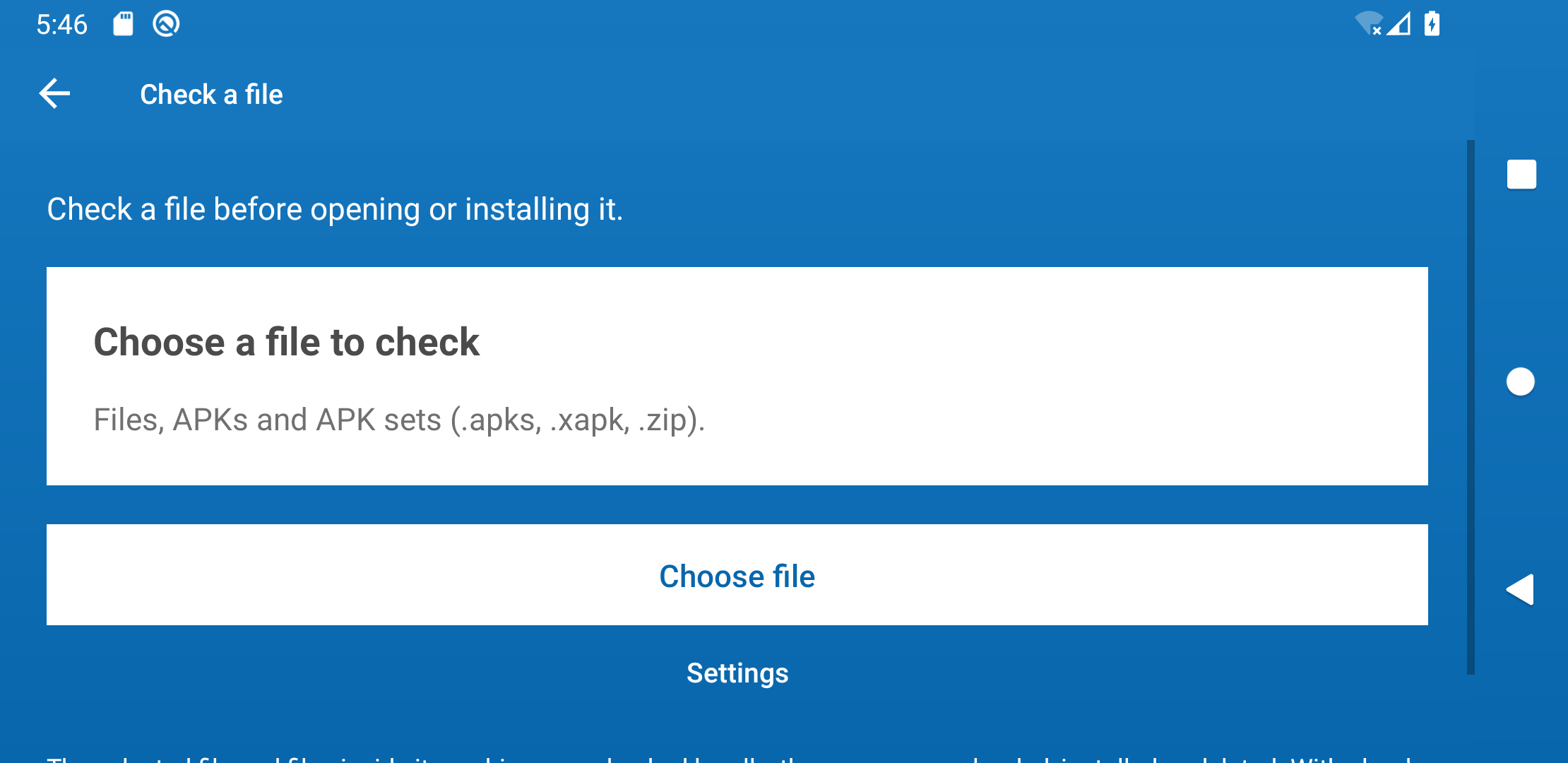
You do not have to install the APK to examine it. If a threat is found, leave the app uninstalled and delete the download with your file manager. A reassuring result is still no reason to trust an app pushed through a fake update, an unsolicited message, or a browser pop-up.
If the ads or warnings remain
A scary browser message may be notification spam. A web page claiming “viruses found” is not a scan of your phone. Close it without installing its suggested cleaner. In Chrome, open Settings → Site settings → Notifications and block the offending website. Google’s guidance explains notification cleanup and removal of problematic apps [1]. For recurring advertising behavior, see our adware symptoms guide.
If an app refuses to uninstall
Check Device admin apps and Accessibility in Android Settings. Revoke inappropriate access granted to the suspicious app, then try removing it again. If overlays or pop-ups prevent this, follow your manufacturer’s Safe Mode instructions. Our hidden-app recovery guide covers a concrete example.
If unwanted apps keep returning after removal, seek device-specific help. A factory reset is a later recovery option, not the first step for every warning. Back up personal files and avoid restoring the suspect app.
Finish by securing the phone and your accounts
Keep Android and your apps updated. Leave Play Protect enabled and run Google Play → profile icon → Play Protect → Scan. Google explains that it checks apps and can warn about, disable, or remove harmful ones [2].
If the suspicious app could read messages, control the screen, or access financial accounts, change affected passwords from a trusted device and review unfamiliar sessions and payment activity. Removing an app stops it from remaining on the phone; it cannot undo information already stolen. The Android banking-malware recovery guide explains the account checks in more detail.
FAQ
Can Trojan Scanner help find an app with no visible icon?
Yes. The scan checks installed apps, not just the icons on your home screen. Anti Spy can also highlight suspicious signs of hidden monitoring. Review the finding and the app’s access before deciding what to remove.
What if the scan finds nothing but ads continue?
Check which app or website sends the ads. Browser notification permissions can keep producing warnings without an installed malware app. Remove the unwanted site permission, review recent installations, and complete another scan if the behavior continues.
Do I need to reset the phone before scanning?
No. Start by scanning, reviewing the findings, and removing unwanted apps. Seek further recovery help if suspicious apps return or the phone remains difficult to control.
References
- Google Chrome Help. Remove unwanted ads, pop-ups & malware — Android. Google. Accessed October 16, 2026.
- Google Play Help. Use Google Play Protect to help keep your apps safe & your data private. Google. Accessed October 16, 2026.



I bought a TCL cell phone with the unnecessary Facebook app factory-installed after disabling was a trojan verse app, with several hidden Facebook malware apps spreading malware thought out 5 other devices. No one is putting the blame on Facebook when all of the app’s lead to Facebook login.
Facebook is a scam wake up people.