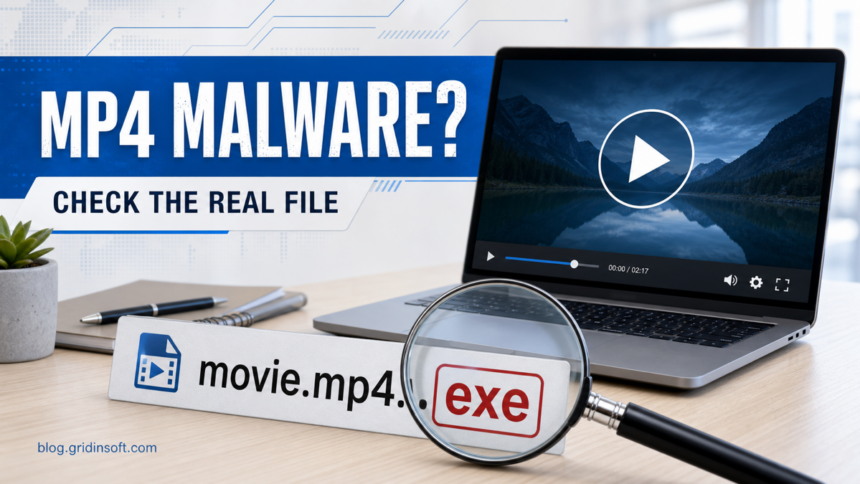
A normal MP4 or M4V video file is data for a media player, not a program that should run by itself. The real risk is usually a fake video such as movie.mp4.exe, a ZIP/ISO that contains a player or installer, a fake codec prompt, a companion .url or .lnk file in the same movie folder, or a crafted file opened in an outdated media app. If the file came from Discord, Telegram, a torrent, a random converter, or an infected backup, treat the whole download folder as untrusted until you check the real extensions and scan it.
If the file came from a YTS/YIFY-style torrent page, check the exact domain too; our YTS.GG scam guide explains the site-level warning signs before you inspect the video file itself.
The same rule applies to suspicious images: a normal media file is usually data, but steganography malware can hide payload bytes for another script or loader to extract later.
If a downloaded “video” turns out to be an executable or cannot be deleted because it is open in another program, follow the locked suspicious file malware check before trying removal tools.
If a YouTube downloader page gave you Setup.exe, a browser extension, or notification spam instead of a video, use the YouTube video downloader virus cleanup checklist before opening anything else from that site.
This guide is for Windows users who downloaded a video, restored old media after malware, or received an MP4/M4V file and want a calm answer before opening it. It does not assume every video is dangerous. It shows where the practical risk actually sits.
Can MP4 files have viruses?
A real .mp4 video does not run like an app, so it is usually not a self-starting virus. The realistic risks are different: the file may be disguised as a video while the final extension is really .exe, .scr, .lnk, or a script; the download page may push a fake codec or player; or a crafted media file may target a vulnerability in an outdated player.
If you only need one rule, use this: verify the final extension, avoid extra codec/player prompts, keep the media player updated, and scan suspicious downloads before opening them.
Quick Risk Ladder
| What you have | Risk and what to do |
|---|---|
A real .mp4 or .m4v from a trusted camera, phone, or known person. |
Low risk. Keep Windows and the media player updated, then open normally. |
| A downloaded video from a random link, torrent, Discord, Telegram, or file converter. | Low to medium risk. Show file extensions, scan it first, and do not install any extra player or codec. |
A file named like movie.mp4.exe, video.m4v.scr, clip.mp4.lnk, or player_setup.exe. |
High risk. Do not run it. Delete it, scan the folder, and check whether anything already executed. |
An archive, ISO, or folder that claims to contain a video but includes scripts, shortcuts, .url files, installers, cracks, README warnings, or password text files. |
High risk. Treat it like a software bundle, not a video. Follow archive-safety checks before opening anything inside. |
| A video restored from a PC that had an infostealer, ransomware, or unknown scheduled tasks. | Medium risk. Scan restored files before opening them and avoid restoring old EXE, scripts, browser profiles, and portable apps. |
If the Movie Folder Includes .url, .lnk, or README Files
If the scanner also reports old Favorites or standalone Internet Shortcut files elsewhere on the PC, separate those low-context URL findings from the movie-folder risk. Our old bookmarks and URL shortcut scan guide explains how to inspect the URL= line safely and decide whether it is just a stale saved link or part of an active cleanup problem.
A playable video can sit next to a dangerous companion file. Treat names such as YOU.MUST.READ.THIS.url, PLAY_MOVIE.lnk, README, watch_online.html, codec_setup.exe, or player_update.exe as the warning sign. The MP4 may be ordinary while the shortcut, web link, or installer sends you to a phishing page, a fake streaming gateway, adware, or a malware download.
Do not click a .url or .lnk file to unlock, verify, or stream a movie. Show extensions, right-click the file, check the target or URL, and scan the whole folder. If the link opened a site, do not enter credentials, allow notifications, install a browser extension, or download a required player from that page.
If you already clicked one of these companion files, close the site, delete the downloaded folder, scan the system, and review browser notifications, extensions, startup items, and recent downloads if anything installed. For site-level warning signs around movie pages, see our free movie streaming scam checklist and the YTS.GG scam guide.
Why a Real MP4 Usually Does Not Act Like Malware
MP4 and M4V are container formats for media streams, metadata, subtitles, and related playback data. Windows uses file extensions to decide which app can open a file, and Microsoft notes that changing an extension does not convert the file into another format [1]. Adobe describes M4V as a video container closely related to MP4 [2].
That means the extension alone is not magic. A real video file is interpreted by a player. It is not supposed to install software, add startup tasks, steal passwords, or ask for administrator permission. When users get infected after chasing a “video,” the cause is usually one of these:
- the final extension is executable, hidden, or disguised;
- the download page pushes a fake codec, browser extension, or “HD player” installer;
- the video came inside an archive with scripts, shortcuts, or cracked software;
- the media player, browser, or operating system is outdated and vulnerable;
- the file is part of a broader scam flow, such as a fake converter or adult-site redirect.
Check the Real File Type Before Opening It
If the file came from a media-tool download page rather than from a sender you trust, verify the software source too. A lookalike page such as mkvtoolnix.org pretending to be MKVToolNix is a different risk from an ordinary MP4 file.
- Show file extensions in File Explorer. In Windows 11, open File Explorer, choose View, then Show, then File name extensions. Microsoft documents the same setting for checking real extensions [1].
- Look at the last extension, not the first one.
holiday.mp4is a video name.holiday.mp4.exeis an executable.holiday.mp4.lnkis a shortcut.holiday.mp4.scris a screensaver executable. - Right-click and check Properties. If the file type says Application, Shortcut, Internet Shortcut, Windows Script, Batch File, or Screen Saver, do not treat it as a video.
- Do not approve SmartScreen, UAC, or “install codec” prompts. A video should not need administrator permission just to play.
- Scan before opening suspicious downloads. Use your security tool, then run a second-opinion scan with Gridinsoft Anti-Malware if the file came from a risky source or another device that may have been infected.
Can a Crafted Video Exploit a Media Player?
Yes, but that is a different threat model from “the MP4 is a normal executable virus.” Media players parse complex file structures. Vulnerabilities in a parser can sometimes be triggered by a specially crafted media file or stream. For example, VideoLAN’s VLC 3.0.22 bulletin says maliciously crafted files or streams could trigger a denial of service, and notes that code execution cannot always be excluded even though no such exploits were observed for that issue [3].
For home users, the practical defense is simple: keep Windows, browsers, codecs, VLC, Windows Media Player, editing apps, and mobile media apps updated. Do not use abandoned codec packs or random “required player” installers from download pages. If a video only plays after installing a strange codec from the same site, the installer is the part to distrust.
What to Do If You Already Opened the File
- If it was a real MP4/M4V and nothing unusual happened, delete it if you do not trust the source, update your media player, and scan the Downloads folder.
- If Windows asked to run an installer or UAC prompt, assume you may have executed software. Disconnect from risky accounts, check installed apps, startup items, browser extensions, and scheduled tasks.
- If the file came from an infected old PC, scan the restored media folder before opening anything. For a broader restore workflow, see our guide on a clean Windows install USB after malware.
- If the “video” was inside a ZIP, RAR, ISO, or 7z archive, follow the archive checks in Can Opening a ZIP or RAR File Give You a Virus?.
- If you clicked a companion
.url,.lnk, or README link, treat the site visit as part of the incident. Check recent downloads, browser notifications, installed extensions, and startup items before opening anything else from the folder. - If the download page pushed a converter, codec, or player, check the browser for redirects and unwanted notifications. Fake converter campaigns are common enough that the FBI has warned about malware delivered through online file-converter scams; see our coverage of the online file converter malware warning.
If you ran anything that was not a real video, run a full system scan instead of only deleting the file. Gridinsoft Anti-Malware can check the downloaded file, related folders, startup entries, browser changes, and active malware traces that a fake player or codec installer may leave behind.
If the file came from a MoviesJoy-style redirect or fake player prompt, also follow the MoviesJoy safety checklist to revoke browser permissions and secure any account or payment data entered on the page.
After uninstalling the suspicious app or deleting the visible threat, use Gridinsoft Anti-Malware to check hidden files, startup entries, scheduled tasks, bundled apps, browser changes, and other persistence points that can restore malware.
Download Anti-MalwareWhen MP4/M4V Files Are Safe to Keep
- The final extension is only
.mp4or.m4v, not.exe,.scr,.js,.vbs,.bat,.cmd,.msi,.url,.lnk, or.iso. - The file came from your own phone, camera, trusted cloud storage, or a known sender.
- Your media player is current and the file does not require a separate codec installer.
- A scan returns clean and there are no new browser extensions, startup items, or account alerts after opening it.
- The file is not bundled with cracks, “activation” tools, password-protected archives, or instructions to disable security software.
FAQ
Can Windows Defender scan MP4 files?
Yes. Microsoft Defender and other antivirus tools can scan the file bytes and detect known malicious payloads, disguised executables, and suspicious containers. A clean result does not mean every future media-player vulnerability is impossible, so keep the player and Windows updated too.
Is an M4V file safer or riskier than MP4?
For normal users, treat M4V like MP4: it is a video container, not an installer. The source, final extension, bundled files, and media-player updates matter more than whether the extension is .mp4 or .m4v.
Can a video file steal passwords?
A normal video file should not steal passwords by itself. Password theft usually happens when the “video” is actually an executable, a fake codec/player installer, a malicious browser extension, or part of a phishing/download scam. If accounts were accessed after you ran something, scan the PC and change passwords from a clean device.
Should I upload the video to an online scanner?
Only if the file is not private. Personal videos can contain sensitive faces, locations, voices, or metadata. For private media, scan locally first and avoid sharing the file with public multi-scanner services unless you accept that exposure.
Are MKV files safe too?
Treat MKV files like MP4 files. A normal MKV is a media container, but the same risks apply: fake double extensions, bundled archives, fake codec prompts, and vulnerable or outdated players.
References
- Microsoft Support. “Common file name extensions in Windows.” Microsoft, accessed May 30, 2026. https://support.microsoft.com/en-us/windows/common-file-name-extensions-in-windows-da4a4430-8e76-89c5-59f7-1cdbbc75cb01
- Adobe. “What Are M4V Files? M4V Format Explained.” Adobe Creative Cloud, accessed May 30, 2026. https://www.adobe.com/creativecloud/file-types/video/container/m4v.html
- VideoLAN. “Security Bulletin VLC 3.0.22.” VideoLAN, December 2025, accessed May 30, 2026. https://images.videolan.org/security/sb-vlc3022.html