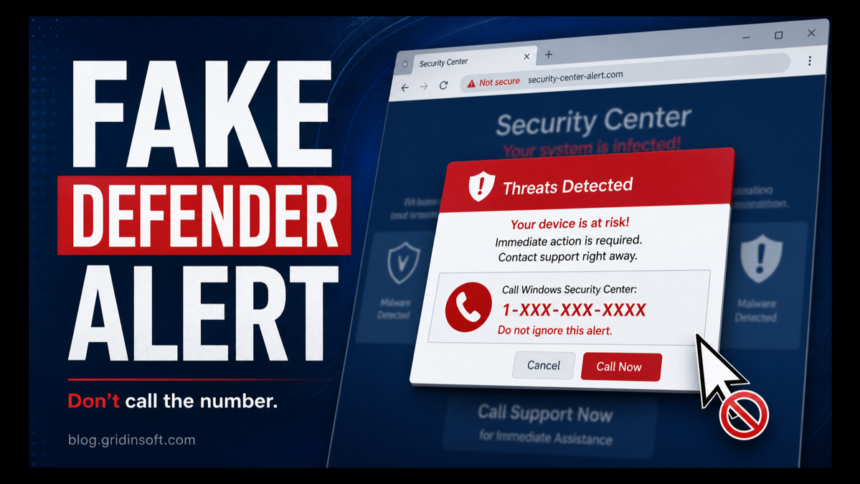
Windows Defender Security Center scam pages are fake Microsoft alerts that appear in a browser tab, full-screen page, or push notification and pressure you to call a support number. A real Windows Security or Microsoft Defender alert appears in the Windows Security app and never asks you to call a random number from a browser pop-up. If the page says your PC is locked, plays audio, shows a countdown, or asks for remote access, treat it as a tech support scam.
Is Windows Defender Security Center alert real?
- Browser page with a phone number: scam. Close it without calling.
- Windows Security app alert: check it inside the Windows Security app, not through the web page.
- If you clicked Allow for notifications: remove the site permission in your browser.
- If you called or allowed remote access: disconnect, uninstall the remote tool, scan the PC, and change important passwords from another device.
| Fake alert signs | Browser page, loud audio, countdown, phone number, “PC locked” or “Trojan spyware detected” claim |
| Real place to verify | Start menu → Windows Security → Virus & threat protection → Protection history |
| Main risk | Remote support fraud, payment theft, credential theft, unwanted remote-access tools, bundled malware |
| Safe fix | Force-close the browser, remove notification permissions and extensions, scan if redirects return |
If a real Windows Security event appears after a fake alert page, check the exact Defender label and affected path. For cache-based redirect detections, see our Trojan:HTML/Redirector!MTB alert guide before restoring anything from quarantine.
What the fake alert looks like
The wording changes, but the scam usually pretends to be Windows Defender Security Center, Microsoft Defender, or Windows Security. It may claim that Trojan spyware was detected, your IP address was misused, your computer was blocked for security reasons, or your banking data is at risk. The important clue is the action it demands: call a number, click a repair button, install a remote-access app, or keep the browser page open.
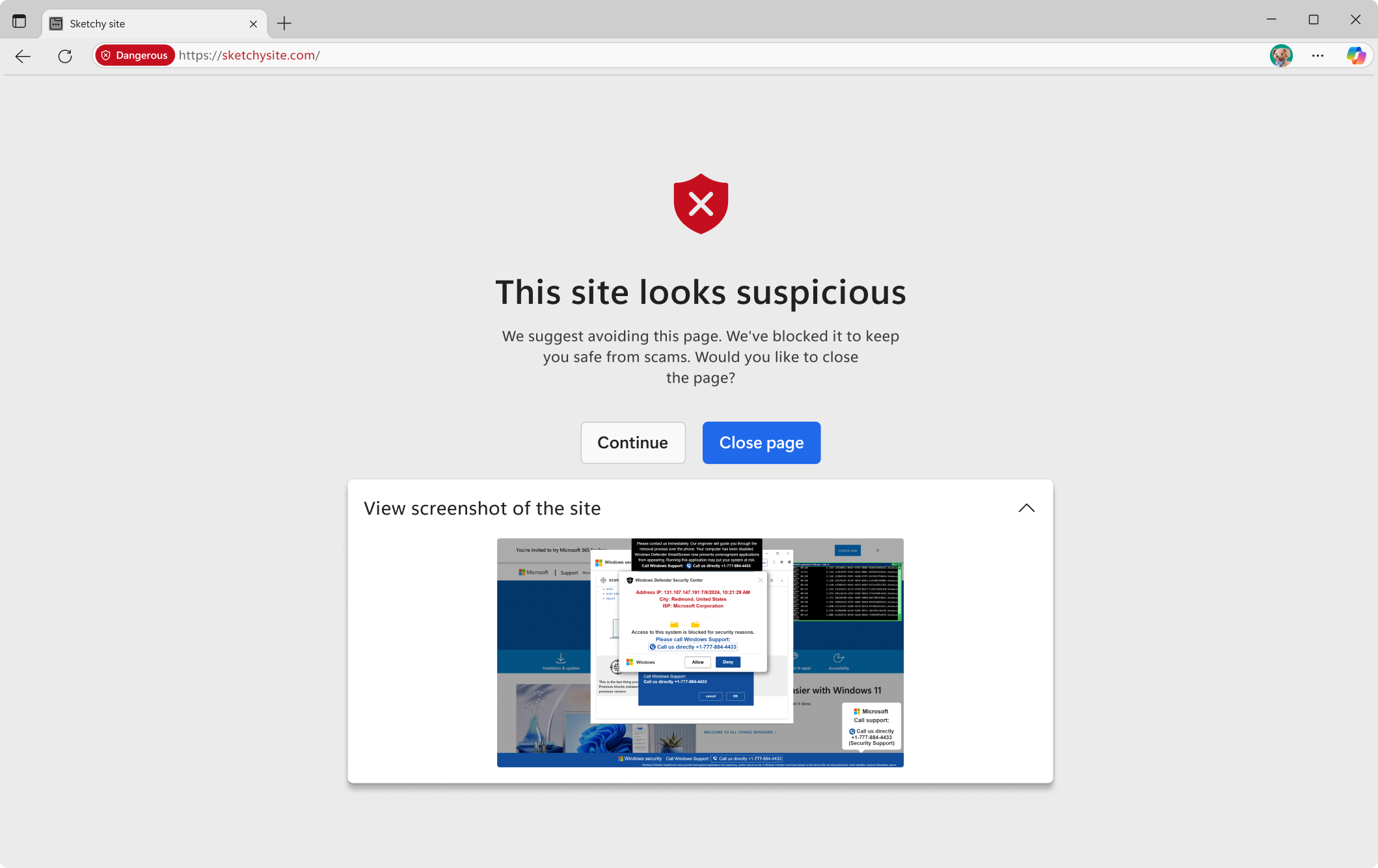
Real Microsoft security warnings do not lock a browser page with a phone number. Microsoft also says genuine error and warning messages do not include a support number to call. Use that as the fastest test: if the “Defender” alert is a web page telling you to phone someone, it is not a Defender alert.
How the scam gets on your screen
Most users land on this page through malvertising, a redirected search result, a compromised site, a fake download button, or a browser notification that was allowed earlier. The page may switch the browser into full-screen mode, loop an audio warning, or open repeated dialog boxes so it feels like Windows is frozen. That pressure is the trick: the scammers want you to call before you check whether the alert is real.
During the call, fake support agents often ask the victim to install remote tools, show normal Windows logs as “proof” of infection, request payment for a fake cleanup plan, or steer the victim toward banking and email accounts. If the page only appeared once and you closed it, your PC may not be infected. If it returns after reboot, opens new tabs by itself, or appears as a desktop notification, check the browser and scan the system.
How to close the fake alert safely
- Do not call the number, click the repair button, or install anything from the page.
- Press Esc to leave full-screen mode. If that fails, press Ctrl+Shift+Esc, open Task Manager, select the browser, and choose End task.
- Reopen the browser without restoring the previous session. If it asks to restore tabs, decline.
- Clear the last hour of browser history and site data if the same tab reopens.
- Remove notification permissions for unknown sites.
- Remove suspicious browser extensions, especially recently installed PDF, coupon, search, video, or “security” add-ons.
- Run a full scan if the alert returns, redirects continue, or downloads/extensions appeared around the same time.
Remove fake security notification permissions
Many “Windows Defender Security Center” alerts come back because a site was allowed to send browser notifications. Remove unknown entries instead of only closing the pop-up.
- Chrome: Settings → Privacy and security → Site settings → Notifications → remove or block unknown allowed sites.
- Edge: Settings → Cookies and site permissions → Notifications → remove or block unknown allowed sites. Keep Microsoft Defender SmartScreen enabled.
- Firefox: Settings → Privacy & Security → Permissions → Notifications → Settings → remove unknown allowed sites.
If the browser search engine, homepage, or startup page changed at the same time, reset the browser profile and scan for adware. Fake warning pages often travel with browser hijackers and push-notification spam. Gridinsoft’s guide on stopping fake antivirus pop-ups covers the same notification-abuse pattern.
If you called the fake support number
Hang up and assume the scammer may try to call back. If you only spoke to them and gave no information, focus on blocking the number and checking the browser. If you gave payment details, passwords, remote access, or identity information, treat it as an incident.
- Disconnect the PC from the internet if a remote session is still open.
- Uninstall remote-access tools you did not intentionally use, such as newly installed remote support, screen-sharing, or “help desk” apps.
- From a different clean device, change passwords for email, Microsoft, banking, PayPal, crypto, and password-manager accounts.
- Contact your bank or card issuer if payment information was shared or the scammer asked you to log in while they watched.
- Check accounts for new forwarding rules, recovery email changes, unfamiliar devices, and recent sign-ins.
- Run a full malware scan before using the computer for sensitive accounts again.
When a malware scan is worth running
A one-time scare page is often just a malicious ad or redirect. A scan becomes important when the alert keeps returning after browser cleanup, unknown extensions reappear, the PC opens tabs by itself, security settings are disabled, or a scammer had remote access. After manual cleanup, reboot Windows and run a full scan to check startup entries, scheduled tasks, bundled apps, and hidden files that may restore the threat.
After uninstalling the suspicious app or deleting the visible threat, use Gridinsoft Anti-Malware to check hidden files, startup entries, scheduled tasks, bundled apps, browser changes, and other persistence points that can restore malware.
Download Anti-MalwareHow to avoid the next fake Defender alert
- Keep browser notification prompts blocked by default unless you trust the site.
- Keep Microsoft Defender SmartScreen and browser phishing protection enabled.
- Do not search the phone number shown in a pop-up; go to the vendor’s official support site directly.
- Do not allow remote access because of a browser warning.
- Be cautious with fake download buttons, cracked software pages, streaming mirrors, and “your PC is infected” ads.
Related scam wording may also appear as a broader Windows Defender Security Warning scam or a Microsoft Security Warning scam. The safety rule is the same: real security software does not route urgent cleanup through a random phone number on a web page.
If the warning appears outside the browser or Windows Security also records a detection, compare it with our Defender no-threats popup checklist so you do not treat a real Defender notification as a web scam.
FAQ
Can Microsoft lock my browser with a support number?
No. A browser page that says Microsoft locked your PC and gives a phone number is a tech support scam. Close the browser and verify security status in the Windows Security app.
Why did Windows Defender not find anything?
If the fake alert was only a web page, there may be no malware for Defender to remove. Check browser notifications and extensions. Run a scan if the alert returns, downloads appeared, or remote access was allowed.
What if I clicked Allow on the pop-up?
Remove the site’s notification permission in your browser settings. That permission lets the site send fake security alerts even after the original page is closed.
What if I allowed remote access?
Disconnect from the internet, uninstall the remote tool, scan the PC, and change important passwords from another device. Contact your bank if payments or financial accounts were involved.
Should I call Microsoft to check?
Do not use any number shown in the pop-up. If you need help, open Microsoft’s official support site yourself or use the Windows Security app to review Protection history.
If Microsoft Defender names the web script Trojan:JS/Cryxos.ASI!MTB, treat the fake support page as unsafe, keep the item quarantined, clear the affected browser cache, and scan for extensions or redirects before revisiting the site.
References
- Microsoft Support. “Protect yourself from tech support scams.” Microsoft, accessed June 1, 2026. https://support.microsoft.com/en-us/windows/protect-yourself-from-tech-support-scams-2ebf91bd-f94c-2a8a-e541-f5c800d18435
- Microsoft Support. “Prevent online scams with the scareware blocker in Microsoft Edge.” Microsoft, accessed June 1, 2026. https://support.microsoft.com/en-us/edge/prevent-online-scams-with-the-scareware-blocker-in-microsoft-edge
- Federal Trade Commission. “How To Spot, Avoid, and Report Tech Support Scams.” FTC Consumer Advice, accessed June 1, 2026. https://consumer.ftc.gov/articles/how-spot-avoid-and-report-tech-support-scams