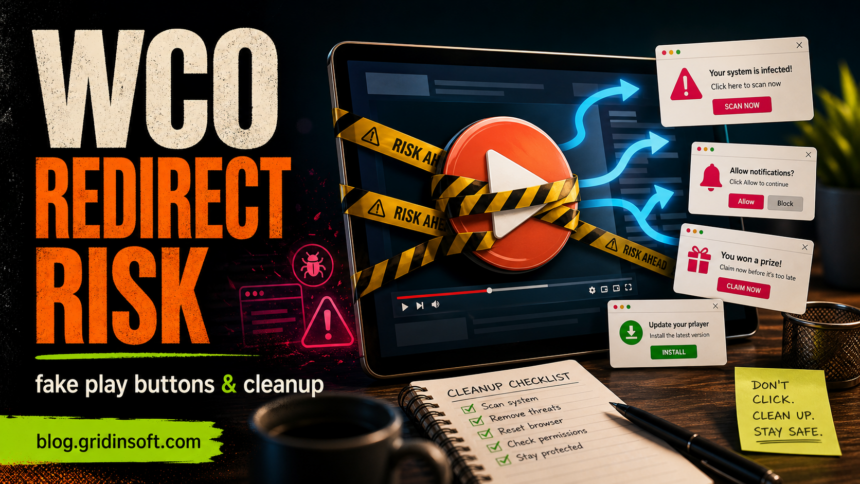
WatchCartoonOnline and WCO clone domains should not be treated as official, child-safe, or safe just because a video player loads. The risk is the clone ecosystem around the stream: fake play buttons, notification prompts, redirect chains, fake CAPTCHA pages, adult or gambling ads, Android APK offers, browser extensions, and downloaded files that have nothing to do with the cartoon. If you only opened the page, close it and clear any notification permission. If you downloaded or installed anything, scan before opening it and clean browser changes before a child uses the device again.
Why WCO and WatchCartoonOnline Clones Are Risky
The name WatchCartoonOnline is used across shifting WCO-style domains, mirrors, and lookalike pages. Some may show cartoons; that does not make the surrounding ads, buttons, redirects, or downloads trustworthy. A clone can change ad partners, push a fake player update, ask for browser notifications, or send the visitor through a chain that ends on scareware, an extension install, or a file download.
That is why the right question is not only “does the stream work?” The practical question is what the page asked you to do and whether anything was allowed, downloaded, installed, or entered after the redirect. The FTC has warned that illegal streaming apps and related services can expose users to malware, unwanted software, and data risk, especially when users install something outside normal app stores [1].
WCO Risk Signs To Take Seriously
| What happened | Risk and safe response |
|---|---|
| The play button opened another tab | Close the new tab. Do not install a player, codec, extension, VPN, or “download manager” from the redirect. |
| The site asked to allow notifications | Deny it. If you clicked Allow, remove the sender from browser notification permissions before more fake alerts appear. |
| A fake CAPTCHA asked you to click Allow | Treat it as notification spam, not a real verification step. Block the site permission and clear its site data. |
| A file, APK, extension, or app was downloaded | Do not open it. Scan first, then delete it if it was not the exact file type you expected. |
| A child used the device on a WCO clone | Review browser history, notifications, extensions, downloads, and any account sign-ins before the next session. |
| Pop-ups or alerts keep returning | Check extensions, startup apps, installed apps, browser policies, and notification permissions, then run a full scan. |
Is Any WCO Domain The Official One?
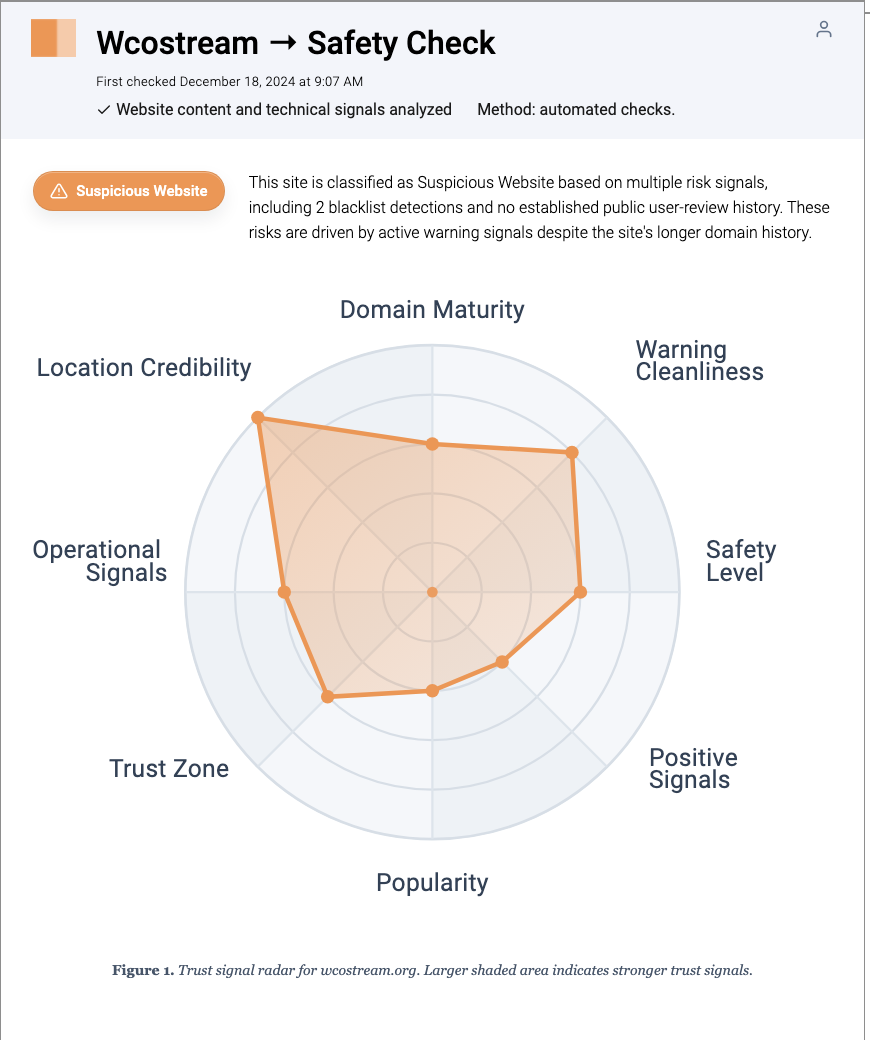
Do not rely on the domain name alone. WCO-style names often look similar, and users may arrive through search results, social links, mirrors, typo domains, or ad redirects. A clean-looking page can still use risky ad flows or permission prompts. Gridinsoft’s Website Reputation Checker currently flags wcostream.org as a suspicious website with multiple warning signals, which is a good example of why the domain should be checked rather than trusted from memory.
If you are comparing this case with other streaming brands, use the broader free movie streaming scams guide for fake player and verification-page patterns, the MoviesJoy safety guide for movie-clone redirects, and the KissAnime safety guide for anime-mirror risks. WCO belongs to the cartoon-streaming version of the same problem.
What To Do After Opening WatchCartoonOnline Or WCO
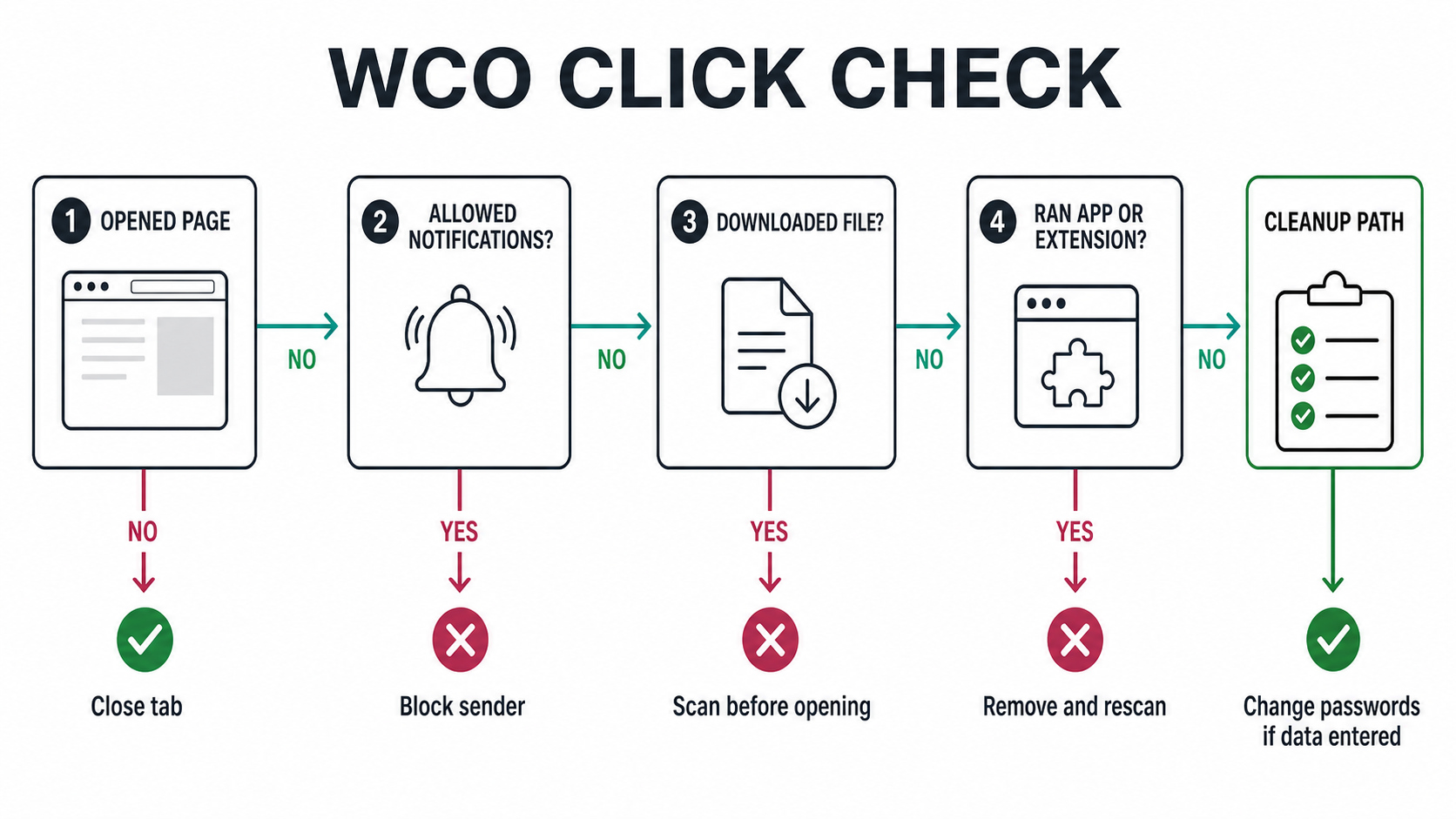
- If you only opened the page: close the tab, do not restore the session if the browser warns about a crash, and avoid clicking fake close buttons inside the page.
- If you allowed notifications: open browser notification settings and remove the unfamiliar WCO, CAPTCHA, player, or redirect domain. Microsoft documents the same browser-level notification control in Edge settings [2].
- If a fake virus alert appeared: do not call the number, pay for cleanup, or install a tool from the pop-up. Use the fake virus alert removal guide if alerts continue.
- If a file downloaded: leave it unopened, check the real extension, scan it, and delete it if it is an EXE, MSI, APK, ZIP/RAR archive, script, fake player, or browser extension you did not deliberately choose.
- If an app or extension was installed: remove it, check browser extensions and installed apps, then scan the system for adware, browser changes, and startup leftovers.
- If login, card, or personal data was entered: change the password from a clean device, revoke sessions, enable two-factor authentication, and watch for new mail rules, account recovery changes, or payment activity.
Parent-Focused Safety Checks
WCO searches often involve cartoons, so parents should treat the page as a device-safety and content-safety issue. A child may not notice that a new tab, fake CAPTCHA, “Allow” prompt, or download is unrelated to the cartoon. Before handing the device back, check these places:
- Browser notifications: remove unfamiliar senders and block pop-ups and redirects.
- Extensions: remove search helpers, video players, coupon tools, PDF tools, or download managers added around the same time.
- Downloads: delete APKs, EXE/MSI installers, ZIP/RAR archives, scripts, or files with double extensions.
- Installed apps: uninstall unknown players, cleaners, VPN offers, or “update” tools.
- Accounts: check whether a child entered an email, school account, game account, card, phone number, or parent password.
- Android devices: if an APK was installed, remove it and use the Android RAT cleanup checklist if the device shows spyware-like behavior, pop-ups, unknown accessibility permissions, or account alerts.
Scan If Pop-Ups, Redirects, Or Downloads Continue
Manual browser cleanup is enough when you only viewed a page and blocked the notification prompt. It is not enough when alerts return after reboot, a fake player or extension was installed, a file ran, or unknown apps appeared. A leftover extension, bundled app, scheduled task, startup entry, or browser-policy change can recreate redirects even after the visible tab is closed.
After a WCO clone leads to an Android app installation, use Trojan Scanner for Android to scan installed apps and review findings. Confirm unwanted-app removal, restart and check the original symptom. Revoke website-notification permission separately.
On Windows, Gridinsoft Anti-Malware can check for detections, hidden files, suspicious startup entries, scheduled tasks, unwanted apps, browser changes, and persistence. Run a full scan, remove detections, reboot, and scan again if WCO-related pop-ups, fake alerts, or redirects return.
What Not To Do
- Do not install a player, codec, APK, VPN, or browser extension from a WCO redirect.
- Do not click “Allow” to watch a cartoon or prove you are not a robot.
- Do not enter a main email, school account, game account, or card details on a clone page.
- Do not trust a domain because another user said it worked last week; mirrors and ad flows can change quickly.
- Do not turn off browser protection or antivirus because a video page tells you to do it.
Related streaming-safety guides: if the brand name is the issue, see the 123Movies clone safety guide for 123Movies, FMovies, SFlix, and Soap2Day-style redirects.
FAQ
Is WatchCartoonOnline safe?
Do not treat WatchCartoonOnline or WCO clone domains as safe. Even when a stream plays, the surrounding redirects, fake buttons, notification prompts, downloads, and clone-domain churn create malware, adware, and privacy risk.
Is WCO safe for kids?
No WCO clone should be treated as child-safe. Children may click fake play buttons, allow notifications, install a player, or enter account details without recognizing the redirect. Use legal, moderated streaming services for children.
What if I clicked Allow on a WCO page?
Open your browser notification settings, remove the WCO or redirect sender, then clear that site’s data. If fake antivirus alerts continue, check extensions and installed apps and run a scan.
Can a WCO page infect my computer without a download?
Most cases require a permission, extension, file, app, or vulnerable browser path. Still, a page can cause notification spam, scareware redirects, and risky downloads. Keep the browser updated and do not interact with prompts from clone pages.
Should I change passwords after visiting WCO?
Change passwords if you entered credentials, installed an extension or app, ran a downloaded file, or saw signs of account misuse. If you only opened the page and closed it without permissions or downloads, password changes are usually not necessary.
References
- Federal Trade Commission. “Malware from illegal video streaming apps: What to know.” FTC Consumer Advice, May 2, 2019; accessed July 7, 2026. https://consumer.ftc.gov/consumer-alerts/2019/05/malware-illegal-video-streaming-apps-what-know
- Microsoft. “How to turn off and block browser notifications.” Microsoft Edge Learning Center, accessed July 7, 2026. https://www.microsoft.com/en-us/edge/learning-center/how-to-turn-off-block-browser-notifications