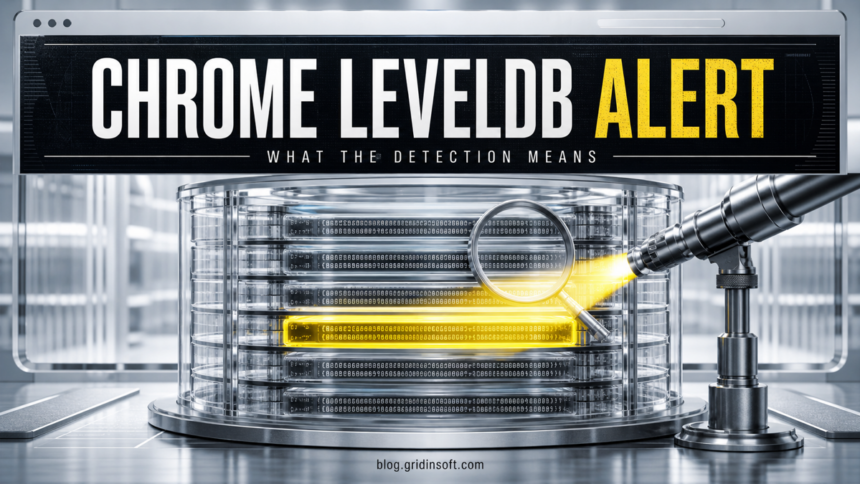
An antivirus detection in a Chrome LevelDB .ldb or .log file means the scanner matched suspicious content stored inside Chrome’s browser database. LevelDB itself is not a virus, and the presence of files such as CURRENT, LOCK, LOG, or MANIFEST is normal. Keep the detected record quarantined, note its full path, then check the site, extension, or synced setting that may have written it. A clean follow-up scan lowers the risk; an alert that returns after Chrome opens needs a source-focused cleanup.
The filename alone cannot tell you whether the hit was a malicious script saved by a website, an unwanted extension setting, a false positive, or evidence of a broader infection. The path, recurrence, browser symptoms, recent downloads, and account activity determine what to do next.
What Chrome LevelDB files are
Chrome uses a LevelDB-backed key-value store for Local Storage. Websites and browser components can save small pieces of data there, and Chrome groups that data into database files rather than one readable file per website. Chromium’s source shows Local Storage maps being read and updated through its LevelDB storage implementation.[1]
A common Windows path looks like this:
%LOCALAPPDATA%\Google\Chrome\User Data\Default\Local Storage\leveldb\000123.ldb
Other profiles use folders such as Profile 1 or Profile 2. Related detections may point to:
Local Storage\leveldb— data written by websites or browser components;Sync Data\LevelDB— profile data associated with Chrome Sync;Local Extension Settings\{extension_id}— data belonging to a specific extension;IndexedDB,Service Worker, or cache folders — other site or extension storage.
Database support files are expected to return after deletion because Chrome recreates the store when it needs it. That regeneration does not by itself mean malware came back. The important question is whether the same antivirus detection returns and what action preceded it.
What if the alert names User Data or Web Data?
User Data is Chrome’s directory containing profiles such as Default and Profile 1; it is not one malware file. Within a profile, Web Data is a separate SQLite database, not a LevelDB .ldb file.[4] A scan listing several files under User Data does not, by itself, establish several independent infections. Keep the detection name and full profile path: neither the folder nor the database filename establishes whether a particular alert is malicious or harmless.
For cleanup, use the full Gridinsoft Anti-Malware scan described below. If the warning or unwanted browser setting returns, use the scanner’s recorded details to choose a targeted check in that same Chrome profile:
- An extension ID is present: match it in
chrome://extensions/and follow the extension check in the cleanup steps below. The linked recurring-extension guide covers extensions restored by Sync, policy, or another program. - A suspect domain is recorded without an extension ID: look for that domain in search engines, startup pages, and allowed notification sites using
chrome://settings/searchEngines,chrome://settings/onStartup, andchrome://settings/content/notifications. Remove the unwanted entry if you find it.[5] These are places to investigate, not a claim that every Web Data detection comes from each setting. If the report names only a file, request detection details from the scanner vendor before guessing which setting to remove.
Keep the item quarantined and compare the detection name and profile path after reopening Chrome and restarting Windows. A recreated database alone is normal; a repeated alert needs investigation. Sync is one possible source, not the explanation for every recurrence. Do not edit the database with SQL, exclude the whole profile from scanning, or delete all of User Data to suppress the alert.
Does a LevelDB detection mean Chrome is infected?
Not automatically. Antivirus engines scan the bytes stored inside a database. A record can contain a suspicious URL, script fragment, encoded command, notification setting, or extension data that matches a detection signature. The scanner may quarantine the database file because it cannot remove only one key safely.
Lower-risk pattern: the alert appeared once after visiting a suspicious page, the item stayed quarantined, Chrome shows no unknown extensions or redirects, and full scans remain clean after a reboot.
Browser-source pattern: the alert returns when Chrome opens, when one site loads, or after an extension is re-enabled. Investigate site data, notifications, extensions, Sync, and browser policy.
Higher-risk pattern: the detection follows a downloaded file that ran, or appears with PowerShell, cmd.exe, startup, scheduled-task, unknown-app, or account-session symptoms. Treat the browser hit as one artifact of a possible system infection.
Possible false positive: the hit began immediately after an antivirus definition update, many unrelated users report the same signature, and the alert does not return after the vendor updates its definitions. Keep the item quarantined while requesting vendor reanalysis; do not add a broad exclusion.
Safe cleanup for a Chrome LevelDB antivirus alert
For the main cleanup route, start with the Gridinsoft Anti-Malware scan below. The manual browser checks here are optional targeted troubleshooting if symptoms remain; you do not need to perform every check before scanning.
-
Leave the item quarantined. Do not restore it because the folder belongs to Chrome. Copy the detection name, complete path, scan time, and action taken. The folder name tells you which Chrome profile and storage type were involved.
-
Close Chrome completely. Save important work, close every Chrome window, and confirm that normal Chrome processes have ended before rescanning. Do not terminate an unfamiliar process only because its name resembles Chrome; verify its path first.
-
Remove data for the suspected site. In Chrome, open
Settings → Privacy and security → Third-party cookies → See all site data and permissions, search for the domain involved, and delete that site’s stored data. Google documents this targeted method, which is safer than deleting the whole browser profile.[2] -
Review extensions. Open
chrome://extensions/, enable Developer mode, and record the ID of anything you do not recognize. Remove extensions installed near the first alert or with unnecessary access to all websites. If an extension returns, use the recurring Chrome extension cleanup guide to check Sync, policy, and companion-app persistence. -
Check notifications and browser policy. Review
chrome://settings/content/notificationsfor unfamiliar allowed sites. On a personal computer, openchrome://policy/and investigate unexpected force-installed extensions or managed settings. Work or school policies may be legitimate, so do not delete them without your administrator. -
Remove the source, not every database file. Delete the suspicious download or uninstall the unwanted app that preceded the alert. A detection under
Local Extension Settingsshould lead you to the matching extension ID. A hit inSync Data\LevelDBcalls for checking the same signed-in profile on other devices before normal Sync use resumes. -
Reboot and scan again. Update your security tools, run a full system scan, restart Windows, and run a second scan. A clean result after reboot is more useful than checking whether Chrome recreated a normal
leveldbfolder.
Scan beyond the Chrome database
Browser cleanup removes stored data, but it does not remove a loader, scheduled task, service, unwanted desktop app, or policy that keeps writing the same data back. This matters when the alert returns after reboot, follows a crack or fake update, points to several browser profiles, or appears beside PowerShell and startup activity.
Download and install Gridinsoft Anti-Malware using the button below, update it, and run a Full Scan to look for hidden files, bundled applications, scheduled tasks, startup entries, browser changes, and other persistence. Remove confirmed detections, reboot, then scan once more. If the only hit was a quarantined browser record and repeated scans stay clean, do not assume that every normal LevelDB file is malicious.
If redirects, notifications, extensions, homepage changes, or managed policies return after browser cleanup, the source is often outside the browser: an installed app, policy, scheduled task, or startup entry.
Scan for browser and system leftoversFor system-level warning signs, follow the Windows security audit after malware. If the path includes fake extension-style scripts rather than ordinary site data, compare it with the Trojan.FakeGoogleJS cleanup guide.
When to reset Chrome or create a clean profile
Use Chrome’s built-in reset when search, startup pages, notification permissions, or extensions remain changed after the source is removed. Google recommends checking the computer for unwanted programs before resetting, then re-enabling only extensions you trust.[3]
A new Chrome profile is a stronger test when the detection returns only in one profile and you cannot identify the responsible site or extension. Create a separate profile without importing settings immediately, browse normally, and rescan. If the clean profile stays clean, migrate bookmarks deliberately and reinstall only necessary extensions from their official listings.
Do not delete the entire %LOCALAPPDATA%\Google\Chrome\User Data directory as a first step. It can remove profiles, sessions, local-only data, extension settings, and evidence needed to identify the source. Targeted site-data removal, extension cleanup, reset, or a clean-profile test gives you a safer rollback path.
When to change passwords or revoke sessions
A LevelDB detection alone does not prove that passwords or cookies were stolen. Take account-response steps when one or more higher-risk clues are present:
- an unknown extension could read and change data on websites;
- a suspicious installer, archive, script, crack, or fake update was executed;
- the scanner found a stealer, loader, or credential-theft family elsewhere;
- email, Google, Microsoft, Steam, Discord, banking, or social accounts show unfamiliar sessions or changes;
- browser sessions are being signed out, redirected, or reused unexpectedly.
From a clean browser or device, sign out unfamiliar sessions, change the email password first, then rotate other important passwords and API tokens. Enable multi-factor authentication where available. For extension-related session exposure, the ModHeader response guide explains why removing an extension does not invalidate a token that may already have been copied.
Verify that the alert is actually gone
- Restart Windows before opening Chrome.
- Run an updated full scan and confirm the prior detection is not active or restored.
- Open Chrome without restoring every old tab at once.
- Check extensions, notifications, startup pages, search settings, and
chrome://policy/. - Visit normal trusted sites, close Chrome, and scan again.
- If the alert returns, record the exact time and the first site, extension, or process used before it appeared.
The folder returning is expected; the same malicious signature returning is not. Use the recurrence trigger to narrow the source instead of repeatedly deleting random .ldb files.
FAQ
Is Chrome LevelDB a virus?
No. LevelDB is a database format Chrome uses for browser storage. An antivirus can detect suspicious content inside one database record, but normal LevelDB files and support files are not malware by definition.
Can I delete Chrome LevelDB files?
Chrome can recreate them, but manual deletion can sign you out of sites, remove local data, and hide the source of the alert. Close Chrome and use its site-data controls, extension cleanup, reset, or a clean-profile test before deleting a whole database folder.
Why does the LevelDB folder come back after quarantine?
Chrome recreates the database when a website or browser component needs Local Storage. That is normal. Investigate further only if the same antivirus detection returns, especially after one site, extension, synced profile, or downloaded program is used.
Can a Chrome LevelDB detection be a false positive?
Yes, but path and timing matter. Keep the item quarantined, update the antivirus, rescan after reboot, and request vendor reanalysis if the hit began with a definition update and no related symptoms or detections exist. Do not create a broad exclusion for the Chrome profile.
Does a clean full scan mean the computer is safe?
It is a reassuring signal, not absolute proof. Confirm that the detection stays gone after reboot and after Chrome opens, and check extensions, notifications, policy, recent downloads, startup items, and account sessions when the original context was suspicious.
References
- The Chromium Authors. “LocalStorageLevelDB implementation.” Chromium source, accessed July 31, 2026. Chromium source.
- Google. “Delete, allow, and manage cookies in Chrome.” Google Chrome Help, accessed July 31, 2026. Google Chrome Help.
- Google. “Remove unwanted ads, pop-ups and malware.” Google Chrome Help, accessed July 31, 2026. Google Chrome Help.
- The Chromium Authors. “PlusAddressTable: Chrome profile Web Data SQLite database.” Chromium source, version 133.0.6894.1, accessed September 20, 2026. Chromium source.
- ThreatDown. “Nebula keeps detecting the same Google Chrome PUP.” Support documentation, updated August 28, 2026; accessed September 20, 2026. Extension-ID and suspect-domain checks.