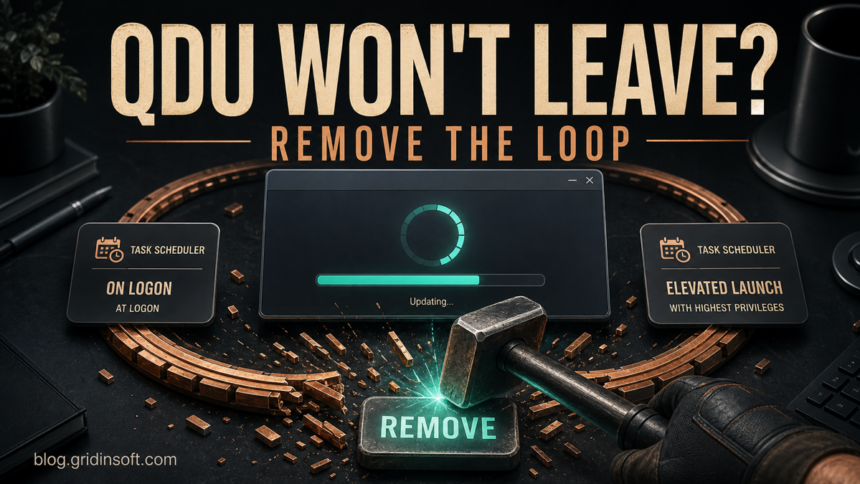
Quick Driver Updater removal should start with the application, then continue with the tasks and startup items that can make it return. Quick Driver Updater is not a Microsoft or Windows component. If you did not deliberately install it, it keeps showing scan or payment prompts, or Windows still launches qdu.exe after uninstall, remove the app and verify its persistence before installing any more drivers.
Do not delete random Windows driver files. The goal is to remove the updater and its helpers without touching legitimate audio, graphics, network, printer, or chipset drivers. If the app already changed a driver and the device became unstable, use the recovery branch below.
Is Quick Driver Updater Safe?
Quick Driver Updater is a third-party commercial driver utility published by Digital Protection Services S.R.L., not a Windows feature. Its own license describes automatic updates, optional third-party offers, silent-install parameters, and a scheduled task intended to run the application with administrative privileges.1 Those facts do not make every signed copy of qdu.exe a Trojan, but they explain why the program can feel intrusive or return at logon.
The practical decision is simpler than the malware label. Remove it if you did not choose it, it arrived with another installer, it pushes alarming scan results or payment, it added tasks you do not want, or it changed a driver that was working. If you intentionally installed it and want to keep it, verify the publisher signature and source before allowing it to run with administrator rights.
| Item you find | What it means and what to do |
|---|---|
qdu.exe |
Usually the Quick Driver Updater executable when its path and Digital Protection Services signature match the installed app. A copy in an unrelated folder, with a missing or different signer, needs a separate EXE safety check. |
Quick Driver Updater skipuac |
A scheduled task name associated with elevated app startup. Open the task’s Actions tab and verify the target. Disable it before deletion if you are still investigating. |
Quick Driver Updater_Logon |
A logon task that can launch the updater when a user signs in. Remove it after uninstall when its action points to Quick Driver Updater or a missing leftover path. |
| Quick Driver Updater in Installed apps | Use the normal uninstall entry first. The publisher’s current instructions also start with Control Panel and Uninstall a program.2 |
| Pop-up returns but the app is gone | Check tasks, Startup apps, services, browser notifications, extensions, and other programs installed on the same day. |
How to Remove Quick Driver Updater and Stop It Returning
- Close the updater and do not approve more driver changes. Cancel any scan, update, purchase, or restart prompt. If a driver installation is already in progress, let Windows finish or cancel through the app rather than powering off in the middle.
- Record the executable and task targets. In Task Manager, right-click
qdu.exeand choose Open file location. In Task Scheduler, open the Actions tab for the two Quick Driver Updater tasks. A screenshot or written path helps you distinguish app leftovers from unrelated files. - Uninstall the parent application. Open Settings → Apps → Installed apps, find Quick Driver Updater, and select Uninstall. On older Windows versions, use Control Panel → Programs and Features.
- Restart Windows once. A reboot lets the uninstaller finish and shows whether a task or helper still launches the app.
- Remove confirmed scheduled-task leftovers. Open Task Scheduler and check
Quick Driver Updater skipuacandQuick Driver Updater_Logon. If their actions point to the removed updater or a now-missing QDU path, disable and then delete them. Do not delete a task based only on the word update. - Check Startup apps and services. In Task Manager → Startup apps, disable entries that point to the same updater folder. In
services.msc, inspect recently added updater services and their executable paths. Stop only entries you can tie to Quick Driver Updater or the same unwanted bundle. - Remove remaining app folders and installers. Use the paths you recorded from the executable and task actions. Delete the leftover Quick Driver Updater folder only after its processes and tasks are gone. Also remove unwanted setup files from
%USERPROFILE%\Downloads. Do not cleanC:\Windows\System32\driversor DriverStore by hand. - Check the browser and same-day installs. Remove unexpected notification permissions or extensions, then review other apps installed around the same time. Bundled software can survive even when the visible updater is gone.
- Check another unexpected optimizer separately. If LuDaShi appeared with the same bundle or MiniPopups alerts now return, follow the LuDaShi-specific removal steps instead of deleting unrelated drivers.
- Run a full security scan. This matters when the updater arrived unexpectedly, the prompts return, the signer or path is wrong, or other bundled apps appeared. A scan can check for unwanted programs, hidden helpers, scheduled tasks, startup entries, browser changes, and persistence.
- Reboot and verify again. Confirm that
qdu.exeis not running, both QDU tasks are gone, no updater window returns, and your devices still work.
If the updater window or related activity returns after the visible program is removed, another task, startup entry, helper, browser change, or bundled application may still be present. Run a full Gridinsoft Anti-Malware scan after the manual checklist, remove confirmed detections, reboot, and scan again if the symptom returns.
Browser reset can remove visible symptoms, but adware may keep a desktop app, extension source, notification permission, or startup task that brings pop-ups and redirects back.
Scan for updater leftoversWhat If Quick Driver Updater Will Not Uninstall?
If Windows says it cannot find the uninstaller, do not download a random replacement uninstaller. End qdu.exe, disable the two confirmed QDU tasks, reboot, and try the Installed apps entry again. If the entry remains broken, record its publisher and install location, remove only the confirmed updater files, then scan for the orphaned app and bundle.
If access is denied, make sure you are using an administrator account and that the updater process is closed. A task that immediately relaunches the process can make file removal appear to fail. Disable the confirmed task first, reboot, and repeat the uninstall. For the broader pattern, use the fake driver updater cleanup guide to check browser notifications and unrelated bundle components.
If a Quick Driver Updater Change Broke a Device
Removing the updater does not automatically roll back a driver it installed. If audio, graphics, Wi-Fi, Bluetooth, the touchpad, or another device failed immediately after a QDU update, recover that device separately:
- Right-click Start and open Device Manager.
- Expand the affected device category, right-click the device, and open Properties → Driver.
- Select Roll Back Driver when the button is available, give a reason, and restart.
- If rollback is unavailable, download the correct driver from Windows Update or the PC/device manufacturer’s official support page. Avoid search ads and driver mirrors.
- If Windows cannot start, use Windows Recovery to enter Safe Mode or restore to a point created before the driver change. Do not keep testing additional third-party driver packages.
Microsoft’s current guidance says Windows Update is normally the best way to receive driver updates and documents rollback, reinstall, and Device Manager recovery steps.3 The Plug-and-Play driver safety guide explains when the built-in Windows driver is enough and when an OEM package is justified.
How to Confirm Quick Driver Updater Is Gone
- Quick Driver Updater no longer appears in Installed apps.
qdu.exedoes not return in Task Manager after reboot.Quick Driver Updater skipuacandQuick Driver Updater_Logonare absent from Task Scheduler.- No related startup item or service points to the old updater folder.
- No updater scan, purchase prompt, or browser notification returns.
- A full scan finds no related unwanted app or bundled component.
- Windows Update and Device Manager show normal device status.
If the machine also gained unfamiliar extensions, remote-access tools, account prompts, or repeated security alerts, continue with a Windows security audit after malware. The absence of the QDU window alone does not prove that an unrelated bundle is gone.
What to Use Instead of a Driver Updater
Use Windows Update first. For a device-specific bug, use the PC maker’s support page or the hardware maker’s official driver page. Device Manager is useful when you know which device needs an update, reinstall, or rollback. You normally do not need a utility that scans every driver and turns the result into a payment prompt.
FAQ
Is Quick Driver Updater malware?
Not every copy of the signed application is automatically a Trojan. It is a third-party driver utility, not a Windows component, and its tasks, offers, silent-install support, or unwanted arrival can justify removal. Treat a wrong-path or wrongly signed qdu.exe as a separate suspicious file.
Is qdu.exe safe to delete?
Uninstall Quick Driver Updater first. Delete a leftover qdu.exe only after confirming its path belongs to that app and its tasks, service, and process are stopped. Do not delete similarly named Windows or driver files by guesswork.
Why does Quick Driver Updater keep popping up after uninstall?
A scheduled task, startup entry, service, browser notification, or another bundled app may still be launching the symptom. Check the exact task actions and same-day installs, then reboot and scan.
Should I delete the skipuac and Logon tasks?
Yes, when their Actions point to Quick Driver Updater or its removed folder. Disable them first if you are still verifying ownership. Do not remove unrelated Windows or vendor tasks simply because they contain words such as update or logon.
Can removing Quick Driver Updater undo a bad driver?
No. Remove the updater, then use Device Manager’s Roll Back Driver option or install the correct driver from Windows Update or the hardware maker. Recovery Mode or System Restore may be needed if Windows no longer starts normally.
References
- Digital Protection Services S.R.L. “Quick Driver Updater End-User License Agreement.” Quick Driver Updater, current living document, accessed August 2, 2026. https://www.quickdriverupdater.com/eula/
- Digital Protection Services S.R.L. “Quick Driver Updater Uninstallation Guidelines.” Quick Driver Updater, accessed August 2, 2026. https://www.quickdriverupdater.com/uninstallguidelines/
- Microsoft Support. “Update drivers through Device Manager in Windows.” Microsoft, current living document, accessed August 2, 2026. https://support.microsoft.com/en-us/windows/update-drivers-through-device-manager-in-windows-ec62f46c-ff14-c91d-eead-d7126dc1f7b6