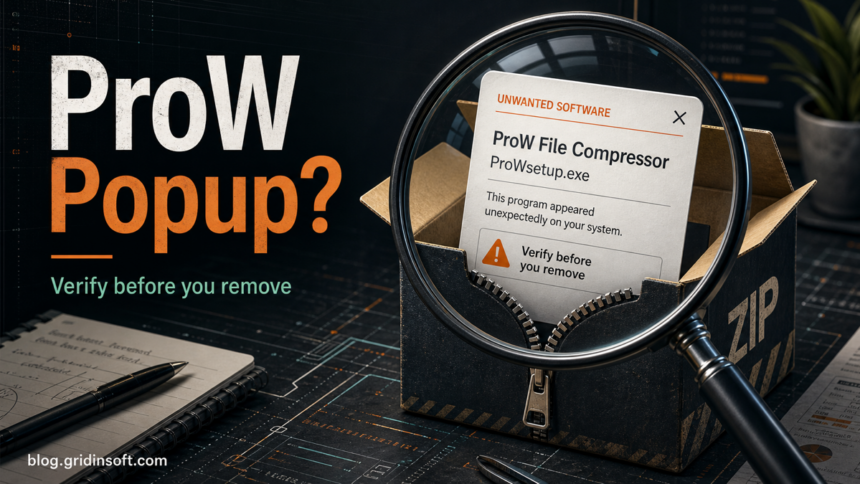
ProW File Compressor is not something to trust automatically just because it uses a file-compression name. A file compressor can be legitimate in concept, but if ProW File Compressor or ProWsetup.exe appeared without a clear install choice, opens pop-ups, or returns after uninstall, treat it as a potentially unwanted app until you verify the source and remove the leftovers.
The safest answer is conditional: keep it only when you intentionally installed it from a source you trust and it behaves like a normal utility. Remove it when it arrived with another download, keeps asking to install or update, changes browser behavior, or stays active after you thought it was gone.
Quick Check: Safe Utility or Unwanted App?
| What you see | Risk and what to do |
|---|---|
| You installed it deliberately and recognize the publisher, folder, and download source. | Lower risk, but still verify the file properties and uninstall it if you do not need it. |
| ProWsetup.exe pops up after another free tool, driver utility, PDF tool, game download, or archive. | Treat it as unwanted. Close the installer, do not accept extra offers, and remove the parent app or installer bundle. |
| The program reappears after uninstall or reboot. | Check Startup Apps, Task Scheduler, Services, browser extensions, and notification permissions before assuming one file deletion fixed it. |
| A security tool flags the installer or the pop-up starts from Temp, Downloads, AppData, or ProgramData. | Keep it blocked or quarantined until you can verify the source. Run a full scan if the file already ran. |
What Is ProW File Compressor?
ProW File Compressor presents itself like a utility for compressed files. The problem is not the idea of file compression; Windows users legitimately use ZIP and archive tools every day. The risk is the delivery and behavior: users search for this name when they did not clearly install it, see ProWsetup.exe prompts, or want to know whether the file is safe before allowing it.
That makes ProW File Compressor a practical unwanted-program triage case. Do not label every same-named file as malware from the name alone, but do not ignore an unexpected installer either. The useful evidence is the source, path, signature, install date, persistence, and whether other changes appeared at the same time.
Signs It Should Be Removed
- It appeared after installing an unrelated free utility, driver updater, browser extension, PDF tool, game mod, or archive.
- ProWsetup.exe opens repeatedly or asks to install something you did not request.
- The file runs from %TEMP%, %USERPROFILE%\Downloads, %APPDATA%, or %PROGRAMDATA% instead of a normal program folder.
- Windows Startup Apps, Task Scheduler, or Services contain a same-day unknown entry that points to ProW or the installer folder.
- Browser pop-ups, notification spam, a new search engine, or a new extension appeared around the same time.
- The app is missing a clear publisher, has blank file metadata, or security tools disagree about whether it is clean.
If the symptom is mostly browser pop-ups or notification spam, compare it with the Gridinsoft guide to fake virus alerts and browser notifications. If it arrived with a broader unwanted utility bundle, the cleanup flow is closer to PC App Store removal or the adware symptoms and removal checklist.
How To Remove ProW File Compressor
- Close the pop-up safely. Do not click buttons inside a surprise installer. Use the normal close button, or use Task Manager if the window will not close.
- Uninstall the visible app. Open Settings > Apps > Installed apps, sort by install date, and remove ProW File Compressor plus any unknown same-day utilities you did not choose clearly.
- Check the file location. In Task Manager, right-click the running process and open the file location. A temporary download, AppData, ProgramData, or random folder is more suspicious than a normal program folder you recognize.
- Review Startup Apps. Disable unknown same-day startup entries before rebooting. Keep a note of the file path so you can connect it to the parent app.
- Open Task Scheduler. Look for recently created tasks with updater, setup, compressor, helper, or random names. Disable suspicious tasks first; delete them only when you are sure they belong to the unwanted app.
- Check Services. Press Win+R, type services.msc, and look for same-day services tied to the ProW folder, setup file, or a vague updater name.
- Clean browser leftovers. Remove unknown extensions, reset changed search/startup settings, and revoke notification permissions from sites you do not recognize.
- Reboot and re-check. If ProWsetup.exe or the app returns after reboot, the visible uninstall missed a startup entry, task, service, browser change, or bundled component.
When a surprise utility returns after uninstall or the installer already ran, a full scan is more reliable than chasing one filename. Gridinsoft Anti-Malware can check for detections, hidden files, scheduled tasks, startup entries, bundled apps, browser changes, and persistence that may recreate the pop-up.
Browser reset can remove visible symptoms, but adware may keep a desktop app, extension source, notification permission, or startup task that brings pop-ups and redirects back.
Scan for ProW leftoversShould You Restore or Allow It?
Do not restore ProW File Compressor just because one scan says it is clean. Also do not delete random Windows files just because the name looks unfamiliar. Use the context:
- Allow only when the source is clear. You should know where you downloaded it, why you installed it, and which program folder it belongs to.
- Keep blocked when it was bundled. If it came with another installer or appeared without a clear consent screen, treat it as unwanted.
- Scan before restoring from quarantine. This is especially important if the file ran from Temp, Downloads, AppData, ProgramData, Startup, or Task Scheduler.
- Prefer uninstall over manual deletion. Deleting one executable can leave scheduled tasks, browser permissions, services, and uninstall entries behind.
What If ProWsetup.exe Keeps Coming Back?
Repeat pop-ups usually mean another component is launching the installer. Sort installed apps by date, then compare Startup Apps, Task Scheduler, Services, browser extensions, and notification permissions with the same install window. If you find several same-day utilities, clean the batch instead of focusing only on ProW.
For a broader unwanted-software cleanup flow, use the Gridinsoft browser hijacker and PUA removal guide. That guide covers extension, policy, proxy, DNS, startup, and sync issues that can make a removed app appear to come back.
FAQ
Is ProW File Compressor a virus?
The name alone does not prove that it is a virus. It is suspicious when it appears unexpectedly, launches ProWsetup.exe pop-ups, returns after uninstall, or arrives with other bundled apps. In that situation, treat it as unwanted until verified.
Can I just delete ProWsetup.exe?
Deleting the setup file may stop one prompt, but it does not remove a startup entry, scheduled task, service, browser extension, or parent bundle. Uninstall the visible app first, then check persistence locations and scan if symptoms return.
Why did it appear after another download?
Free utilities and installer bundles sometimes include optional offers or helper apps. If ProW File Compressor appeared after a different download, remove the whole same-day bundle and review browser changes before trusting the PC again.
Should I allow it if my antivirus says it is clean?
Only if you intentionally installed it from a source you trust and the file path, publisher, and behavior all make sense. A clean result from one scan does not make an unexpected installer useful or safe to keep.
References
- Microsoft Support. “Protect your PC from potentially unwanted applications.” Microsoft, accessed June 24, 2026. https://support.microsoft.com/en-US/security/protect-your-pc-from-potentially-unwanted-applications
- Joe Security. “Automated Malware Analysis Report for ProW File Compressor.exe.” Joe Sandbox, accessed June 24, 2026. https://www.joesandbox.com/analysis/1868155/0/html