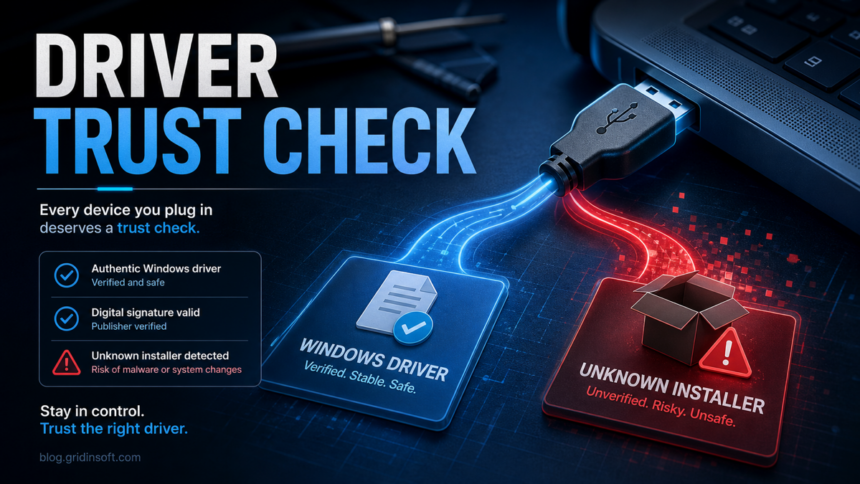
Plug-and-play Windows drivers are usually safer than random driver installers, but they are not a magic safety guarantee. If a device works with a driver already included in Windows or delivered through Windows Update, you avoid running an unknown setup file from a small vendor site. That lowers the malware risk. It does not prove the device, firmware, optional software, or every future driver update is harmless.
The safest rule is simple: let Windows use its built-in class driver when the device only needs basic storage, keyboard, mouse, camera, printer, or optical-drive support. Install a manufacturer driver only when you need a specific feature and you can verify the source, signature, and reputation of the package first.
The same source check applies to graphics runtimes that arrive with GPU drivers. If an unfamiliar Vulkan component appears after a driver update, compare it with our VulkanRT safety guide before removing it.
Quick Verdict
| Built-in Windows class driver | Usually the lowest-risk path for basic devices. |
| Windows Update or OEM driver | Generally safer than a random installer, but still keep Windows updated and watch for rollback notices. |
| Manufacturer driver package | Use only from the official vendor page or hardware app; scan and verify it before running. |
| Third-party driver updater | Avoid for normal home use. Bundlers and fake driver tools are a common PUA route. Start with the fake driver updater cleanup guide, then use the Driver Support One removal guide if that exact app is installed. |
| Unknown USB device | Treat as a device trust question, not only a driver question. |
Why Plug-and-Play Feels Safer
Plug and Play means Windows can identify a device and load a compatible driver without making you hunt for a setup program. For many common device classes, Windows already includes an in-box driver or can find a signed package through Windows Update. That is safer than downloading a file named DriverSetup.exe from an unfamiliar mirror because you are not voluntarily running an extra installer.
Windows also checks driver signatures before installing or loading kernel-mode driver packages. Microsoft says Windows device installation uses digital signatures to verify the integrity of driver packages and the identity of the publisher [2]. That does not mean every signed driver is bug-free or impossible to abuse, but it blocks many unsigned or tampered packages from loading normally.
The Four Driver Safety Cases
1. Windows uses a built-in class driver
This is the best outcome for ordinary peripherals. A plug-and-play optical drive, mouse, keyboard, webcam, storage device, or printer may work because Windows already has a standard driver for that device class. If everything works and the vendor site is sketchy, you normally do not need the vendor’s extra utility.
2. Windows Update installs a driver
This is still generally safer than a random download, because the package is coming through Microsoft’s driver distribution path. Microsoft has also tightened driver policy and says current Windows systems can block drivers that are not properly signed through the Windows Hardware Compatibility Program or otherwise allowed by the Windows Driver policy [1].
3. You download a manufacturer driver package
This can be legitimate. GPUs, audio interfaces, printers, RGB controllers, capture cards, and specialty hardware often need extra features. The risk is the installer: it may include a service, updater, browser offer, telemetry component, or vulnerable kernel driver. Only download from the hardware maker’s official site, avoid mirror sites, and check the digital signature before running it. A compatibility failure can also come from legitimate RGB software: the inpoutx64 game-crash guidance separates the automatic driver block from situations that need vendor or IT support.
Monitor companion apps can also arrive through Windows device metadata. Our LG Monitor App Installer guide explains how to verify that Store package, remove it, and prevent repeat delivery without deleting the display driver.
4. The USB device itself behaves unexpectedly
A device can expose more than one function to Windows. For example, a gadget sold as a simple accessory might also present storage, a keyboard-like interface, or a vendor setup partition. That is not proof of malware, but it is a reason to slow down. Do not run bundled installers from a new device just because they appeared automatically.
Some specialized tools also install custom drivers outside normal Plug-and-Play flows. If you are checking an anti-cheat driver specifically, use our Echo Anti-Cheat and echo_driver.sys safety checklist to compare the source, path, signature, and vulnerable-driver context before allowing it.
Is a Signed Driver Always Safe?
No. A signature proves publisher identity and package integrity; it does not prove the driver is perfectly secure. Vulnerable signed drivers are a real attack lane because kernel-mode drivers run with deep system privileges. Microsoft maintains a vulnerable driver blocklist and says it is enforced when features such as Memory Integrity, Smart App Control, S mode, or the relevant Windows defaults are active [3].
That is why the practical decision is not only “is it signed?” Ask these questions too: If a clean Windows reinstall breaks biometric login, the same driver-source rules apply; see the Windows Hello fingerprint and Memory Integrity troubleshooting guide before installing random biometric packages.
- Do I know why this device needs a custom driver?
- Did the file come from the real vendor page, Microsoft Store, Windows Update, or the PC maker’s support app?
- Does the digital signature match the vendor I expected?
- Is Windows Security or SmartScreen warning about the installer?
- Did the installer add unrelated apps, browser extensions, VPNs, cleaners, or driver updaters?
- Is Memory Integrity enabled in Windows Security?
Red Flags Before You Run a Driver Installer
- The download page has many fake “download” buttons or pushes a driver updater.
- The file is from a mirror, forum attachment, cloud-share link, or ad result instead of the vendor domain.
- The installer name is generic, such as
DriverSetup.exe, with no clear publisher. - The digital signature is missing, invalid, expired without a clear reason, or belongs to an unrelated company.
- The installer asks you to disable antivirus, SmartScreen, Memory Integrity, or driver signature enforcement.
- The package offers browser extensions, search tools, system optimizers, VPNs, or “recommended” software.
- The device works already, but the vendor package wants administrator access for a feature you do not need.
If the package looks like a generic driver updater, compare it with our PUABundler:Win32/DriverPack guide. Driver bundles can be more dangerous than the missing driver they claim to fix.
What to Do With an Off-Brand Plug-and-Play Device
- Plug it in without running vendor software. Let Windows detect the device first.
- Open Device Manager. Check whether Windows identified the device cleanly and whether it reports a driver problem.
- Use basic features first. If a DVD drive reads discs or a webcam works in a test call, skip extra vendor tools unless you need them.
- Check Windows Update. If Windows offers an optional driver, prefer that over a random site.
- Verify any required installer. Download only from the hardware maker or PC maker, inspect the signature, and scan the file before running it.
- Watch for unexpected behavior. Browser changes, new startup apps, unknown services, blocked outbound traffic, or security alerts after a driver install are not normal.
- Unplug and scan if something feels wrong. Disconnect the device, remove the installed software, and run a full malware scan.
For suspicious installers, use a file reputation check before execution. If different scanners disagree, the decision flow in our VirusTotal 2/70 but Hybrid Analysis 100/100 guide explains how to weigh the source, signature, prevalence, and sandbox behavior instead of trusting one score.
If You Already Ran a Suspicious Driver Installer
- Disconnect the device. Remove the peripheral until you know what was installed.
- Uninstall the vendor package. Use Settings → Apps, then reboot.
- Check Startup Apps, Services, and Task Scheduler. Remove unknown helper apps, driver updaters, and launchers tied to the install time.
- Review browser settings. Some driver bundles add search helpers, notification permissions, or browser extensions.
- Run a malware scan. Gridinsoft Anti-Malware can check for PUA bundles, leftover services, suspicious scripts, and malware dropped with the installer.
- Re-enable protection. If you turned off Memory Integrity, SmartScreen, or antivirus protection to install the driver, turn it back on.
- Update from a trusted path. If the device still needs a driver, use Windows Update, the PC maker, or the hardware vendor’s official page.
After uninstalling the suspicious app or deleting the visible threat, use Gridinsoft Anti-Malware to check hidden files, startup entries, scheduled tasks, bundled apps, browser changes, and other persistence points that can restore malware.
Download Anti-MalwareWhen a Custom Driver Is Worth Installing
Some hardware legitimately needs vendor software. A graphics card, pro audio interface, drawing tablet, printer scanner, capture card, or RGB/fan controller may lose features with only a basic Windows driver. In those cases, install the smallest official package that provides the feature you need and avoid optional bundles.
A mouse can keep ordinary pointer movement while losing software-managed buttons. If that happens with Logitech Options, the LogiOptionsMgr.exe crash guide helps separate the customization app from the basic device driver and preserve settings before a repair.
For low-level utilities, keep a stricter standard. Hardware monitoring and control tools may use drivers that later become vulnerable. The WinRing0x64.sys article shows why a legitimate driver can still deserve removal or an update when Microsoft Defender flags it as vulnerable. The same version-and-source decision applies to GPU-Z and GPUZ-v2.sys, where a current official utility and an old or unexplained driver copy need different actions.
A current vendor-side example reinforces the same source-and-execution distinction: the GEEKOM legacy LAN driver warning identifies the exact flagged installer and separates owning a named model from downloading or running the old package.
Simple Safety Checklist
- Prefer Windows built-in drivers for basic devices.
- Prefer Windows Update or the PC/OEM support app over third-party driver sites.
- Never disable driver signature enforcement for a normal consumer driver.
- Keep Windows, Windows Security, and Memory Integrity protections current.
- Scan unknown driver packages before running them.
- Do not install driver updaters just because a site says your PC is outdated.
- Remove unexpected software immediately after a suspicious driver install.
If a driver-related alert appears in Microsoft Defender, the detection name matters less than the path, source, signature, and repeat behavior. Our Microsoft Defender detection names guide explains how to read those labels without overreacting or whitelisting too early.
A practical driver-alert example is Trojan:Win64/Rootkit!MTB, where a temporary or hypervisor-related .sys file may need signature checks, quarantine, and careful driver-package cleanup.
FAQ
Are plug-and-play drivers safe?
They are usually lower risk than downloading and running a separate driver installer, especially when Windows uses a built-in class driver. They are not a guarantee that the device, optional software, or future driver updates are harmless.
Can Windows Update install a malicious driver?
Windows Update is a much safer source than random driver sites, but no software supply path is zero risk. Keep Windows security features enabled, install normal updates, and pay attention to rollback or block notices.
Should I install the manufacturer’s driver if the device already works?
Usually no. Install it only if you need a real feature that the Windows driver does not provide, and only after verifying the source and signature.
Is an unsigned driver automatically malware?
No, but an unsigned driver is not acceptable for normal consumer use on modern Windows. Avoid installers that ask you to disable signature enforcement or security features.
What if an off-brand USB device shows a setup drive?
Do not run the setup automatically. Check whether the device works without it, scan any installer first, and download drivers from the official vendor site if you truly need them.
If a USB display adapter installed UDisplay.exe or USB显示扩展客户端, verify the driver source, signature, and startup behavior before keeping it.
References
- Microsoft Support. “The Windows Driver Policy.” Microsoft, accessed May 29, 2026. https://support.microsoft.com/en-us/windows/the-windows-driver-policy-ecd2a78c-750c-415d-93f2-e37302ce0443
- Microsoft Learn. “Driver Signing With Digital Signatures.” Microsoft, accessed May 29, 2026. https://learn.microsoft.com/windows-hardware/drivers/install/driver-signing
- Microsoft Learn. “Microsoft recommended driver block rules.” Microsoft, accessed May 29, 2026. https://learn.microsoft.com/en-us/windows/security/application-security/application-control/windows-defender-application-control/design/microsoft-recommended-driver-block-rules
- Microsoft Learn. “Signature Categories and Driver Installation.” Microsoft, accessed May 29, 2026. https://learn.microsoft.com/en-us/windows-hardware/drivers/install/signature-categories-and-driver-installation