Trojan:Win32/BypassUAC!rfn is a Microsoft Defender detection for a trojan associated with bypassing Windows User Account Control. Keep the affected item quarantined or removed, copy its path from Protection History, delete the original download or archive, update Defender, and run a full scan. Do not restore the file simply because the alert disappeared.
Microsoft confirms the exact detection but does not publish a technical behavior profile for it. That means the affected path, file source, Defender action, and whether the alert returns are more useful than guessing which payload family was involved.
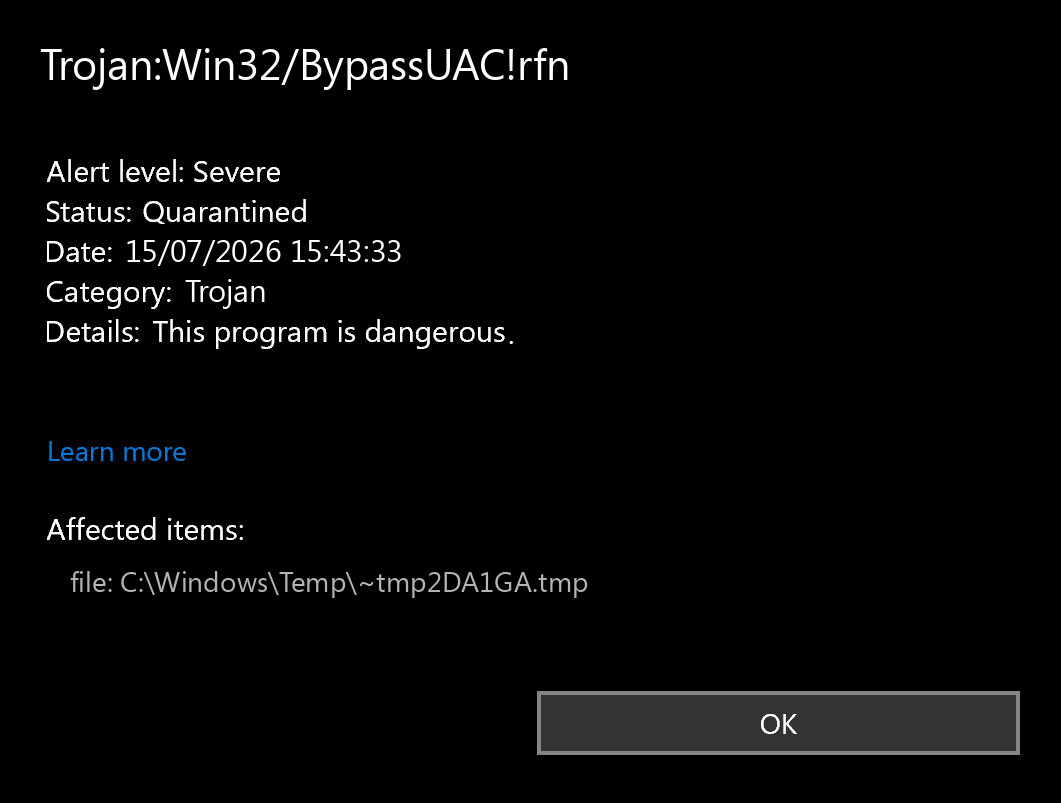
Trojan:Win32/BypassUAC!rfn Quick Verdict
| Detection | Trojan:Win32/BypassUAC!rfn |
| Detected by | Microsoft Defender Antivirus |
| What the name suggests | Code or behavior associated with bypassing the normal UAC elevation prompt. |
| First action | Keep quarantine, record the affected path, remove the source file, update Defender, and run a full scan. |
| False-positive lane | Possible mainly for a verified security-testing or administration tool from a trusted source; do not restore it on a normal PC just because the tool has a legitimate use. |
| Higher-risk signs | Crack, loader, unknown script, fake update, Temp/AppData path, repeated alert, new exclusions, or an unexpected elevated process. |
What the BypassUAC Detection Means
Microsoft Security Intelligence lists Trojan:Win32/BypassUAC!rfn as a Defender Antivirus detection. Microsoft says Defender detects and removes the threat, but the public page currently provides no detailed behavior description or associated aliases [1].
The useful interpretation is therefore behavioral rather than family-specific. User Account Control separates normal and elevated operations on Windows. Malware that bypasses UAC tries to run a process with higher integrity without the elevation flow the user would normally expect. MITRE ATT&CK tracks this as T1548.002, a privilege-escalation technique [3].
A UAC bypass is usually not the initial infection. Something first had to arrive and execute: an installer, crack, script, archive, fake update, email attachment, malicious shortcut, or another payload. The bypass can then help that code change protected settings, create persistence, interfere with security controls, or run a later stage with elevated rights. It also does not mean Defender itself was “bypassed”; Defender may be detecting the attempt before or after the elevation step.
Check the Defender Status and Affected Path First
Open Windows Security → Virus & threat protection → Protection history, expand the BypassUAC event, and record four details before deleting the history entry:
- the complete detection name and suffix;
- the affected file or container path;
- the action status, such as quarantined, removed, blocked, or remediation incomplete;
- the time of detection and what you downloaded or ran immediately before it.
If you need help interpreting those fields, use the Microsoft Defender detection-name and status guide. The path often reveals the cleanup lane faster than the family name:
Downloads, browser cache, or an extracted archive: delete the original archive or installer as well as the detected copy.Temp,AppData, Startup, or a random folder: assume the file may have run or been staged by another process and check persistence.- A security-testing framework or internal admin-tool directory: verify ownership, signature, hash, and business purpose. An intentional bypass component can be an expected detection without being appropriate for a daily-use PC.
- A cloud-synced folder: remove the unsafe source from the cloud location too, or the client may download it again.
Related BypassUAC Defender Labels
Copy the exact label rather than treating every result containing “BypassUAC” as the same malware. Microsoft also publishes Trojan:PowerShell/BypassUAC!rfn, a separate Defender label for which detailed behavior information is likewise unavailable [2].
Trojan:Win32/BypassUAC!rfn |
The main label covered here. Use the affected path and source to identify the responsible file or package. |
Trojan:PowerShell/BypassUAC!rfn |
Indicates a PowerShell-related detection lane. Check the script source, command history where available, scheduled tasks, and the process that launched PowerShell. |
Other vendor labels containing BypassUAC |
May describe different tools, exploits, or samples. Similar wording does not prove that two detections are aliases. |
If PowerShell opens again at startup or makes an unexpected outbound connection, follow the PowerShell recurrence and network-connection checklist rather than deleting powershell.exe, which is a legitimate Windows component.
Are Fodhelper.exe, ComputerDefaults.exe, or Eventvwr.exe Malware?
No—not by themselves. fodhelper.exe, ComputerDefaults.exe, and Event Viewer components are legitimate Windows utilities. Some UAC-bypass chains abuse auto-elevating Windows behavior or alter how one of these trusted programs resolves a command. The suspicious part is the surrounding process and registry chain, not simply the presence of the Microsoft-supplied executable.
Look for context such as an unfamiliar script or executable launched by a trusted utility, a new registry value created immediately before elevation, an unexpected PowerShell or command-shell child process, or an alert that began after a crack, fake installer, or copied terminal command. Do not delete Windows system files or remove registry keys from an online tutorial without confirming what created them.
For a concrete defensive example, the sysupdate.jpeg malware analysis shows how a malicious chain used legitimate Windows binaries, including ComputerDefaults.exe, alongside staging and persistence artifacts. That does not make every launch of Computer Defaults malicious.
Can Trojan:Win32/BypassUAC!rfn Be a False Positive?
A false positive or expected detection is possible, but the safe lane is narrow. UAC-bypass code is also present in penetration-testing frameworks, red-team tools, proof-of-concept projects, and some administration utilities. A security product may correctly identify that capability even when an authorized analyst deliberately placed the file on a lab machine.
Consider a controlled false-positive review only when all of the following are true:
- the file came from a verified official or internal source;
- its hash, signature, and version match the expected release;
- the path belongs to an approved lab or administration tool;
- the owner can explain why UAC-bypass functionality is present;
- no unrelated payloads, persistence, security exclusions, or repeat detections appear.
Keep the item quarantined while the evidence is collected. If the file is genuinely trusted, use the safe antivirus false-positive reporting workflow. A crack, repack, unknown loader, Telegram/Discord attachment, fake update, or random script is not a good false-positive candidate even if somebody online says the detection is “only a UAC tool.”
How to Remove Trojan:Win32/BypassUAC!rfn
- Keep the Defender action in place. Leave the item quarantined, removed, or blocked. If you already clicked Allow, undo it with the Defender allowed-threat rollback checklist.
- Remove the original source. Delete the downloaded archive, installer, script, crack, attachment, or extracted folder that produced the alert. Emptying Protection History alone does not remove that source.
- Update Microsoft Defender. Install current security intelligence updates and Windows updates before repeating the scan.
- Run a full scan. A quick scan may miss a companion loader or persistence outside common startup locations.
- Run a second-opinion cleanup scan. Use Gridinsoft Anti-Malware to check for additional detections, hidden files, startup entries, scheduled tasks, services, browser changes, and altered Defender settings.
- Review persistence if the file ran. Check Startup Apps, Task Scheduler, Services, recently installed apps, browser extensions, and unfamiliar items under
AppData,ProgramData, andTemp. - Reboot and scan again. Confirm that the same label and affected path do not return after reboot or after opening the same archive, browser, or sync folder.
Defender may quarantine the visible file while a loader, script, scheduled task, service, security exclusion, or companion module remains if the original payload executed. A second scan is especially important when the alert returns, the path is under AppData or Temp, or the file came from a crack, fake update, or unknown script.
Defender can quarantine the visible file, but repeated alerts may mean a loader, scheduled task, service, browser change, or bundled component is recreating it. Scan the PC before trusting the cleanup.
Scan for BypassUAC leftoversIf BypassUAC Keeps Coming Back
A repeated detection does not necessarily mean Defender failed. It often means the source still exists or another process is recreating the file. Compare the path and timestamp of each event:
- Same archive or download path: remove the container and clear the browser download/cache source.
- Same cloud or email path: delete the item from the synced or mailbox source, then rescan.
- New file under
AppDataorTemp: investigate the parent process, scheduled tasks, startup entries, and recently installed software. - PowerShell-related path or command: check which process started PowerShell and whether a task or startup entry calls the same script.
- Remediation incomplete or security settings changed: run Microsoft Defender Offline and complete the Windows security audit after malware.
Do not disable UAC to stop prompts or detections. Lowering UAC does not remove the malware and can make privilege elevation easier. Do not add broad Defender exclusions for Downloads, Temp, AppData, game folders, or an entire drive.
Do You Need to Change Passwords or Reinstall Windows?
A single item that Defender blocked before execution does not automatically expose every account. Change important passwords from a clean device and revoke active sessions when the file ran, the alert was followed by unknown logins, browser data changed, a remote-access tool appeared, or another detection names a stealer, RAT, keylogger, or credential dumper.
Consider a clean Windows reinstall when elevated malware remains after offline scanning, security services or updates cannot be restored, unknown administrator accounts keep returning, disk encryption or destructive malware is involved, or the machine handles sensitive business data and the integrity of the installation cannot be established. Back up documents, not suspicious executables, scripts, or installers.
How to Reduce UAC-Bypass Risk
- Keep Windows, Defender security intelligence, browsers, and commonly targeted applications updated.
- Use a standard user account for everyday work when practical and approve elevation only for a task you initiated.
- Leave UAC enabled; higher notification settings can reduce silent elevation opportunities.
- Avoid cracks, activators, cheat loaders, unofficial repacks, copied terminal commands, and password-protected archives from unknown sources.
- Review Defender exclusions periodically and remove entries you did not create or no longer need.
- Treat a trusted Windows process launching an unfamiliar script or executable as a process-chain question, not proof that the Windows file itself is infected.
FAQ
Is Trojan:Win32/BypassUAC!rfn dangerous?
Yes. Treat it as dangerous until the affected file and source are verified. A UAC-bypass capability can help already-running malware gain elevated privileges and make broader system changes.
Did Defender remove BypassUAC completely?
A quarantined or removed status means Defender handled the named item. It does not prove that the original archive, downloader, scheduled task, service, or companion payload is gone. Remove the source, run a full scan, reboot, and confirm the alert does not return.
Is Trojan:PowerShell/BypassUAC!rfn the same malware?
Not necessarily. It is a related Microsoft Defender label, but Microsoft does not list it as an alias of the Win32 detection. Treat the exact name and affected path as separate evidence.
Is fodhelper.exe a virus?
No. Fodhelper is a legitimate Windows utility. It becomes suspicious when an unexpected process or registry change causes it to launch untrusted code with elevated rights. Do not delete the Windows executable itself.
Should I turn off UAC to fix the alert?
No. Disabling UAC does not remove malware and weakens an important elevation warning. Keep UAC enabled, remove the source, scan the system, and investigate repeated detections.
Can I restore a BypassUAC tool used for security testing?
Only in an isolated, authorized lab after verifying the exact hash, source, and purpose. Do not restore or exclude a UAC-bypass component on a normal personal or business workstation merely because a testing framework can use it legitimately.
References
- Microsoft Security Intelligence. “Trojan:Win32/BypassUAC!rfn threat description.” Microsoft, published and updated June 5, 2025, accessed July 15, 2026. Microsoft threat description.
- Microsoft Security Intelligence. “Trojan:PowerShell/BypassUAC!rfn threat description.” Microsoft, published and updated September 24, 2025, accessed July 15, 2026. Microsoft PowerShell detection description.
- MITRE ATT&CK. “Abuse Elevation Control Mechanism: Bypass User Account Control (T1548.002).” MITRE, version 3.0, last modified May 12, 2026, accessed July 15, 2026. MITRE ATT&CK T1548.002.