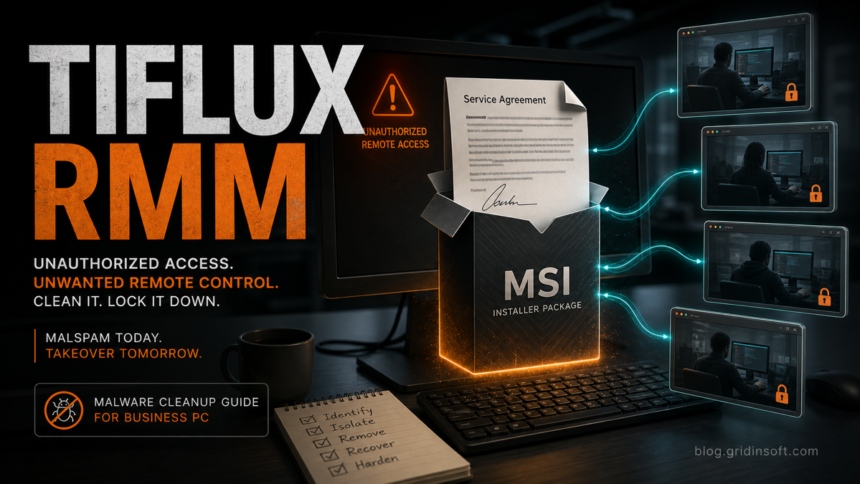
Tiflux RMM is not malware by itself, but an unexpected Tiflux install after a service-agreement or secured-document email should be treated as unauthorized remote access. In the campaign Huntress documented, a signed MSI installer named Network Solutions Agreement.msi installed Tiflux components, then the activity expanded into remote-control tooling such as Splashtop, ScreenConnect, and UltraVNC. If you did not approve that support session, isolate the computer first, collect the installer and service details, remove the rogue RMM stack, scan for download-stage malware, and rotate accounts from a clean device.
What Happened In The Tiflux RMM Campaign?
The observed lure used business-document language instead of an obvious executable attachment. A victim could land on a download page for a fake agreement and receive an MSI package with a name that sounded like a legitimate service document. Huntress reported that the installer was signed by Tiflux Sistema de Gestao LTDA and contained Tiflux components used for remote monitoring and management.
That distinction matters. A legitimate IT team may use remote monitoring and management software with approval, inventory records, and an auditable support process. A surprise install from email is different: it gives an outside party a support channel into the endpoint and may lead to screenshots, command execution, profiling, and extra remote-access tools.
Is Tiflux RMM Malware?
Tiflux should be judged by context. It can be a legitimate RMM platform when your organization intentionally deploys it. Treat it as malicious activity when it appears after an email download, a fake agreement, a support pretext, or a user action that no admin approved.
| What you found | What it usually means |
|---|---|
Network Solutions Agreement.msi |
A suspicious installer name tied to the reported malspam chain, not proof of a real Network Solutions document. |
TiAgent |
A Tiflux agent component. Unexpected presence means you should verify who installed and manages it. |
TiService |
A service component that can run commands under the RMM workflow. |
TiPeerToPeer |
A Tiflux communication component; unexpected presence points to an unauthorized support channel. |
si.exe |
An additional component noted in the Tiflux package analysis; verify signature, path, parent installer, and launch time. |
| Splashtop, ScreenConnect, or UltraVNC appeared later | Possible follow-on remote-access tooling. Do not remove it blindly if your IT team uses it, but verify ownership immediately. |
What To Do First
- Disconnect the endpoint from the network. Use Wi-Fi off, Ethernet unplugged, or network isolation in your EDR/RMM console. Do not keep testing the remote session on the live network.
- Preserve basic evidence. Save the email, sender address, downloaded file name, browser download URL, Windows install time, and any visible Tiflux, Splashtop, ScreenConnect, or UltraVNC service names.
- Ask the admin owner. If this is a business PC, confirm whether Tiflux was intentionally deployed. A real help desk should be able to name the ticket, technician, tenant, and expected agent.
- Do not sign in to sensitive accounts from that PC. If remote control was active, assume screen contents and session activity may have been visible until you prove otherwise.
How To Clean Up After An Unexpected Tiflux Install
Start with the RMM inventory, then scan for the delivery and persistence pieces that may have arrived before or after the installer.
- Check installed apps. Review Windows Apps, Programs and Features, and your endpoint inventory for Tiflux, TiAgent, Splashtop, ScreenConnect, UltraVNC, or other remote-support tools you do not recognize.
- Check services and startup entries. Look for Tiflux-related services, recently created remote-access services, scheduled tasks, and startup entries created around the MSI install time.
- Remove unauthorized remote-access tools. Use the vendor uninstaller or Windows uninstall flow for tools your organization did not approve. If a tool is legitimate for your company, remove only the rogue tenant/session and document the owner.
- Review PowerShell and command activity. Remote tools often run commands after installation. If you see repeated blocked PowerShell traffic, use the PowerShell outbound connection checklist to find the launcher instead of only allowing or blocking the process.
- Scan the system. If the MSI ran or new RMM components appeared without authorization, run Gridinsoft Anti-Malware after isolation to check for the downloader, hidden files, scheduled tasks, startup entries, bundled tools, and related persistence.
A rogue RMM incident is not only an uninstall problem. The visible Tiflux entry may be the support channel, while the original email download, script, scheduled task, or bundled component remains and can reinstall remote access later.
If the page or email made you download an invoice, coupon, tracking app, browser extension, or support tool, scan the PC before opening it again or logging into sensitive accounts.
Scan this PC after the MSI installCould Attackers See Screenshots Or Steal Credentials?
Assume exposure is possible if the remote tool connected before you isolated the endpoint. Huntress observed screenshot transmission and command execution in the rogue Tiflux activity, and CISA has warned that legitimate RMM tools can be abused after phishing to avoid custom malware and gain remote access.
After cleanup, rotate passwords from a clean device for accounts used during the exposure window: email, Microsoft or Google workspace, VPN, password manager, banking, hosting panels, and remote-access portals. Revoke active sessions where the service supports it. If browser tokens or game/chat accounts are part of the concern, follow the broader post-download account recovery checklist.
Small-Business Checks After Rogue RMM Access
- Search endpoint inventory for Tiflux, TiAgent, TiService, TiPeerToPeer, Splashtop, ScreenConnect, UltraVNC, AnyDesk, and other remote-control tools installed in the same time window.
- Check email rules, mailbox forwarding, OAuth app grants, and recently added MFA devices for the user who opened the email.
- Review remote-access logs, VPN logs, and sign-in logs for activity after the MSI installation.
- Block unapproved RMM installers with application control where practical, and maintain an allowlist of support tools your company actually uses.
- If ScreenConnect is part of the evidence, compare the case with the sysupdate.jpeg ScreenConnect malware cleanup guide, but keep this Tiflux case separate from generic ScreenConnect abuse.
How To Prevent A Repeat
Train users to treat “agreement”, “secured document”, and “service update” downloads as risky when the file is an installer. Real business documents should not require a random MSI package. For social-engineering pages that make users run commands manually, the Fake CAPTCHA ClickFix guide explains the same user-driven delivery pattern in a different form.
For managed environments, keep a short approved-RMM list, alert when a new remote-access service is installed, and block unsigned or unexpected MSI execution from email and browser download folders. Home users should remove the tool, scan, and change passwords if they cannot clearly prove the installation was authorized.
FAQ
Should I remove Tiflux immediately?
Remove it if you did not authorize the install and no trusted admin can explain the tenant, ticket, and technician. In a business environment, confirm ownership first so you do not break a legitimate support deployment.
Is Network Solutions Agreement.msi a real document?
No. In the reported campaign, that name was used for an MSI installer, not a normal agreement document. Treat it as suspicious if it came from email or a download page.
Why did Splashtop, ScreenConnect, or UltraVNC appear too?
Attackers often stack legitimate remote-access tools. One installer can establish the first foothold, then another tool may be added for persistence, fallback access, or easier remote control.
Can antivirus alone close the incident?
No single scan can rotate stolen credentials or prove nobody viewed the screen. Use scanning to remove malware and persistence, then review remote-access logs and reset exposed accounts from a clean device.
Should I reinstall Windows?
Consider reinstalling when the PC handled sensitive admin access, the attacker had remote control for a long time, cleanup cannot identify all tools, or the RMM keeps returning after removal. Back up documents first, but do not carry over unknown executables or scripts.
References
- Huntress. “Threat Actors Weaponize Tiflux RMMs in Malspam Attacks.” Huntress Blog, May 7, 2026, accessed June 17, 2026. https://www.huntress.com/blog/tiflux-rmm-install
- Cybersecurity and Infrastructure Security Agency, National Security Agency, and MS-ISAC. “Protecting Against Malicious Use of Remote Monitoring and Management Software.” CISA Cybersecurity Advisory AA23-025A, January 25, 2023, accessed June 17, 2026. https://www.cisa.gov/news-events/cybersecurity-advisories/aa23-025a