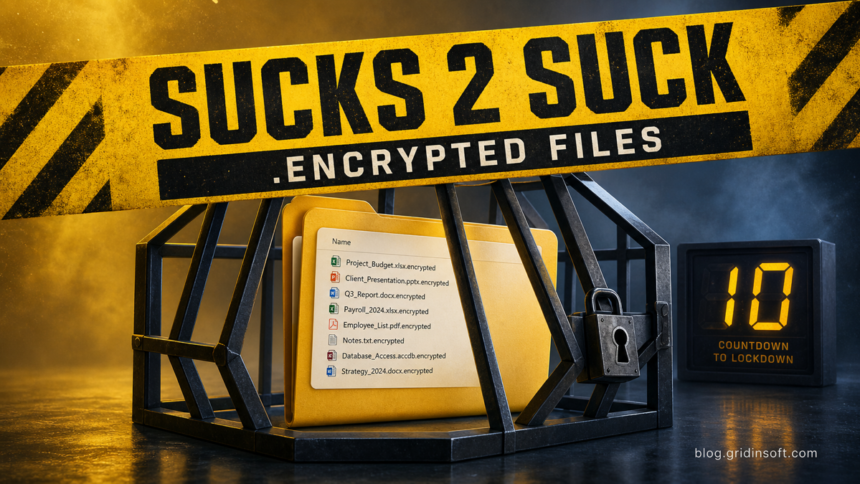
SUCKS 2 SUCK ransomware is a Windows file-locking threat associated with the .encrypted extension, a note named !.txt, and a full-screen lock window that shows 10 key attempts. If those indicators appear together, disconnect the PC from the network, keep the note and several encrypted-file copies, and clean the system before restoring anything. Removing the malware can stop further encryption, but it cannot unlock files that are already encrypted.
The analyzed sample asks for $500 in Bitcoin and uses SUCKS2SUCK [at] ONION [dot] ONION as its contact. Treat the address, amount, and countdown as identification clues—not as a safe recovery channel. Do not test guessed keys, rename files in bulk, or run a “decryptor” from a video description, private message, or file-sharing site.
How to recognize SUCKS 2 SUCK ransomware
A generic .encrypted suffix is not enough to identify one family. Match several artifacts before deciding that SUCKS 2 SUCK is responsible:
| Indicator | What to check |
|---|---|
.encrypted files |
A normal name such as photo.jpg becomes photo.jpg.encrypted and no longer opens. |
!.txt |
A short ransom note says important files were encrypted and demands an unlock-key payment. |
| Full-screen lock window | The screen names SUCKS 2 SUCK, displays an unlock-key field, and shows 10 attempts remaining. |
| Contact and demand | The message requests $500 in Bitcoin and lists SUCKS2SUCK [at] ONION [dot] ONION. |
| Sample fingerprint | The public sample report uses SHA-256 c59f4184026fc24b2837f92d889a3205c3f52f82ae84c8f4cbf7c1185696ae60. |
The note claims AES-256 encryption and warns that manual recovery will destroy files. A ransom message is not proof of the algorithm, and the visible counter does not prove what happens after the last attempt. Preserve the evidence and avoid testing the claim on original files.
What to do first
- Isolate the affected computer. Unplug Ethernet, disable Wi-Fi, disconnect VPN, and detach shared or external drives. If a server or NAS is still receiving renamed files, isolate the workstation at the network switch.
- Preserve the note and encrypted samples. Save
!.txt, a screenshot of the lock window, the SHA-256 shown above, and several non-sensitive encrypted files to offline media. Work with copies, not the only originals. - Do not enter random keys. The screen exposes only a limited-attempt counter. There is no independently verified reason to assume that guessing is safe.
- Keep backups disconnected. Do not attach an offline backup or re-enable cloud sync while the encryptor or its loader may still be active.
- Use a clean device for accounts. If the infected PC handled email, cloud storage, banking, crypto, remote access, or work credentials, change passwords and revoke sessions from another trusted device.
How to get past the full-screen lock safely
Do not treat the lock window as a normal Windows sign-in screen. First try the standard secure attention sequence Ctrl+Alt+Delete. If Windows opens its security screen, choose Task Manager only to document and stop the suspicious process when you can identify it confidently. If the overlay immediately returns, keep the machine offline and use Windows Recovery Environment, Safe Mode, or clean rescue media rather than repeatedly entering keys.
Stopping the overlay does not decrypt files and does not prove the system is clean. The original loader, startup entry, scheduled task, service, or remote-access tool may still be present. If the data is important or several devices are affected, preserve a disk image and involve incident response before making broad changes.
Can .encrypted files be decrypted?
No public decryptor specifically named for SUCKS 2 SUCK was listed in the usual trusted decryptor resources when this guide was prepared on July 10, 2026. That may change if researchers find a flaw or keys become available. Keep the original encrypted files and ransom note so you can test a legitimate future tool on copies.
Do not rely on the .encrypted suffix alone. Multiple unrelated ransomware families use generic extensions. Search a trusted identification service with the ransom-note text and a non-sensitive encrypted sample, or ask a responder to identify the family. If the files contain private customer, medical, legal, financial, or credential data, avoid public uploads and use a private analysis route.
Remove the ransomware before recovery
Cleanup and file recovery are separate jobs. Cleanup looks for the active encryptor and whatever launched it; recovery uses clean backups, version history, snapshots, or a legitimate matching decryptor.
- Keep networking and shared drives disabled while you inspect the PC.
- Review recent downloads, archives, email attachments, fake updates, cracked programs, remote-access tools, Startup items, Task Scheduler, and newly created services.
- Run a full Gridinsoft Anti-Malware scan, remove confirmed detections, and reboot only after the first scan is complete.
- Scan again if the lock window, ransom note, suspicious processes, or new
.encryptedfiles return. - For a business device, a server, or an incident involving several accounts, prefer a clean rebuild and professional response over an endless cycle of manual deletions.
The visible encryptor may be only the final payload. A loader, scheduled task, service, browser-session stealer, or remote-access component can remain after encryption and make an early restore unsafe.
If the process path is wrong, the name imitates a Windows component, or high CPU started after an unknown installer, scan for hidden miners, services, startup entries, and bundled components.
Scan for ransomware leftoversSafe file recovery order
- Make a preservation copy. Keep the original encrypted data unchanged when storage allows. Test every recovery option on copies.
- Clean or rebuild the system. Restore only to a PC that no longer runs the encryptor, loader, or persistence mechanism.
- Check offline backups and snapshots. Confirm that they predate the encryption event and were not reachable from the infected account.
- Review cloud version history. From a clean device, look for versions created before mass renaming began. Pause sync until the affected endpoint is clean.
- Test a small restore set. Open a few restored documents and monitor for new ransom notes or renamed files before restoring the full dataset.
- Rotate exposed access. Change passwords, recovery methods, API keys, browser sessions, VPN credentials, and remote-access secrets that were used on the affected PC.
Removal software cannot decrypt files merely because it removed the ransomware. Likewise, renaming report.docx.encrypted back to report.docx changes only the filename, not the encrypted contents.
What not to do
- Do not pay simply because the screen shows a countdown; payment does not guarantee a working key.
- Do not contact the attacker from your primary email account or reveal additional personal details.
- Do not upload confidential encrypted documents to random “recovery” sites.
- Do not delete
!.txt, original encrypted samples, or security-tool history before recording them. - Do not restore the only backup onto the same system before cleanup or rebuild is complete.
Related Gridinsoft guides
Use the Windows security audit after malware to check services, scheduled tasks, startup entries, browsers, and accounts before trusting the PC again. For prevention and restore planning, follow the ransomware protection and backup checklist. If you need to identify a public sample without exposing private documents, read the VirusTotal privacy guide first.
FAQ
Does deleting SUCKS 2 SUCK unlock .encrypted files?
No. Removing the active malware can stop further damage, but it does not reverse encryption that already happened.
What happens after the 10 attempts run out?
The visible counter creates pressure, but the available public evidence does not independently verify the result of exhausting it. Do not experiment on the original system or original encrypted files.
Is every .encrypted file caused by SUCKS 2 SUCK?
No. The extension is generic. Match it with !.txt, the full-screen SUCKS 2 SUCK window, the contact address, and other evidence before identifying the family.
Should I restore a backup immediately?
Restore only after the affected system is cleaned or rebuilt. Otherwise an active encryptor or loader can damage the restored copy.
References
- VirusTotal. “File report: SHA-256 c59f4184026fc24b2837f92d889a3205c3f52f82ae84c8f4cbf7c1185696ae60.” Google, accessed July 10, 2026. https://www.virustotal.com/gui/file/c59f4184026fc24b2837f92d889a3205c3f52f82ae84c8f4cbf7c1185696ae60/detection
- Cybersecurity and Infrastructure Security Agency. “#StopRansomware Guide.” CISA, updated September 2023, accessed July 10, 2026. https://www.cisa.gov/stopransomware/ransomware-guide
- No More Ransom Project. “Decryption Tools.” Europol, the Dutch National Police, and cybersecurity partners, accessed July 10, 2026. https://www.nomoreransom.org/en/decryption-tools.html