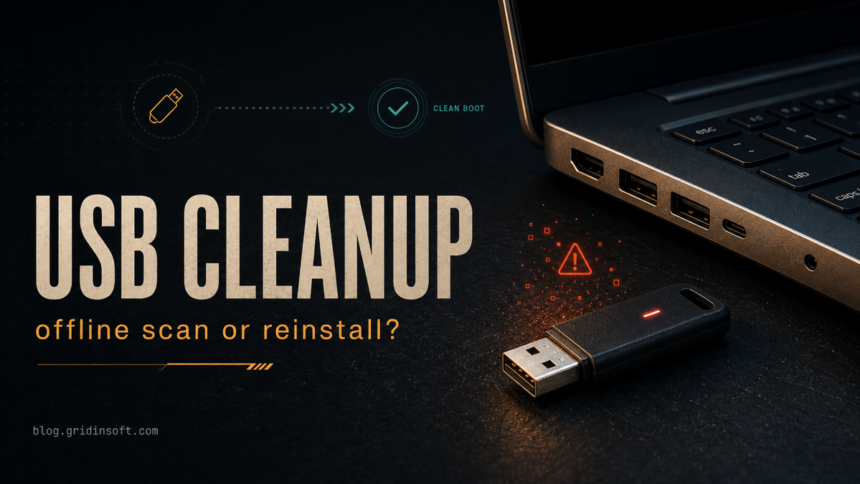
USB malware removal is not one single action. First decide whether the suspicious item is the USB drive, the Windows PC, or both. If Windows still runs, scan the removable drive without opening files from it, run a full system scan, and check whether alerts return after reboot. If malware blocks scanners, changes security settings, or Windows will not boot reliably, use Microsoft Defender Offline or trusted rescue media. If the system stays unstable or sensitive accounts were exposed, move from cleanup to a clean reinstall plan.
This guide is for home and small-office Windows users dealing with an infected flash drive, a USB drive that carried suspicious files, a PC that keeps detecting malware from removable media, or a machine where normal antivirus scans no longer feel trustworthy. It does not recommend random rescue-disk downloads or paid cleanup utilities. The goal is to choose the safest next step without copying malware into backups or reinstall media.
Quick decision: scan USB, scan offline, or reinstall?
| Only the USB drive looks suspicious | Do not open files from it. Scan the drive from an updated, trusted Windows session. Delete obvious executables, scripts, shortcut worms, and unknown installers before copying documents. |
| Windows runs normally, but alerts mention the USB | Scan the removable drive first, then run a full system scan. Check Startup, scheduled tasks, browser extensions, and recently opened downloads if anything ran from the drive. |
| Scanners close, alerts return, or security settings change back | Disconnect from the network, use Microsoft Defender Offline or trusted rescue media, then reboot and scan again from normal Windows. |
| Windows will not boot, rootkit/bootkit symptoms remain, or cleanup cannot be trusted | Back up only personal files and follow a clean reinstall path from media created on a clean device. |
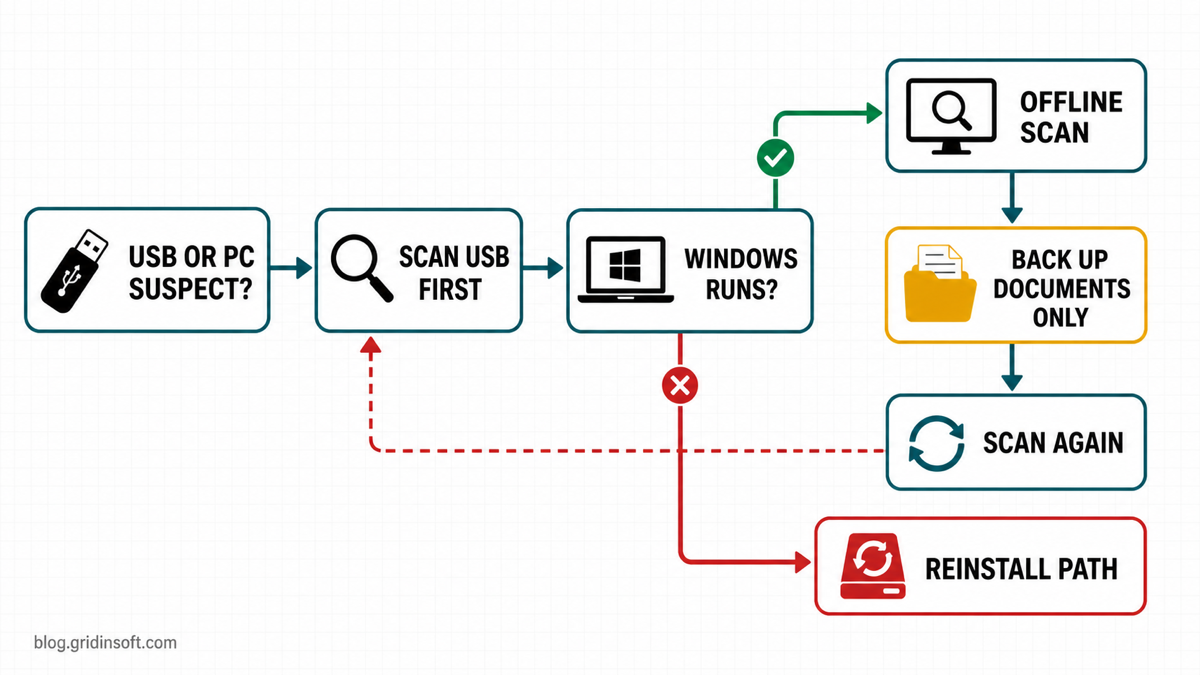
Safe USB malware removal order
- Stop opening files from the drive. Do not double-click documents, shortcuts, archives, installers, or scripts to “see what happens.” If the drive came from school, work, a printer, a repair shop, or an unknown PC, assume it can contain shortcut worms, infected installers, or weaponized documents.
- Use a trusted Windows session. Scan from a PC that is updated and not already showing malware symptoms. If your main PC is the infected one, use Safe Mode, Defender Offline, or a different clean computer rather than trusting the compromised desktop.
- Show file extensions before you copy anything. Malware often hides as
Report.pdf.exe,Photos.scr,Invoice.lnk, or a document icon that is actually an executable. If you are unsure, check the file type before opening it. - Scan the USB drive itself. Run an updated local antivirus scan against the removable drive. Quarantine or delete executable files, scripts, unknown archives, suspicious shortcuts, and installers you do not need.
- Scan the PC after the USB scan. If any file ran from the drive, scan the whole system. Also check recent downloads, browser extensions, startup apps, scheduled tasks, and security exclusions.
- Copy back only personal files. Keep documents, photos, videos, and project files you can inspect. Avoid old EXE/MSI installers, cracks, portable apps, scripts, password-protected archives, and random tools from the infected drive.
If the suspicious file is an executable you downloaded or copied from the drive, use the EXE safety checklist before running it. For a PC that was already cleaned but still needs a trust review, use the post-malware Windows security audit.
When an offline scan is worth using
An offline scan helps when malware may interfere with normal Windows. Microsoft Defender Offline runs outside the usual Windows session, which makes it more useful for stubborn threats, malware that starts with Windows, or cases where protection settings keep changing back. It is not magic: you still need updated definitions, a normal Windows scan afterward, and a backup/reinstall decision if symptoms remain.
Use an offline scan when you see one or more of these signs:
- the same detection returns after reboot;
- security tools close, fail to install, or cannot update;
- unknown startup entries, scheduled tasks, services, or browser changes keep reappearing;
- the infection started from a fake update, crack, keygen, game mod, support tool, or USB shortcut;
- Windows is unstable enough that normal cleanup is unreliable.
Safe Mode is still useful for the first pass when malware blocks normal tools. If you are deciding between Safe Mode and offline scanning, the Safe Mode malware removal guide explains when each path makes sense.
What about a bootable rescue USB?
A bootable rescue USB can help when Windows will not boot or when an offline scan must run from outside the installed system. The risky part is not the idea of rescue media; it is where the media comes from and which computer creates it. Build rescue or reinstall media on a clean device whenever possible. Do not download random “USB virus remover” utilities from ads, forums, or mirror sites.
If the machine is too compromised to trust, separate the jobs:
- Detection and cleanup: use Microsoft Defender Offline or trusted security media.
- Data recovery: copy only personal files, then scan the backup before opening it.
- Reinstall: create Windows installation media on a clean computer, not on the infected Windows session.
For the reinstall branch, follow the dedicated clean Windows install USB after malware workflow. That page covers what to back up, what not to keep, and how to avoid restoring the infection after reinstalling Windows.
What not to copy from a suspicious USB drive
| Skip | EXE, MSI, SCR, BAT, CMD, PS1, VBS, JS, unknown LNK shortcuts, cracks, keygens, portable apps, old setup files, suspicious archives. |
| Inspect first | Office documents with macros, PDFs from unknown sources, ZIP/RAR/7z archives, ISO files, password-protected files, files with double extensions. |
| Usually safer to keep | Photos, videos, plain text notes, school/work documents you recognize, and project files that do not require running bundled installers or scripts. |
If the USB drive belongs to work, a client, a school lab, or someone else’s PC, do not silently clean and return it. Tell the owner that the drive triggered security warnings so they can check the source computer too. A cleaned flash drive can be reinfected immediately if the original machine still has a USB worm or shortcut malware.
If the unfamiliar item is named Usb Safe Protect.exe and your documents seem hidden behind it, use the Usb Safe Protect.exe identification and recovery guide before launching it. It separates exact-file checks, a returning EXE and hidden-file recovery from the additional investigation needed for NAS share changes.
Scan again before you trust the result
After removing suspicious USB files or running an offline scan, reboot normally and scan again with updated protection. If the first scan removed a visible file but the alert returns from Startup, Task Scheduler, a browser profile, or a user-writable folder, treat it as persistence rather than a single infected document.
Gridinsoft Anti-Malware can help with the second pass after visible cleanup: scan the PC, the restored folders, and any removable drives before signing back into important accounts or copying files to another machine. Use it to look for detections, hidden files, scheduled tasks, startup entries, bundled apps, browser changes, and other leftovers; do not treat any scanner as proof that no exposure ever happened.
A botnet takedown is not a substitute for this cleanup. The September 2026 Sality disruption left existing infections active; file-infecting malware is a reason to check executable integrity and connected drives before trusting a recovered PC.
When cleanup is not enough
Move to a reinstall plan when the PC still cannot boot reliably, security settings keep reverting, offline scans repeatedly find threats, a bootkit/rootkit is plausible, or the infection involved an infostealer, remote-access tool, crack, fake support app, or admin credential exposure. Reinstalling does not fix stolen passwords or compromised cloud sessions, so change important passwords from a clean device before trusting the rebuilt PC.
If you suspect boot-level malware, read the bootkit symptoms and removal guide before deciding whether a normal reset is enough. If you accidentally allowed a Windows Security threat, undo that decision first with the Allowed threats cleanup guide.
FAQ
Can a USB drive infect a PC just by being plugged in?
Modern Windows is less vulnerable to old autorun-style attacks than older systems, but a USB drive can still carry malicious shortcuts, documents, scripts, installers, or files that trick the user into running them. Treat unknown drives as untrusted until scanned.
Should I format the USB drive?
Formatting is reasonable when you do not need the contents or after you have safely copied and scanned important personal files. Do not format first if you need evidence, work files, or irreplaceable documents from the drive.
Is Microsoft Defender Offline enough?
It is a useful offline scan, especially when malware may interfere with normal Windows. It is not a full recovery plan by itself. Reboot, update protection, run another scan, review persistence points, and decide whether passwords, backups, or reinstall steps are needed.
Can I create rescue media on the infected PC?
Use a clean computer if possible. If the infected PC is your only option, download only from official sources, scan the media afterward, and consider rebuilding the media from a clean device later before using it for a final reinstall.
What files are safest to recover from an infected USB?
Personal documents, photos, videos, and plain project files are safer than programs, scripts, installers, cracks, and archives. Scan recovered files before opening them and replace apps from official sources instead of keeping old installers.
References
- Microsoft Learn. “Run and review the results of a Microsoft Defender Offline scan.” Microsoft, accessed July 7, 2026. https://learn.microsoft.com/en-us/defender-endpoint/microsoft-defender-offline
- Microsoft Support. “Help protect my PC with Microsoft Defender Offline.” Microsoft, accessed July 7, 2026. https://support.microsoft.com/en-us/windows/help-protect-my-pc-with-microsoft-defender-offline-9306d528-64bf-4668-5b80-ff533f183d6c
- Cybersecurity and Infrastructure Security Agency. “Using Caution with USB Drives.” CISA, accessed July 7, 2026. https://www.cisa.gov/news-events/news/using-caution-usb-drives