Trojan:Win64/Lazy.PGLI!MTB is a Microsoft Defender detection that should stay blocked or quarantined while you identify the affected item. Microsoft classifies the exact label as malicious, but its public record does not describe one fixed payload or list technical behavior. The file path, source, action status, time, and whether the same evidence returns after reboot are therefore more useful than guessing a family from the name alone.
If Protection History shows only process:pid, record the event before that process exits: a PID identifies one running process instance, not a file you can safely find later by searching the number. If another scanner is clean, do not restore or allow anything yet; first update Defender, inspect the affected item, run full and offline scans when appropriate, and confirm whether the alert actually recurs.
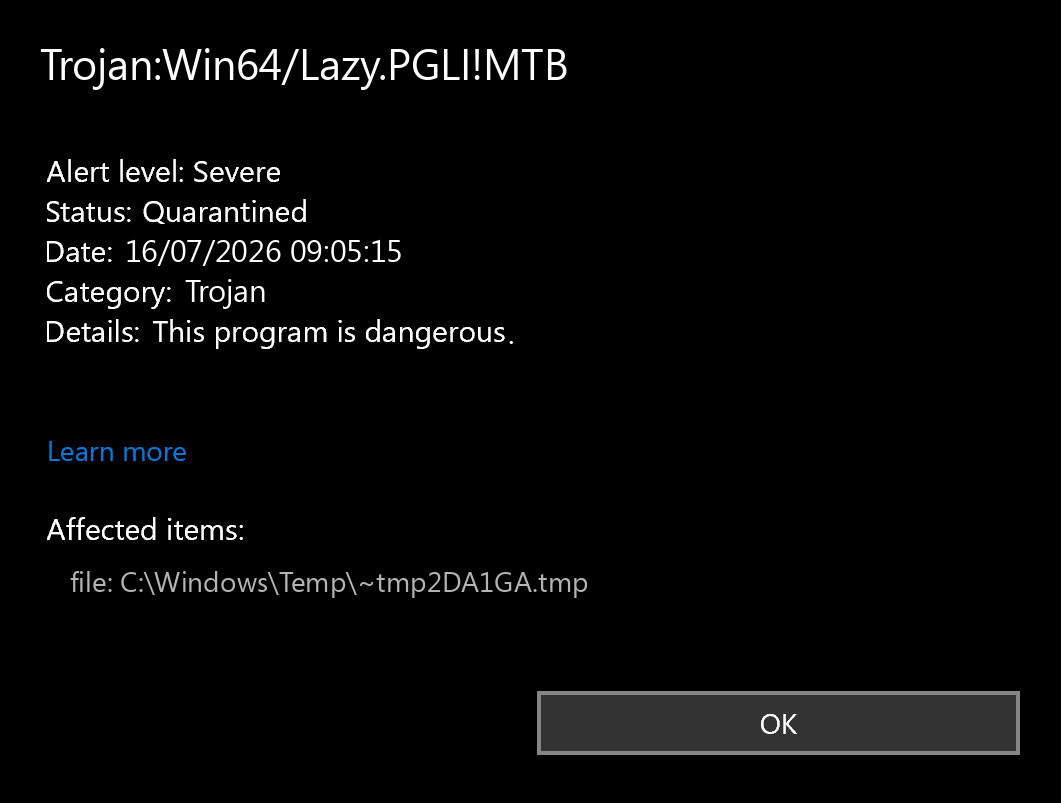
Trojan:Win64/Lazy.PGLI!MTB quick verdict
| Exact label | Trojan:Win64/Lazy.PGLI!MTB |
| Microsoft verdict | Detected and removed by Microsoft Defender Antivirus; keep it contained while you verify the affected item. |
| What the public name does not prove | It does not identify one documented payload, show whether credentials were stolen, or prove that every later history card is a live file. |
| First action | Open the newest event, save the status, affected item, path or process, timestamp, and source, then update Defender and run a full scan. |
| Higher-risk signs | The same alert returns after reboot, an unknown AppData or ProgramData item is recreated, accounts were abused, or security settings keep changing. |
What the Lazy.PGLI!MTB detection means
Microsoft Security Intelligence has an exact record for Trojan:Win64/Lazy.PGLI!MTB. Microsoft says Defender detects and removes the threat and recommends current security intelligence plus a full scan to find remnant files or system changes. The same record currently lists no aliases and says technical threat behavior is not available.1
That limits what anyone can safely infer from the label. It is reasonable to treat the verdict as malicious until the evidence is reviewed. It is not reasonable to claim that every computer with this alert has the same stealer, startup file, or network destination. A forum fix for one person’s Recycle.exe, proxy, task, or script should not be copied to a different PC unless the same artifact is actually present.
For a broader explanation of family, platform, and suffix fields, use the Microsoft Defender detection-name guide. The exact affected-item details still control the cleanup decision.
Read the affected item: file, process, or old event
Open Windows Security → Virus & threat protection → Protection history, expand the newest matching card, and record:
- the exact detection name and time;
- the action status: quarantined, removed, blocked, action needed, or remediation incomplete;
- the complete affected item, including the path, container, process, or resource;
- what was downloaded, opened, installed, restored, or synced immediately beforehand.
Microsoft explains that Protection History records Defender actions and that a quarantined item is blocked from running, while remediation incomplete means Defender could not finish the cleanup. The page keeps events for about two weeks, so save the useful details before they expire.2
| What Defender lists | What it means and what to do |
|---|---|
file: with an accessible path |
Keep it quarantined. Remove the original archive, installer, attachment, cache source, or synced copy too; then scan the file’s parent location and the PC. |
process:pid:1234 |
The number names a process instance at detection time. It can be reused after that process ends. Do not delete a different current process just because it later has the same PID; correlate the event time with Defender logs, recent downloads, startup items, and the program that was running. |
| Quarantined or removed old event, no new timestamp | This can be history rather than an active recurrence. Confirm with an updated scan and compare the newest timestamp before trying to erase the history database. |
| New event after every reboot or app launch | Treat it as persistence or a source that is restoring the item. Compare the affected item on each event and audit startup entries, tasks, services, browser data, and synced folders. |
Can Lazy.PGLI!MTB be a false positive?
A false positive is possible with any security product, but a clean result from another scanner does not establish one. Products use different engines, telemetry, scan scopes, update times, and behavior signals. A process-only event may also leave no file for a later on-demand scanner to inspect.
Use the false-positive lane only when you have a specific accessible file and strong provenance:
- it came from the publisher’s official channel;
- its digital signature is valid and matches the expected publisher;
- the version and hash match a known release;
- the file was not delivered by a crack, repack, cheat, random archive, copied command, or unknown message;
- no unrelated persistence, account abuse, browser changes, or repeated detections appear.
Keep the item quarantined during review. If the evidence supports a clean file, submit that exact sample through the safe false-positive reporting workflow and wait for a determination before restoring or creating an exclusion. If the event contains only a process and no sample, do not invent a file from a forum case.
How to remove Trojan:Win64/Lazy.PGLI!MTB safely
- Disconnect if compromise is active. If unknown purchases, messages, remote access, or fresh account sessions are appearing, disconnect the affected PC from the network and use a different clean device for urgent account actions.
- Keep the Defender action in place. Quarantine or remove the item. Do not choose Allow just to stop the notification.
- Save the evidence. Record the exact status, affected item, path or process entry, time, and the download or app that preceded it.
- Remove the source. Delete the original download, archive, attachment, unofficial installer, browser cache item, or synced copy that can recreate the detected object. Do not delete an unrelated Windows file based on its name alone.
- Update Windows and Defender security intelligence. Then run a full scan, not only a quick scan.
- Use Microsoft Defender Offline when persistence is plausible. It restarts into the Windows Recovery Environment, where malware running inside normal Windows has a harder time hiding or defending itself.3
- Run a focused second-opinion cleanup scan. Gridinsoft Anti-Malware can check for additional detections, hidden files, startup entries, scheduled tasks, services, bundled apps, browser changes, and other persistence around the visible event.
- Reboot and compare evidence. A clean result means no new matching event, no recreated source, and no unexplained security or account activity—not merely that an old Protection History card still exists.
Defender may quarantine a visible item while a loader, scheduled task, service, browser change, exclusion, or bundled module remains if the original file ran. That is why repeated alerts, new timestamps, unknown %LOCALAPPDATA%\Temp files, and startup-triggered events justify a persistence scan rather than deleting one path and assuming the case is closed.
If Trojan:Win64/Lazy.PGLI!MTB keeps coming back
Compare each new event instead of treating every notification as identical:
- Same archive, installer, or Downloads path: the container or original download is still present. Remove it and any extracted copy.
- Same browser, Discord, or app cache: close the app, clear the affected cache, update the app, and check extensions or recently installed plug-ins. Do not assume the legitimate app executable itself is infected without path or signature evidence.
- Same OneDrive or other sync path: pause sync, remove the unsafe source from the synced folder and cloud recycle bin where applicable, scan the local files, then resume. The detection does not by itself prove that the cloud service or account is infected.
- New
AppData,ProgramData, Startup, or task-created item: audit the parent process, Startup Apps, Task Scheduler, Services, recently installed apps, and browser extensions. - Only the same old history time: confirm that scans remain clean and no new event appears. Do not delete Defender’s history or quarantine folders as a standard “removal” step.
Use the Windows security audit after malware when the source is unclear or security settings changed. It routes startup, task, service, browser, proxy, DNS, remote-access, and account checks in a safer order than case-specific registry deletion.
If the other alert is TrojanDownloader:Win64/Penguish.PO!MTB, compare its event separately and verify the installer source. The Penguish guide explains why the corrected GitHub Desktop report does not establish a false positive in an official MSI.
What to do if accounts or payments were abused
Confirmed unauthorized purchases, password changes, sent messages, new sessions, or recovery-detail changes are independent evidence of compromise even if a later scan is clean. From a separate trusted device:
- call the bank or card issuer about unauthorized transactions and lock affected payment methods;
- change the primary email password first, then banking, shopping, social, gaming, and work passwords;
- sign out other sessions, revoke unknown devices or connected apps, and replace reused passwords;
- enable multi-factor authentication and save new recovery codes;
- check email forwarding rules, recovery addresses, account activity, browser sync, and stored payment details.
Do not change all passwords on the affected PC while unknown malware may still be running. Cleanup cannot reverse already stolen cookies or passwords, so session revocation and account recovery remain necessary after the device is cleaned.
When a clean Windows reinstall is justified
A single blocked file does not automatically require a reinstall. Consider one when:
- the same detection returns with new timestamps after full and offline scans;
- unknown tasks, services, administrator accounts, remote-access tools, or Defender exclusions recreate themselves;
- account or financial abuse shows that credential theft likely occurred;
- Windows Security, updates, or core services cannot be restored reliably;
- the PC handles sensitive business or financial data and its integrity cannot be established.
Create the installer from a clean device and back up documents, photos, and other necessary data—not cracks, scripts, unknown executables, browser profiles, or old installers. The clean Windows install USB guide covers the safe media and restore order.
What not to do
- Do not restore or allow the item only because a second scanner is clean.
- Do not search a later Task Manager PID and delete whichever process happens to use that number.
- Do not copy FRST scripts, registry deletions, proxy removals, or filenames from somebody else’s support thread.
- Do not clear Protection History or Defender quarantine folders as a substitute for removing the source.
- Do not create broad exclusions for Downloads,
Temp,AppData, game folders, or an entire drive. - Do not restore a full browser profile or software backup before the clean system has been scanned.
FAQ
Is Trojan:Win64/Lazy.PGLI!MTB dangerous?
Yes. Microsoft classifies the exact label as a trojan detection. Keep it blocked or quarantined until you identify the affected item and confirm cleanup. The public record does not document one fixed payload, so do not assume every case has identical behavior.
Why does Defender show only process:pid?
That entry identifies a running process instance observed at detection time. The PID can disappear when the process exits and can later be reused. Correlate the event time with logs, downloads, startup items, and the program that was running instead of treating the number as a persistent file identity.
Does a clean Malwarebytes or ESET scan prove a false positive?
No. Different products may inspect different files, behavior signals, and scan scopes. Verify an accessible file’s source, signature, hash, and behavior, keep it quarantined, and submit it for review before restoring it.
Can OneDrive bring Lazy.PGLI!MTB back?
A malicious or unwanted file in a synced folder can be downloaded again by the sync client. Pause sync, remove the source copy, scan local synced files, and then resume. The detection alone does not mean the OneDrive service or account is infected.
Should I reinstall Windows?
Reinstall when new detections continue after full and offline scans, persistence or security changes return, account theft is confirmed, or the system cannot be trusted. One quarantined file with no recurrence usually calls for evidence review and scans first.
References
- Microsoft Security Intelligence. “Trojan:Win64/Lazy.PGLI!MTB threat description.” Microsoft, published and updated September 18, 2025, accessed July 15, 2026. Microsoft threat description.
- Microsoft Support. “Protection History in the Windows Security App.” Microsoft, accessed July 15, 2026. Windows Security Protection History.
- Microsoft Support. “Virus and Threat Protection in the Windows Security App.” Microsoft, accessed July 15, 2026. Microsoft Defender Offline scan guidance.