

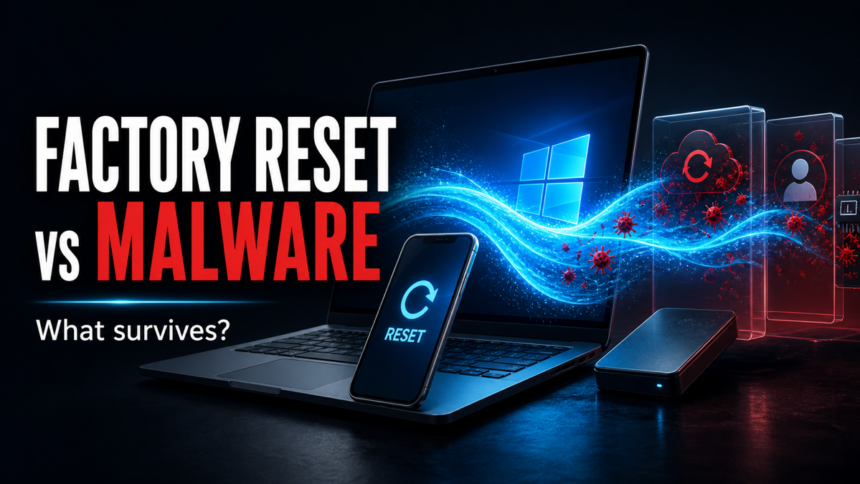
A factory reset removes most malware that lives in installed apps, user files, and normal startup locations, but it does not undo stolen accounts or make every recovery method equally safe. On Windows, Reset this PC → Remove everything is more appropriate than Keep my files when infection is suspected; a bootable clean install is the safer escalation when malware returns. On Android or iPhone, an official erase usually removes ordinary malicious apps, but restoring the same APK, app backup, browser sync, or configuration can recreate symptoms.
Choose by device and recovery method
- Windows — Keep my files: not the preferred malware-recovery option because personal files stay on the PC.
- Windows — Remove everything: usually removes ordinary local malware, but it does not revoke stolen passwords, sessions, mailbox rules, or browser-sync changes.
- Windows — clean install: use official bootable media when the same detection or unauthorized software returns after reset.
- Android or iPhone — erase: usually removes malicious apps; set up as new or restore selectively so the same app, APK, profile, or sync setting does not return.
- Before erasing: isolate the device, save detection details, back up only personal files, and recover important accounts from a clean device.
| Situation | Best recovery path |
|---|---|
| Windows still starts and the alert appeared once | Isolate, record the detection path, scan, reboot, and scan again before wiping the PC |
| Windows malware or unauthorized remote-access software returns | Use a clean install from official bootable media and restore files selectively |
| Unknown Android app, APK, or iPhone profile | Remove the app/profile and permissions, update the phone, then erase if symptoms return |
| Stolen password, email takeover, or session theft | Recover accounts from a clean device; a reset does not revoke online access |
| Bad backup, app restore, or synced browser extension | Clean the backup or sync source before reconnecting it to the reset device |
What a factory reset actually removes
A reset is effective against malware stored with ordinary apps, user data, browser profiles, and normal startup settings when those items are erased. It cannot change a password that was already stolen, sign an attacker out of an online account, repair a compromised router, or make an infected backup safe. The important question is therefore not only whether you reset, but which reset method you use and what you reconnect afterward.
Factory reset vs clean reinstall on Windows
On Windows, Reset this PC reinstalls Windows. Keep my files preserves personal files, so it is not the best choice when you do not know which downloads, scripts, or documents were involved. Remove everything removes personal files, apps, and settings and is the safer reset choice for a suspected infection. Microsoft also offers local reinstall and cloud download; neither is the same as deleting partitions and starting from official bootable media during a clean install [1].
Use a clean install when the same detection or unauthorized remote-access software returns after reset, Windows recovery cannot complete, or you no longer trust the installed recovery environment. Keep the separate clean-install procedure for that escalation instead of treating every infection as a reason to wipe the PC.
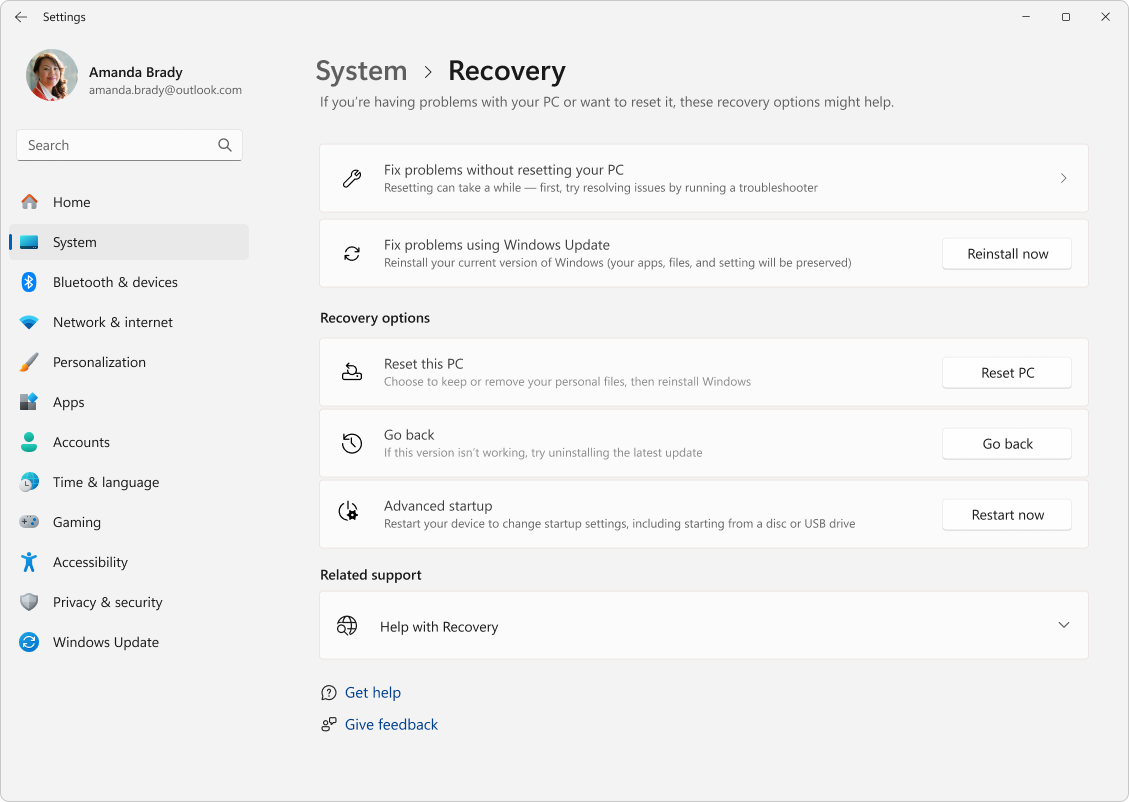
If the system handled banking, work accounts, password managers, or sensitive documents, treat the reset as only one part of recovery. Use a clean device to change passwords and revoke active sessions before you trust the machine again.
When a factory reset usually removes malware
- The infection is a normal installed program, browser extension, rogue app, or user-level startup entry.
- Windows is reset with personal files removed, or the phone is erased through the official reset flow.
- You reinstall apps from official sources instead of restoring every old app automatically.
- You do not restore suspicious downloads, cracks, scripts, archives, APK files, or unknown setup files.
- Follow-up scans no longer find the same affected path after reboot.
Why symptoms can return after a reset
- Infected backup: restoring the same malicious installer, archive, macro document, or APK starts a new infection.
- Browser or app sync: Chrome, Edge, Firefox, or a phone backup can restore an unwanted extension, app, search engine, startup page, or notification permission.
- Account compromise: a stolen password, active session, mailbox rule, or cloud-app authorization lives online and survives any device reset.
- Router or DNS compromise: redirects can continue on every device until the router password, firmware, and DNS settings are checked.
- Partial Windows recovery: choosing Keep my files, reconnecting old storage immediately, or restoring all software at once can hide which item recreated the symptom.
Before you factory reset: malware cleanup checklist
- Isolate the device first. Disconnect Wi-Fi/Ethernet if the machine is sending spam, opening unknown remote-access windows, redirecting browsers, or showing repeated outbound-connection blocks.
- Save evidence before wiping it. Write down detection names, file paths, downloaded file names, browser extensions, suspicious domains, and screenshots of alerts. These details help you decide whether passwords, accounts, or other devices are also at risk.
- Run a full scan if Windows still starts. Remove active detections, reboot, and scan again before deciding that a reset is unavoidable.
- Check common persistence points. Review Startup Apps, Task Scheduler, Services, browser extensions, proxy settings, notification permissions, and recently installed apps. The Windows security audit after malware, suspicious startup apps, and recurring browser extension guides cover those checks in more detail.
- Back up cautiously. Keep documents, photos, videos, and known-safe project files. Do not carry over unknown EXE, MSI, BAT, CMD, JS, VBS, SCR, APK, ZIP, RAR, cracked installers, cheats, or suspicious scripts from the infected system.
- Use a clean device for account recovery. If a suspicious installer, crack, fake update, or remote-access tool ran, change email, banking, cloud, social, and password-manager passwords from another device. For stealer symptoms, follow the info-stealer recovery guide before trusting the reset PC.
- Choose reset or clean install by what returns. Use Reset this PC → Remove everything for a local infection that has not returned after cleanup. If the same detection, startup item, or unauthorized remote-access software comes back, use a clean Windows install USB after malware.
- Check router DNS settings if several devices show the same redirects or fake security pages.
If the same security-tool alert or symptom returns after reboot, a visible file may be gone while a loader, scheduled task, service, browser change, or bundled module recreates it. Run a full Gridinsoft Anti-Malware scan before resetting Windows, remove detected persistence, reboot, and scan again. This helps identify what must not be restored; it does not recover stolen passwords or prove that online accounts are safe.
If malware alerts or unwanted browser changes return after restarting Windows, scan before resetting the PC. Review what remains so you can remove detected threats and avoid restoring the same unwanted software afterward.
Scan Windows before resettingAfter reset
- Install Windows, Android, or iOS updates before restoring apps.
- Reinstall software only from official sources.
- Restore personal files in small batches and scan them before opening archives or installers.
- Review browser sync before enabling everything. Remove unknown extensions, notification permissions, search engines, and startup pages.
- Run another full malware scan after the first reboot and again after restoring files.
- Watch for the same symptom: the same detection path, startup task, redirect, pop-up, unknown app, or blocked outbound connection.
Phone reset: Android and iPhone
On phones, a factory reset is often stronger because most malware runs as apps or through browser permissions. It still does not fix a stolen account. Before resetting, sign out of suspicious sessions, change important passwords from another device, and avoid restoring the same sideloaded APK or unknown configuration profile.
Before resetting Android for a suspicious installed app, use Trojan Scanner for Android to scan, review findings and confirm unwanted-app removal. This can spare an unnecessary erase. If removal is blocked or the app returns, use the reset or manufacturer-support branch.
For Android, use the official factory reset flow and then reinstall apps from Google Play or trusted vendor sources only [2]. If you are not sure whether the warning came from an app or a browser page, use the Android malware checks before erasing. For iPhone, Apple’s erase process removes content and settings [3], but you should still check Apple ID security, the signed-in device list, and unknown configuration profiles after recovery.
If malware comes back after reset
- Do not restore the old backup again until you know which file or app is responsible.
- Disconnect browser sync and remove unknown extensions from the account’s extension list.
- Check router DNS and browser notification permissions if redirects or fake alerts return on multiple devices.
- Use a clean Windows reinstall from official media if the same Windows malware returns after a normal reset.
- On Windows, scan restored files with Gridinsoft Anti-Malware before opening archives, installers, scripts, or documents with macros.
- If passwords were exposed, keep treating account recovery as a separate task even after the device is clean.
FAQ
Does a factory reset remove all viruses?
No. It removes many normal device-level infections, but it does not clean stolen accounts, bad backups, compromised routers, synced browser settings, or rare firmware-level persistence.
Should I keep my files during a Windows reset?
If the infection is serious, Remove everything or a clean reinstall is safer. If you keep files, avoid restoring unknown installers, archives, scripts, cracked software, or suspicious documents until they are scanned.
Can malware survive a factory reset on Android or iPhone?
It is uncommon for normal phone malware to survive a proper erase, but the same bad app, sideloaded APK, configuration profile, or compromised account can bring the problem back after setup.
Is clean reinstall better than factory reset?
For serious or recurring Windows malware, yes. A clean reinstall from official media gives you a more trusted starting point than a normal reset that depends on the existing recovery environment.
Why did pop-ups return after reset?
The cause may be browser sync, notification permissions, a restored extension, router/DNS settings, or an account-level problem rather than malware still installed on the device.
Will a factory reset get rid of a hacker?
It can remove unauthorized apps or remote-access software stored on the device. It does not revoke stolen passwords, browser sessions, mailbox rules, cloud-app access, or router changes, so recover those separately from a clean device.
Is System Restore the same as a factory reset?
No. System Restore rolls selected Windows system files and settings back to a restore point; it is not a reliable malware-erasure method. Reset this PC reinstalls Windows, while a clean install starts from official bootable media.
Related: remove viruses in Safe Mode, reset your browser, virus protection tips, check localhost/proxy hijacker symptoms, audit Windows after malware.
References
- Microsoft Support. “Reset your PC.” Microsoft, accessed July 22, 2026. https://support.microsoft.com/en-us/windows/reset-your-pc-0ef73740-b927-549b-b7c9-e6f2b48d275e
- Google Android Help. “Reset your Android device to factory settings.” Google, accessed July 22, 2026. https://support.google.com/android/answer/6088915?hl=en
- Apple Support. “Erase iPhone.” Apple, accessed July 22, 2026. https://support.apple.com/guide/iphone/erase-iphone-iph7a2a9399b/ios

HitmanPro.Alert will not allow GridinSoft to be installed -“malicious code alert”.