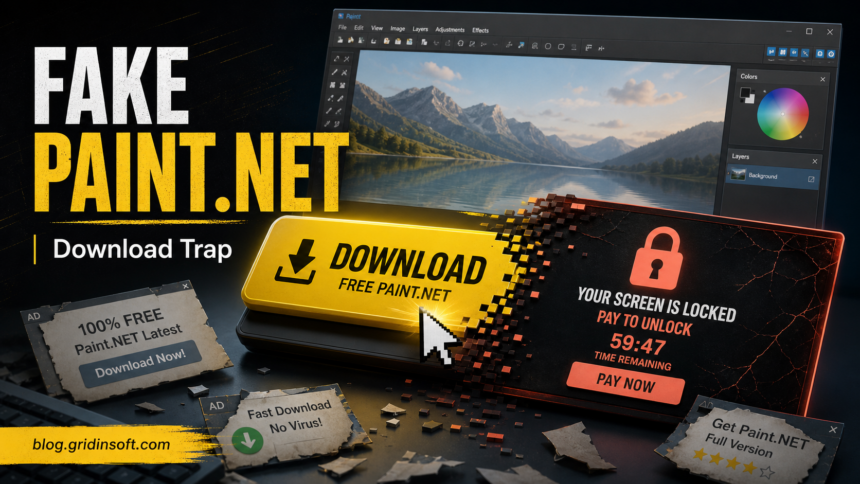
Paint.NET itself is a legitimate Windows image editor when you get it from the official Paint.NET download page or the linked dotPDN/Microsoft Store path. The danger comes from fake download buttons, cloned pages, ad wrappers, and renamed installers that use the Paint.NET name to push adware, browser notification spam, remote-access tools, or lock-screen/paywall malware. If the screen locked after a Paint.NET download attempt, treat the file as suspicious until you can verify its source and remove persistence.
What Usually Happened
The common story is not that the real editor suddenly became malicious. A user searches for Paint.NET, clicks a large ad-style download button, receives an installer with a generic or misspelled name, and then sees browser redirects, pop-ups, a payment screen, or a fake support warning after reboot. Paint.NET’s current official download page points users to the Microsoft Store paid option and a free dotPDN download, while older forum complaints described misleading download pages full of ad buttons that pushed unrelated software.[1][2]
The domain confusion also matters. In 2026, Paint.NET’s creator obtained the paint.net domain after years of the software living at getpaint.net; coverage of the transfer noted that a previous domain owner had hosted Paint.NET-related content with deceptive links and ads.[3] That history is why a cleanup guide should separate the legitimate program from the download path that delivered the problem.
Fast Safety Decision
- Likely safe: you downloaded from
paint.net,getpaint.net, the official dotPDN download, or Microsoft Store, and the installer name, publisher, and install behavior match the real app. - Suspicious: the download came from an ad, mirror, pop-up, shortened link, torrent, bundled installer, or a page that made the real download hard to find.
- High risk: the file ran, then Windows showed a lock screen, paywall, fake support alert, browser hijack, new extension, startup item, or recurring security warning.
If the Screen Is Locked or a Paywall Reopens
- Do not pay, call a phone number, enter credentials, or install a recommended “support” tool from the locked screen.
- Disconnect the PC from the network if the screen prevents normal work or keeps relaunching after you close it.
- Try
Ctrl+Shift+Escto open Task Manager. End the unknown browser, installer, remote-access, or full-screen process only if you can identify it without killing Windows system processes. - If the screen returns immediately, reboot into Windows Safe Mode with Networking disabled first. Then remove the suspicious installer and startup entries before reconnecting.
- Check recent downloads in
%USERPROFILE%\Downloads, temporary installer paths such as%TEMP%, and suspicious folders under%LOCALAPPDATA%.
Clean the Fake Paint.NET Download Leftovers
Remove the visible installer first, then check the places where fake download wrappers commonly survive. A fake Paint.NET installer may leave a scheduled task, startup command, browser notification permission, unwanted extension, or helper app that relaunches the alert after reboot.
- Open Settings > Apps and uninstall unfamiliar apps installed at the same time as the Paint.NET download attempt.
- Open Task Manager > Startup apps and disable entries with random names, unknown publishers, or paths in user profile folders.
- Open Task Scheduler and review newly created tasks that run from
Downloads,Temp,AppData, or browser profile folders. - Check browser extensions and notification permissions. Remove unknown extensions and block sites that were allowed to send notifications during the fake download flow.
- Review common Run keys, especially
HKCU\Software\Microsoft\Windows\CurrentVersion\Run, for commands pointing to a recent installer or random executable. - Empty the browser download cache and delete the original suspicious installer after you no longer need it for verification.
If the alert came back after reboot, or if the file ran before you noticed the page was fake, scan for persistence instead of assuming the visible installer was the whole incident. A security scan can catch leftover files, startup entries, scheduled tasks, bundled apps, browser changes, and exclusions that manual cleanup may miss.
If the page or email made you download an invoice, coupon, tracking app, browser extension, or support tool, scan the PC before opening it again or logging into sensitive accounts.
Scan after a fake downloadHow to Verify the Real Paint.NET Installer
Before reinstalling, start from the official Paint.NET download page and follow its current buttons. Avoid search ads, “download now” banners, mirrors that wrap the installer, and pages that ask you to install a separate downloader first.
- The official free download should route through Paint.NET/dotPDN, not a random file-hosting or coupon/download portal.
- The paid Microsoft Store route is normal; a surprise payment demand after a separate installer ran is not normal.
- The real installer should not require browser notification permission, a support phone call, a remote-access session, or an unrelated “PC optimizer”.
- If you still have the file, upload it to Gridinsoft Online Virus Scanner before restoring or sharing it.
When to Change Passwords
Change passwords from a clean device if the fake installer ran and you entered passwords, opened a browser with saved sessions, installed a remote-support tool, or saw signs of an infostealer such as browser profile access, Discord/Steam session theft, crypto-wallet prompts, or unexpected account-login alerts. A normal Paint.NET install does not need your passwords.
Internal Checks That Help
If the problem started as a browser scare page rather than a downloaded file, use our fake virus alert removal guide to reset notifications and stop scareware loops. If a fake update or fake installer opened PowerShell, Terminal, or a remote-access client, treat it as a stronger compromise path and follow the deeper cleanup steps in the related guides.
- Fake virus alert removal guide
- SocGholish fake update removal guide
- Browser opens tabs by itself
- Clean Windows install USB after malware
FAQ
Is Paint.NET a virus?
No. Paint.NET is legitimate software when downloaded from the official Paint.NET, dotPDN, or Microsoft Store path. The “Paint.NET virus” problem usually means a fake download page or ad delivered something else.
Why did a Paint.NET download lock my screen?
A lock screen after the download usually points to a fake installer, scareware page, remote-support scam, or malware wrapper. Close the screen safely, avoid payment or phone numbers, then check startup, scheduled tasks, browser permissions, and recent downloads.
Should I reinstall Paint.NET after cleanup?
Yes, but only from the official Paint.NET download page or Microsoft Store route. Delete the suspicious installer first and verify that the browser and startup entries no longer relaunch the alert.
Can this be a false alarm?
It can be, especially if a security tool only disliked a mirror or installer wrapper. Treat it as suspicious until you confirm the source, publisher, and behavior. Do not restore a file that came from a misleading ad or caused a lock screen.
References
- dotPDN LLC and Rick Brewster. “Download Paint.NET.” Paint.NET, updated March 8, 2026, accessed June 21, 2026. https://paint.net/download.html
- Paint.NET Forum. “Do something about the misleading download pages.” Paint.NET Discussion and Questions, December 28, 2013, accessed June 21, 2026. https://forums.paint.net/topic/27664-do-something-about-the-misleading-download-pages/
- Rick Lane. “After more than two decades, the creator of Paint.NET finally owns the domain paint.net.” PC Gamer, May 30, 2026, accessed June 21, 2026. https://www.pcgamer.com/software/after-more-than-two-decades-the-creator-of-paint-net-finally-owns-the-domain-paint-net-and-its-all-thanks-to-a-slam-dunk-case-of-trademark-infringement/