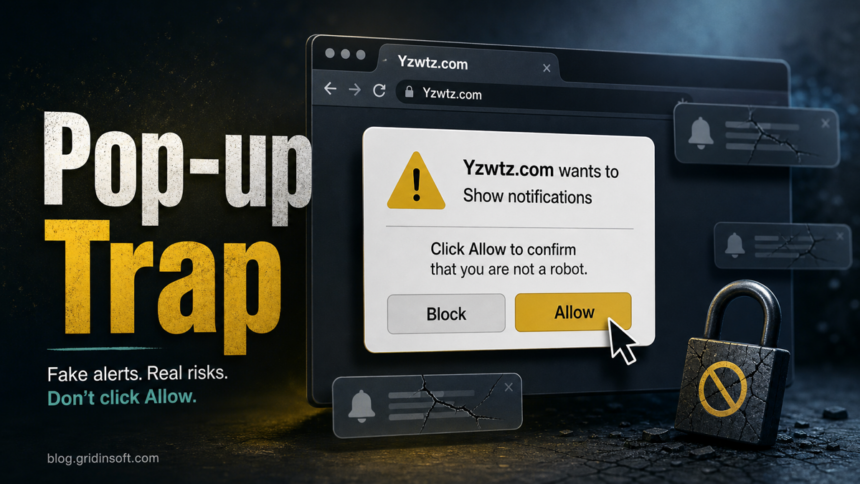
Yzwtz.com should be treated as an unsafe browser-notification and fake-alert domain. If you see Yzwtz.com pop-ups, do not click Allow, Scan, Remove threats, or any download button shown by the page. Remove the site’s notification permission first, then check extensions and browser settings if the alerts return.
The common lure is a fake robot check, video gate, security check, or warning page that asks you to allow notifications. Once permission is granted, Yzwtz.com can keep sending alerts from the browser even when the original tab is closed. That does not always mean Windows is fully infected, but it does mean the browser profile is no longer trustworthy until the permission and any restoring component are removed.
What is Yzwtz.com?
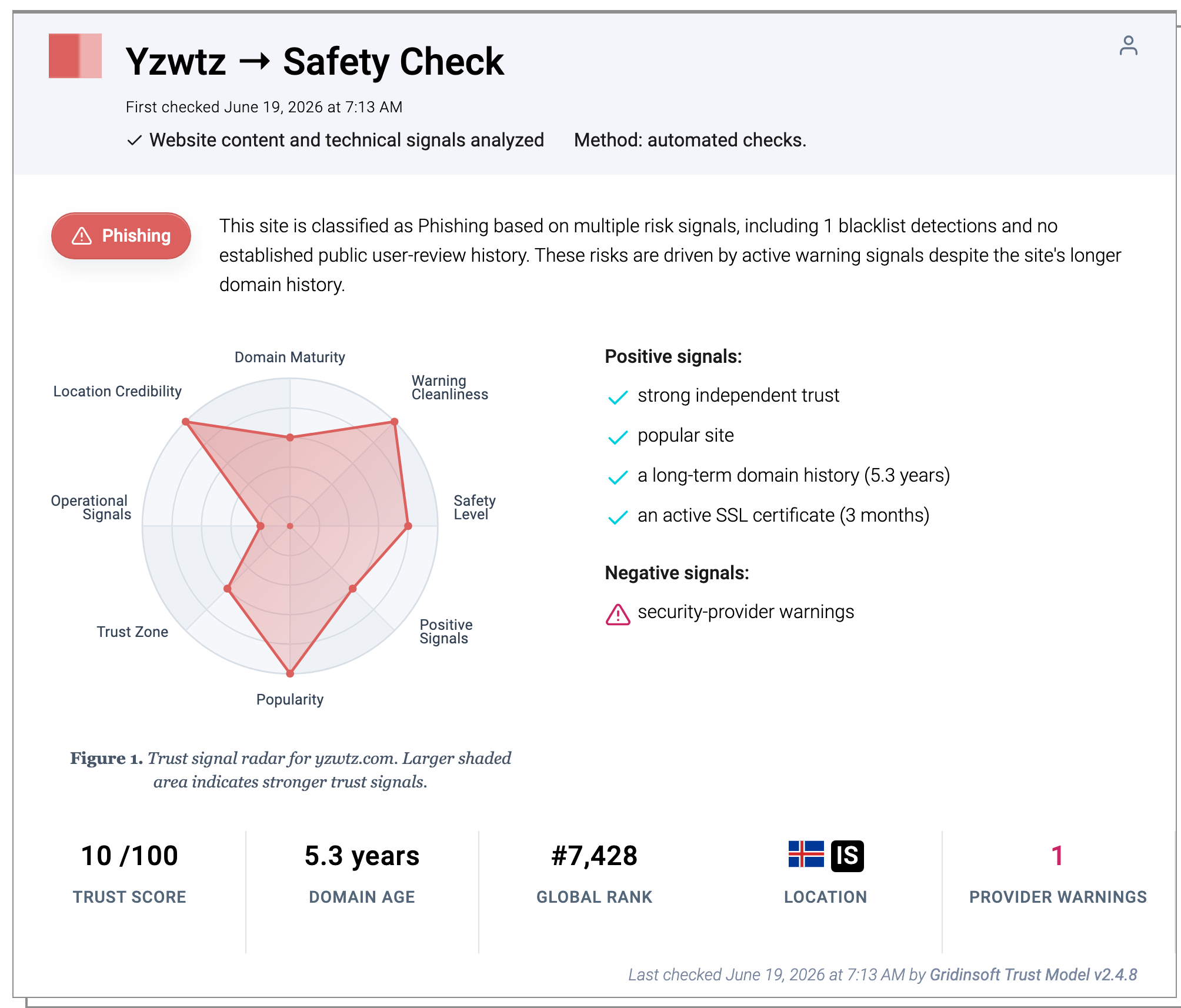
Yzwtz.com is a risky domain tied to browser notification abuse and phishing-style warning signals. Gridinsoft Website Reputation Checker currently classifies the domain as phishing and gives it a 10/100 trust score, so the safe choice is to avoid interacting with pages or notifications opened from it.
For a user, the important distinction is practical: a malicious notification permission can look like a virus alert even when it is only a browser setting. The risk becomes higher when Yzwtz.com returns after you block it, when another suspicious domain replaces it, when new tabs open without your action, or when an unknown extension or recently installed app appears at the same time.
Remove the Yzwtz.com notification permission
Start in the browser that shows the alerts. If you use multiple Chrome, Edge, Firefox, or Safari profiles, check each profile separately because notification permissions are stored per profile.
If Yzwtz.com keeps showing unwanted pop-ups, you likely granted it permission to send notifications. To stop them, you need to revoke that permission in your browser settings.
- Copy and paste this into the address bar:
chrome://settings/content/notifications - Scroll down to the Allowed to send notifications list.
- Find Yzwtz.com.
- Click the three dots (...) next to it and select Remove (or Block).
- Open Safari and go to Settings (or Preferences).
- Click the Websites tab and select Notifications on the left.
- Find Yzwtz.com in the list on the right.
- Select it and click Remove (or change "Allow" to "Deny").
- Copy and paste this into the address bar:
about:preferences#privacy - Scroll down to Permissions and click Settings... next to Notifications.
- Type Yzwtz.com in the search bar or find it in the list.
- Select the site and click Remove Website.
- Copy and paste this into the address bar:
edge://settings/content/notifications - Look under the Allow section.
- Find Yzwtz.com.
- Click the three dots (...) next to it and select Remove (or Block).
- Copy and paste this into the address bar:
brave://settings/content/notifications - Scroll to the Allowed to send notifications list.
- Find Yzwtz.com.
- Click the three dots (...) and select Remove (or Block).
- Copy and paste this into the address bar:
opera://settings/content/notifications - Check the Allowed to send notifications list.
- Find Yzwtz.com.
- Click the three dots next to it and select Remove.
After blocking or removing the permission, close the browser and reopen it. If the alerts stop and no other suspicious domain appears, the problem was likely the allowed notification permission. If the prompt comes back, continue with the extension and policy checks below.
Check extensions, search, and browser policies
Yzwtz.com may arrive through ad redirects, bundled extensions, fake download pages, or pages that imitate a security check. Review extensions installed around the day the alerts started. Remove vague helpers, coupon tools, download managers, PDF converters, media players, fake security extensions, and anything that asks for broad access to all sites.
- Launch Chrome.
- Click the three dots (...) in the top right corner.
- Select Extensions > Manage Extensions.
- Click Remove next to the extension you want to delete.
Quick Access: Type chrome://extensions/ in the address bar.
- Open Safari.
- In the menu bar, click Safari and select Settings (or Preferences).
- Click on the Extensions tab.
- Select the extension and click Uninstall.
- Click the menu button, select Add-ons and themes.
- Go to the Extensions tab.
- Click the three dots (...) next to the extension and select Remove.
Quick Access: Type about:addons in the address bar.
- Launch Microsoft Edge.
- Click the three dots (...) in the top right corner.
- Select Extensions.
- Find the extension and click Remove.
Quick Access: Type edge://extensions/ in the address bar.
- Launch Brave browser.
- Click the menu icon > Extensions.
- Find the extension and click Remove.
Quick Access: Type brave://extensions/ in the address bar.
- Launch Opera.
- Click the Opera logo in the top left corner.
- Select Extensions > Extensions.
- Click the X or Remove button next to the extension.
Quick Access: Type opera://extensions/ in the address bar.
Open Extensions/Add-ons again and remove any entry linked to Yzwtz.com or clearly out of place.
Next, check the browser’s startup pages, default search engine, homepage, and notification settings. On home PCs, also open Chrome or Edge policy pages and look for forced search, homepage, extension, or startup policies. If a policy is present and you did not set it through work or school management, remove the related app before resetting the browser.
Reset the browser only after removing the source
A browser reset can help when Yzwtz.com is part of a messy redirect or fake-alert chain, but it should not be the first and only action. Remove the notification sender and suspicious extensions first. Otherwise sync, a policy, a startup task, or a companion app can restore the same settings after the reset.
- Tap on the three dots (...) in the top right corner and Choose Settings.

- Choose Reset and Clean up and Restore settings to their original defaults.

- Tap Reset settings.

Quick Access: Type chrome://settings/reset in the address bar.
- Open Safari.
- In the menu bar, click Safari > Clear History.
- Select all history and click Clear History.
- Go to Safari > Settings (or Preferences).
- Click the Privacy tab and select Manage Website Data... > Remove All.
- In the Advanced tab, check Show features for web developers.
- In the menu bar, select Develop > Empty Caches.
- Launch Brave browser.
- Click the menu icon in the top right corner and select Settings.
- Click Additional settings > Reset settings.
- Tap Restore settings to their original defaults.
- Confirm by clicking Reset settings.
Quick Access: Type brave://settings/reset in the address bar.
- In the upper right corner tap the three-line icon and Choose Help.

- Choose More Troubleshooting Information.

- Choose Refresh Firefox... then Refresh Firefox.

Quick Access: Type about:support and click Refresh Firefox.
- Tap the three dots.

- Choose Settings.

- Tap Reset Settings, then Click Restore settings to their default values.

Quick Access: Type edge://settings/reset in the address bar.
- Launch the Opera browser.
- Click the Opera menu button in the top left corner and select Settings.
- Scroll down to the Advanced section in the left sidebar and click Reset and clean up.
- Click Restore settings to their original defaults.
- Click Reset settings to confirm.
Quick Access: Type opera://settings/reset in the address bar.
After reset, verify that Yzwtz.com is no longer set as your default search engine or homepage.
If several browsers are affected, if fake alerts return after reboot, or if you installed a file promoted by the page, scan the PC for adware and browser-hijacker leftovers. Gridinsoft Anti-Malware can check for hidden files, startup entries, scheduled tasks, browser changes, and bundled components that may keep reopening the notification flow.
If redirects, notifications, extensions, homepage changes, or managed policies return after browser cleanup, the source is often outside the browser: an installed app, policy, scheduled task, or startup entry.
Scan for browser-hijacker leftoversWhat not to click on Yzwtz.com alerts
- Do not click fake Allow, Scan now, Remove threats, Claim reward, or Download buttons.
- Do not install a browser extension, cleaner, video player, VPN, or update offered by the alert.
- Do not call phone numbers or open remote-support prompts shown by a warning page.
- Do not enter passwords, email addresses, payment details, recovery codes, or crypto-wallet data on pages opened from the notification.
Is it only notifications, or adware?
Use this split before you reinstall browsers or reset Windows:
- Likely only notification permission: Yzwtz.com alerts stop after you block the sender, and no extensions, redirects, or new tabs remain.
- Possible adware or hijacker: the permission returns, another strange domain replaces it, search/homepage settings change, security pages redirect, or unknown extensions appear.
- Higher-risk case: you downloaded a file, installed an extension, allowed remote access, entered credentials, or connected a wallet after clicking the alert.
For broader cleanup, keep the fake virus alert guide open as a checklist for scareware messages. If search or homepage settings keep changing, use the browser hijacker removal guide. If the symptom is tabs opening by themselves, follow the browser opens multiple tabs troubleshooting flow after removing the notification permission.
What to do if you clicked the alert
- If you only clicked Allow: remove the notification permission and close the tab. Then watch whether another suspicious domain appears.
- If you installed something: uninstall the app or extension, scan the system, reboot, and scan again if redirects return.
- If you entered a password: change that password from a clean session, enable two-factor authentication, and sign out other active sessions where the service allows it.
- If you gave remote access or payment data: disconnect the remote tool, contact your bank or card issuer, preserve screenshots/receipts, and treat the PC as potentially exposed until scanned.
How to prevent the same fake-alert loop
Keep browser notifications disabled by default for unknown sites. Avoid fake video gates, fake CAPTCHA prompts, cracked software pages, and download mirrors that ask for notification permission before showing content. Review installed extensions monthly, and do not keep extensions you cannot explain. When a site says you must click Allow to prove you are not a robot, assume the prompt is trying to gain persistent notification access.
FAQ
Is Yzwtz.com a virus?
Yzwtz.com is better treated as a risky web domain and notification-abuse source, not as a normal Windows file virus. The browser alerts can still lead to malware downloads, phishing pages, or unwanted extensions, so remove the permission and check the browser.
Why do Yzwtz.com alerts appear after I close the page?
They usually appear because the browser was allowed to show notifications from the site. That permission lets alerts appear later from Chrome, Edge, Firefox, Safari, or a mobile browser even when the original tab is gone.
Should I reset Chrome or Edge immediately?
Reset only after removing the notification permission and suspicious extensions. Resetting first can hide the visible symptom while a synced setting, policy, startup task, or companion app restores the unwanted behavior.
Do I need to change passwords?
Change passwords if you typed credentials into a page opened from Yzwtz.com, installed a suspicious extension, gave remote access, or downloaded and ran a file. If you only clicked notification Allow, start with permission removal and system checks.
References
- Google Chrome Help. “Change site settings permissions.” Google, accessed June 25, 2026. https://support.google.com/chrome/answer/114662
- Microsoft. “What is a browser hijacker and how do you remove one?” Microsoft 365 Life Hacks, accessed June 25, 2026. https://www.microsoft.com/en-us/microsoft-365-life-hacks/privacy-and-safety/what-is-browser-hijacker-how-remove