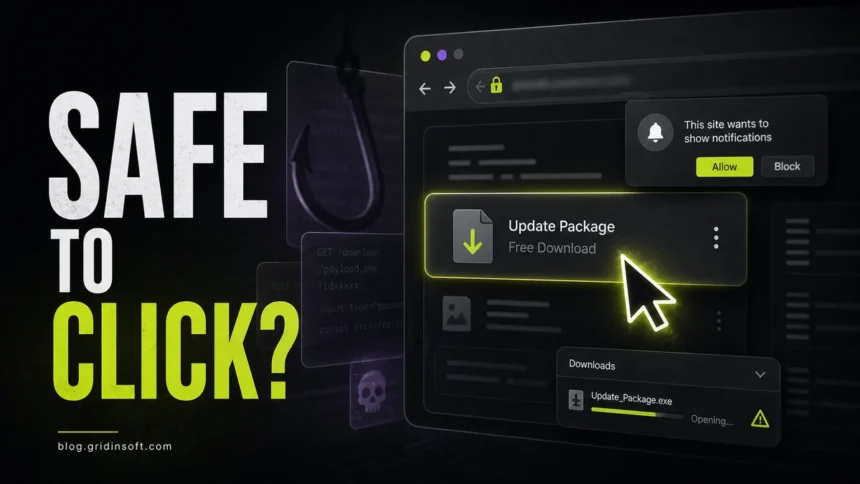
Secure web browsing in 2026 is less about one perfect browser setting and more about pausing at the right moments. Before you click a link, allow a notification, download an installer, enter a password, or join public Wi-Fi, check whether the page, domain, file, and request make sense. The safest routine is simple: keep the browser updated, leave phishing and malware warnings enabled, use a password manager and MFA, reject random notification prompts, download software from official sources, and scan suspicious links or files before opening them.
This article was refreshed because the search intent has changed. People are no longer only asking for general “online safety tips.” They are asking what to do when a page looks real, a browser asks for notification permission, a fake update starts downloading, a search ad leads to a strange domain, or they already clicked something suspicious.
Secure Browsing Checklist
| Moment | Safer move |
|---|---|
| A link asks you to sign in | Open the real site from a bookmark or typed address. Let your password manager refuse to autofill on lookalike domains. |
| A website says your browser, PC, or codec needs an update | Close the page. Update Chrome, Edge, Firefox, Safari, Windows, or macOS from the app or official system settings only. |
| A site wants notification permission | Block it unless you already trust the site and genuinely need alerts from it. |
| A download starts from an ad, mirror, or pop-up | Cancel it. Reopen the vendor’s official site or app store and compare the file name before running anything. |
| You are on public Wi-Fi | Use HTTPS sites, avoid installing certificates, and do not log in if the captive portal or hotspot name looks suspicious. |
Why Safe Browsing Matters More in 2026
The browser is now the front door for phishing, fake stores, malicious ads, fake update pages, credential theft, and browser-based scams. The FBI’s 2025 Internet Crime Report says IC3 received 1,008,597 complaints and that cyber-enabled crimes caused nearly $21 billion in reported losses [1]. FTC data published in 2026 also shows that social media scams alone reached $2.1 billion in reported 2025 losses, often beginning with ads, posts, hacked accounts, or unfamiliar shopping sites [2].
That does not mean every unknown page is dangerous. It means the useful habit is to verify the trigger: why did this page ask for a password, a download, a browser permission, a payment, or a one-time code right now?
Main Browser Threats to Watch For
| Threat | What it looks like |
|---|---|
| Phishing page | A fake login, bank, delivery, cloud storage, crypto, social media, or email page that asks for credentials or a one-time code. |
| Fake browser update | A page says you must install a browser, Flash, codec, “security check,” or media player update before continuing. |
| Malicious ad | A search result or display ad opens a fake store, fake support page, fake download, or scareware alert. |
| Notification spam | A site asks you to click Allow, then sends fake virus alerts or prize messages from the browser notification area. |
| Risky extension | A toolbar, coupon tool, PDF helper, search helper, VPN extension, or “security” add-on asks to read or change data on all sites. |
| Drive-by or forced download | An installer, script, archive, or executable appears after a redirect, pop-up, game/mod site, cracked software page, or fake CAPTCHA. |
Chrome’s unsafe-site guidance names phishing, social engineering, malware or unwanted software, abusive extensions, and malicious or intrusive ads as the kinds of risks Safe Browsing warnings are designed to catch [3]. Keep those warnings on. Do not treat a warning as an annoyance to bypass when you are about to enter credentials or run a file.
Browser Settings Worth Checking
- Phishing and malware protection is enabled. In Chrome, keep Safe Browsing on. In Edge, keep Defender SmartScreen and security warnings enabled. In Safari and Firefox, keep fraudulent-site and tracking protections enabled.
- Pop-ups and redirects are limited. Do not allow random sites to open new tabs, payment pages, or downloads without a clear reason.
- Notification permissions are clean. Remove websites you do not recognize. If fake antivirus alerts appear in the corner, start with our guide to disabling push notifications in your browser.
- Extensions are few and trusted. Remove add-ons you do not actively use, especially ones that can read or change data on every website. For browser-specific hardening, use our browser security settings checklist.
- Passwords are not reused. Use a password manager so fake domains are less likely to receive autofill, and enable MFA or passkeys on important accounts.
- Downloads do not auto-open. Make sure archives, scripts, installers, and office files do not run just because the download finished.
Before You Click a Link
Look at the domain, not only the page design. A real-looking logo, HTTPS padlock, support chat, or countdown timer does not prove the site is safe. Check whether the domain is spelled correctly, whether the link came from a trusted channel, and whether the request matches what you were doing.
For account alerts, delivery messages, payment warnings, and password-reset prompts, open the service manually instead of using the link. If the message is real, the alert will usually appear in the official app or account area. If it only appears on the linked page, treat it as suspicious.
If you need to inspect a suspicious URL before opening it, paste it into the Gridinsoft Website Reputation Checker. If you already clicked and need a response plan, see our guide on what to do after clicking a phishing link.
How to Handle Downloads Safely
- Prefer official sources. Use the vendor’s site, Microsoft Store, Apple App Store, Google Play, GitHub project page, or the developer’s documented download page.
- Avoid ad download buttons. Search ads and mirror pages can imitate the real download area.
- Check the file type. Treat unexpected
.exe,.msi,.scr,.bat,.cmd,.js,.vbs,.iso, and password-protected archives as higher risk. - Scan before running. Use a local security tool or the Gridinsoft Online Virus Scanner for suspicious files and URLs.
- Be extra careful with cracks, cheats, keygens, and “free premium” tools. Those pages often mix fake download buttons, bundled adware, password stealers, and trojans.
If a suspicious installer already ran, disconnect from risky Wi-Fi, close the browser, remove unknown extensions or apps, and scan the device. A one-time bad click is often fixable; running an unknown file or entering credentials needs faster cleanup.
After uninstalling the suspicious app or deleting the visible threat, use Gridinsoft Anti-Malware to check hidden files, startup entries, scheduled tasks, bundled apps, browser changes, and other persistence points that can restore malware.
Download Anti-MalwareIf You Already Clicked, Allowed, or Downloaded
| What happened | What to do first |
|---|---|
| You only opened a suspicious page | Close it, do not press page buttons, and check whether anything downloaded or asked for permission. |
| You allowed notifications | Remove the site’s notification permission, then clear recent fake-alert tabs. Do not click the alerts. |
| You entered a password or code | Open the real site manually, change the password, revoke sessions, and review MFA/recovery settings. |
| You downloaded but did not run a file | Delete it or scan it before opening. Check the exact file name, extension, and source domain. |
| You ran a file | Run a full malware scan, review startup items and browser extensions, then change passwords from a clean device if needed. |
Fake virus alerts deserve special caution because their buttons may trigger redirects, downloads, or phone scams. Use the safer cleanup flow in our fake virus alert removal guide instead of interacting with the warning itself.
Secure Browsing on Public Wi-Fi
On public Wi-Fi, avoid sensitive logins if the network name, captive portal, or certificate prompt looks suspicious. Use HTTPS websites, keep file sharing disabled, and do not install certificates or “security apps” offered by a random hotspot. A VPN can protect traffic from local network snooping, but it does not stop phishing pages, malicious downloads, or fake login forms.
For a fuller checklist, see our guide to public Wi-Fi safety and data privacy.
FAQ
Does HTTPS mean a website is safe?
No. HTTPS protects the connection between your browser and the site, but phishing sites can also use HTTPS. Check the domain, the page context, and what the site is asking you to do.
Can a website infect my computer without a download?
It is less common on fully updated browsers and operating systems, but exploit chains and malicious scripts still exist. Updates, Safe Browsing warnings, limited extensions, and cautious downloads reduce the risk.
Is private browsing the same as secure browsing?
No. Private or incognito mode mainly reduces local history and cookie storage for that session. It does not make phishing pages safe, block malicious downloads, or hide your activity from every network or website.
Are browser extensions risky?
Yes, especially extensions that can read or change data on all websites. Keep only extensions you recognize, update them, and remove tools that changed search, injected ads, or appeared after installing other software.
What should I do if a site asks me to click Allow?
Block the request unless you intentionally want notifications from that specific site. Random “click Allow to verify,” “click Allow to download,” and “click Allow to continue” prompts are common notification-spam tricks.
Should I use a VPN to browse securely?
A VPN can help on untrusted Wi-Fi by reducing local network snooping, but it does not protect you from phishing, fake updates, unsafe downloads, malicious extensions, or entering credentials on a fake site.
References
- Federal Bureau of Investigation. “Cryptocurrency and AI Scams Bilk Americans of Billions.” FBI, April 2026, accessed June 7, 2026. https://www.fbi.gov/news/press-releases/cryptocurrency-and-ai-scams-bilk-americans-of-billions
- Federal Trade Commission. “New FTC Data Show People Have Lost Billions to Social Media Scams.” FTC, April 2026, accessed June 7, 2026. https://www.ftc.gov/news-events/news/press-releases/2026/04/new-ftc-data-show-people-have-lost-billions-social-media-scams
- Google Chrome Help. “Manage warnings about unsafe sites.” Google, accessed June 7, 2026. https://support.google.com/chrome/answer/99020