

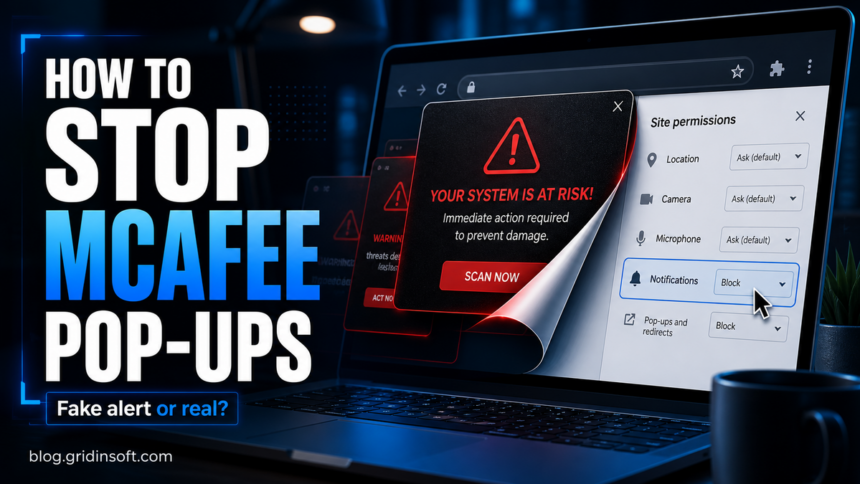
McAfee pop-ups can come from several different places. Some are real McAfee or WebAdvisor notifications. Others are fake browser alerts that use the McAfee name to scare you into clicking, paying, calling a fake support number, or installing unwanted software. The fix depends on the source, so start by identifying where the alert appears. If the source is an allowed website notification, use our browser push notification cleanup guide to remove the permission in Chrome, Edge, Firefox, Safari, or Android.
Choose the fix for your McAfee pop-up
- A website is sending notifications: block that site’s permission in your browser. Use the browser-specific steps below; a notification alone does not prove infection.
- The alert comes from your installed McAfee app or WebAdvisor: adjust or remove that component using the instructions below. A genuine renewal reminder is not a malware detection.
- Unwanted tabs return after browser cleanup, or you installed software from a fake warning: scan Windows for adware and unwanted programs. You do not need to work through every manual task and startup check first.
Use Gridinsoft Anti-Malware to check Windows for adware, unwanted apps and startup components that may be behind recurring interruptions. Review the findings before applying cleanup.
Download Anti-Malware for WindowsAfter downloading: install Gridinsoft Anti-Malware, update its databases, activate the trial if eligible, and run a Full Scan. Review detected items, apply the appropriate cleanup, restart Windows, and check whether fresh pop-ups appear. Remove the unwanted website’s notification permission too; a scan does not confirm that permission was revoked.
If the alert comes from a specific site such as recheck.co.in, use the Recheck.co.in ads removal guide to revoke that exact browser notification permission and check the redirect source.
| Problem | McAfee pop-ups, fake McAfee virus warnings, WebAdvisor alerts, browser notification spam |
| Most common source | Allowed site notifications in Chrome or Edge, McAfee WebAdvisor, installed McAfee trial software, adware |
| First check | Look at the notification source: browser, Windows notification center, McAfee app, or a web page |
| Safe first action | Do not click the pop-up. Close the browser tab or notification, then remove the source permission. |
| Risk level | Medium if it is notification spam; higher if you clicked, installed software, called a number, or entered payment details. |
What Are Fake McAfee Pop-ups?
Fake McAfee pop-ups are scareware messages that copy McAfee branding but are not generated by the real security product. They usually claim that your subscription expired, your PC has multiple viruses, or your data is exposed. Their goal is to push you toward a scam page, a fake support number, a suspicious download, or an affiliate offer.
If the warning arrived as an inbox renewal, refund, or invoice message instead of a browser pop-up, use the focused McAfee scam email guide to check the sender, invoice attachment, phone number, and account status.
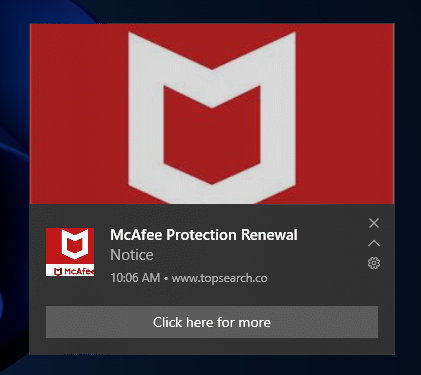
The confusing part is that not every McAfee-looking message is fake. A real McAfee app, McAfee WebAdvisor, a preinstalled trial, or Windows notifications can also create pop-ups. That is why blindly uninstalling random programs does not always solve the problem.
Quick diagnosis: where is the McAfee pop-up coming from?
| What you see | Likely source | Best first fix |
| A small alert in the lower-right corner with a website name | Chrome or Edge site notifications | Remove the suspicious site from browser notification permissions. |
| A warning inside a browser tab with a phone number or urgent scan button | Fake security alert page | Close the tab using browser controls or Task Manager. Do not click inside the page. |
| Pop-ups mention WebAdvisor or appear when searching/browsing | McAfee WebAdvisor extension | Disable or remove the WebAdvisor browser extension. |
| Windows notifications from a McAfee app or trial | Installed McAfee product | Adjust McAfee and Windows notification settings, or uninstall McAfee if you do not use it. |
| Pop-ups return after browser cleanup | Adware, unwanted extension, startup entry, or scheduled task | Check installed apps, extensions, startup entries, and run a full scan. |
| McAfee was uninstalled, but alerts still appear | Leftover McAfee component, bundled app, PC optimizer, or browser permission | Check installed apps, browser extensions, and Windows notification senders before using any removal tool. |
Could It Be Real McAfee Software?
Yes. Many PCs ship with a McAfee trial, and McAfee WebAdvisor is often bundled with other installers. Real alerts normally come from an installed app, a browser extension, or Windows notification center. Fake alerts usually come from unknown websites and try to make you click a button, call a number, or buy immediately.
If you clicked the fake McAfee pop-up
Do not keep following the page. Close the tab from the browser frame, or use Task Manager if the page traps the window. Then work backward from what happened:
- You only clicked the notification: remove the site permission from the browser and close any new tabs it opened.
- You downloaded or installed something: disconnect from risky pages, uninstall the new app, check startup items, and run a full scan.
- You called a number or gave remote access: disconnect remote-control tools, change important passwords from a clean device, and watch bank/payment accounts.
- You paid or entered card details: contact the bank or card issuer quickly and treat the incident as a payment scam, not just a pop-up problem.
Manual Removal Steps
Choose the section that matches the source of your alert. Browser permissions and legitimate McAfee settings have their own fixes; the installed-app and startup checks are optional follow-up if unwanted activity remains after the Windows scan.
Step 1: Remove McAfee notification spam in Chrome
If the alert shows a website name or appears even when McAfee is not installed, Chrome notification permissions are the most likely cause.
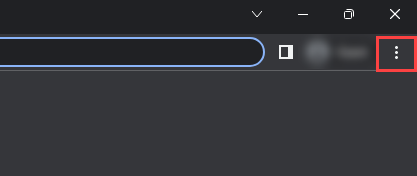
- Open Chrome and click the three dots in the top-right corner.
- Go to Settings > Privacy and security > Site settings > Notifications.
- Open
chrome://settings/content/notificationsdirectly if you want the shortcut. - Under allowed sites, remove domains you do not recognize.
- Remove anything that uses security-sounding names, random letters, odd hyphens, or domains that are not official services you use.
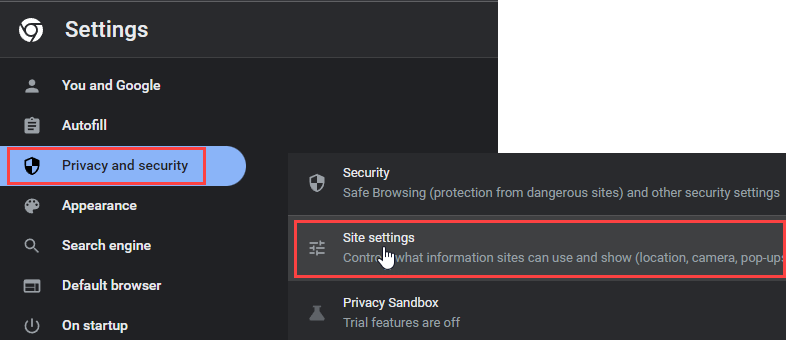
If you do not need website notifications at all, switch notification requests to a stricter mode. This prevents new scam pages from asking for permission again.
Step 2: Remove McAfee notification spam in Microsoft Edge
Edge can show the same fake McAfee warnings through site notifications.
- Open Edge and go to
edge://settings/content/notifications. - Check the Allow list.
- Remove suspicious sites, recently added sites, and anything you do not recognize.
- Restart Edge and wait a few minutes to confirm the pop-ups stop.
If fake alerts continue in both Chrome and Edge, check whether the same unwanted extension or adware app is installed at the system level.
Step 3: Remove McAfee notification spam in Firefox or Safari
If the same warning appears outside Chrome or Edge, check the notification permissions in the browser you actually use.
- In Firefox, open Settings > Privacy & Security > Permissions > Notifications, then remove suspicious websites.
- In Safari on macOS, open Safari > Settings > Websites > Notifications, then deny or remove unknown websites.
- Restart the browser and avoid restoring old scam tabs.
This matters because many fake McAfee warnings are browser notifications, not a Windows-only infection. If the alert appears on a Mac or after switching browsers, the notification permission may be stored in that browser profile.
Step 4: Turn off Windows notifications from McAfee or suspicious apps
If the alert comes from Windows notification center, disable the sender instead of clicking the alert.
- Open Settings > System > Notifications.
- Look under Notifications from apps and other senders.
- Turn off McAfee notifications if you do not want them.
- Turn off unknown senders that appeared recently.
- Do not disable core security notifications unless you understand what the sender is.
This helps when the pop-up is annoying but legitimate. It will not remove a browser notification scam, so complete the browser steps too.
Step 5: Disable or remove McAfee WebAdvisor pop-ups
McAfee WebAdvisor can add browser warnings, search result labels, and occasional prompts. If your searches for “McAfee WebAdvisor popup” brought you here, check the extension first.
- In Chrome, open
chrome://extensions/. In Edge, openedge://extensions/. - Find McAfee WebAdvisor or any McAfee-related extension.
- Disable it temporarily and test whether the pop-ups stop.
- If you do not use it, remove it from the browser.
- Also check Windows installed apps for WebAdvisor if it returns after browser restart.
Step 6: Uninstall McAfee if you do not use it
If McAfee came preinstalled on your laptop and you do not use it, removing the trial can stop legitimate renewal and subscription reminders.
- Open Settings > Apps > Installed apps.
- Search for McAfee.
- Uninstall McAfee products you do not use.
- Restart Windows.
- If McAfee components remain, use McAfee’s official consumer removal tool from the official McAfee website only.
Do not download “McAfee removal tools” from ads, pop-ups, or random support pages. Fake removal utilities are a common way to install more unwanted software.
Step 7: Check installed apps, startup entries, and scheduled tasks
If the pop-ups keep coming back after browser cleanup, treat the case as possible adware or a browser hijacker.
- Open Settings > Apps and sort by install date.
- Remove recently installed apps you do not recognize.
- Press Ctrl+Shift+Esc, open Startup apps, and disable suspicious startup entries.
- Open Task Scheduler and check for unknown tasks that launch browsers or scripts.
- Run a full system scan after removing suspicious entries.
Pay special attention to downloaders, “PC cleaner” apps, PC App Store-style bundles, browser toolbars, fake update utilities, and bundled installers. These often create the conditions for repeated notification spam and potentially unwanted applications.
If a fake alert is paired with a short command-prompt flash or a browser tab opening by itself, also check the Pop-broker.com scheduled-task cleanup workflow, because browser notification removal alone may not stop a Windows task launcher.
Step 8: Clear browser data only after removing the source
Clearing data can help, but it is not the first fix. If the suspicious site remains in the notification allow list, the alerts can return.
- Press Ctrl+Shift+Delete in Chrome or Edge.
- Select All time.
- Clear cookies and cached files.
- Restart the browser.
Browser Cleanup
If the browser still opens McAfee-themed warnings, clean extensions and reset the browser profile. This is useful when a suspicious extension changes search settings, opens tabs, or restores notification permissions.
Remove malicious browser extensions
- Launch Chrome.
- Click the three dots (...) in the top right corner.
- Select Extensions > Manage Extensions.
- Click Remove next to the extension you want to delete.
Quick Access: Type chrome://extensions/ in the address bar.
- Open Safari.
- In the menu bar, click Safari and select Settings (or Preferences).
- Click on the Extensions tab.
- Select the extension and click Uninstall.
- Click the menu button, select Add-ons and themes.
- Go to the Extensions tab.
- Click the three dots (...) next to the extension and select Remove.
Quick Access: Type about:addons in the address bar.
- Launch Microsoft Edge.
- Click the three dots (...) in the top right corner.
- Select Extensions.
- Find the extension and click Remove.
Quick Access: Type edge://extensions/ in the address bar.
- Launch Brave browser.
- Click the menu icon > Extensions.
- Find the extension and click Remove.
Quick Access: Type brave://extensions/ in the address bar.
- Launch Opera.
- Click the Opera logo in the top left corner.
- Select Extensions > Extensions.
- Click the X or Remove button next to the extension.
Quick Access: Type opera://extensions/ in the address bar.
Reset your browser settings
If fake McAfee pop-ups persist, reset your browser to default settings:
- Tap on the three dots (...) in the top right corner and Choose Settings.

- Choose Reset and Clean up and Restore settings to their original defaults.

- Tap Reset settings.

Quick Access: Type chrome://settings/reset in the address bar.
- Open Safari.
- In the menu bar, click Safari > Clear History.
- Select all history and click Clear History.
- Go to Safari > Settings (or Preferences).
- Click the Privacy tab and select Manage Website Data... > Remove All.
- In the Advanced tab, check Show features for web developers.
- In the menu bar, select Develop > Empty Caches.
- Launch Brave browser.
- Click the menu icon in the top right corner and select Settings.
- Click Additional settings > Reset settings.
- Tap Restore settings to their original defaults.
- Confirm by clicking Reset settings.
Quick Access: Type brave://settings/reset in the address bar.
- In the upper right corner tap the three-line icon and Choose Help.

- Choose More Troubleshooting Information.

- Choose Refresh Firefox... then Refresh Firefox.

Quick Access: Type about:support and click Refresh Firefox.
- Tap the three dots.

- Choose Settings.

- Tap Reset Settings, then Click Restore settings to their default values.

Quick Access: Type edge://settings/reset in the address bar.
- Launch the Opera browser.
- Click the Opera menu button in the top left corner and select Settings.
- Scroll down to the Advanced section in the left sidebar and click Reset and clean up.
- Click Restore settings to their original defaults.
- Click Reset settings to confirm.
Quick Access: Type opera://settings/reset in the address bar.
Understanding the Broader Scam Network
Fake McAfee pop-ups are part of a larger scareware and browser notification spam ecosystem. The same pattern appears in fake virus alerts, fake Windows Defender warnings, and Norton subscription scams.
The scam often starts when a website asks you to click Allow to continue, watch a video, download a file, prove you are human, or confirm you are not a robot. After that, the site can send notifications that look like system alerts. Some alerts lead to real affiliate offers. Others lead to phishing, fake support pages, or suspicious downloads.
Do not trust a pop-up just because it uses a real brand. Verify the source inside your browser, Windows notification settings, or the installed security app itself.
Prevention Tips
- Do not click Allow on notification prompts from unknown websites.
- Do not call phone numbers shown inside security pop-ups.
- Do not download “removal tools” from pop-up ads.
- Keep Chrome, Edge, and Windows updated.
- Review browser notification permissions once a month if this has happened before.
- Use a full system scan if pop-ups return after browser cleanup.
Be extra careful with urgent language, countdown timers, fake scan animations, and messages claiming that payment is required immediately. Those are social engineering signals, not proof that your computer is infected.
Frequently Asked Questions
How do I stop McAfee pop-ups quickly?
Check browser notification permissions first. In Chrome, open chrome://settings/content/notifications. In Edge, open edge://settings/content/notifications. Remove suspicious sites from the allowed list, then restart the browser.
Why do I get McAfee pop-ups if I do not have McAfee installed?
Most likely, a website has permission to send browser notifications. The alert uses McAfee branding, but it is sent by the website, not by McAfee. Remove the suspicious site from Chrome or Edge notification settings.
Are all McAfee pop-ups fake?
No. Some come from real McAfee software, WebAdvisor, or a preinstalled trial. Real app notifications should be traceable to an installed McAfee product or Windows notification sender. Fake alerts usually come from unknown websites and push urgent clicks, calls, or downloads.
How do I stop McAfee WebAdvisor pop-ups?
Open your browser extensions page, disable McAfee WebAdvisor, and test the browser. If the prompts stop and you do not use WebAdvisor, remove the extension. Also check Windows installed apps if it returns after a restart.
How do I remove McAfee pop-ups from Windows 10 or Windows 11?
Use two places: browser notification settings for fake website alerts, and Windows Settings > System > Notifications for app notifications. If McAfee is installed and unwanted, uninstall it from Installed apps.
How do I stop McAfee pop-ups on Mac?
Check Safari, Chrome, or Firefox notification permissions first. Fake alerts on macOS often come from a website permission or a browser tab, not from a Mac security alert. If a page will not close normally, quit the browser, reopen it without restoring the scam tab, and remove the suspicious notification permission.
What should I do if I clicked a fake McAfee pop-up?
Close the tab, do not install anything else, remove suspicious notification permissions, check recently installed apps and extensions, then run a full scan. If you paid, called a fake support number, or entered personal details, contact your bank and change important passwords.
Why do fake McAfee pop-ups keep coming back?
The source is still active. Common causes are an allowed notification site, a browser extension, adware, a startup item, or a scheduled task. Remove the source first, then clear browser data and scan the system.
Can I just block all notifications?
Yes, if you do not rely on website notifications. Blocking notification requests in the browser is one of the strongest ways to prevent this type of fake antivirus alert from returning.
Bottom Line
To stop McAfee pop-ups, do not start by clicking the alert. Start by finding the source. If it is a browser notification, remove the suspicious site permission. If it is WebAdvisor, disable or remove the extension. If it is a real McAfee trial, adjust notifications or uninstall it. If the alerts return after cleanup, scan for adware and startup persistence.
The safest rule is simple: real security problems should be checked inside the security app or Windows Security, not through a scary browser pop-up from an unknown website.
Related scam guides
If the issue is not only McAfee pop-ups but a file named Servicehost.exe in C:Windows, verify the path, signature, and startup entries before treating it as a normal WebAdvisor component.



Could not go on browser; screen filled with the popup.
Thank you very much for instructions on how to get rid of McAfee fake popups, I would have never figured that out for myself. And it was a great learning experience for other things I might run up against.
I’ve uninstalled the McAfee app along with all its additional software programs. I’ve also blocked pop-ups from the McAfee website in both Chrome and Explorer, turned off all notifications on both browsers and my PC, and even used McAfee’s software removal tool, but the pop-ups still persist. Despite trying every suggestion from Reddit threads and YouTube videos, nothing has worked. The pop-up keeps asking me to renew my subscription, and there’s no way to exit it. It appears in the middle of my screen, blocking everything, and I can’t move it. I have to click the renew button multiple times just to get to a screen with an “x” to close it. I’ve tried talking to the chatbot here, but it’s useless. When I call Microsoft tech support, I can’t reach a person – I’m constantly redirected to this website by the AI on the phone, which is absolutely no help.
The content is detailed and the layout is also very comfortable. It is a rare good article!