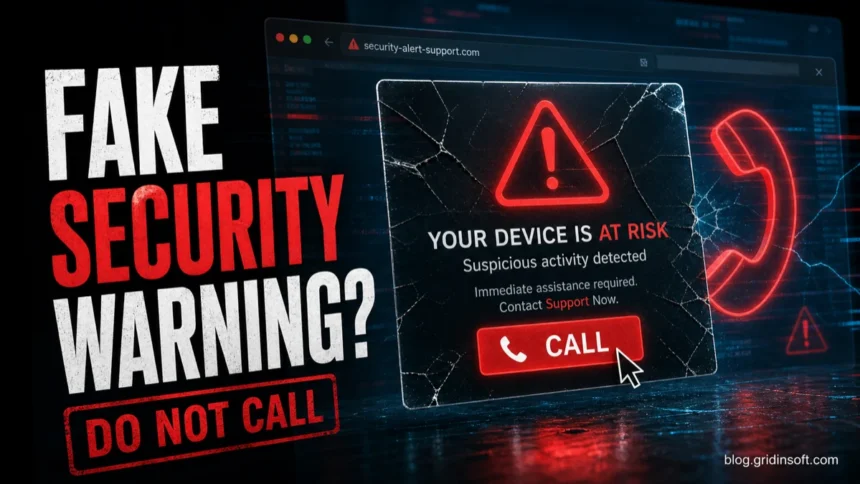
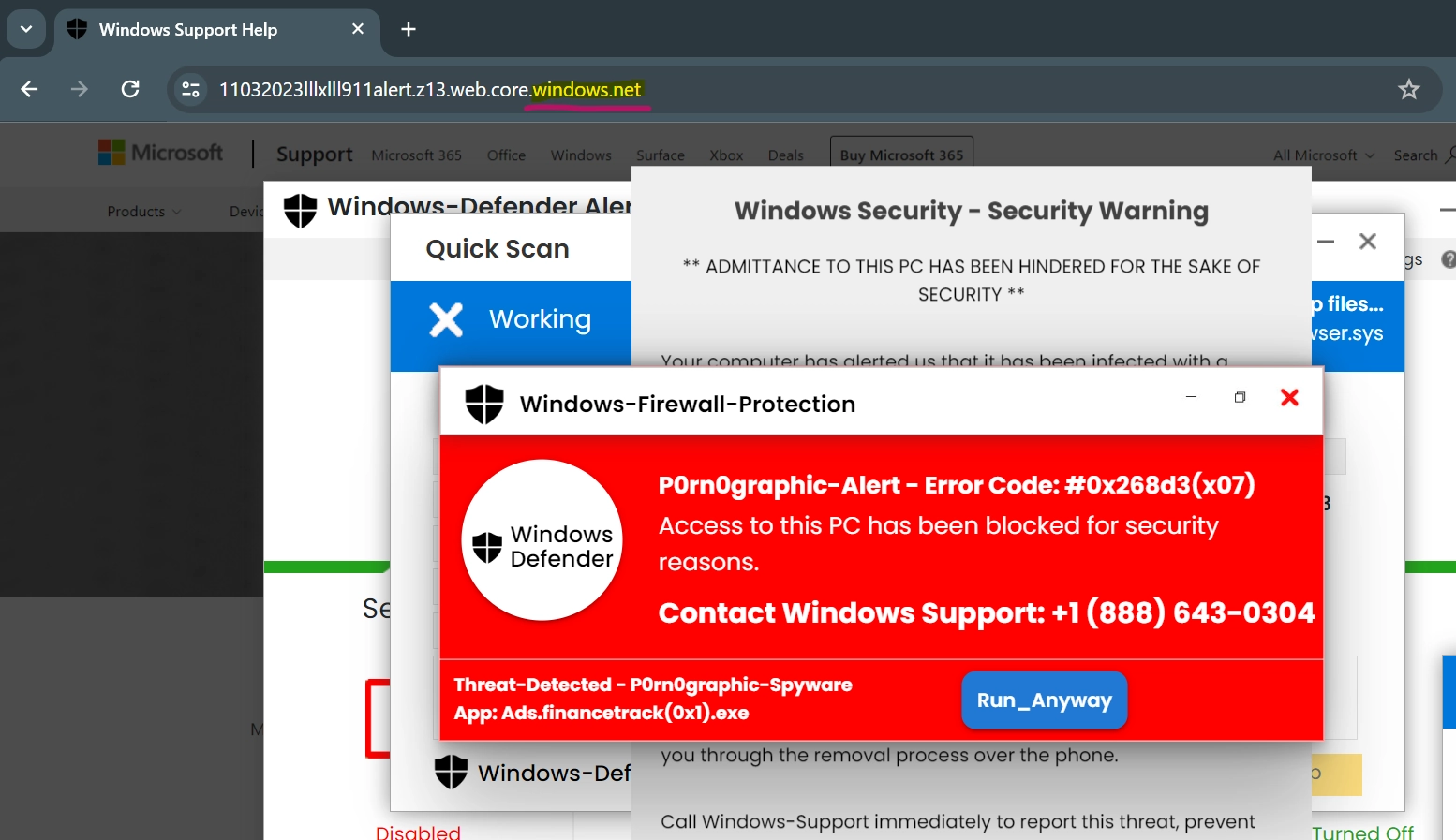
A Microsoft Security Warning that appears in a browser and tells you to call support is a scam, not a real Microsoft alert. It may claim Windows is infected, your PC is blocked, or your data is being stolen. The fake page often shows a phone number, fake Defender scan, loud warning sound, full-screen lock, or instructions to install a support tool. Do not call the number or install anything from the page. If you are unsure whether the pop-up is only a fake alert or part of a broader infection, use this computer virus warning signs checklist to compare it with real malware symptoms.
What should I do with a Microsoft Security Warning pop-up?
- Do not call the number and do not install anything from the pop-up.
- Close the browser tab. If it will not close, force quit the browser with Task Manager.
- Reopen the browser without restoring the last session or suspicious tabs.
- Clear suspicious site notifications and remove unknown browser extensions.
- Run a full malware scan if the pop-up came back, downloaded a file, or asked you to run a command.
- If you gave remote access, passwords, card details, or payment information, secure your accounts and contact your bank immediately.
If the exact fake page says Windows Defender Security Warning, use the focused Windows Defender Security Warning scam guide. This page is for broader fake Microsoft Security Warning and Microsoft support-warning pop-ups that appear after redirects, malicious ads, browser notifications, or scareware pages.
What is the Microsoft Security Warning scam?
This scam is a form of scareware and tech support fraud. The page pretends to be a Microsoft security or support alert, but it is generated by a website, malicious ad, browser notification, or unwanted extension. Its goal is to scare you into calling fake support, paying for useless service, installing remote-access software, or entering Microsoft credentials.
| Fake warning sign | Why it is suspicious |
| Phone number inside the alert | Microsoft does not put support phone numbers in random browser pop-ups |
| Browser locked in full screen | Scareware uses full-screen tricks to look like a system lock |
| Threat countdown or alarm sound | Urgency is used to stop you from checking calmly |
| Request to install remote-access software | Scammers want control of the device |
| Request to run a command | ClickFix-style scams can install malware through copied commands |
Why did the fake warning appear?
A fake Microsoft Security Warning can appear after a malicious ad redirect, a compromised website, a fake download page, or a browser notification permission you allowed earlier. If it appears once and disappears after closing the tab, it may have been only a scare page. If it returns repeatedly, check for notification spam, adware, or a suspicious extension.
CypherLoc browser-lock scareware details
CypherLoc is a newer browser-lock scareware kit reported by Barracuda in May 2026.[1] It can begin from a phishing link or attachment, then switch from a harmless-looking page into a full-screen fake Microsoft support warning when its hidden browser checks pass.
- Full-screen relocking: the page can force full-screen mode, hide the cursor, disable context menus, and cover the screen with fake Microsoft-style alerts.
- Warning sounds and IP display: clicks, reloads, or attempts to leave the page may trigger audio while the page shows your public IP address to make the warning feel personal.
- Fake login forms: a login box may appear to look official, but entering credentials will not fix anything and can expose account data.
- Phone-number pressure: the displayed support number is not Microsoft. The call is the scam path where operators may ask for remote access, payment details, passwords, or banking information.
If you see this pattern, use the safe exit sequence below: do not call, leave full-screen mode if possible, close the browser with Task Manager if needed, reopen without restoring tabs, and then remove suspicious notifications or extensions. Run a malware scan when the page came back repeatedly, downloaded a file, asked you to run a command, or led you to install a remote-support tool. Microsoft Edge also documents a scareware blocker that exits full-screen scam pages and silences deceptive alerts when it detects known patterns.[2]
How to close a fake Microsoft warning safely
- Press Esc to leave full-screen mode if the browser is locked.
- Close the tab without clicking buttons inside the page.
- Force quit the browser if the page blocks normal closing.
- Reopen the browser without restoring tabs if it offers to restore the previous session.
- Clear notifications for unknown websites in browser settings.
Remove fake security notification permissions
- Chrome or Edge: Settings -> Privacy and security -> Site settings -> Notifications.
- Firefox: Settings -> Privacy & Security -> Permissions -> Notifications.
- Safari: Settings -> Websites -> Notifications.
Remove every unknown site from the allowed list. Scammers often use browser notifications to show repeated fake security alerts even after the original page is closed.
If you called the fake Microsoft number
Hang up. If you installed remote-access software, disconnect from the internet, uninstall the tool, restart the computer, and run a full malware scan. If the caller saw passwords, banking pages, documents, or email, change passwords from another device and contact your bank.
If the pop-up told you to run a command
Treat the system as potentially infected. Some modern scams tell victims to press keyboard shortcuts, paste a command, or run a “security fix”. That command may download malware, a stealer, or a remote-access tool. Run a full scan and review startup entries, scheduled tasks, and recently installed apps.
After uninstalling the suspicious app or deleting the visible threat, use Gridinsoft Anti-Malware to check hidden files, startup entries, scheduled tasks, bundled apps, browser changes, and other persistence points that can restore malware.
Download Anti-MalwareFake warning vs real Microsoft Defender alert
| Real Microsoft Defender alert | Fake browser warning |
| Appears in Windows Security or system notifications | Appears inside a web page or browser notification |
| Does not ask you to call a random number | Often shows a phone number or chat prompt |
| Lists a detection and action in protection history | Uses vague words like “spyware found” or “system blocked” |
| Lets you review details in Windows Security | Tries to stop you from closing the page |
FAQ
Is the Microsoft Security Warning pop-up real?
If it appears in a browser page and shows a phone number, it is almost certainly a scam. Real Windows security alerts are handled through Windows Security, not random web pages.
Can a fake Microsoft warning infect my computer?
The page itself is usually a scare tactic, but infection can happen if you download a file, allow notifications, install remote-access software, or run a command from the page.
Why does the fake warning keep coming back?
Repeated alerts often come from allowed browser notifications, adware, a malicious extension, or session restore reopening the same tab.
Is CypherLoc a real Microsoft lock screen?
No. CypherLoc is browser-based scareware that imitates a locked Microsoft support screen. Treat it as a scam page: do not call the number, do not enter credentials, and close the browser without restoring the tab.
Should I reset my browser?
Resetting the browser is useful if notifications, extensions, search settings, or pop-ups keep returning after manual cleanup.
References
- Megharaj Balaraddi. “Threat Spotlight: CypherLoc, an advanced browser-locking scareware targeting millions.” Barracuda Networks Blog, May 20, 2026. https://blog.barracuda.com/2026/05/20/threat-spotlight-cypherloc-scareware
- Microsoft Support. “Prevent online scams with the scareware blocker in Microsoft Edge.” Microsoft, accessed June 8, 2026. https://support.microsoft.com/en-us/edge/prevent-online-scams-with-the-scareware-blocker-in-microsoft-edge