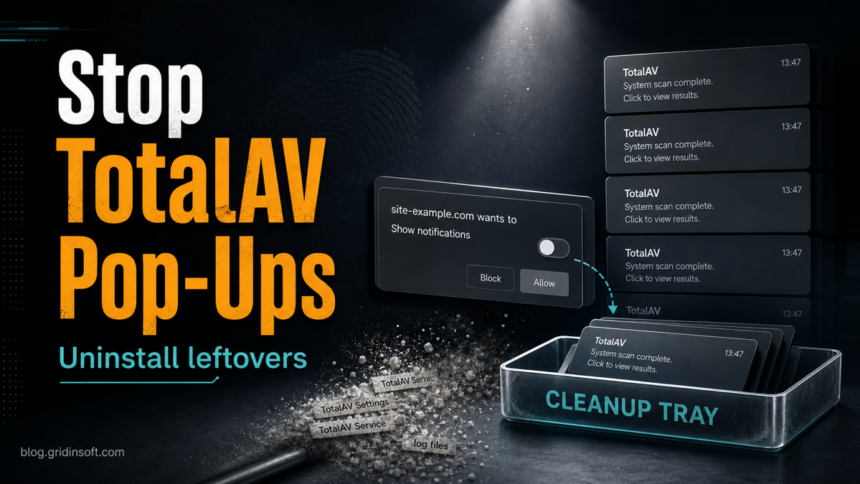
TotalAV pop-ups can come from four different places: the real TotalAV app, a Windows notification sender, a browser push-notification permission, or a fake web page using the TotalAV name. Do not click a warning, pay from a pop-up, or install a tool offered by the alert. First identify the source, then remove that source cleanly.
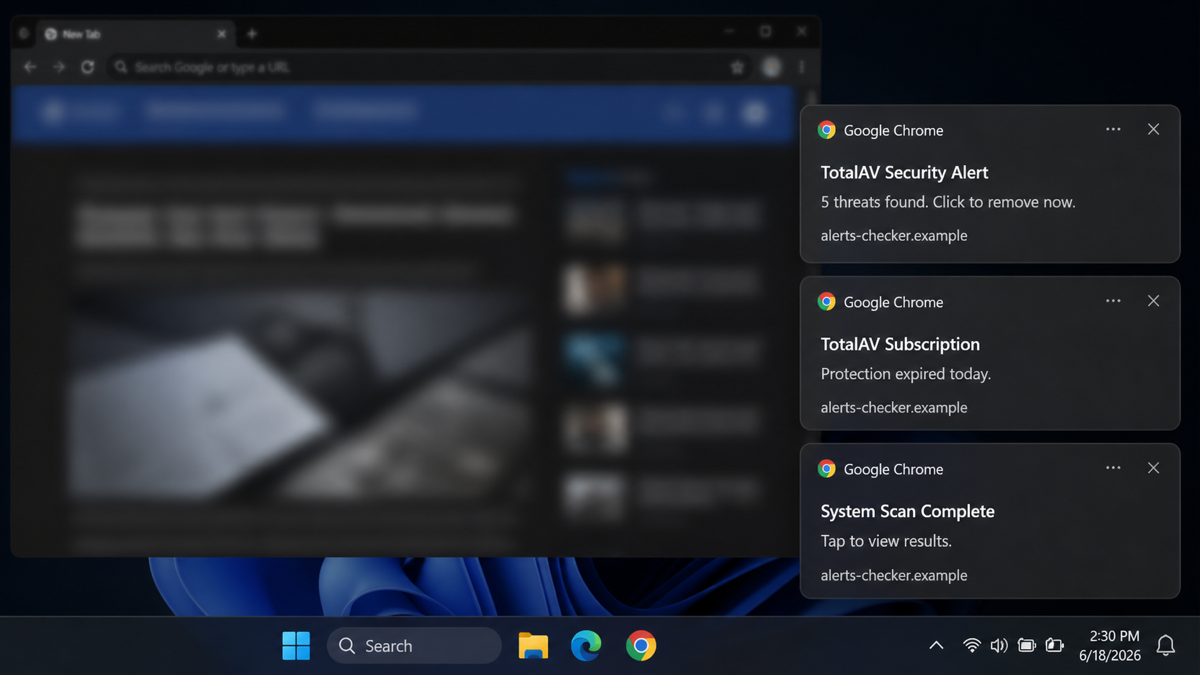
The fastest clue is the label on the notification. A real installed app usually appears in Windows notifications or opens TotalAV itself. A browser notification usually shows a website address. A fake virus page appears inside a tab and often uses urgent wording such as “many threats found,” “subscription expired,” or “click to remove viruses.” If you never installed TotalAV, treat the alert as a browser notification, adware redirect, or scareware page until proven otherwise.
| What you see | Likely source and first fix |
|---|---|
| A Windows toast from TotalAV or a scan-complete reminder | Open the app directly, review notification settings, then uninstall from Windows if you do not want the product. |
| A small alert with a website name or a browser icon | Revoke the site’s notification permission in Chrome, Edge, Firefox, or Safari. |
| A full browser page saying your PC has many viruses | Close the tab without pressing its buttons, then remove suspicious notification permissions and extensions. |
| Pop-ups continue after uninstall | Check startup apps, scheduled tasks, browser extensions, and recently installed bundles. If Driver Support One or DSOneWeb.exe appears alongside the alerts, clean its app leftovers first. If PCProtect or PC Protect is listed, treat it as a separate security app to uninstall before chasing TotalAV folders; scan if anything returns. |
Check Windows before continuing
A normal TotalAV notification or a site permission may only need the settings fix below. If alerts return after uninstalling the unwanted app and removing browser permissions, or a fake warning persuaded you to install something, check Windows for adware.
Closing another pop-up will not remove the software recreating it. Use Gridinsoft Anti-Malware to look for adware and unwanted startup components. The TotalAV name alone does not prove an infection.
Download Anti-Malware for WindowsAfter downloading: install Gridinsoft Anti-Malware, activate the trial if eligible, update its database, and run a Full Scan. Review detections, clean the items you confirm, then restart Windows. If the same symptom returns, use the source and persistence checks below.
Check Where the TotalAV Pop-Up Is Coming From
Start with the source, not the brand name. Press Win + N to open Windows Notification Center and look at the sender. If the sender is a website, browser, or unknown app, the fix is different from uninstalling TotalAV. If the alert is inside a browser tab, close the tab or the browser from Task Manager instead of pressing buttons inside the page.
If you are dealing with a fake antivirus page rather than a real app notification, use the broader fake virus alert removal guide after you finish the TotalAV-specific checks below. If the same pattern involves McAfee branding instead, the McAfee pop-up guide explains that separate brand lane.
Uninstall TotalAV Safely If It Is Installed
If TotalAV is installed and you no longer want it, use Windows’ normal uninstall path first. Open Settings > Apps > Installed apps, find TotalAV, choose the three-dot menu, and select Uninstall. Microsoft documents the same Installed Apps path for removing Windows programs, with Control Panel as a fallback for programs that do not appear in Settings.
After Windows finishes the uninstall, restart the PC so services, tray components, and notification senders are not left running in the current session. If the app is no longer listed but alerts continue, move on to browser notifications and startup checks instead of downloading another cleaner from a pop-up.
If TotalAV does not appear in Installed apps, do not start deleting random folders. The pop-up may already be coming from a browser notification or another adware component. Continue with the browser and startup checks instead.
Remove TotalAV-Looking Browser Notifications
Browser push notifications are a common reason a security warning appears even when the related app is not installed. Chrome and Windows both let you review which sites or apps can send alerts, so use the sender label to separate a browser notification from a real installed-app message.
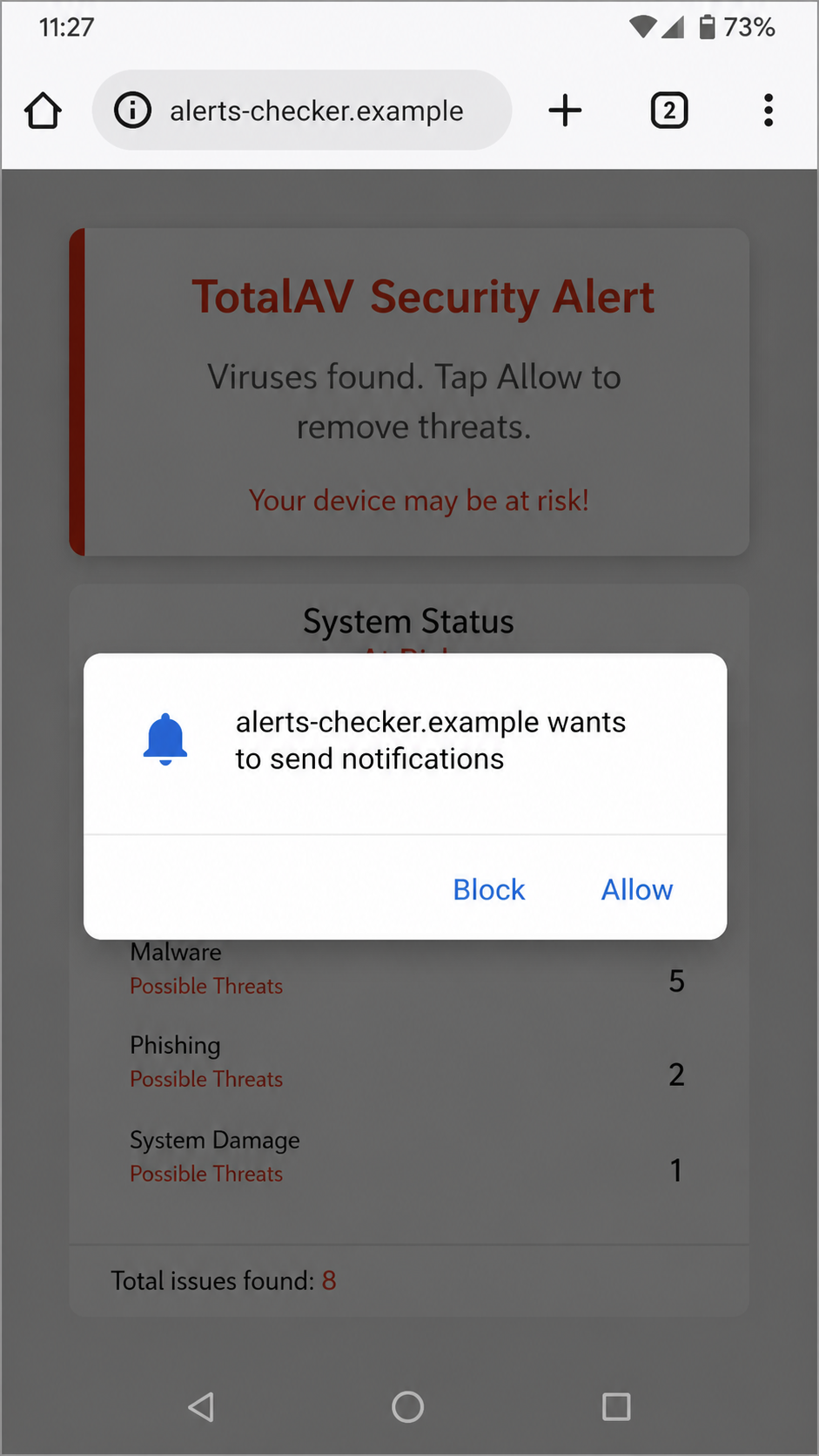
- Open Chrome, Edge, Firefox, or Safari settings.
- Go to site permissions or notifications.
- Review the Allowed list for unknown sites, typo domains, coupon pages, adult/gambling domains, or sites you do not remember allowing.
- Block or remove those permissions.
- Also check Pop-ups and redirects permissions in Chrome or Edge.
Do not only block the word “TotalAV.” The sender may be a random domain that uses TotalAV text inside the notification. If notification spam returns after permissions are removed, check browser extensions and the browser hijacker cleanup guide for policy, search, and extension persistence.
Clean Up Leftovers After Uninstall
When pop-ups continue after a normal uninstall, look for a restoring source rather than the old app folder alone. Check these places:
For another cleanup-utility case with startup tasks and notification prompts, see the simplitec Power Suite cleanup guide; the same task-and-permission logic applies when a PC optimizer leaves helpers behind.
- Startup apps: open Task Manager > Startup apps and disable unknown security, updater, coupon, or cleaner entries.
- Installed apps: remove recently installed bundles, fake optimizers, unknown PDF tools, download managers, browser helpers, and co-installed security utilities such as PCProtect/PC Protect when you did not choose to keep them.
- Browser extensions: remove extensions installed around the time the pop-ups started.
- Scheduled tasks: use Task Scheduler to look for unfamiliar updater tasks that launch from user folders or temporary paths.
- Windows notifications: open Settings > System > Notifications and disable unwanted senders.
Be careful with files under C:\Program Files\TotalAV, %APPDATA%, or %LOCALAPPDATA%. A visible folder is not proof that a running component remains, and manual deletion can break an uninstaller. If the product is partly removed but still listed in Windows, run the uninstaller again or use the vendor’s official removal path before deleting leftovers.
If PCProtect appears in the same cleanup session, do not assume every warning belongs to TotalAV. Remove PCProtect/PC Protect from Windows only if you do not intentionally use it, then recheck notification senders and browser permissions before running another cleanup tool.
What If TotalAV Says You Have Many Viruses?
A scan-complete message from software you intentionally installed is not the same thing as a fake web alert. Open TotalAV from the Start menu if you are a customer and want to confirm account or scan status. Do not use a link inside a browser warning, search ad, or pop-up that demands immediate payment.
If the message appears on a website, says your browser is locked, shows a phone number, or asks you to download another cleaner, treat it as scareware. Close the page, remove notification permissions, and check for adware symptoms. The adware symptoms checklist can help decide whether the problem is just one bad website or a system-wide browser issue.
When to Scan for Adware and Startup Leftovers
Run a malware and PUA scan if TotalAV-looking alerts return after you removed notification permissions, if multiple browsers are affected, if the alert started after installing a free tool or bundled app, or if unknown startup entries keep reappearing. A scan is also sensible if you clicked the warning, downloaded a suggested cleaner, allowed remote support, or entered payment details on a page opened by the pop-up.
Gridinsoft Anti-Malware can check for adware modules, hidden files, startup entries, scheduled tasks, bundled apps, browser changes, and other persistence that a normal uninstall may miss. Remove detections, reboot, and scan again if the same pop-up comes back.
How to Prevent the Pop-Ups From Returning
- Install security apps only from their official site or a trusted store.
- Do not allow browser notifications from download portals, streaming pages, coupon sites, or “security check” pages.
- Review browser extensions after installing free utilities.
- Keep Windows, browsers, and security software updated.
- Do not keep two real-time antivirus products active at the same time unless both vendors explicitly support that setup.
FAQ
Is a TotalAV pop-up always malware?
No. It can be a legitimate app notification, a subscription reminder, a browser push notification, or a fake scareware page. The source label and where the alert appears matter more than the brand text.
Why do TotalAV pop-ups appear after uninstall?
The old app may still have a running component until reboot, or the alert may never have come from the app. Browser notification permissions, adware extensions, startup entries, and bundled apps can keep showing TotalAV-looking messages after the antivirus is removed.
Should I click the TotalAV warning to see what it found?
Only open the security app directly from the Start menu or its official dashboard. Do not click buttons inside browser warnings, notification spam, search ads, or pages that pressure you to pay immediately.
What if TotalAV is not listed in Installed apps?
Check browser notification permissions, Windows notification senders, extensions, and recently installed apps. If Windows cannot find TotalAV, the remaining alert is often a browser or adware issue rather than the original app.
Do I need to reset my browser?
Reset only after removing suspicious notification permissions and extensions. If search, startup pages, or extensions keep returning, use the browser hijacker guide because a policy, sync setting, shortcut, or Windows startup item may be restoring them.
References
- Microsoft Support. “Uninstall or remove apps and programs in Windows.” Microsoft, accessed June 18, 2026. https://support.microsoft.com/en-us/windows/uninstall-or-remove-apps-and-programs-in-windows-4b55f974-2cc6-2d2b-d092-5905080eaf98
- Microsoft Support. “Notifications and do not disturb in Windows.” Microsoft, accessed June 18, 2026. https://support.microsoft.com/en-us/windows/notifications-and-do-not-disturb-in-windows-feeca47f-0baf-5680-16f0-8801db1a8466
- Google Chrome Help. “Change site settings permissions.” Google, accessed June 18, 2026. https://support.google.com/chrome/answer/114662