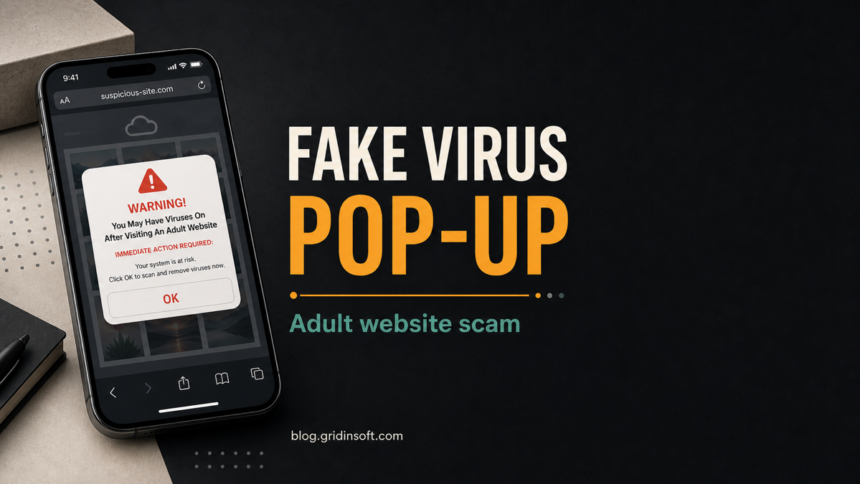
The “You May Have Viruses On After Visiting An Adult Website” warning is a fake pop-up scam, not proof that your iPhone, Mac, iCloud, photos, contacts, or apps are infected. Close the page from the browser controls, do not tap Protect, OK, Scan, or Install, and do not enter payment details. If you only saw the page and left it, the main risk is scareware pressure. If you are unsure whether a page view, click, download, or password form changed the risk level, use our broader website-visit malware checklist before taking drastic reset steps. If you allowed notifications, installed the promoted app, paid, or the alerts keep returning, follow the cleanup steps below.
| Scam name | “You May Have Viruses On After Visiting An Adult Website” pop-up scam |
| Threat type | Fake virus alert, scareware, malicious redirect, unwanted app promotion |
| Fake claim | The page says adult-site viruses can damage iCloud and delete photos, videos, contacts, or apps. |
| What it wants | Clicks on Protect, OK, Scan, Allow, Install, or a promoted “Security App” flow. |
| Best first action | Close the tab or browser, clear the suspicious site data, remove notification permissions, and scan only if something was installed or symptoms persist. |
Is the Adult Website Virus Alert Real?
No. A random website cannot scan your iCloud account, inspect your photos, or know that a virus will delete your contacts and apps. Real security tools do not prove an infection by showing a browser page with a countdown and a Protect button.
The adult-site wording is part of the pressure. It makes the warning feel embarrassing and urgent, so the user is more likely to tap the button without checking whether the claim makes sense. The safest response is to leave the page and handle any real permissions, downloads, or installed apps separately.
What the Scam Usually Says
The wording changes, but the page normally follows this pattern:
- It says you may have viruses after visiting an adult website.
- It warns that iCloud, photos, videos, contacts, or applications may be deleted.
- It gives an urgent instruction such as OK, Protect, Scan, Clean, or Install.
- It may claim a “Security App” is needed to clean the device.
- It may show a countdown, a fake system warning, or a phone-style alert box.
Those claims are social engineering. The page is trying to turn embarrassment and fear into a click.
What To Do First
- Do not tap buttons inside the warning. Fake OK, Protect, Scan, and Close buttons can open another page, install a profile, or push an unwanted app.
- Close the tab or force-close the browser. On iPhone or iPad, swipe the browser away from the app switcher if the page will not close normally. On Mac, use the tab close button or Force Quit the browser if it is stuck.
- Do not restore the same tab session. If the browser asks to reopen previous tabs, decline it until the scam page is gone.
- Clear data for the suspicious site. This removes saved page data and some granted website permissions. Apple documents Safari history, cache, and website-data cleanup on iPhone [1] and Safari website-data cleanup on Mac [2].
- Check notification permissions. In Chrome and Chromium-based browsers, review Site Settings > Notifications and remove unknown allowed sites. Google explains that Chrome can block intrusive or misleading notifications and lets users change notification permissions [3].
- Scan only when it fits the risk. A one-time browser page is usually not enough to prove infection. A scan is useful if you installed something, alerts return after cleanup, a browser extension appeared, or downloads ran.
iPhone and iPad Cleanup
If the warning appeared in Safari on iPhone or iPad:
- Close the scam tab. If it blocks the screen, open the app switcher and close Safari or the browser app.
- Open Settings, tap Apps, then Safari. Use Clear History and Website Data when you want to remove the browsing data tied to the scareware page.
- If you want to keep history but remove stored site data, open Safari settings, go to Advanced, Website Data, and remove website data.
- Check Settings for unknown VPNs, device management profiles, calendar subscriptions, or apps you installed after tapping the pop-up.
- If you entered Apple ID, email, or payment information, change the affected password from a clean device and review payment activity.
iPhones can show scam browser pages, calendar spam, and notification-style prompts. That does not mean the page found malware in iCloud. If the problem is calendar events rather than a browser tab, use our iPhone Calendar Virus Fix guide.
Mac Safari Cleanup
If the warning appeared on a Mac:
- Quit the scam tab. If Safari is stuck, use Force Quit, then reopen Safari without restoring the old window.
- In Safari, open Settings, then Privacy, then Manage Website Data. Remove the suspicious domain or remove all website data if you cannot identify it.
- Open Safari Settings, then Websites, then Notifications. Deny or remove unknown sites that are allowed to send alerts.
- Open Safari Extensions and uninstall anything you do not recognize, especially search helpers, “security” tools, coupon tools, or download managers.
- Open Applications and remove any app installed after the warning appeared. Do not keep a cleanup app just because the pop-up told you to install it.
Chrome, Edge, Firefox, and Android Cleanup
On Chrome, Edge, Firefox, or Android Chrome, the most common repeat cause is a granted notification permission:
- Open browser settings.
- Find Site settings, Cookies and site permissions, or Permissions.
- Open Notifications.
- Remove or block unknown adult, streaming, fake security, random-looking, or recently allowed sites.
- Check Pop-ups and redirects and block the suspicious site if it appears there.
- Remove unknown extensions. If redirects return after extensions are removed, reset the browser and scan for adware.
For a broader browser-permission walkthrough, use our guide on how to disable browser push notifications. If the alert is not this exact wording, our fake virus alert guide covers the wider scareware pattern.
If You Clicked Protect, Installed an App, or Paid
Treat the case as more serious if you interacted with the page beyond closing it.
- Clicked Protect or OK: close the new pages it opened, do not install anything, and clear the suspicious site data.
- Allowed notifications: remove the site from notification permissions before clearing tabs. Otherwise alerts may continue later.
- Installed an app: uninstall the app, cancel any trial/subscription you did not want, and review App Store or payment receipts.
- Entered card details: contact the card provider, watch for recurring charges, and dispute unauthorized transactions.
- Entered passwords: change those passwords from a clean device and enable multi-factor authentication.
- Gave remote access: disconnect the device from the internet, remove the remote-access tool, change passwords from another device, and check financial accounts.
The FTC warns that tech-support scams often begin with fake computer warnings and try to push the victim into calling, clicking, or paying for bogus help [4]. The same pressure logic appears in fake virus pop-ups even when there is no phone number.
If the Alert Keeps Coming Back
Recurring pop-ups after closing the page usually mean one of four things: the browser keeps restoring the same tab, a site notification is still allowed, an extension is redirecting pages, or adware changed browser behavior.
- Reopen the browser without restoring old tabs.
- Remove allowed notification senders.
- Remove unknown extensions and recently installed apps.
- Reset the affected browser if redirects continue.
- Run a full security scan if a download, app, extension, or repeated redirect is involved.
On a Windows PC, a scan can help find adware, browser hijackers, unwanted apps, and leftover files after a suspicious installation. It cannot restore money or passwords.
If the fake warning led you to install an app on Windows, or redirects persist after browser cleanup, scan the PC. Check for unwanted software rather than treating the scare page as a real security diagnosis.
Scan this Windows PCOn Android, if this warning persuaded you to install an APK or app, use Trojan Scanner for Android to scan, review findings and confirm unwanted-app removal. If you only saw the page or allowed notifications, use browser cleanup first. The Android cleanup guide illustrates app checks.
How This Differs From Real Porn-Site Malware Risk
This specific warning is fake. That does not mean every adult-site risk is imaginary. Real risk usually comes from clicking malicious ads, installing fake video players, allowing notifications, downloading APK/EXE files, or entering payment details on phishing pages.
If your question is broader than this exact pop-up, see Can You Get a Virus From Porn Sites?. That guide explains the real infection paths and when the risk is low because you only viewed a page.
FAQ
Is “You May Have Viruses On After Visiting An Adult Website” a real Apple warning?
No. It is a fake browser pop-up. Apple, iCloud, Safari, and a random website do not announce infections through this scareware page.
Can a website know that my iCloud photos will be deleted?
No. A website cannot inspect your iCloud storage or predict that photos, contacts, videos, or apps will be deleted. That claim is designed to make you tap the button quickly.
Do I need to erase my iPhone or Mac?
Usually no. If you only saw the page, close it and clear the suspicious browser data. Consider deeper cleanup only if you installed an app, granted permissions, entered information, or the alert keeps returning.
What if I installed the promoted Security App?
Uninstall it, check for subscriptions or charges, and review what permissions it received. If it was installed on a computer rather than an iPhone, run a security scan for unwanted apps and browser changes.
Why did it mention an adult website?
The adult-site claim adds embarrassment and urgency. Scammers use it so people are less likely to ask for help or calmly inspect the warning.
Should I scan my device?
Scan if the pop-up returns, you installed something, a browser extension appeared, redirects continue, or a file downloaded and ran. A one-time page that you closed without interaction is usually a lower-risk event.
Bottom Line
The “You May Have Viruses On After Visiting An Adult Website” pop-up is a scare tactic. Do not follow its Protect or Security App instructions. Close the page, remove suspicious browser permissions, check anything you installed or paid for, and scan only when there are real signs beyond the warning itself.
References
- Apple Support. “Delete your Safari history, cache, and cookies on iPhone.” Apple, published January 14, 2026, accessed June 25, 2026. https://support.apple.com/en-us/105082
- Apple Support. “Clear your cache and cookies in Safari on Mac.” Apple Safari User Guide, accessed June 25, 2026. https://support.apple.com/guide/safari/manage-cookies-sfri11471/mac
- Google Chrome Help. “Use notifications to get alerts.” Google, accessed June 25, 2026. https://support.google.com/chrome/answer/3220216?co=GENIE.Platform%3DDesktop&hl=en
- Federal Trade Commission. “How To Spot, Avoid, and Report Tech Support Scams.” Consumer Advice, accessed June 25, 2026. https://consumer.ftc.gov/articles/how-spot-avoid-and-report-tech-support-scams