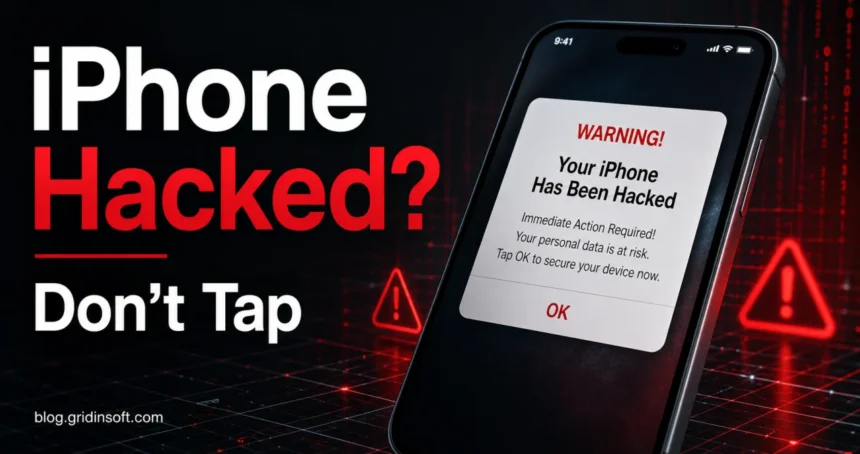
The “Your iPhone has been hacked” pop-up is almost always a scam, not proof that someone broke into your phone. It is usually a browser scareware page, a spam calendar event, a fake Apple support warning, or a profile-installation lure. Close the page, do not tap its buttons, and check Safari, Calendar, VPN & Device Management, and your Apple Account only from Settings or Apple’s official site.
What to do first
- Do not press OK, Scan, Clean, or Call. Close the tab or force-close the browser instead.
- If alerts come from Calendar, delete the unknown subscribed calendar, not each event one by one.
- Check for unknown profiles or VPNs in Settings > General > VPN & Device Management.
- Clear suspicious Safari website data if the warning returns when you open the browser.
- Change your Apple Account password only if you entered credentials, shared a verification code, installed a profile, or talked to the “support” number.
If you entered your Apple Account password, shared a verification code, or see unknown devices after the pop-up, use the Apple ID hacked recovery checklist before trusting the device again.
| Most likely source | Browser scareware, redirect ads, calendar spam, fake Apple support page, or malicious profile prompt |
| Usually fake when | The warning appears inside Safari/Chrome, has a countdown, asks you to call a number, or pushes a cleaner/VPN app |
| Check more seriously when | You installed a profile, shared an Apple Account code, see unknown devices, or have unauthorized purchases |
| Best first fix | Close the page, clear browser data, remove spam calendars/profiles, update iOS, and secure your Apple Account if needed |
Why the pop-up usually is not a real iPhone hack
A random web page cannot scan your iPhone for viruses or know that hackers are watching your camera. Apple warns users that browser pop-ups claiming security problems or viruses are not trustworthy, and that unexpected requests for passwords, verification codes, money, or personal information should be treated as scams.
Scammers use the message because it creates urgency. The next step is usually the real danger: you may be pushed to install a dubious app, subscribe to a spam calendar, add a configuration profile, call a fake support agent, or enter Apple Account credentials on a phishing page.
Common versions of this scam
- Safari or Chrome pop-up: a full-screen warning says your iPhone is hacked, infected, or being tracked.
- Calendar spam: Calendar events repeat messages like “Viruses on your iPhone” or “Your phone is not protected.”
- Fake support page: the page shows a phone number and claims Apple or a security team will remove hackers.
- Profile/VPN prompt: the scam asks you to install a configuration profile, VPN, or “protection” profile.
- App Store redirect: the page opens a cleaner, VPN, or security app and claims it is required to fix the phone.
If the warning appeared in Safari or Chrome
- Do not tap the alert’s buttons. If the tab is stuck, swipe up from the bottom of the screen, pause, and close the browser app from the app switcher.
- Open the browser again without restoring the same tab. In Safari, open the tab overview and close the suspicious tab.
- Clear the site data if the same page keeps coming back. On iPhone, use Settings > Apps > Safari > Clear History and Website Data, or remove data for the specific website if you know which site caused it.
- Update iOS from Settings > General > Software Update. This is not because the pop-up proves an infection; it removes known browser and system vulnerabilities.
- If the warning came from a suspicious URL, check that domain with the Gridinsoft URL Scanner before revisiting it on any device.
If the alerts are in Calendar
Calendar spam is one of the easiest ways to make an iPhone look infected. The phone is usually not hacked; it has simply subscribed to a calendar that creates scary events. Delete the unknown calendar subscription instead of opening the event links.
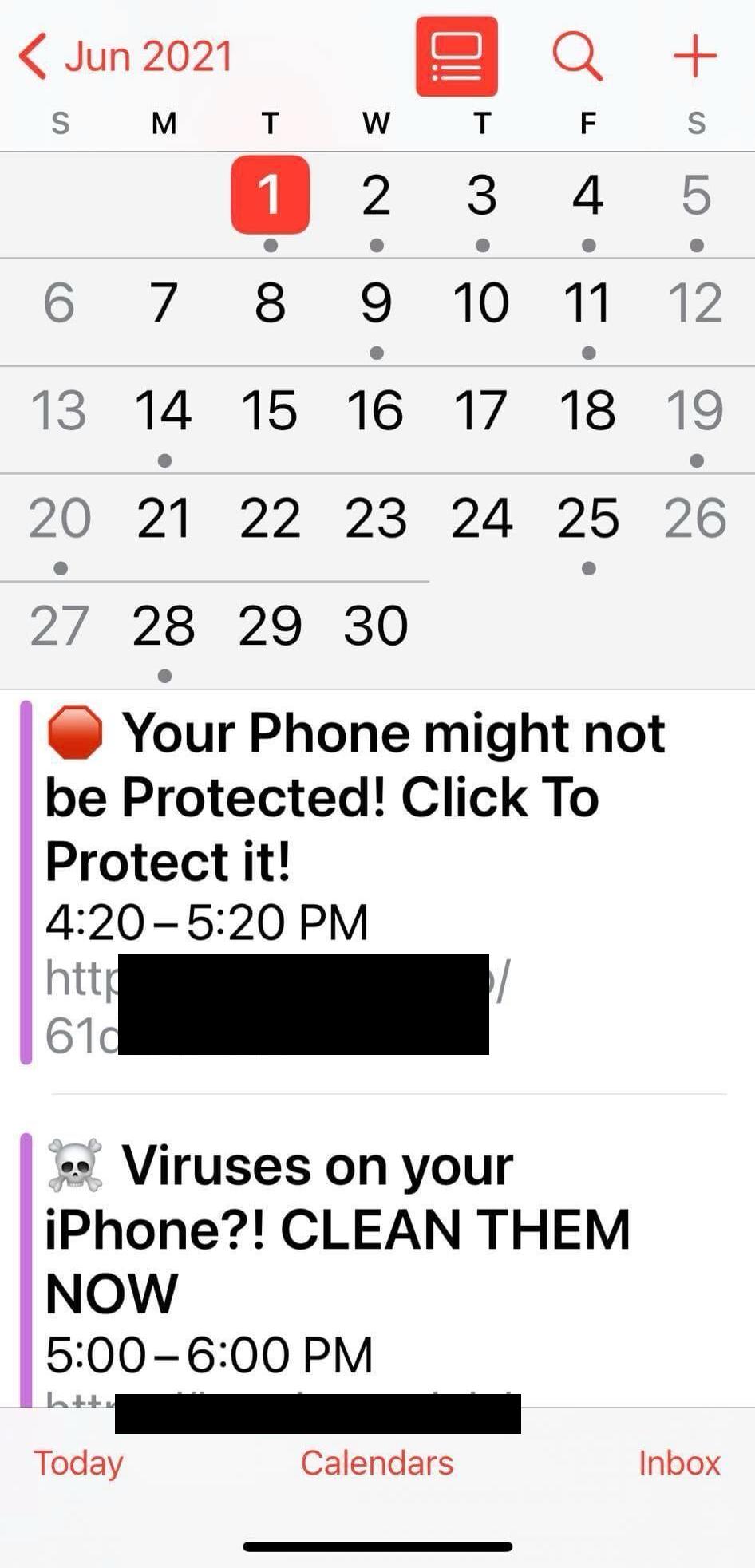
- Open the Calendar app and tap Calendars.
- Look for a calendar you do not recognize, especially one with security warnings, prize claims, or strange URLs.
- Tap the information button next to it and choose Delete Calendar or Unsubscribe.
- If the events came from an email account, check the account’s calendar settings and remove the source there too.
Check configuration profiles and VPNs
Some scam pages try to move the attack from a harmless browser warning into a profile installation. Configuration profiles can change settings, add certificates, route traffic, or connect the device to management services. Apple shows installed profiles under Settings > General > VPN & Device Management when profiles are present.
- Open Settings > General > VPN & Device Management.
- Remove any profile, VPN, or management entry you do not recognize.
- If the profile belongs to your employer, school, or carrier, verify with them before removing it.
- Restart the iPhone after removing an unknown profile.
If you tapped the alert, called, or entered information
What matters is what happened after the pop-up, not the pop-up itself.
- You only saw the page and closed it: you are usually fine. Clear website data if it returns.
- You tapped OK or Close inside the pop-up: close the tab, clear browser data, and check whether it opened an app, profile, calendar, or subscription prompt.
- You installed an app: delete it if you do not trust it, cancel any unwanted subscription from your Apple Account subscriptions page, and review app permissions.
- You installed a profile or VPN: remove it from VPN & Device Management and change passwords that may have been exposed while it was installed.
- You entered your Apple Account password or a verification code: change the password immediately from Apple’s official account page, review trusted devices, and remove anything you do not recognize.
- You called the number or paid money: contact your bank or card issuer, avoid installing remote-access tools, and report the incident through official support channels.
Signs that deserve a deeper check
The fake alert alone is not strong evidence of compromise. Treat the situation more seriously if you also see one of these signs:
- unknown devices listed under your Apple Account;
- two-factor authentication codes you did not request;
- password reset emails or Apple Account changes you did not make;
- unauthorized purchases, subscriptions, or payment changes;
- an unknown MDM/profile/VPN entry you cannot remove;
- apps you did not install or permissions that changed unexpectedly.
If the same suspicious page also appeared on your Mac or Windows computer, scan that computer as well. Scam pages often target several devices through the same ad network or browser session, and desktop systems are more exposed to malicious downloads than a locked-down iPhone.
Where Gridinsoft fits
Gridinsoft cannot “scan” iOS like a desktop antivirus scans Windows files, and no honest security tool should claim that a web page can instantly diagnose an iPhone infection. Gridinsoft is useful here for checking suspicious links, identifying scam domains, and scanning a Windows or Mac device if the same campaign made you download software there. For broader context, see our guides to fake virus alert pop-ups, iPhone calendar spam, Apple ID phishing scams, and scareware.
FAQ
Can a website really detect that my iPhone was hacked?
No. A normal website can show a scary message, but it cannot run a real iPhone malware scan from inside the browser.
Is it dangerous if I tapped OK on the pop-up?
Usually the tap itself is not enough to hack the phone. Check whether it opened a new site, installed a profile, subscribed to a calendar, started a phone call, or asked for credentials.
Why does Calendar keep saying my iPhone has viruses?
You likely subscribed to a spam calendar. Remove the unknown calendar subscription; deleting individual events is usually only a temporary fix.
Should I call the phone number shown in the warning?
No. Fake support numbers are designed to move you into a payment, remote-access, or credential-theft scam.
Do iPhones need antivirus apps?
For most users, the important steps are keeping iOS updated, avoiding profiles from unknown sites, using strong Apple Account security, and checking suspicious links before opening them.
References
- Apple Support. “Recognize and avoid social engineering schemes including phishing messages, phony support calls, and other scams.” Apple, updated April 17, 2026, accessed June 1, 2026. https://support.apple.com/en-us/102568
- Apple Support. “How to delete calendars and remove events on your iPhone.” Apple, updated April 2, 2026, accessed June 1, 2026. https://support.apple.com/en-us/102444
- Apple Support. “Delete your Safari history, cache, and cookies on iPhone.” Apple, updated January 14, 2026, accessed June 1, 2026. https://support.apple.com/en-us/105082
- Apple Support. “If you think your Apple Account has been compromised.” Apple, updated December 5, 2025, accessed June 1, 2026. https://support.apple.com/en-us/102560
- Apple Support. “Install or remove configuration profiles on iPhone.” Apple, accessed June 1, 2026. https://support.apple.com/guide/iphone/install-or-remove-configuration-profiles-iph6c493b19/ios