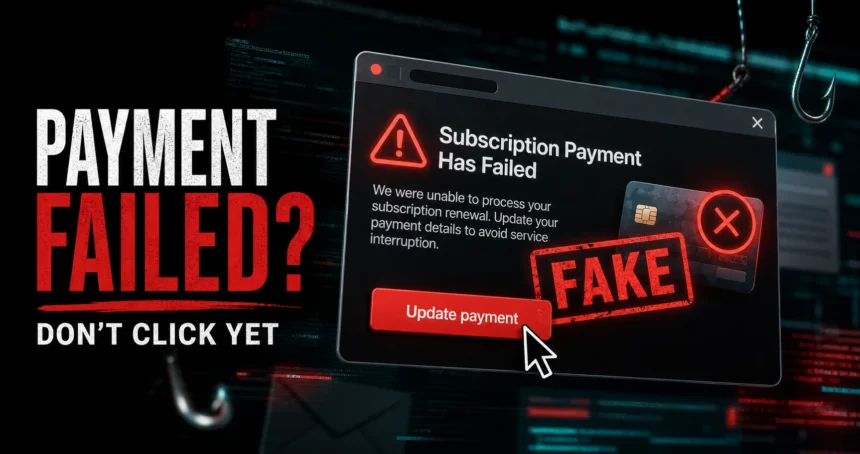
Norton Subscription Payment Has Failed is a fake browser warning, not a real Norton billing notice. It usually appears on a suspicious website, after a redirect, or through unwanted browser notifications. Do not press the “Update payment” or “Restore protection” button. Close the tab, check your Norton account only by typing the official address yourself, and scan the device if the warning keeps coming back.
What to do right now
- Do not enter card details, passwords, phone numbers, or one-time codes on the pop-up page.
- Do not download the “renewal”, “security update”, optimizer, cleaner, or remote-support app it offers.
- Close the tab. If it reopens, clear browser notification permissions and check extensions.
- If you paid or typed card details, call the bank or card issuer immediately.
- If you installed anything, run a full scan and remove recently added apps and browser extensions.
Norton Subscription Payment Has Failed Scam Overview
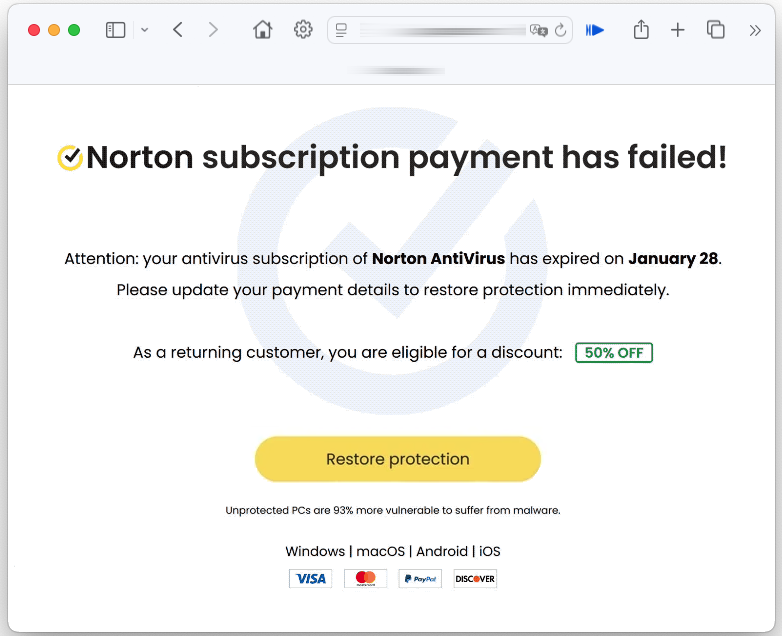
The “Norton Subscription Payment Has Failed” scam imitates a Norton renewal page and claims that your antivirus subscription expired or that payment could not be processed. The message may show a fake expiration date, a countdown, or a discount such as “50% off” to push you into acting quickly.
This is different from a real Norton account alert. A random webpage cannot know whether your Norton subscription is active, whether your card was declined, or whether your device is protected. Norton also warns that scammers abuse billing, renewal, calendar, order-notification, and support themes to make people click links or call fake numbers [1].
Why You Are Seeing This Norton Pop-Up
Most victims do not search for this phrase because they are researching Norton. They search because the warning appeared unexpectedly and they need to know whether it is safe. The common causes are:
- Malvertising or redirects. A website or ad network sends the browser to a fake antivirus renewal page.
- Browser notification spam. A site was allowed to send notifications, then starts showing fake security or renewal alerts.
- Adware or unwanted extensions. A recently installed app or extension injects ads, redirects, and fake warnings.
- Phishing links. An email, text, forum post, or social media message points to the fake page.
- Affiliate abuse. Some pages may redirect to a real product checkout through a paid referral, but the scare message itself is still deceptive.
How the Scam Works
The page uses a simple pressure loop: it claims your protection is interrupted, shows a failed payment or expired subscription message, and asks you to update payment details. From there, the danger depends on the campaign.
| What the page asks for | What can happen |
| Card or billing details | Fraudulent charges, card testing, or sale of payment data. |
| Norton, email, or payment-account login | Account takeover and follow-up phishing. |
| A download or “security update” | Potentially unwanted software, scareware, adware, or malware. |
| A support phone call | Tech support fraud, remote-access requests, or payment pressure. |
| Browser notification permission | Repeated fake alerts that look like system messages. |
The FTC gives similar guidance for tech support scam pop-ups: ignore unexpected pop-ups that tell you to call support, and contact the real company only through a known official website or receipt if you are worried about a real account problem [2].
How to Stop the Pop-Ups and Redirects
- Close the scam page. If it will not close normally, quit the browser and reopen it without restoring the previous session.
- Remove notification permission. In Chrome or Edge, open Settings -> Privacy and security -> Site settings -> Notifications, then remove unknown sites. In Firefox, open Settings -> Privacy & Security -> Permissions -> Notifications.
- Check extensions. Remove add-ons you do not recognize, especially coupon tools, download helpers, PDF converters, search tools, and “security” extensions installed recently.
- Reset the affected browser if redirects continue. Use the browser’s reset/restore settings option after saving important bookmarks.
- Uninstall suspicious apps. Look for recently installed cleaners, optimizers, download managers, browser helpers, and unknown antivirus trials.
- Scan the device. A full scan can catch adware, startup entries, and bundled files that keep sending the browser back to fake security pages.
After uninstalling the suspicious app or deleting the visible threat, use Gridinsoft Anti-Malware to check hidden files, startup entries, scheduled tasks, bundled apps, browser changes, and other persistence points that can restore malware.
Download Anti-MalwareWhat If You Clicked, Paid, or Installed Something?
If you only saw the page and closed it, the risk is usually low. The situation changes when you entered information, called a number, or installed a file.
- If you entered card details: call the card issuer, request a block or replacement if needed, and review recent transactions.
- If you entered a password: change it from a clean device and enable two-factor authentication. Change it anywhere else it was reused.
- If you called a fake support number: do not continue the conversation, remove any remote-access app, and review bank/payment accounts.
- If you installed software: disconnect if you suspect active remote access, uninstall the app, scan the system, and check startup apps and browser extensions.
- If the warning came by email or invoice: treat it as the separate Norton scam email lane and do not use phone numbers or links in that message.
Real Norton Billing Message vs Fake Pop-Up
A real billing issue should be checked from your Norton account or your bank/payment app, not from a surprise webpage. Norton’s support documentation says suspicious Norton-looking emails should be forwarded as an attachment to [email protected], and it provides legitimate Norton domains for checking sender addresses [3].
- A fake page appears while browsing unrelated websites.
- It claims the browser knows your antivirus subscription status.
- It offers a countdown discount or urgent one-click renewal.
- It uses a non-Norton domain, shortened link, random subdomain, or ad/tracking redirect.
- It asks for card data, login details, a support call, or a download before you can verify anything.
Where to Report the Scam
If the scam was an email, forward it as an attachment to [email protected]. If you lost money, shared payment details, or gave remote access, report the incident to your bank or payment provider first. U.S. victims can also report fraud to the FTC at ReportFraud.ftc.gov and online crime to the FBI’s IC3 at IC3.gov.
FAQ
Is “Norton Subscription Payment Has Failed” a real Norton alert?
No. In this scam, the warning is a webpage or browser notification that imitates Norton. A random page cannot verify your Norton billing status.
Why does the warning come back after I close it?
Repeated alerts usually come from browser notification permission, a redirecting website, adware, or an unwanted extension. Remove unknown notification senders and check extensions first.
Can the pop-up infect my computer by itself?
Simply seeing the page is usually not the main danger. The risk rises if you click links, allow notifications, download software, call a fake support number, or enter payment details.
Should I update my Norton payment from the pop-up?
No. If you think a real payment failed, open the official Norton website or app directly and check your account there. Do not use links or buttons from the warning.
What if I do not use Norton?
That is a strong scam signal. The page is sent broadly and does not know whether you own Norton. Close it and remove the source of the redirect or notification.
Bottom Line
The “Norton Subscription Payment Has Failed” warning is built to make you react before you verify. Treat it as a fake browser-based renewal scam: do not click, do not pay, do not install anything, and check billing only through the official Norton account or your payment provider. If the pop-up returns, clean up browser notifications, extensions, suspicious apps, and scan the device.
References
- Norton. “Cyber scams and how to avoid them.” Norton Support, accessed June 7, 2026. https://support.norton.com/sp/en/us/norton-download-install/current/solutions/v105274822
- Federal Trade Commission. “Tech Support Scams.” FTC Consumer Advice, accessed June 7, 2026. https://consumer.ftc.gov/features/pass-it-on/impersonator-scams/tech-support-scams
- Norton. “Verify that an email you receive from Norton is legitimate.” Norton Support, accessed June 7, 2026. https://support.norton.com/sp/en/uk/norton-core/current/solutions/v71088498