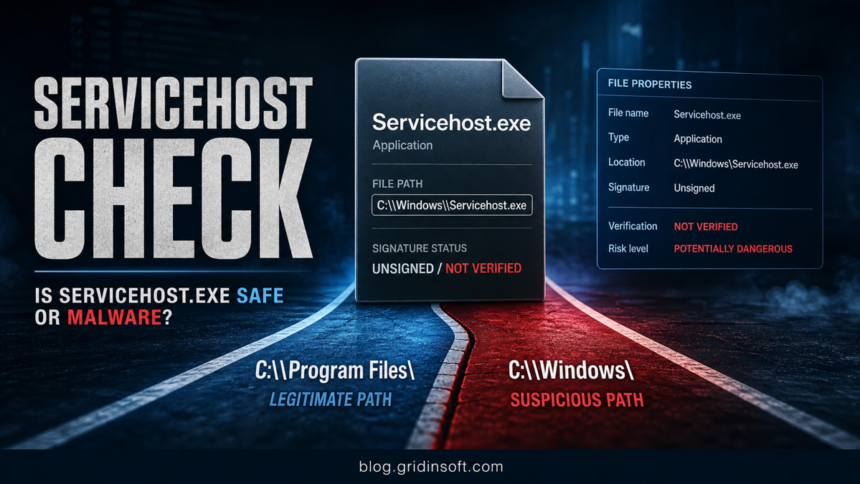
Servicehost.exe is not a Windows core process. A legitimate copy is most often associated with McAfee WebAdvisor and is expected under a McAfee folder in C:\Program Files, while a same-name file at C:\Windows\Servicehost.exe or C:\Windows\System32\Servicehost.exe deserves a malware check before you trust it.[1]
The name also creates confusion with svchost.exe, the real Windows Service Host. Those are different files. If your antivirus or Malwarebytes report names Servicehost.exe, judge it by the exact path, signature, publisher, startup entry, and behavior, not by the familiar-looking words in the filename.
When Servicehost.exe Is Probably Safe
A lower-risk case is more likely when every detail points to the installed McAfee WebAdvisor component:
- the file is under
C:\Program Files\McAfee\WebAdvisor\or a clearly related McAfee/WebAdvisor program folder; - Windows Properties shows a valid digital signature from McAfee or a current McAfee company name;
- the service name, product name, and file description all match McAfee WebAdvisor;
- you installed McAfee, WebAdvisor, or received it as a bundled OEM security add-on;
- the file hash has clean or explainable results, and there are no persistence or browser-hijack symptoms.
McAfee describes WebAdvisor as browser safety software that warns about risky sites, downloads, and phishing pages.[3] That does not mean every file named Servicehost.exe is safe. It means the McAfee context should be verified before removal.
Red Flags For A Malicious Copy
| What you see | Why it matters |
|---|---|
C:\Windows\Servicehost.exe or C:\Windows\System32\Servicehost.exe |
Servicehost.exe is not a normal Windows system file. A Windows-folder copy is a strong masquerading signal. |
| No valid digital signature, unknown publisher, or mismatched product name | Legitimate security software components are normally signed. Treat unsigned copies as suspicious until scanned. |
| Starts from Run keys, Startup folder, Task Scheduler, or an unknown service | Malware often adds persistence so it launches after reboot. |
| Network connections, webcam/screen access warnings, credential prompts, or browser redirects | These behaviors shift the case from file cleanup to compromise triage. |
| You recently ran a crack, fake update, game mod, unknown installer, or email attachment | The file may be a payload using a trustworthy-looking process name. |
How To Check Servicehost.exe
- Open the file location. In Task Manager, right-click the process and choose Open file location. Write down the full path exactly.
- Check Properties. Right-click the file, open Properties, then inspect Details and Digital Signatures. A suspicious copy often has no signature, no product name, or a publisher that does not match the installed software.
- Use Process Explorer for running context. Microsoft Sysinternals Process Explorer shows running processes, loaded DLLs, handles, parent process context, and other details that Task Manager hides.[4]
- Check signature details with Sigcheck if you are comfortable with command line tools. Microsoft Sigcheck reports file version, timestamp, and digital signature data.[5]
- Search startup and persistence entries. Autoruns shows logon entries, services, scheduled startup points, browser helpers, shell extensions, and other autostart locations.[6]
- Scan the exact file and folder. Use your installed security tool and a second-opinion scanner. Gridinsoft Anti-Malware is useful when the file is in a wrong folder, keeps returning, or appears with browser redirects or unknown startup entries.
If you only see normal McAfee browser notifications, use our McAfee pop-up cleanup guide instead. If the process you meant is the real Windows svchost.exe, start with our Svchost.exe Application Error guide and check the exact spelling before deleting anything.
Could It Have Recorded Calls Or Webcam Activity?
A detection name alone cannot prove that private calls, screen activity, or webcam video were recorded. That risk depends on behavior: whether the file ran, what permissions it obtained, whether it installed remote-access tools, whether it contacted suspicious servers, and whether your accounts show unusual sign-ins.
Treat the situation as higher risk if Servicehost.exe ran from C:\Windows, had no valid signature, returned after removal, or appeared after you ran an untrusted download. In that case, disconnect from the network, scan from a clean state, preserve the file hash/path/time for support, and change important passwords from a clean device after cleanup.
If your concern is credential theft after a game, mod, crack, or fake app, follow our infostealer first-response checklist. If the issue began after a fake browser update or terminal window, use the fake Chrome update cleanup guide to check persistence.
What To Do If It Is Suspicious
- Do not double-click the file or restore it from quarantine.
- Disconnect from Wi-Fi or Ethernet if the process is still running and making network connections.
- Copy the full path, hash, detection name, and detection time before deleting anything.
- End the process only after your security tool has quarantined it or you are ready to remove its persistence entry.
- Remove related startup entries, scheduled tasks, services, and unknown browser extensions.
- Run a full scan with Gridinsoft Anti-Malware and your primary antivirus.
- Reboot and confirm that
Servicehost.exedoes not return in the same suspicious location. - Rotate passwords and review account sessions if you entered credentials, saw remote-control behavior, or found infostealer indicators.
After uninstalling the suspicious app or deleting the visible threat, use Gridinsoft Anti-Malware to check hidden files, startup entries, scheduled tasks, bundled apps, browser changes, and other persistence points that can restore malware.
Download Anti-MalwareFAQ
Is Servicehost.exe a Windows file?
No. Servicehost.exe is not the normal Windows Service Host. The Windows system process is svchost.exe. Do not treat Servicehost.exe as safe just because the name looks similar.
Is McAfee WebAdvisor Servicehost.exe malware?
A signed McAfee WebAdvisor copy in a McAfee folder under Program Files can be legitimate. A copy in C:\Windows, System32, Temp, AppData, or Downloads needs a malware check.
Should I delete Servicehost.exe manually?
Only delete it manually when you have confirmed it is not a legitimate McAfee/WebAdvisor component or when your security tool has quarantined it. If it belongs to McAfee WebAdvisor and you do not want it, uninstall WebAdvisor from Apps and Features instead of deleting one file.
Why does Malwarebytes or another scanner flag Servicehost.exe?
Scanners may flag a malicious same-name copy, suspicious behavior, an unsigned executable in a protected folder, or a potentially unwanted/risky tool. The path and signature decide whether this is likely a McAfee component or masquerading malware.
Can Servicehost.exe steal passwords?
The filename alone does not prove password theft. If the suspicious file ran from a wrong folder, connected to unknown hosts, installed persistence, or appeared after an untrusted download, handle it like a possible compromise and change passwords after the system is clean.
References
- File.net. “servicehost.exe Windows process – What is it?” File.net process database, accessed June 4, 2026. https://www.file.net/process/servicehost.exe.html
- McAfee. “Browse safely and steer clear of online dangers | McAfee WebAdvisor.” McAfee, accessed June 4, 2026. https://www.mcafee.com/en-us/safe-browser/mcafee-webadvisor.html
- Microsoft. “Process Explorer – Sysinternals.” Microsoft Learn, published May 28, 2024, accessed June 4, 2026. https://learn.microsoft.com/en-us/sysinternals/downloads/process-explorer
- Microsoft. “Sigcheck – Sysinternals.” Microsoft Learn, published January 21, 2026, accessed June 4, 2026. https://learn.microsoft.com/en-us/sysinternals/downloads/sigcheck
- Microsoft. “Autoruns – Sysinternals.” Microsoft Learn, published February 6, 2024, accessed June 4, 2026. https://learn.microsoft.com/en-us/sysinternals/downloads/autoruns