If your personal Microsoft account is locked, open account.microsoft.com yourself and match the exact message on the sign-in screen to the correct recovery path. A lock screen with a Next button normally leads to a security-code unlock. A screen without Next may require the reinstatement link Microsoft shows in that window. Password trouble, missing verification methods, and a rejected recovery form are different problems and need different steps.
What to do when a Microsoft account is locked
- You see Next: request the security code and complete the unlock flow.
- You do not see Next: use the
aka.msreinstatement link shown in the Microsoft lock screen and submit one request. - Your password stopped working: use password reset or Microsoft’s Sign-in Helper before the recovery form.
- You lost the recovery email or phone: use Sign-in Helper; use the recovery form only when it fits your account state.
- This is a work or school account: contact the organization’s Microsoft 365 or Entra administrator.
- The warning is only in a browser tab and shows a phone number: use our fake Microsoft Account Locked pop-up guide instead.
Choose the message you see
- Locked message with Next: sign in at
account.microsoft.com, request an SMS security code, and enter it online. - Locked or suspended message without Next: follow the
aka.mslink displayed by Microsoft and complete the reinstatement request. - Forgotten password or password no longer works: start password reset from the Microsoft sign-in page. If the verification choices are wrong or unavailable, use Sign-in Helper.
- Recovery form was rejected: improve the account-history details and retry from a familiar device and location; do not send repeated guesses.
- Two-step verification is on, but every alternate method is lost: there is no safe bypass. Microsoft says support cannot replace the missing verification proof.
- Work or school account: ask your organization’s administrator. The personal-account recovery form is not the right owner for that account.
How to unlock a Microsoft account with a security code
- Type
account.microsoft.cominto the browser and sign in. Do not use a recovery link copied from an unexpected email, SMS, ad, or pop-up. - Select Next on the locked-account message.
- Enter a phone number that can receive SMS. Microsoft says the number does not have to be a smartphone or already belong to the locked account.
- Enter the numbers from the body of Microsoft’s text message. The code expires, so request a fresh one if necessary instead of reusing an old message.
- Create a new password if Microsoft asks for one, then review the account’s security information.
Use Microsoft’s current locked-account instructions as the source of truth. If repeated code requests produce a usage-limit message, stop retrying rapidly and follow the troubleshooting route shown by Microsoft.
No Next button: suspended or reinstatement review
If the sign-in window does not offer Next, do not force the security-code path. Microsoft says this state may be connected to suspicious or prohibited activity. Follow the aka.ms link shown in the lock window, provide the requested information, and wait for the Microsoft Online Safety review.
Submit one accurate reinstatement request. Repeating the form can slow the review, and no third-party “unlock service” can legitimately bypass it. Keep the confirmation email and avoid sending account evidence to anyone outside the official Microsoft flow.
Password reset, Sign-in Helper, or recovery form?
These tools solve different failure states. Use Microsoft’s Sign-in Helper when the username or password stopped working, the displayed recovery email or phone is unfamiliar, or normal verification does not offer a usable route. It can direct you to the correct sign-in workflow before you spend time on the recovery form.
Use the Microsoft account recovery form guidance when Microsoft directs you there and two-step verification does not block that route. Prepare a working contact email, old passwords, exact Outlook subject lines or contacts, Skype details, Xbox console information, and other account history. Complete it from a device and location you used with the account when possible.
Microsoft currently says it responds to recovery-form requests within 24 hours and allows another attempt when verification fails, up to two attempts per day. More attempts are not a substitute for better account-history details.
Two-step verification boundary: if two-step verification was enabled and you cannot access any alternate verification method, Microsoft says support agents cannot send a reset link or change the account details for you. This protects the account from social-engineering bypasses, but it also means recovery may be impossible without a saved recovery method or recovery code.
Personal Microsoft account or work/school account?
This guide is for personal Microsoft accounts used with Outlook.com, OneDrive, Xbox, Skype, Windows, and other consumer services. A work or school Microsoft 365 account is controlled by an organization. If the sign-in page names your employer, school, tenant, or administrator, contact that organization’s IT administrator instead of submitting the personal-account recovery form.
Why Microsoft locks or suspends accounts
Microsoft’s locked-account guidance says activity associated with the account may violate its Terms of Use. Examples include spam, phishing, malware distribution, automated account creation, or other harmful activity. A compromised account can generate that behavior without the owner intending it, so a successful unlock should be followed by a security review.
Not every sign-in failure is a policy suspension. A wrong password, stale recovery information, lost authenticator, unusual sign-in review, or organization-managed block can produce a different message. Use the exact on-screen wording instead of treating every failure as the same “locked account” problem.
After you regain access
- Change the password to a unique one and update recovery email, phone, and authenticator methods.
- Review recent sign-in activity and remove sessions or devices you do not recognize.
- Check Outlook forwarding, inbox rules, aliases, and recovery information for unauthorized changes.
- Enable two-step verification and save the recovery code somewhere separate from the device.
- If the lock followed a suspicious file, script, fake update, or remote-support session, clean or scan the device before trusting a password change made on it. Use our Microsoft account hacked after malware checklist for that case.
If the first warning arrived as an unusual-sign-in email, compare it with the account’s real Recent activity page and use our Microsoft unusual sign-in email guide before clicking anything in the message.
Real lock screen or fake Microsoft warning?
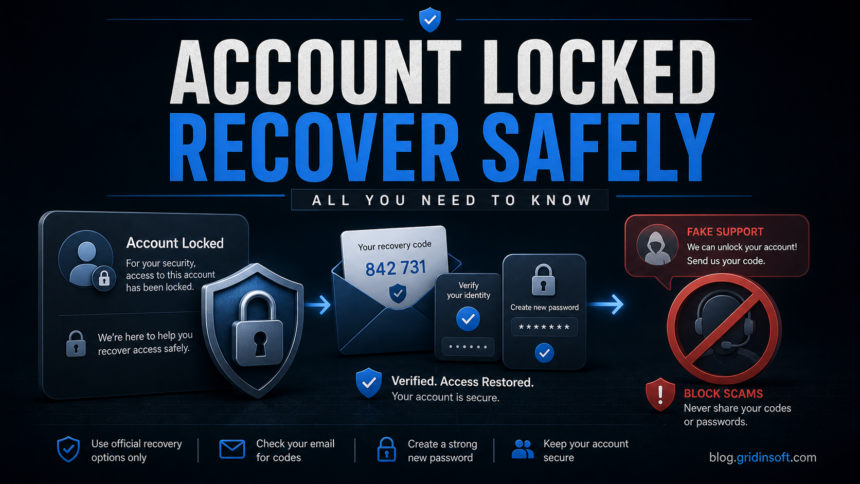
A real account lock appears while signing in on a Microsoft-controlled service and keeps recovery inside Microsoft’s sign-in flow. A browser page that demands a phone call, remote-control app, gift card, crypto payment, or paid support plan belongs to the separate scam lane. Close that page and follow the fake Microsoft locked pop-up response steps; do not mix its cleanup instructions with the official account-recovery process.
FAQ
Does the unlock code have to go to a phone already on my Microsoft account?
No. Microsoft says the unlock flow can use any phone number able to receive text messages. The number does not need to be a smartphone or already associated with the account.
What if the locked-account screen has no Next button?
Use the aka.ms link shown in that Microsoft window and submit the reinstatement information once. Do not keep sending duplicate requests while the review is pending.
Can Microsoft Support bypass lost two-step verification methods?
No. If two-step verification is enabled and every alternate method is unavailable, Microsoft says support cannot send a password reset link or change account details to bypass the verification requirement.
How long does Microsoft account recovery take?
A security-code unlock can be immediate. Microsoft says recovery-form results are normally sent to the contact email within 24 hours. Reinstatement reviews can take longer, and no recovery outcome is guaranteed.
Can this guide unlock a work or school Microsoft account?
No. Organization-managed Microsoft 365 or Entra accounts must be handled by that organization’s administrator. Use this page for personal Microsoft accounts.