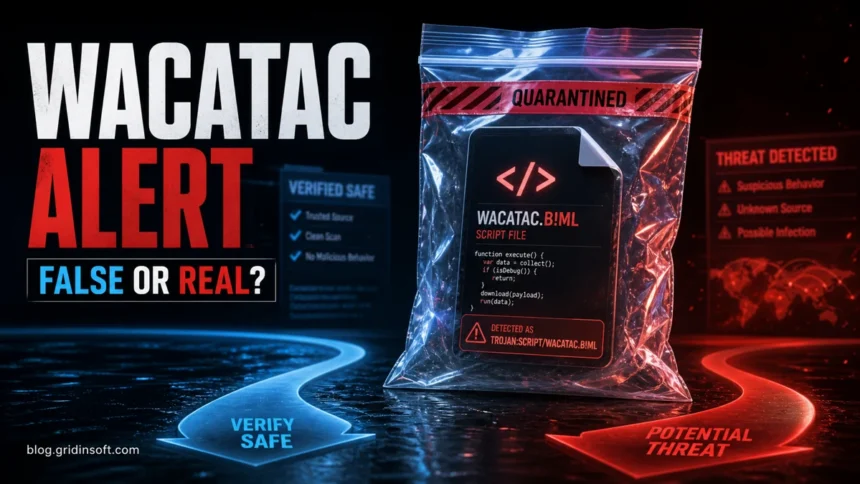
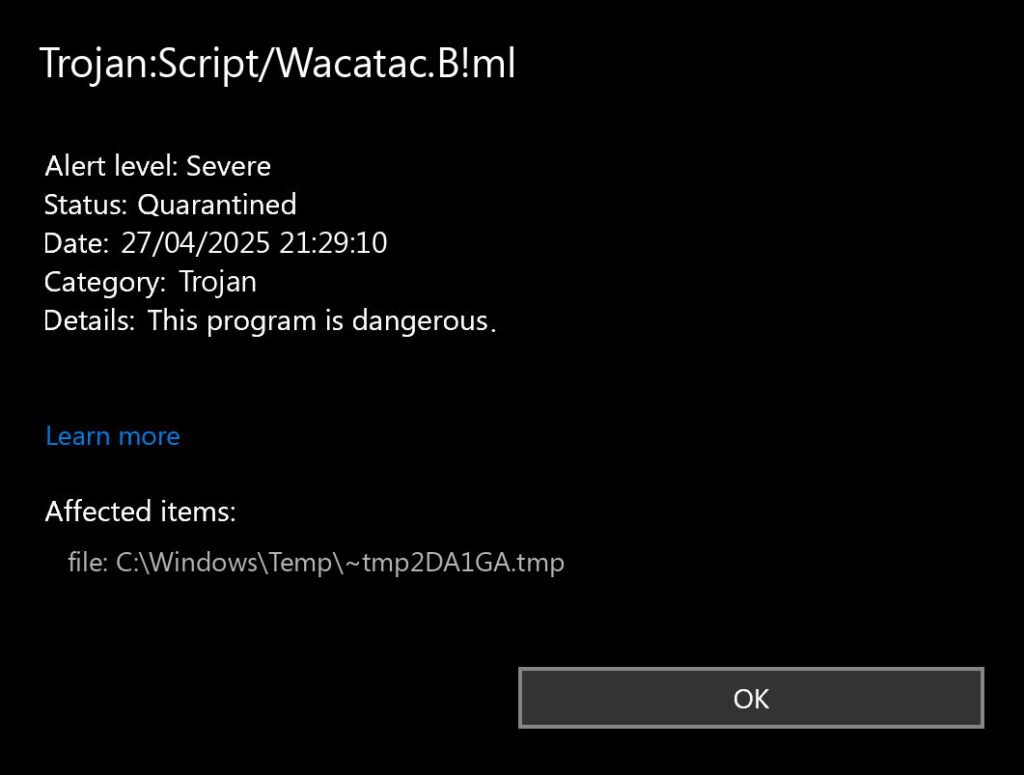
Trojan:Win32/Wacatac.B!ml is a Microsoft Defender alert for suspicious Windows executable, installer, archive, or web-delivered behavior. Defender may show the closely related Trojan:Script/Wacatac.B!ml label for script, browser-cache, or archive content. If Windows Security says Remediation incomplete, nothing happens when you choose Remove, or the alert returns after reboot, keep the item quarantined and compare the affected-item path. The same missing path with an old timestamp can be stale Protection History; a file that still exists, changes path, or is recreated points to the original archive, cache, startup task, or downloader.
For a single quarantined alert, check the path and source before restoring anything. Cracks, fake updates, unknown installers, email attachments, Temp/AppData paths, and browser-cache hits after a suspicious page are high-risk. Developer builds, signed vendor files, emulators, APKs, or archives that never executed can be false positives, but verify the file and run a full scan first.
Trojan:Win32/Wacatac.B!ml Quick Answer
| Detection | Trojan:Win32/Wacatac.B!ml (or the Script variant) |
| What it usually means | Defender saw executable, installer, script, archive, or download behavior that resembles known Wacatac activity. |
| First action | Leave it quarantined, open Protection history, and copy the newest event time, status, and affected-item path before running a full scan. |
| Remediation incomplete / repeat alert | Compare the newest time, status, and affected object. An old resolved event may be stale; a fresh unresolved alert needs investigation. A folder name or changed path alone does not prove persistence. |
| Most suspicious cases | Cracks, pirated installers, fake updates, and unknown attachments. Temp/AppData/Downloads can also contain legitimate files; assess the source and activity. |
| Possible false positives | Developer builds, scripts, compressed archives, emulators, APKs, and legitimate tools that trigger heuristic or machine-learning detection. |
| Do not do this | Do not disable Defender or add an exclusion just to make the warning disappear. |
If the same incident also created encrypted files with the .kora extension and a HOW_TO_DECRYPT.txt note, treat it as a ransomware recovery case and follow the Kora ransomware cleanup and restore guide before reconnecting backups.
What Does Trojan:Win32/Wacatac.B!ml Mean?
The name breaks down like this: Trojan is the broad threat category, Win32 points to suspicious Windows executable or installer context, Wacatac.B is the detection family, and !ml means Microsoft Defender’s machine-learning or heuristic logic contributed to the alert. The related Script label instead points to script-delivered, browser-cache, or archive content.
Microsoft describes Wacatac as a family that can be used for credential theft, downloading more malware, and opening a backdoor when the detected file is truly malicious. That does not prove every Wacatac.B!ml alert is malware, but it explains why Defender treats the name aggressively.
If your Defender alert names an executable instead of a script, compare it with our related guides for Trojan:Win32/Wacatac and Trojan:Win32/Wacatac.H!ml. If the alert is Trojan:Script/Conteban.A!ml, handle it as a separate script/archive detection. For a broader explanation of Defender naming, see Microsoft Defender detections.
Win32 vs Script/Wacatac.B!ml
Search results and Defender alerts often mix Trojan:Script/Wacatac.B!ml, Trojan:Win32/Wacatac.B!ml, and plain wacatac.b ml. Use the platform part of the name as a clue: Script usually points to JavaScript, HTML, VBS, PowerShell, browser-cache content, or a script embedded in an archive, while Win32 usually points to a Windows executable or installer. The cleanup logic overlaps, but the source path tells you whether you are dealing with an extracted script, a packed installer, a developer build, or a stale Protection History entry.
Is It Malware or a False Positive?
Use the file context, not the detection name alone. A Wacatac.B!ml alert from a random download is a very different risk from the same alert on a local development build you created yourself.
Treat It as Malware If
- The file came from a crack, keygen, pirated game, unofficial mod, fake update, Telegram/Discord link, or unknown archive.
- The affected item in
%Temp%,AppData, browser cache, or Downloads belongs to an identified untrusted package. Location alone does not establish maliciousness. - You recently saw browser redirects, pop-ups, changed search settings, disabled security tools, or new startup entries.
- A fresh unresolved detection or continuing suspicious activity remains after cleanup; compare it with an old resolved history card before concluding the file returned.
- Other security tools also flag the file or the extracted contents.
Consider a False Positive If
- The file is from your own project, a known vendor, or a tool you can re-download from the official source.
- The alert appears only inside a compressed archive and never runs on the system.
- The detection disappears after Defender updates and a rescan finds nothing.
- The file is a script, emulator component, APK, unsigned build, or packed installer that you can independently verify.
Even in a likely false-positive case, do not restore the file until you have verified it. If it is business-critical or private, avoid uploading it to public multi-scanner services. Use the vendor’s official submission flow instead.
If Defender Found Wacatac.B!ml in a ZIP, RAR, Browser Cache, or Partial Download
Many real user cases start with Defender flagging a compressed file, an interrupted browser download, a mod archive, or a cached HTML/script file. That does not automatically prove the code ran. It means Defender saw suspicious content while scanning the container, the extracted item, or the download stream.
- ZIP/RAR/7z: remove only the identified untrusted archive or package. For your own or a trusted archive, keep it unused and request vendor review. Do not restore a quarantined member or extract the archive again just to test it.
- Browser cache or partial download: remove the identified source download; use the browser’s settings to clear cached content when the affected object is in its cache. Do not delete the whole Downloads folder or browser profile. A blocked download alone does not show that code ran.
- Game mods, emulators, APKs, and developer builds: verify the source, hash, signature, and vendor/project reputation before restoring anything.
- Only one scanner detected it once: keep the file out of use, update definitions, and seek Microsoft or vendor review. Rescan only an already available non-quarantined copy without opening it; do not restore it for testing.
What to Do First
- Keep the item quarantined. Open Windows Security > Virus & threat protection > Protection history. Save the newest event time, status, and every affected path or archive member before cleanup; see Microsoft’s Protection history guidance [4].
- Record what happened: where the package came from, whether you opened or extracted it, and whether the alert names a remaining source container. The path helps locate evidence; it does not prove execution or theft.
- Protect accounts immediately when exposure is plausible. If you ran the suspicious file, entered credentials on a fake page, or see account misuse, use a separate trusted device to change exposed passwords and revoke affected sessions while local cleanup proceeds. Do not enter replacement passwords on the suspect PC. Notify IT/security and preserve evidence first on a managed device.
- Run the full cleanup below. Update security intelligence and use the Gridinsoft installation, Full Scan, cleanup, and restart checks. A blocked single download without execution or account misuse does not automatically require password resets.
How to Fix “Remediation Incomplete” or a Wacatac.B!ml Alert That Keeps Returning
Remediation incomplete means Defender could not finish cleaning. Expand the newest card for the required action. Do not erase Protection history to make the message disappear.
- Compare time, status, and affected object. Distinguish a new unresolved alert from an earlier resolved card. A missing quarantined file is expected; do not restore it just to inspect or rescan it.
- Identify what remains. An unchanged archive may still contain the blocked member. Remove that specific untrusted package, not all of Temp, AppData, Downloads, or a user profile. Use browser settings for a confirmed cache object.
- Check the sequence. A changed path or file after restart could follow a fresh download or extraction. Establish whether an actual object was recreated without that activity before suspecting persistence. A stale card by itself does not demonstrate reinfection.
- Complete the scan and cleanup below, then restart and review new events. If unresolved detections continue, use the optional targeted checks. For broader account or system impact, follow the Windows security audit after malware.
How to Remove Trojan:Win32/Wacatac.B!ml
1. Keep the Alert Contained and Identify the Source
Leave the item quarantined or choose the recommended removal action in Protection history. Remove the specific untrusted ZIP/RAR/7z, ISO, installer, or partial download named by the evidence. Do not restore it, re-extract it, or erase unrelated files. On a work PC, let IT preserve and handle the evidence.
2. Install, Update, and Run a Full Scan
A quarantined archive member may be only one part of a downloaded bundle. Install Gridinsoft Anti-Malware from its official site, update its detection database, and choose Full Scan to check the rest of the system for related components.
Defender can quarantine the visible file, but repeated alerts may mean a loader, scheduled task, service, browser change, or bundled component is recreating it. Scan the PC before trusting the cleanup.
Check a repeating Wacatac.B!ml alert3. Review Results, Apply Cleanup, and Verify
Review the detected items and their paths, apply the recommended quarantine or removal, and restart if requested. Run an updated scan and compare the newest event time, status, and object with your saved details. Do not treat an unchanged old card as a fresh detection. Clean results cannot prove that no data was stolen before cleanup; continue any needed account recovery on a trusted device.
4. Investigate Continuing Activity Only When Needed
If a fresh unresolved detection or unexplained file recreation continues, inspect the related Startup app, scheduled task, service, or browser extension using its full command and target path. The names powershell.exe, wscript.exe, and cscript.exe also belong to legitimate Windows tools; do not delete them or an unfamiliar entry solely because of its name or location. Preserve unclear evidence for IT or support.
If the returning symptom is a CircuitryAg.exe error after a ZIP download, use the CircuitryAg.exe startup and missing-DLL checks to distinguish a failed launch from a recreated file or startup entry.
Microsoft Defender Offline is an optional follow-up for persistent detections or failed cleaning: save your work and select it under Windows Security > Virus & threat protection > Scan options. It restarts Windows; it is not a prerequisite for the full scan above.
How to Handle a Likely False Positive
A false positive is possible, especially with custom scripts, unsigned builds, compressed tools, emulators, or software packed in a way that resembles malware. Handle it carefully.
- Confirm the file came from a trusted source.
- Check the vendor’s published signature or hash information and ask the vendor to investigate the exact detection. A trusted name alone is not a clean verdict.
- Update protection and rescan only an already available non-quarantined copy without opening it. Do not restore or re-extract a blocked item for testing.
- Use the Microsoft submission process [3] or ask the vendor to submit the exact sample. For private or work files, follow IT’s approved process before any upload; keep the item unused while awaiting review.
- Consider restore or a narrowly scoped allowance only after Microsoft/vendor review verifies that exact file and explains the detection. Prefer a corrected vendor release or definition update. Do not exclude an entire folder, profile, drive, or file type.
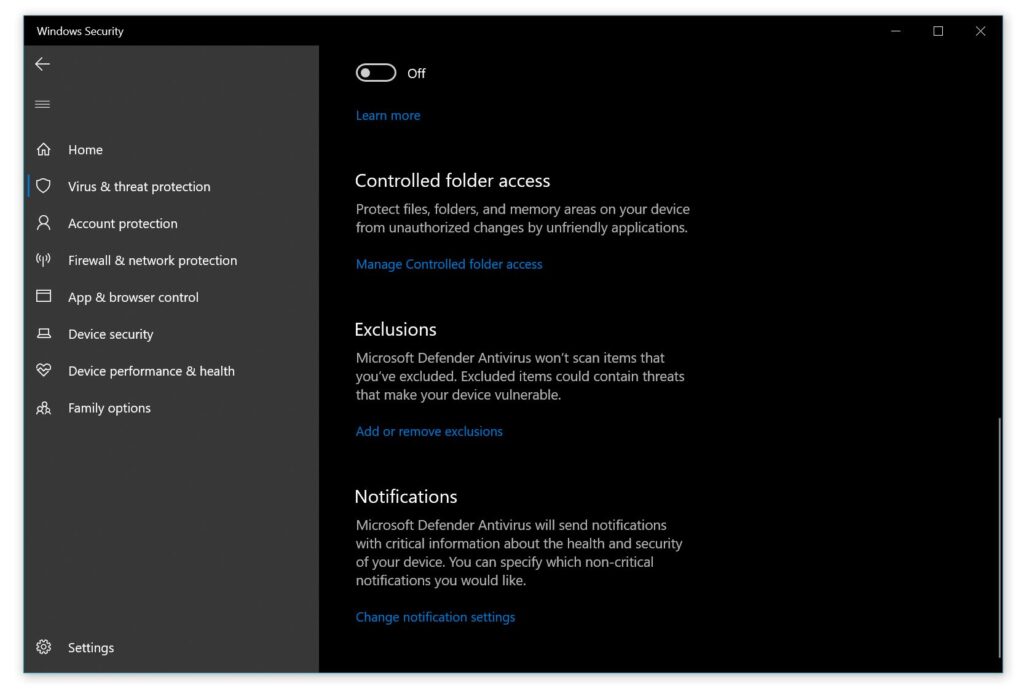
For most home users, deleting the suspicious file is safer than excluding it. Exclusions tell Defender not to inspect that location, which can make a real infection easier to miss later.
How to Avoid Wacatac-Style Alerts Again
- Do not run cracks, keygens, pirated installers, or “activation” tools.
- Keep file extensions visible in Windows so
invoice.pdf.jsdoes not look like a PDF. - Do not open scripts from email, chat, or shared folders unless you expected them.
- Keep Defender real-time protection and cloud-delivered protection enabled.
- Use standard user accounts for daily work instead of an administrator account.
- Back up important files to a location malware cannot easily rewrite.
Still Unsure About Trojan:Win32/Wacatac.B!ml?
Keep the file quarantined and run a second-opinion scan. GridinSoft Anti-Malware can check the rest of the system for bundled apps, suspicious startup entries, browser hijackers, and leftover files from the same download source.
FAQ
Is Trojan:Win32/Wacatac.B!ml always malware?
No. Treat it as suspicious, but verify the file source and path. Alerts from cracks, fake updates, or random archives are high risk. Alerts on trusted developer builds or compressed tools can be false positives, but they still need verification before restore or exclusion.
What does the !ml part mean?
The !ml suffix means Microsoft Defender’s machine-learning or heuristic detection contributed to the alert. That can catch new malware faster, but it can also flag legitimate files that look similar to malware patterns.
Should I restore the quarantined file?
Only restore it if you are confident the file is safe, you know exactly where it came from, and you have verified it through the vendor or Microsoft submission process. If the file came from an untrusted download, leave it quarantined and remove it.
Do I need to reinstall Windows?
Usually no, especially if Defender blocked the file before it ran and a full scan finds nothing else. Consider a reset or clean install only if the malware executed, security tools were disabled, detections keep returning, or you find signs of credential theft or persistence.
Can GridinSoft Anti-Malware help if Defender already quarantined it?
Yes. Defender may quarantine the detected file, while a second-opinion scan can look for related startup entries, bundled unwanted apps, browser changes, and leftover files from the same download source.
Why did Defender flag my ZIP, RAR, or partial download?
Defender can scan compressed files, browser downloads, and extracted contents before you run them. If the file came from an untrusted source, delete the archive and scan the system. For a trusted archive, keep it unused and seek Microsoft/vendor review. Do not restore or re-extract a quarantined member to rescan it.
What if only Microsoft detected it once in VirusTotal?
A one-time Microsoft-only detection can be a machine-learning false positive, especially if the file was never opened and later scans are clean. One scanner count is not a verdict. Keep it unused, update protection, and obtain Microsoft/vendor review before restore; do not restore quarantine just to rescan.
Why does Wacatac.B!ml keep appearing after I click Remove?
If the same old event remains in Protection History, it may be a stale notification. Compare the newest time, status, and actual object. A changed path alone does not prove persistence: first rule out the same source archive or a fresh download/extraction, complete cleanup, then investigate unexplained recreation.
Related Defender detection: Gridinsoft also has a path-based cleanup guide for Trojan:Win32/Skeeyah.A!rfn, especially when Defender quarantines an item from browser cache or a download folder.
Another script downloader alert: If Defender shows TrojanDownloader:JS/Nemucod instead of Wacatac, follow this Nemucod cleanup and cache-triage guide before restoring or excluding the file.
Related Defender alert: For a packed-file warning such as Trojan:Win32/VMProtect, this VMProtect false-positive and removal guide explains how to check the source, signature, path, and scan results.
References
- Microsoft Security Intelligence. “Trojan:Win32/Wacatac.B!ml threat description.” Microsoft, updated March 5, 2026, accessed October 15, 2026. https://www.microsoft.com/en-us/wdsi/threats/malware-encyclopedia-description?Name=Trojan%3AWin32%2FWacatac.B%21ml
- Microsoft Support. “Virus and Threat Protection in the Windows Security App.” Microsoft Support, accessed October 15, 2026. https://support.microsoft.com/en-us/windows/security/threat-malware-protection/virus-and-threat-protection-in-the-windows-security-app
- Microsoft Security Intelligence. “Submit a file for malware analysis.” Microsoft, accessed October 15, 2026. https://www.microsoft.com/en-us/wdsi/filesubmission
- Microsoft Support. “Protection History in the Windows Security App.” Accessed October 15, 2026. Protection history actions and status