Gridinsoft’s July 23, 2026 website check showed a low-risk profile for Eporner.com, but that result applies only to the exact domain and the moment it was checked. It does not certify every ad, redirect, download, app, or similarly named site. The practical safety decision is therefore simple: verify the address first, then judge what happened—streaming, a redirect, a download, an installation, or a login prompt—before choosing a response.
What the current Eporner report shows
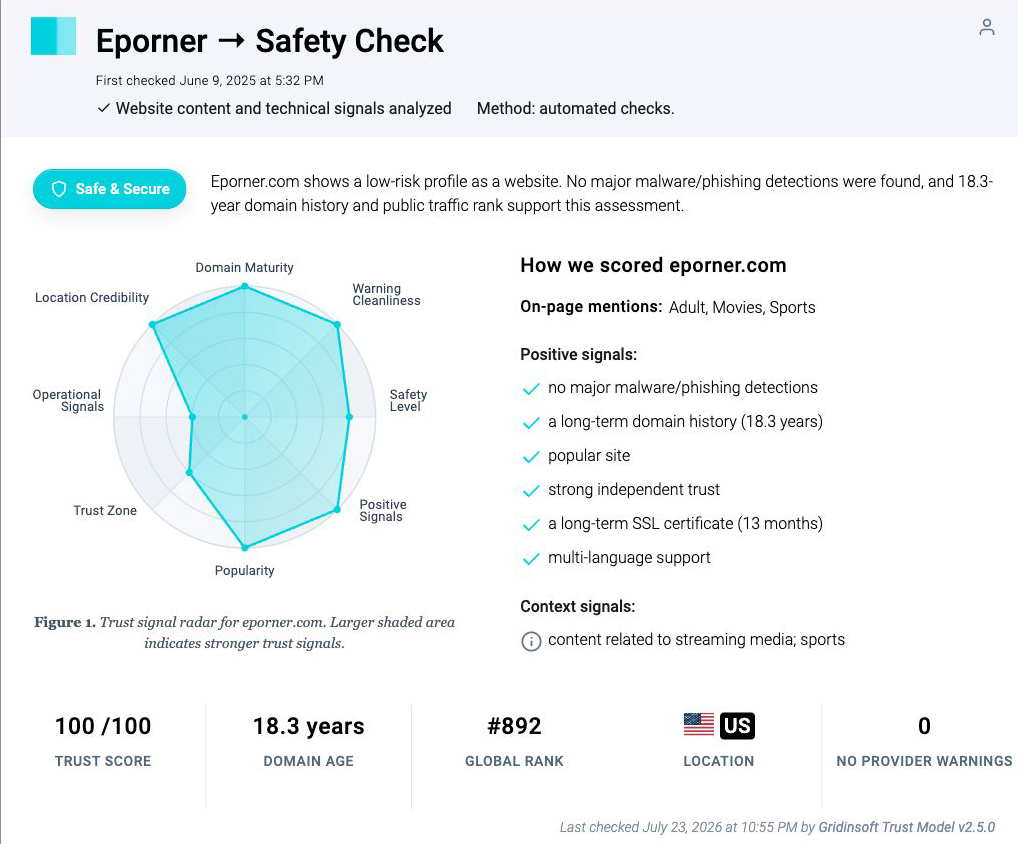
Gridinsoft’s Eporner.com website report recorded a 100/100 trust score, no provider warnings, an 18.3-year domain history, and a public traffic rank of #892 when it was last checked on July 23, 2026. Those are useful identity and reputation signals. They mean that the recognized domain did not show major malware or phishing detections in that check.
They do not mean that every third-party advertisement is trustworthy, that every file remains safe after it leaves the site, or that a domain with “Eporner” in its name belongs to the same operator. A clean domain report is a snapshot, not a permanent warranty.
Check the full domain, not just the familiar word
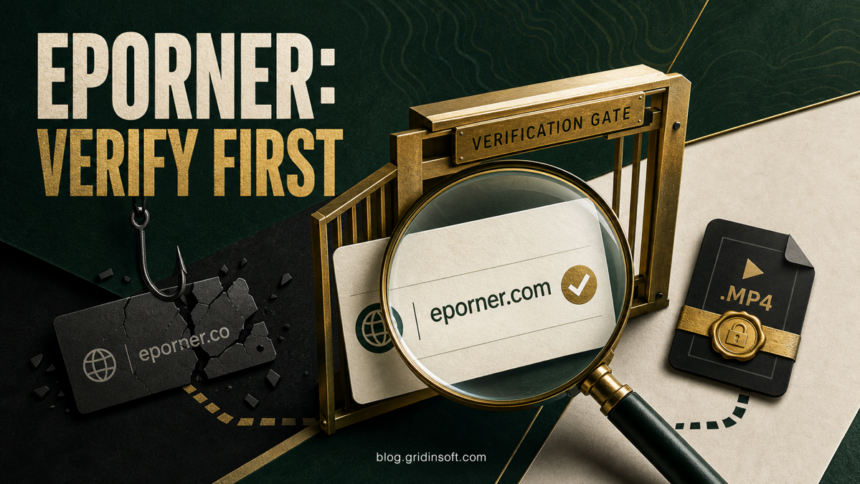
The address bar is the most important branch in this decision. Read the registrable domain immediately before the first slash. A page can reproduce a familiar name in its title, logo, or subdomain while the actual domain is different. Do not use a search ad, pop-up, shortened link, or message link as proof of identity.
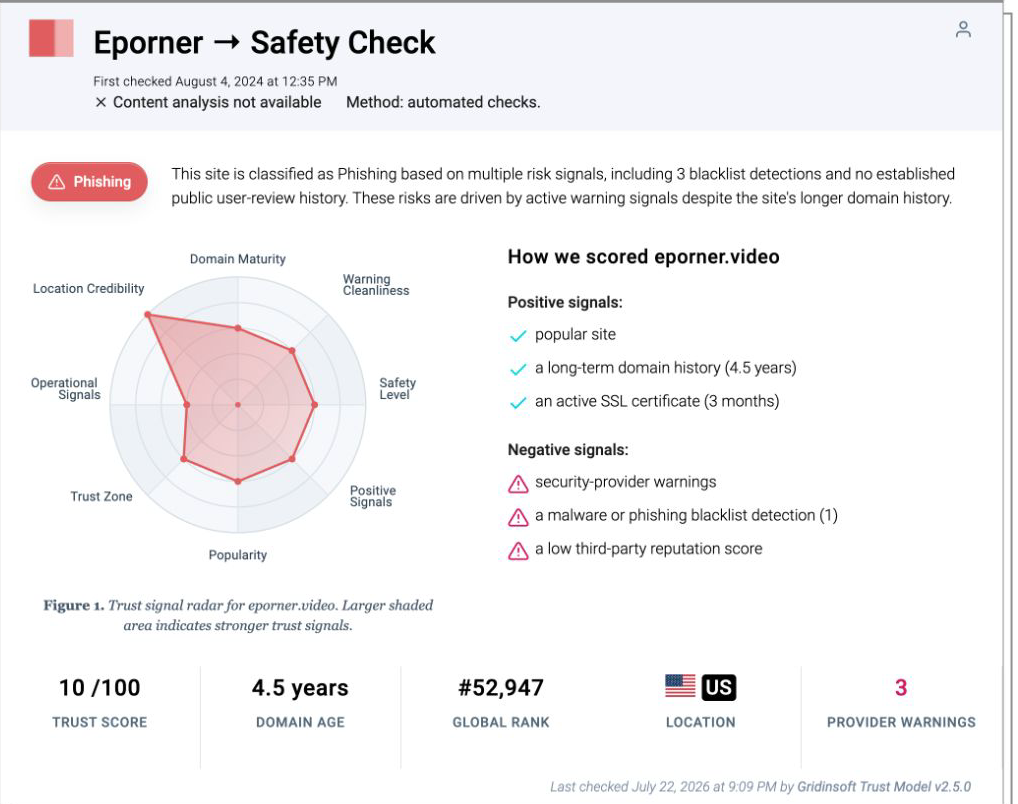
For example, Gridinsoft’s separate Eporner.video report classified that similarly named domain as phishing with a 10/100 score and three provider warnings when checked on July 22, 2026. That is evidence about eporner.video, not evidence that eporner.com controls it. Treat every hostname as a separate object until ownership is verified.
If Chrome displays a “Dangerous site,” “Fake site ahead,” or similar warning, leave the page instead of bypassing it. Google explains that Safe Browsing warnings can cover phishing, malware, unwanted software, abusive extensions, and social-engineering pages.[3]
What should you do now?
What happened — Risk and what to do
- You only visited the recognized domain
Close unwanted tabs. If you did not download, install, allow notifications, or enter data, a full cleanup is not automatically required. Keep the browser and security software updated. - A pop-up or redirect opened
Close the tab without clicking its buttons. Check the Downloads list and site permissions. A redirect can lead to another host with a completely different reputation. - You allowed notifications
Remove the site’s notification permission. Notifications can continue after the original tab is closed and may imitate antivirus, account, or prize alerts. - You downloaded a file but did not open it
Reveal the complete filename and extension. Do not open an executable, installer, APK, extension, archive, or “codec” just because it arrived from a video page. Delete it if the source or format is unexpected. - You ran a file, APK, codec, or extension
Uninstall the new item, remove suspicious browser changes, and scan the device. If the program requested credentials or disabled security controls, use a clean device for account recovery. - You entered a password or payment data
Open the real service from a clean bookmark or typed address, change the password, sign out other sessions, and enable multi-factor authentication. Contact the card issuer if payment information was submitted to an unverified page.
Are Eporner video downloads safe?
A normal video file and an executable are different risk categories. Common media formats include .mp4 and .webm. Files ending in .exe, .msi, .scr, .bat, .cmd, .js, .apk, .dmg, or .pkg are not ordinary video files. A browser extension, “HD player,” “special codec,” or update prompt is also software, even when the page describes it as necessary for playback.
Archives such as .zip and .rar need another check because they can contain executables. A double extension such as video.mp4.exe is an executable when Windows hides the final extension. Reveal the full filename before deciding.
Check the full filename before opening a download
- Open File Explorer with Windows + E and go to Downloads. Do not open the downloaded item.
- In Windows 11, choose View → Show → File name extensions. In Windows 10’s ribbon, open the View tab and select File name extensions.[4]
- Read the ending of the complete name.
video.mp4.exeends in.exe, so it is software, even if its icon looks like a video. Renaming it tovideo.mp4does not convert it into a video. - If you expected media but received an installer, APK, script, or archive, leave it unopened and delete the unexpected file. If you already ran or installed it, use the containment steps below instead of treating it as an unopened download.
A visible .mp4 or .webm extension identifies the apparent file format, not a security test. Keep your player updated and respect browser download warnings; do not install a “codec” or extra app to make an unexpected file work.
Chrome may block a download as dangerous, suspicious, unverified, or insecure. Google specifically advises users to take those warnings seriously instead of turning protection off or forcing the file through.[2] If the browser blocked an unexpected file, the safest action is to discard it. Do not move to a third-party downloader or APK mirror to get around the warning.
If the file is a recognizable media format, came directly from the intended domain, and no warning appeared, that lowers risk but does not prove the file is harmless. Scan an unexpected or unusually large file before opening it, and avoid playing it in outdated software. The executable-file safety checklist explains what to verify when the item is software rather than media.
Remove notifications, extensions, and recurring redirects
A website notification is a permission, not proof that the computer has malware. Chrome lets users review allowed sites under Settings → Privacy and security → Site settings → Notifications. Google also notes that intrusive or misleading notification requests may be blocked automatically.[1]
If eporner keeps showing unwanted pop-ups, you likely granted it permission to send notifications. To stop them, you need to revoke that permission in your browser settings.
- Copy and paste this into the address bar:
chrome://settings/content/notifications - Scroll down to the Allowed to send notifications list.
- Find eporner.
- Click the three dots (...) next to it and select Remove (or Block).
- Open Safari and go to Settings (or Preferences).
- Click the Websites tab and select Notifications on the left.
- Find eporner in the list on the right.
- Select it and click Remove (or change "Allow" to "Deny").
- Copy and paste this into the address bar:
about:preferences#privacy - Scroll down to Permissions and click Settings... next to Notifications.
- Type eporner in the search bar or find it in the list.
- Select the site and click Remove Website.
- Copy and paste this into the address bar:
edge://settings/content/notifications - Look under the Allow section.
- Find eporner.
- Click the three dots (...) next to it and select Remove (or Block).
- Copy and paste this into the address bar:
brave://settings/content/notifications - Scroll to the Allowed to send notifications list.
- Find eporner.
- Click the three dots (...) and select Remove (or Block).
- Copy and paste this into the address bar:
opera://settings/content/notifications - Check the Allowed to send notifications list.
- Find eporner.
- Click the three dots next to it and select Remove.
If the browser keeps opening a page after you removed the notification permission, inspect recently installed extensions, startup pages, search settings, and synced browser data. A malicious or unwanted extension can recreate redirects after a simple reset.
- Launch Chrome.
- Click the three dots (...) in the top right corner.
- Select Extensions > Manage Extensions.
- Click Remove next to the extension you want to delete.
Quick Access: Type chrome://extensions/ in the address bar.
- Open Safari.
- In the menu bar, click Safari and select Settings (or Preferences).
- Click on the Extensions tab.
- Select the extension and click Uninstall.
- Click the menu button, select Add-ons and themes.
- Go to the Extensions tab.
- Click the three dots (...) next to the extension and select Remove.
Quick Access: Type about:addons in the address bar.
- Launch Microsoft Edge.
- Click the three dots (...) in the top right corner.
- Select Extensions.
- Find the extension and click Remove.
Quick Access: Type edge://extensions/ in the address bar.
- Launch Brave browser.
- Click the menu icon > Extensions.
- Find the extension and click Remove.
Quick Access: Type brave://extensions/ in the address bar.
- Launch Opera.
- Click the Opera logo in the top left corner.
- Select Extensions > Extensions.
- Click the X or Remove button next to the extension.
Quick Access: Type opera://extensions/ in the address bar.
Open Extensions/Add-ons again and remove any entry linked to eporner or clearly out of place.
Also review applications installed around the time the behavior began. A bundled app can launch a browser tab or restore an extension when Windows starts.
If you see eporner or other suspicious applications that you don't remember installing, you should remove them as well.
- Right-click the Start button and select Installed Apps (or Apps & Features).
- Scroll through the list to find eporner or any other unfamiliar program.
- Click the three dots (...) next to it and select Uninstall.
- Open Finder and go to the Applications folder.
- Locate eporner or any app you don't recognize.
- Drag it to the Trash.
- Empty the trash to remove it permanently.
- Go to Settings > Apps > See all apps.
- Find eporner or any suspicious app in the list.
- Tap on it and select Uninstall.
For broader context, see how malware risks on adult sites differ between the page itself, advertising networks, deceptive buttons, and downloaded software. The same separation is useful for other brand-specific checks, including the FapHouse safety guide.
If you opened or installed the file
- Close the program and stop entering passwords or payment details.
- Disconnect from the network if the program is still active, requests remote-control access, or opens repeated login prompts.
- Uninstall the new app or extension and delete the original installer only after recording its filename and download time.
- Run a full security scan, reboot, and scan again if the same redirect, alert, extension, or startup item returns.
- From a clean device, change passwords for accounts used after the installation and revoke active sessions.
Deleting the visible download is not enough if it installed a bundled app, browser extension, startup entry, scheduled task, or credential-stealing component. Gridinsoft Anti-Malware can check the system for detections, hidden files, startup items, scheduled tasks, bundled software, and browser changes after the manual containment steps.
How to confirm cleanup
- The unwanted page no longer opens after restarting both the browser and the computer.
- No unfamiliar site remains in notification, pop-up, startup-page, or search-engine permissions.
- No suspicious extension returns after browser sync reconnects.
- No recently installed app, task, or startup item recreates the behavior.
- A follow-up security scan is clean.
- Accounts show no unknown sessions, password changes, or payment activity.
If a symptom returns, record the exact domain, filename, extension ID, or application name. That evidence identifies the responsible component more reliably than the word visible in the browser tab.
FAQ
Is Eporner.com a virus?
No. Eporner.com is a website, and Gridinsoft’s July 23, 2026 check showed a low-risk profile for that exact domain. A redirect, advertisement, download, or similarly named domain can have a separate risk profile.
Does a pop-up mean Eporner infected my computer?
Not by itself. A pop-up can be a browser event from an ad network. Check whether a file downloaded, a notification was allowed, an extension appeared, or the redirect continues after the browser is closed.
Is an MP4 file safer than an EXE or APK?
An MP4 is a media format, while EXE and APK files install or execute software. Do not treat an installer, extension, codec, or APK as a video. Verify the complete extension and keep media software updated.
What if I downloaded a file but did not open it?
Do not open it until the full filename, extension, source, and browser warning status are clear. Delete unexpected executables, APKs, extensions, or password-protected archives, then scan the Downloads folder if you are unsure.
What if I entered my password on a fake Eporner page?
Use a clean device to change any reused password, sign out other sessions, enable multi-factor authentication, and review the account for unfamiliar activity. Contact the card issuer if payment information was also entered.
References
- Google Chrome Help. “Use notifications to get alerts.” Google, accessed July 23, 2026. support.google.com/chrome/answer/3220216
- Google Chrome Help. “Google Chrome blocks some downloads.” Google, accessed July 23, 2026. support.google.com/chrome/answer/6261569
- Google Chrome Help. “Manage warnings about unsafe sites.” Google, accessed July 23, 2026. support.google.com/chrome/answer/99020
- Microsoft Support. “Common file name extensions in Windows.” Accessed September 8, 2026. Common file name extensions in Windows