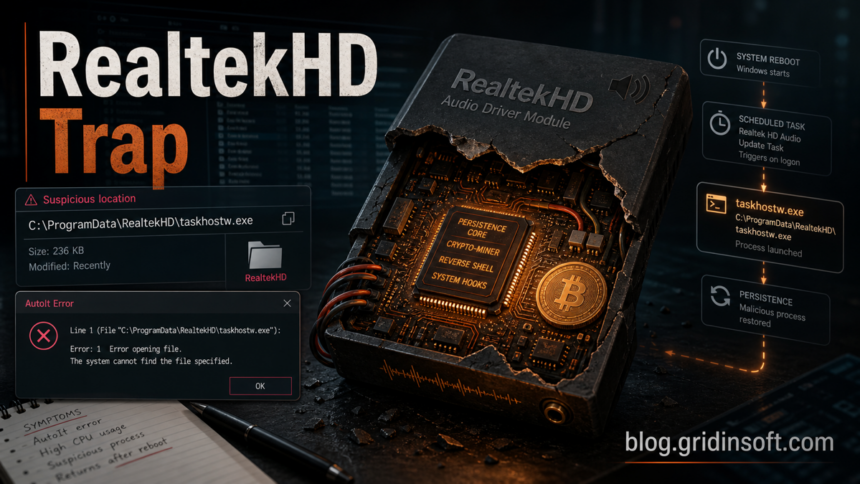
A RealtekHD taskhostw.exe AutoIt error is not a normal Realtek audio-driver message. Whether the pop-up says Line 21219, Line 7, or another line number, the important signal is the path: C:\ProgramData\RealtekHD\taskhostw.exe, C:\Programdata\ReaItekHD\taskhostw.exe, or a similar fake driver folder. Treat that pattern as suspicious AutoIt-based malware/persistence until cleanup proves otherwise. The usual fix is not to reinstall the sound driver first; it is to stop the malicious task or startup entry, remove the fake RealtekHD folder, scan for leftovers, then repair the legitimate OEM Realtek driver only if audio is still broken.
If you are checking an older Realtek-named startup entry rather than a fake taskhostw.exe error, use the ALCMTR.EXE startup safety check to verify the path, signature, and launcher before deleting audio-driver files.
Quick checks
- Suspicious path:
C:\ProgramData\RealtekHD\taskhostw.exe,C:\Programdata\ReaItekHD\taskhostw.exe, or another ProgramData look-alike folder. - Suspicious symptom: an AutoIt pop-up repeats after reboot, after closing it, or after a partial antivirus cleanup.
- Common masquerade: a Run key named
Realtek HD Audioor similar wording launches a file that is not the real Realtek driver stack. - Safe first action: save the exact path, disconnect from sensitive accounts, remove persistence, delete the folder only after it stops relaunching, then scan and reboot.
What does the AutoIt Line 21219 error mean?
AutoIt is a scripting language that can be used for legitimate automation, but malware also uses AutoIt-packed executables because they are easy to disguise and relaunch. In this case, the important clue is the path. A Microsoft Q&A thread records the same recurring error text from C:\Programdata\RealtekHD\taskhostw.exe, with the user saying it appeared every minute and later reporting that security-tool downloads were closing unexpectedly [1].
Dr.Web’s malware library entry for Trojan.AutoIt.957 lists an autorun value named Realtek HD Audio that points to %ALLUSERSPROFILE%\RealtekHD\taskhostw.exe. The same technical entry also describes defense-evasion behavior, Windows Defender exclusions, startup/persistence changes, and password-related registry targets [2]. That does not mean every Line 21219 pop-up is the exact same sample, but it is enough to treat the RealtekHD/taskhostw.exe pattern as malware cleanup, not an ordinary sound-card problem.
If your AutoIt pop-up shows a different line number, use the same decision logic. The line number is where that particular AutoIt script failed; it can change between builds, partial removals, and damaged copies. The stronger signal is the combination of a RealtekHD or ReaItekHD look-alike folder, taskhostw.exe, ProgramData/startup persistence, high CPU, security tools closing, or the error returning after reboot. A random AutoIt error in a known legitimate admin script is a different case; an AutoIt error from C:\ProgramData\RealtekHD\taskhostw.exe or a similar fake driver path belongs in this cleanup flow even when the line number is not 21219.
Legitimate Realtek driver or fake RealtekHD malware?
The legitimate Realtek audio stack usually lives under Windows driver-store, OEM, or C:\Program Files\Realtek\ paths and has a trusted Realtek or device-manufacturer signature. A fake RealtekHD folder under C:\ProgramData is different: it is a user-writable data location often abused for persistence.
| Likely legitimate | Realtek Audio Console, Realtek services, or driver files in OEM/DriverStore/Program Files paths with a valid Realtek or OEM signature. |
| Suspicious | C:\ProgramData\RealtekHD\taskhostw.exe, ReaItekHD with a capital I, unsigned files, AutoIt errors, high CPU, relaunch after reboot, or security tools closing. |
| Driver repair comes later | Reinstall the OEM audio driver only after the suspicious startup/task is removed and malware scans no longer find leftovers. |
If your question is about the real Realtek service RtkAudUService64.exe, use our RtkAudUService64.exe safety guide. This article is specifically for the fake RealtekHD/taskhostw.exe AutoIt error pattern.
Why the pop-up can appear after partial cleanup
The Line 21219 error often appears when the startup entry still points to a file that was removed, quarantined, blocked, or damaged. Windows tries to run the leftover autorun entry, AutoIt cannot complete the scripted action, and the error repeats. That is why deleting only taskhostw.exe or only quarantining one file can leave the visible pop-up behind.
Microsoft Sysinternals Autoruns is useful here because it shows programs configured to run at boot or login, including Startup folder entries, Run and RunOnce keys, services, browser helper objects, Winlogon entries, and scheduled tasks. Its option to hide signed Microsoft entries helps narrow the list to third-party additions [3].
Step 1: Contain the session
- Do not keep signing in on the affected PC. Close banking, email, password manager, work, Steam, Discord, crypto, and browser-sync sessions until cleanup is done.
- Record the exact error. Save the full path, spelling, file name, pop-up frequency, and whether it started after a game crack, fake update, utility, archive, or message attachment.
- Disconnect if behavior is active. If CPU usage, fans, unknown outbound traffic, or browser/security-tool blocking is active, disconnect from the network while removing persistence.
- Do not reinstall Realtek yet. Reinstalling an audio driver does not remove a malicious ProgramData autorun entry.
Step 2: Stop the suspicious process
Open Task Manager, Details. Look for taskhostw.exe, unknown AutoIt executables, unfamiliar miners, or anything running from C:\ProgramData\RealtekHD, C:\Programdata\ReaItekHD, %TEMP%, or another recently created folder. Right-click, open file location, and confirm the path before ending the task.
Be careful with names that resemble Windows components. Windows has legitimate host processes, but taskhostw.exe inside a fake RealtekHD ProgramData folder is not the same as a normal signed Windows file under C:\Windows\System32. If the file is the signed Windows copy and your issue is CPU, multiple instances, or Task Host Window at shutdown, use the taskhostw.exe guide to identify the loaded task instead of following this malware-removal workflow.
Step 3: Remove the startup entry or scheduled task
Start with Autoruns or Task Manager Startup apps. Filter for taskhostw, RealtekHD, ReaItek, and AutoIt. Disable the suspicious entry first so you can confirm the error stops after reboot. Then delete the entry only when you are sure it points to the fake folder.
Check these places:
HKCU\Software\Microsoft\Windows\CurrentVersion\RunHKLM\Software\Microsoft\Windows\CurrentVersion\Run- Task Scheduler Library and subfolders for tasks launched at logon or every few minutes.
- Startup folders opened by
shell:startupandshell:common startup. - Recent services whose executable path points to ProgramData, Temp, or an unknown folder.
Remove only the value or task that points to the suspicious RealtekHD path. Do not delete the whole Run key or random Realtek/OEM driver entries.
Step 4: Delete the fake folder after persistence is gone
- Confirm no suspicious
taskhostw.exeprocess is running. - Confirm the Run key, Startup app, task, or service no longer launches the fake path.
- Delete
C:\ProgramData\RealtekHDor the misspelled look-alike folder only after the launcher is disabled. - Empty quarantine/recycle only after the PC reboots cleanly and no needed evidence is lost.
- Reboot and verify that the AutoIt error does not return.
If the folder comes back immediately, another loader or service is still present. Return to startup checks instead of repeatedly deleting the same file.
Step 5: Scan for leftovers
This pattern can leave more than one component: an AutoIt launcher, miner module, Run key, scheduled task, service, browser change, Defender exclusion, or companion downloader. After manual persistence cleanup, run a full Gridinsoft Anti-Malware scan, remove detections, reboot, and scan again if the AutoIt pop-up, high CPU, or fake RealtekHD folder returns.
If the process path is wrong, the name imitates a Windows component, or high CPU started after an unknown installer, scan for hidden miners, services, startup entries, and bundled components.
Scan for RealtekHD leftoversAlso inspect your browser if the infection came from a fake game, crack, mod, downloader, or update page. Remove unfamiliar extensions, check notification permissions, and reset proxy settings you did not configure.
Step 6: Repair Realtek audio only after cleanup
If sound is broken after the malware cleanup, reinstall the official driver from your laptop/PC vendor, motherboard vendor, Windows Update, or Realtek/OEM support package. Do not download “RealtekHD fix” installers from search ads or random forums. The malware uses a Realtek-like name precisely because users expect audio-driver files to exist.
Do you need to change passwords?
Change passwords from a clean device if the fake RealtekHD error began after running a crack, fake installer, game mod, email attachment, or unknown archive, or if you saw account alerts, browser session theft signs, blocked security tools, or other malware detections. Start with email, Microsoft/Google, password manager, banking, crypto, Steam, Discord, and work accounts. If the only remaining symptom was a stale AutoIt pop-up after a scanner already removed the file, password risk is lower, but a final scan and session review are still sensible.
What not to do
- Do not add antivirus exclusions for
C:\ProgramData\RealtekHD. - Do not reinstall Realtek drivers as the first step when the error path is in ProgramData.
- Do not run random scripts from forum replies to delete registry keys blindly.
- Do not keep trying cracked installers or game files that started the infection.
- Do not assume the PC is clean until the pop-up, startup entry, folder, and scan findings are all gone after reboot.
FAQ
Is RealtekHD taskhostw.exe a real Realtek driver?
No. A Realtek-like name under C:\ProgramData\RealtekHD\taskhostw.exe is not the normal Realtek audio driver location. Treat it as suspicious until you verify the path, signature, and startup entry.
Why does the AutoIt Error Line 21219 keep coming back?
A startup entry, scheduled task, or Run key may still be trying to launch a file that was removed or blocked. Remove the persistence entry, then reboot and scan again.
What if the AutoIt error shows a different line number?
Do not decide by the line number alone. If the path still points to a fake RealtekHD or ReaItekHD folder with taskhostw.exe, follow the same persistence cleanup. If the path belongs to a known legitimate script you use, investigate that script separately.
Can I delete C:\ProgramData\RealtekHD?
Delete it only after stopping the process and disabling the startup entry or task that relaunches it. If you delete the folder first, the leftover persistence may keep producing the AutoIt error.
Should I reinstall Realtek audio drivers?
Only after malware cleanup. Reinstalling the official OEM audio driver can fix audio problems, but it will not remove a fake ProgramData launcher or Run key.
Is this a coin miner?
Many public cases describe miner-like symptoms such as high CPU, loud fans, and blocked cleanup tools. Treat it as a malware cleanup case even if your PC does not show high CPU at the moment.
References
- Microsoft Q&A. “How to fix: Line 21219 (File "C:\Programdata\RealtekHD\taskhostw.exe").” Microsoft Learn Q&A, posted February 6, 2024, accessed June 18, 2026. https://learn.microsoft.com/en-us/answers/questions/4058790/how-to-fix-line-21219-%28file-c-programdatarealtekhd.
- Doctor Web. “Trojan.AutoIt.957.” Dr.Web Virus Library, added November 24, 2020, description added February 10, 2021, accessed June 18, 2026. https://vms.drweb.ru/virus/?i=23374628.
- Mark Russinovich. “Autoruns for Windows.” Microsoft Sysinternals, published June 17, 2026, accessed June 18, 2026. https://learn.microsoft.com/en-us/sysinternals/downloads/autoruns.