

AlrustiqApp.exe, often shown as Alrustiq Service, is not a normal Windows service. When it appears with very high CPU/GPU usage, a gift-box or heart-like icon, unknown publisher details, or a folder under C:\Program Files (x86), treat it as a miner-like unwanted app until you prove otherwise. Do not just end the process: check the service, startup entry, scheduled task, install source, and scan the PC so the process does not return after reboot.
What is AlrustiqApp.exe / Alrustiq Service?
AlrustiqApp.exe is a suspicious process that users usually notice in Task Manager because it keeps the computer slow, noisy, hot, or almost unusable. On affected systems it may also appear as Alrustiq Service, Alrustiq app, or Alrustiq application, which makes it look more like installed software than a random malware file.
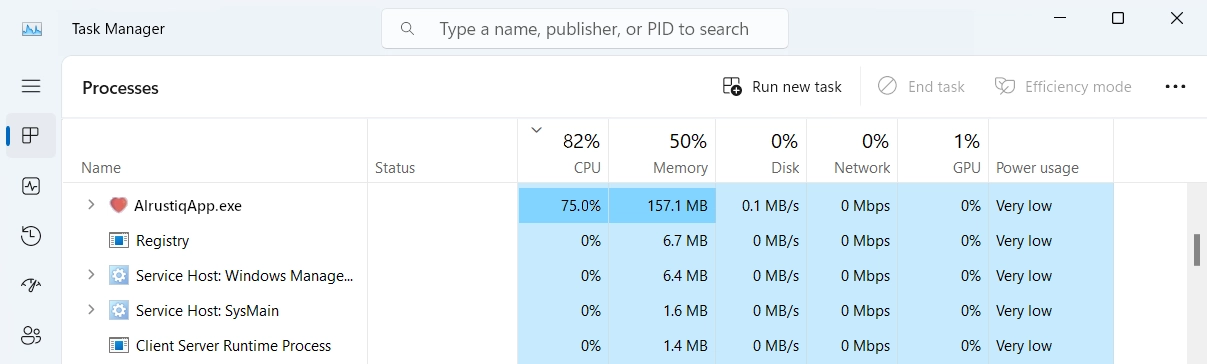
Gridinsoft analysis linked this sample to miner behavior on January 10, 2025 [1]. The practical warning signs are more important than the name alone: sustained 80-95% CPU usage, a process that restarts after you end it, an unfamiliar service name, a recently installed bundle/crack/freeware app, or a file path that does not match software you intentionally installed.
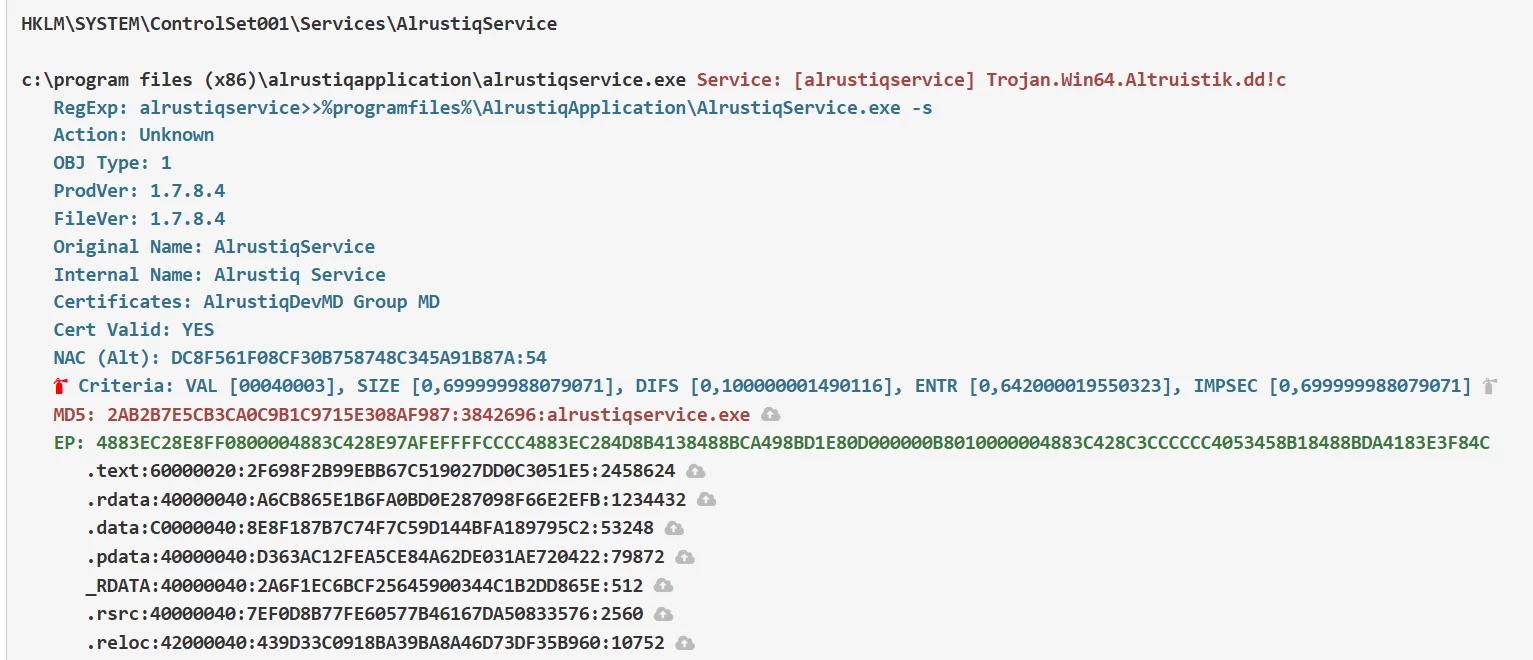
The old version of this post described a folder path as C:\Program Files (x86). On Windows, the path you should verify is normally written as C:\Program Files (x86)\..., but the exact subfolder can vary. Use the process location and file signature as evidence; do not delete random Windows folders just because a name looks similar.
How to check whether AlrustiqApp.exe is unsafe
- Task Manager: sort by CPU or GPU, right-click AlrustiqApp.exe, and open the file location before ending the process.
- Services: check whether an Alrustiq Service or similarly named service starts the process again after reboot.
- Startup Apps: Windows lets startup entries be disabled from Settings or Task Manager [3]; disable only entries tied to the same suspicious folder or publisher.
- Task Scheduler: look for recently created tasks that launch the same file, PowerShell, a temp folder, or a crack/mod/download path.
- Installed apps: remove suspicious apps from Windows Settings or Control Panel first when there is a visible uninstall entry [2].
- Security scan: if the process returns, run an offline or full malware scan because a loader or persistence component may be reinstalling it [4].
How did AlrustiqApp get installed?
Most reports fit one of two patterns: pirated software/cracks or freeware bundles that hide an optional install behind a fast “standard installation” flow. Downloaded from questionable websites or P2P networks, an installer can add a miner service while also dropping the app the user expected. That is why deleting only AlrustiqApp.exe may not be enough.
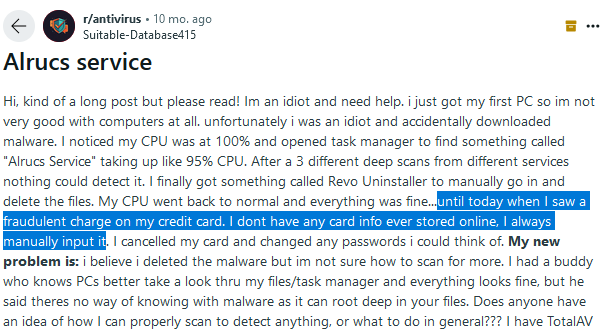
Users have also reported spyware-like symptoms after dealing with this family, so treat the case as a whole-system cleanup, not only a high-CPU annoyance.
How to remove AlrustiqApp.exe safely
Start with the visible uninstall path if Windows lists a suspicious app, then clean the persistence points that can restart the service. If you cannot stop the process normally, use Safe Mode with Networking and scan the machine before returning to normal Windows mode.
- Disconnect from risky downloads, close browsers, and save open work.
- Open Task Manager, note the AlrustiqApp.exe file path, and end the process only after recording where it runs from.
- Uninstall the suspicious app from Windows Settings or Control Panel when it is listed.
- Disable the matching startup entry and remove the matching scheduled task or unknown service if it points to the same suspicious folder.
- Delete the original installer, crack, bundle, archive, or download source that introduced it.
- Run a full scan with GridinSoft Anti-Malware or another trusted security tool, then reboot and confirm the service/process does not return.
- If the same detection or process comes back after reboot, run Microsoft Defender Offline or another offline scan path because recurring malware can hide while Windows is running [4].
After uninstalling the suspicious app or deleting the visible threat, use Gridinsoft Anti-Malware to check hidden files, startup entries, scheduled tasks, bundled apps, browser changes, and other persistence points that can restore malware.
Download Anti-MalwareStep 1. Switch to Safe Mode with Networking
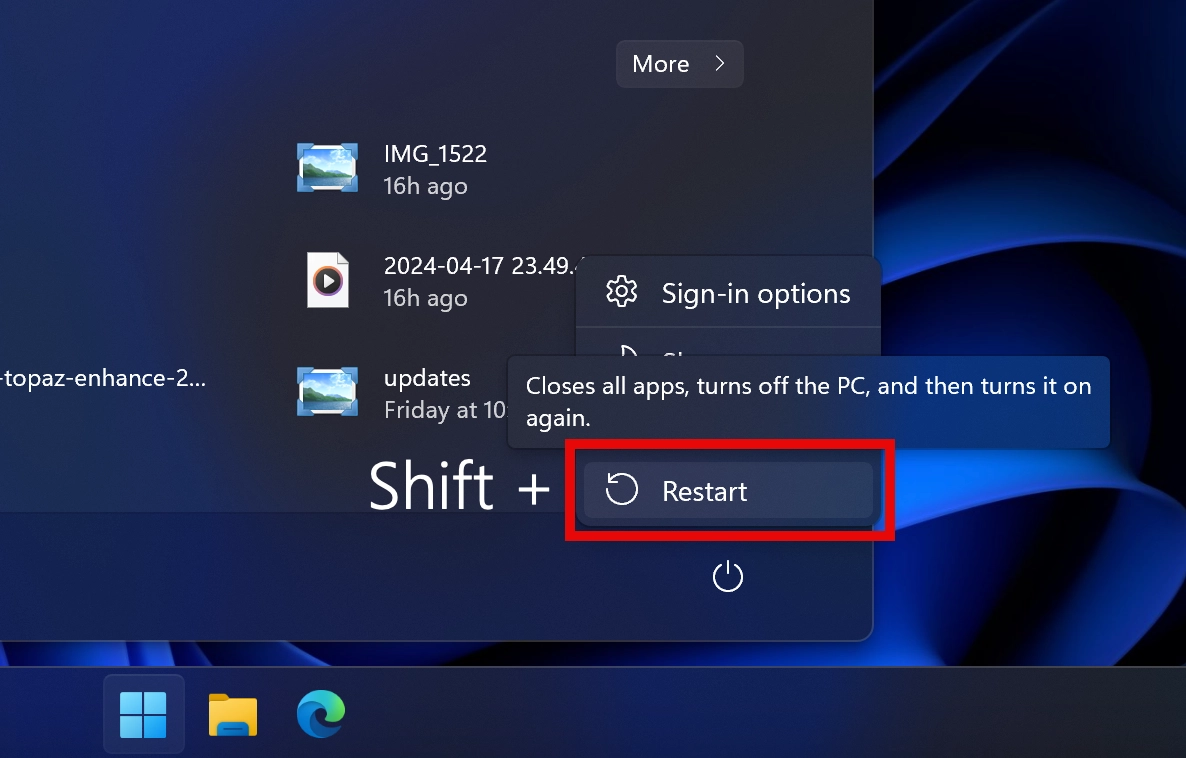
Safe Mode helps when AlrustiqApp.exe restarts immediately or blocks cleanup. Rebooting into Safe Mode with Networking prevents many third-party startup items from loading. Press Start, hold Shift, and select Restart. A recovery screen will appear with boot options.
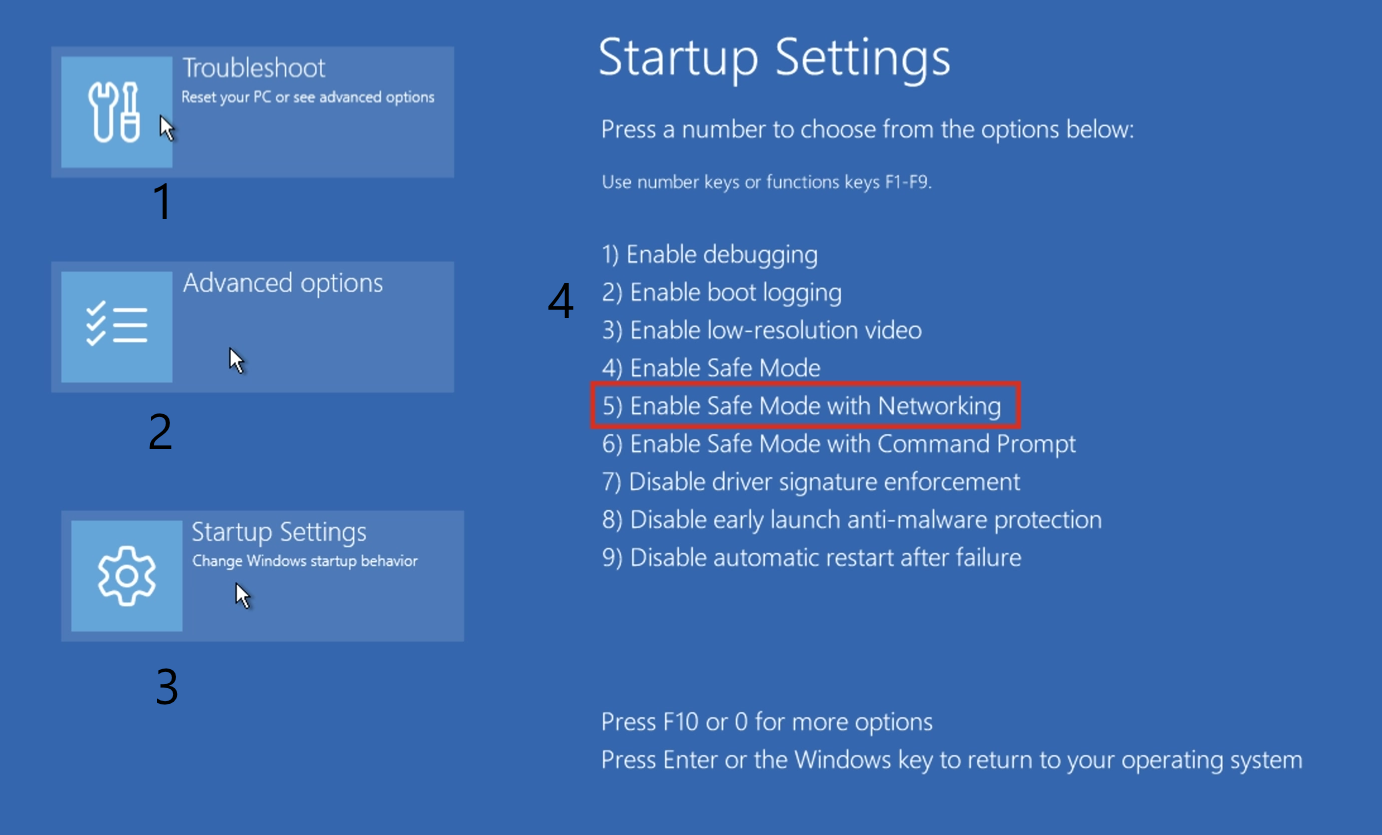
Go to Advanced Options → Startup Settings, then press the number next to Enable Safe Mode with Networking. The number can vary between Windows builds.
Step 2. Scan and remove remaining components
After Windows loads in Safe Mode with Networking, install GridinSoft Anti-Malware and run a Full Scan. This is important because miner-like apps often have a parent installer, service, task, or helper file that brings the visible process back. After the scan finishes, use Clean Now, reboot normally, and re-check Task Manager, Services, Startup Apps, and Task Scheduler.
Why AlrustiqApp.exe causes high CPU
Miner malware uses CPU or GPU resources to perform cryptocurrency-mining work for someone else. That workload can make the PC slow, raise fan noise and temperature, increase power use, and make games or browsers freeze. If AlrustiqApp.exe disappears only while Task Manager is open or returns after reboot, assume persistence is present and clean the startup/service/task path instead of repeating the same end-task step.
For broader cases with unknown service names, compare this page with our suspicious Windows service miner cleanup guide and the related Altisik Service removal guide.
FAQ
Is AlrustiqApp.exe always a coin miner?
No single filename is enough proof by itself, but AlrustiqApp.exe plus sustained high CPU/GPU usage, unknown service persistence, suspicious install source, or an unexpected C:\Program Files (x86) folder is a strong warning sign.
Is Alrustiq Service part of Windows?
No. Windows has many built-in services, but Alrustiq Service is not a normal Microsoft Windows component. Verify the file location, publisher, install date, startup entry, and whether it reappears after removal.
Why does AlrustiqApp.exe return after I delete it?
A scheduled task, service, startup entry, or bundled parent app can recreate the visible executable. Remove the persistence mechanism and scan the system; do not rely only on deleting the file from File Explorer.
Should I reset Windows after AlrustiqApp.exe?
Try removal, persistence cleanup, and a full/offline scan first. Consider a Windows reset or clean reinstall only if the miner keeps returning, security tools are disabled, many unrelated detections appear, or you no longer trust the system state.
References
- Gridinsoft Threat Intelligence. “AlrustiqApp.exe sample analysis.” Gridinsoft, accessed June 1, 2026. https://threatinfo.net/files/AlrustiqApp.exe-89c1743b1e47f8a66b21553157a2aca2
- Microsoft Support. “Uninstall or remove apps and programs in Windows.” Microsoft, accessed June 1, 2026. https://support.microsoft.com/en-us/windows/uninstall-or-remove-apps-and-programs-in-windows-4b55f974-2cc6-2d2b-d092-5905080eaf98
- Microsoft Support. “Configure Startup applications in Windows.” Microsoft, accessed June 1, 2026. https://support.microsoft.com/en-us/windows/configure-startup-applications-in-windows-115a420a-0bff-4a6f-90e0-1934c844e473
- Microsoft Support. “Troubleshoot problems with detecting and removing malware.” Microsoft Defender, accessed June 1, 2026. https://support.microsoft.com/en-us/defender/troubleshoot-problems-with-detecting-and-removing-malware


This article was very informative. Thanks for the effort!