Altisik Service is not a normal Windows service. If it appears in Task Manager, Services, or Startup and uses high CPU, treat it as a miner-style malware or unwanted service until proven otherwise. Users usually notice it because the PC becomes slow, fans run loudly, and the process returns a few minutes after being ended.
What should I do about Altisik Service?
- Do not only end the task. Altisik can be installed as a Windows service, so it may restart.
- Disconnect from risky downloads. It is commonly reported after fake installers, cracks, game mods, and misleading download buttons.
- Check for related files. Look for
AltisikService.exe,AltisikHelper.exe,AltisikHelper.dll, and folders usingAltisikDevPL. - Remove the service and scan the system. A full malware cleanup is safer than deleting one file manually.
- Change important passwords after cleanup if the infection came from a crack, loader, or unknown installer.
| Name users see | Altisik Service, Altisik App, AltisikService.exe |
| Likely type | Miner-style malware / unwanted Windows service |
| Main symptom | High CPU usage, loud fans, sluggish Windows, process returns after ending it |
| Related names | AltisikHelper.exe, AltisikHelper.dll, AltisikDevPL Group PL, Trojan.Alructisit |
| Best first action | Boot Safe Mode with Networking, run a full cleanup scan, then verify Services, Startup, scheduled tasks, and browser changes |
What is Altisik Service?
Altisik Service is a suspicious service entry associated with hidden resource usage and miner-like behavior. It is not a Microsoft Windows component. The important clue is not only the name, but the way it behaves: it consumes CPU, returns after being stopped, and may use helper components to keep the mining process alive.
Our file intelligence has also seen AltisikService.exe detected as Trojan.Alructisit. That does not mean every file with a similar name has the same hash, but it gives a concrete indicator to compare against the file found on your PC.
Why does Altisik Service use so much CPU?
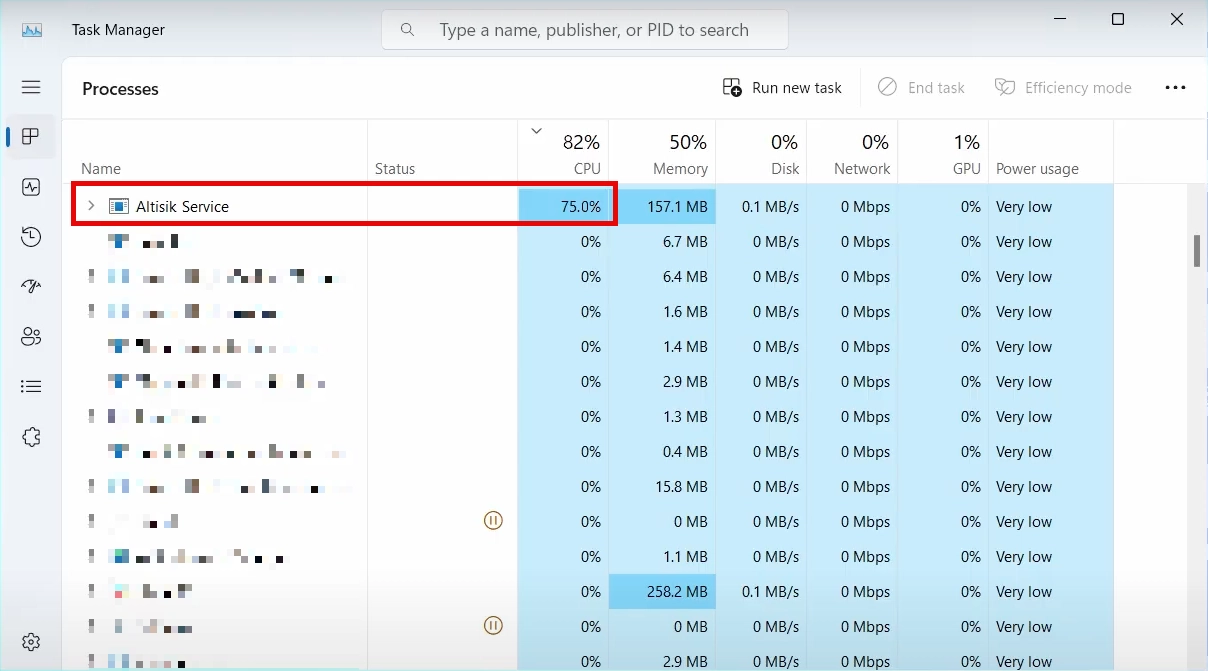
Altisik behaves like a coin miner: it can use processor resources to perform cryptocurrency-mining work in the background. That is why affected systems often show 40%, 60%, 80%, or even 100% CPU usage when the service is active. The visible result is slower apps, higher temperatures, louder fans, laptop battery drain, and occasional freezing.
Stopping the process in Task Manager may only pause the symptom. If the service, helper file, startup entry, or scheduled task remains, Windows can launch it again.
How Altisik usually gets installed
Altisik reports commonly fit the same pattern as other unwanted service miners: a user downloads a game mod, cracked app, fake installer, “required” player, optimizer, or utility from a third-party download page. The visible program may install, but an additional service is added quietly.
- fake download buttons on software and game pages;
- cracks, keygens, repacks, and unofficial installers;
- fake OptiFine/Minecraft mod installers or game launchers;
- bundled “recommended” offers inside installers;
- loader malware that later drops a miner service.
Safe file check: AltisikService.exe
Before deleting random files, collect the basic facts. Right-click the process in Task Manager, choose Open file location, and check the path, publisher, size, and digital signature. Be careful: a valid-looking signature does not automatically make the file safe if it arrived through a bundle or crack.
| Check | Suspicious sign |
|---|---|
| File path | Temp folders, random user folders, unknown app folders, or a folder you do not remember installing |
| Publisher | Unknown publisher, unusual company name, or a name unrelated to the app you intended to install |
| Behavior | High CPU usage, process returns after ending it, Defender disabled, or security settings changed |
| Related files | AltisikHelper.exe, AltisikHelper.dll, unexpected scheduled tasks or services |
How to remove Altisik Service
The safest removal route is to start Windows in Safe Mode with Networking, run a full malware cleanup, and then verify that the service and helper entries are gone.
To enter Safe Mode with Networking, open the Start menu, hold Shift, and click Restart.
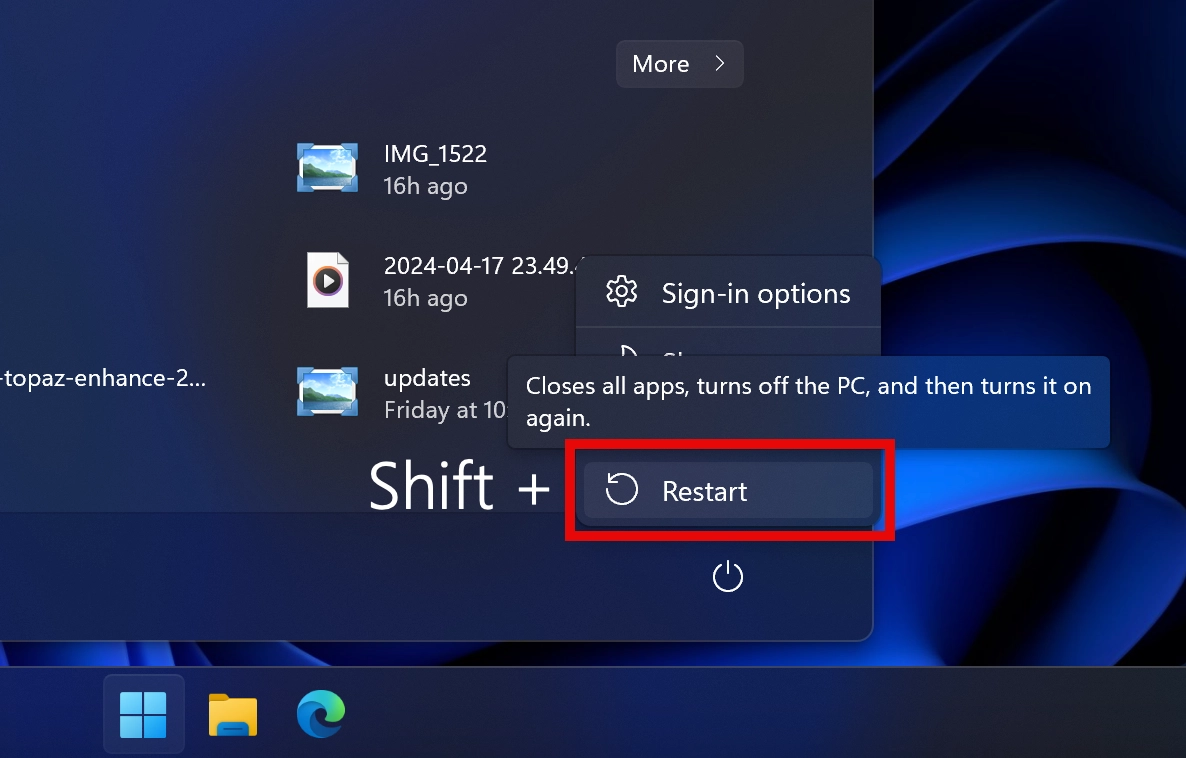
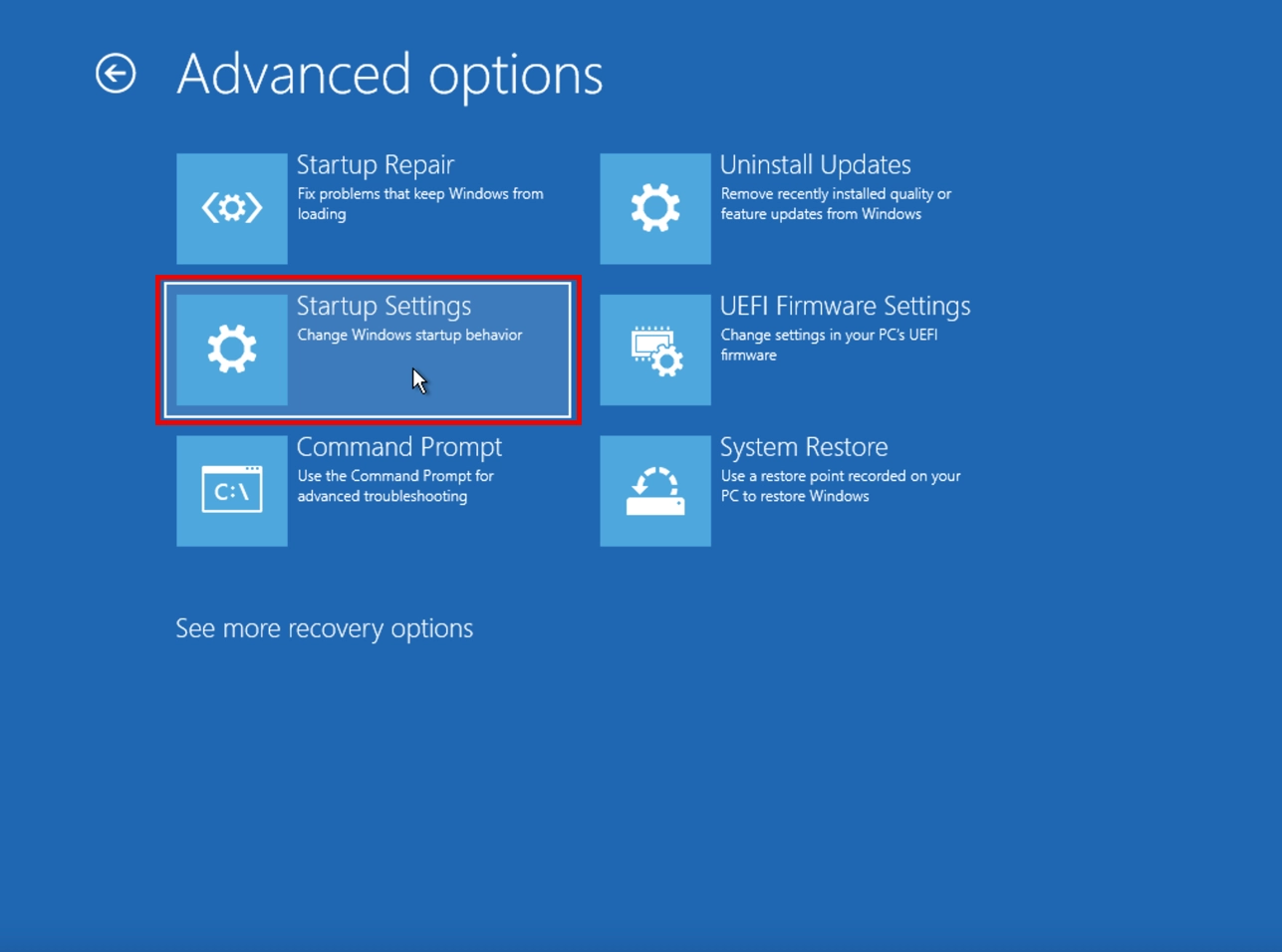
When Windows reboots, choose Troubleshoot → Advanced options → Startup Settings → Restart.
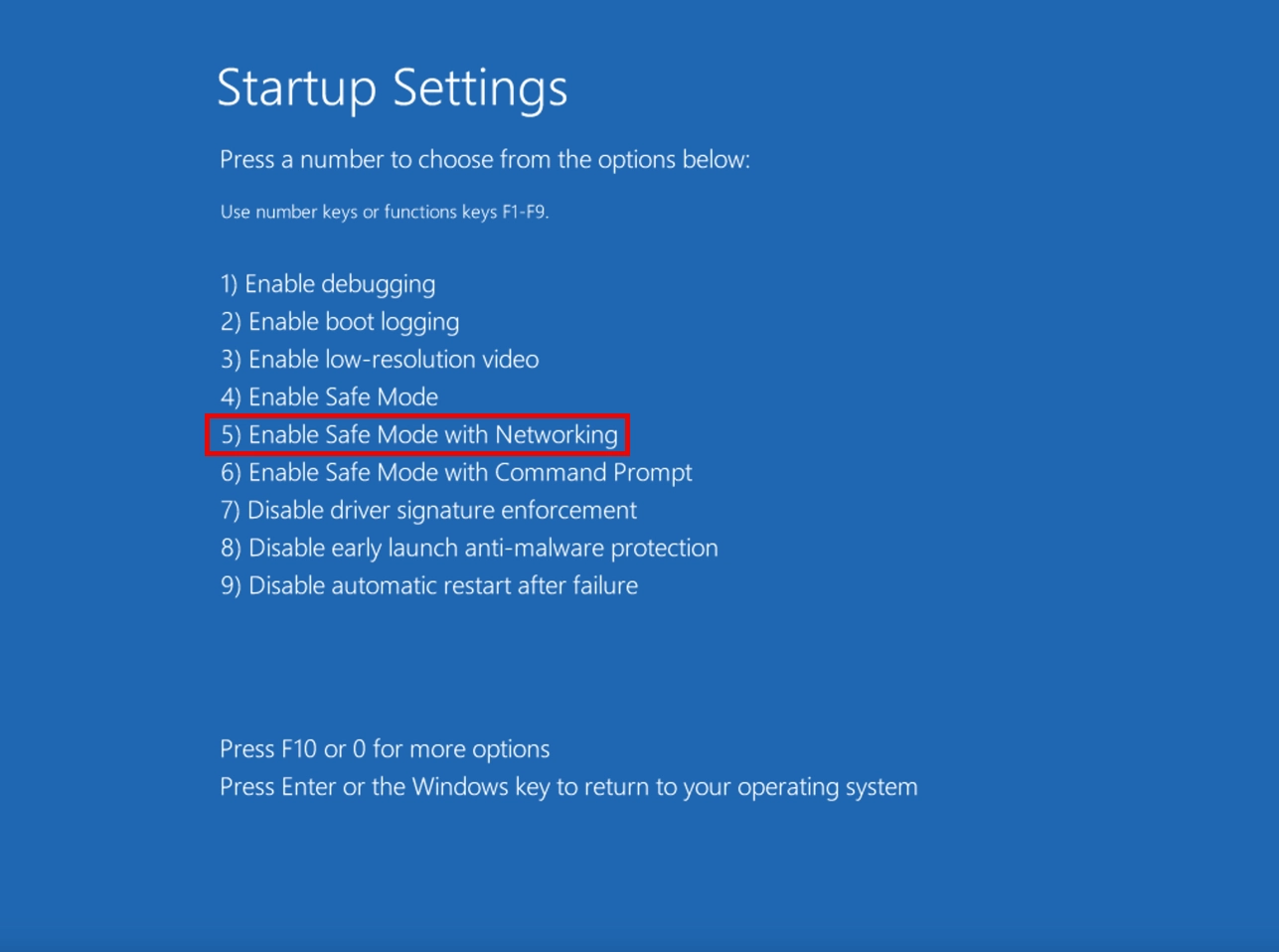
Then select Safe Mode with Networking. It is usually the F5 option.
If Safe Mode is difficult to open, use our full guide: How to remove a virus from a computer in Safe Mode.
After uninstalling the suspicious app or deleting the visible threat, use Gridinsoft Anti-Malware to check hidden files, startup entries, scheduled tasks, bundled apps, browser changes, and other persistence points that can restore malware.
Download Anti-MalwareManual checks after removal
After the scan, check whether Altisik has left persistence behind. Do not remove random Windows services. Only disable or delete entries you can clearly tie to Altisik or the suspicious installer that introduced it.
- Open Services and look for Altisik, Altisik Service, or a recently created unknown service.
- Open Task Scheduler and review recently created tasks with random names or unknown paths.
- Check Settings → Apps for recently installed unknown apps.
- Check Startup Apps for suspicious entries.
- Review browser extensions and notification permissions.
- Run one more full scan after reboot to confirm the service does not return.
What if Altisik Service comes back?
If Altisik returns after reboot, something is restoring it. The usual causes are a scheduled task, helper executable, startup entry, browser-bundled app, or another loader still present on the system. Re-check the original installer folder, Downloads, Temp folders, and any crack/mod directory you used shortly before the infection.
If you ran a crack, keygen, fake game installer, or unknown mod loader, treat the incident as broader than one miner. Change passwords for important accounts after cleanup, especially browser-saved accounts, email, gaming, crypto, and banking.
Related suspicious service and miner guides
- AlrustiqApp.exe / Alrustiq Service removal
- Aluc Service and Aluc App removal
- Almoristics Application miner symptoms
- Bitfiat process high CPU removal
- MicrosoftHost.exe high CPU miner removal
- Hellminer.exe coin miner symptoms
- Suspicious Windows service miner removal hub
FAQ
Is Altisik Service a virus?
It should be treated as malware or an unwanted miner-style service if it appears unexpectedly, uses high CPU, or returns after you end the task.
Is Altisik Service part of Windows?
No. Altisik Service is not a normal Microsoft Windows service. A Windows service can be legitimate, but this name is not a standard Windows component.
Why does Altisik Service keep coming back?
A service entry, helper file, scheduled task, startup entry, or loader may still be present. Remove persistence, not only the visible process.
Can I just delete AltisikService.exe?
Only deleting the executable may fail if the service or helper component remains. Use a full cleanup scan, then verify Services, Startup, and Task Scheduler.
Do I need to reinstall Windows after Altisik?
Usually no, if a full cleanup removes the service and scans come back clean. Consider reinstalling only if security tools remain disabled, unknown admin users appear, or suspicious tasks keep returning.