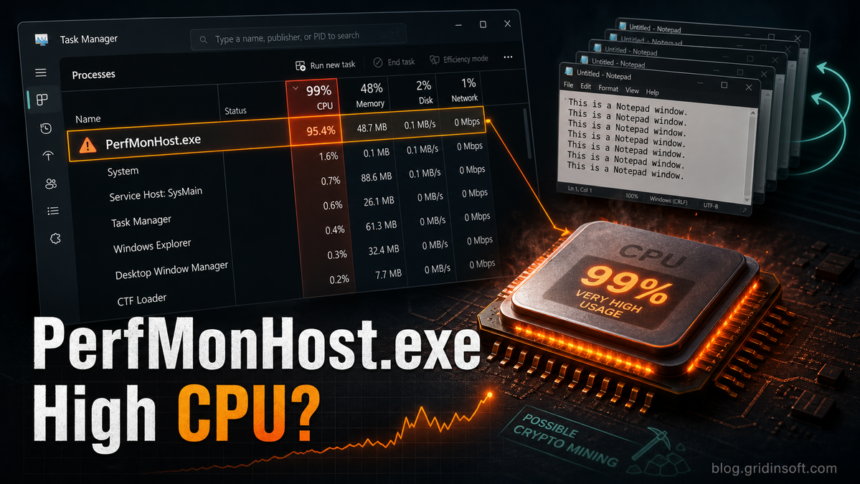
PerfMonHost.exe should not be ignored when it appears with very high CPU usage, opens or relaunches Notepad, or runs from a user profile, Temp, Downloads, or another unusual folder. Windows has legitimate performance-monitoring tools, especially perfmon.exe, but PerfMonHost.exe is not a normal user-facing Windows process name. Treat it as suspicious until you verify the file path, signature, startup entry, and scan result.
A recent user report described PerfMonHost.exe using Notepad while consuming about 70% CPU. The associated SHA-256 hash 044ce80c10f4507ba40847261b885829eeafca657e31ff68a228e584d40f6fa2 is listed by Maltiverse as a malicious sample with xmrig, miner, and persistence tags. That does not mean every file with this name is the same malware, but it is enough to make a high-CPU copy worth a careful cleanup.
If the high-CPU clue is a service named Altisik instead of a PerfMonHost.exe process, use the Altisik Service cleanup guide; both patterns require checking the loader and persistence, not only ending the visible process.
What is PerfMonHost.exe?
PerfMonHost.exe is a suspicious filename that imitates Windows performance-monitoring language. The legitimate Microsoft command is perfmon, which opens Performance Monitor and is normally tied to Windows system components. Windows also has a separate, legitimate PerfHost.exe Performance Counter DLL Host when its SysWOW64 path, Microsoft signature, and service context match. A file named PerfMonHost.exe running as a separate high-CPU process should be checked like any other possible miner or process lookalike.
The name is especially suspicious when the file is not in a protected Windows directory, has no valid Microsoft signature, returns after you end it, or appears after a crack, fake update, unknown installer, game cheat, or archive was opened.
Warning signs that point to malware
PerfMonHost.exeuses a large share of CPU or GPU while the PC is idle.- Notepad opens repeatedly, relaunches after you close it, or appears tied to the same process tree.
- The file runs from
%TEMP%,%APPDATA%,%LOCALAPPDATA%,%USERPROFILE%\Downloads, a browser cache folder, or an unpacked archive directory. - Task Manager shows the process coming back after reboot.
- There is a new scheduled task, service, Startup entry, or registry value under
HKCU\Software\Microsoft\Windows\CurrentVersion\Run. - Security tools detect a miner, suspicious process, loader, or persistence component.
Check the file before deleting it
- Open Task Manager, right-click
PerfMonHost.exe, and choose Open file location. If possible, note the full path before ending the process. - Right-click the file, open Properties, and check the Digital Signatures tab. No signature or an unknown signer is a warning sign.
- Compare it with the legitimate Windows tool path. Windows Performance Monitor is typically launched through
perfmon.exe, not a randomPerfMonHost.exein a user-writable folder. - If CPU usage is extreme, disconnect from the network before cleanup. This can stop a miner from talking to a pool while you investigate.
- Do not restore or allow the file just because the name looks like a Windows performance component.
How to remove PerfMonHost.exe malware
- Record the file path, hash if available, and parent process. Process Explorer can help show whether Notepad, PowerShell,
cmd.exe, or another launcher is involved. - End
PerfMonHost.exeonly after recording the location. If it immediately returns, persistence is likely still active. - Delete the suspicious file only from the user-writable or installer folder you verified. Do not delete legitimate Windows files from
C:\Windows\System32just because a process name looks similar. - Open Task Scheduler and review recently created tasks. Remove only tasks that clearly point to the same suspicious path or random launcher.
- Check Startup apps, Services, and registry Run keys for the same path, random names, or commands that reopen Notepad or a miner payload.
- Review Windows Security exclusions. Malware sometimes adds an exclusion for its folder so the next scan misses it.
- Run a full malware scan and remove detections. Reboot, then check whether CPU usage and Notepad relaunches are gone.
If PerfMonHost.exe keeps returning after manual cleanup, the visible file is probably only one part of the infection. A loader, scheduled task, service, Defender exclusion, or bundled module can recreate it after reboot. Run a full Gridinsoft Anti-Malware scan, remove detections, reboot, and scan again if the process or high CPU usage returns.
If the process path is wrong, the name imitates a Windows component, or high CPU started after an unknown installer, scan for hidden miners, services, startup entries, and bundled components.
Scan the suspicious processWhy would Notepad be involved?
Notepad itself is not a miner. In this case it is a symptom to investigate: malware can spawn a visible harmless-looking process, abuse file associations, run a script through a renamed helper, or keep reopening a window while the real payload runs elsewhere. The important checks are the parent process, command line, file path, and persistence entry.
If Notepad opens with strange repeated text, a blank document, or returns every time you close it, look for the launcher that starts it. Do not focus only on notepad.exe; the process that created it is usually more important.
Could PerfMonHost.exe be a false positive?
It is possible for a legitimate tool to use performance-monitoring words in a filename, but the false-positive path is narrow. A safe copy should have a clear vendor, a normal installation folder, a valid signature, and a reason to run. A copy in Downloads, Temp, AppData, or a random archive folder with high CPU usage should stay quarantined until you can prove what installed it.
If you need to verify a file before deleting it, upload the exact file to a trusted multi-scanner or vendor submission portal, then compare the hash with the file on disk. Do not rely on the process name alone.
What to check after cleanup
- CPU usage returns to normal after reboot.
PerfMonHost.exeno longer appears in Task Manager.- Notepad no longer reopens by itself.
- No task, service, Startup item, or Run key points to the old file path.
- Security exclusions do not include the suspicious folder.
- If the file came from a crack, fake update, cheat, or unknown installer, uninstall the related app and change passwords for accounts used on the PC after the suspicious file ran.
For broader miner symptoms, see our XMRig.exe removal guide and coin miner malware overview. If the suspicious process is installed as a service, the Windows service miner cleanup guide explains what to check next.
FAQ
Is PerfMonHost.exe a Windows system file?
No clear Windows system component normally needs a separate user-facing process named PerfMonHost.exe. Microsoft documents perfmon for Performance Monitor, so a high-CPU PerfMonHost.exe should be verified by path and signature.
Should I delete PerfMonHost.exe immediately?
First record the file path and parent process. Then quarantine or remove it if it is in a user-writable folder, unsigned, detected by security tools, or tied to high CPU and persistence.
Can a miner damage my computer?
A miner can keep CPU or GPU usage high, increase heat and fan noise, slow the PC, and waste power. The bigger risk is the installer or loader that brought it, because it may also add persistence or other malware.
Why does Notepad keep opening?
Notepad may be a visible side effect of a script, launcher, or persistence command. Check the parent process and startup entries instead of assuming Notepad itself is the main threat.
References
- Microsoft Learn. “perfmon.” Microsoft, last modified February 16, 2026, accessed June 30, 2026. https://learn.microsoft.com/en-us/windows-server/administration/windows-commands/perfmon
- Maltiverse. “Sample 044ce80c10f4507ba40847261b885829eeafca657e31ff68a228e584d40f6fa2.” Maltiverse, accessed June 30, 2026. https://maltiverse.com/sample/044ce80c10f4507ba40847261b885829eeafca657e31ff68a228e584d40f6fa2