
Svchost.exe is usually a legitimate Microsoft Windows process called Service Host, not a virus. It runs background services that Windows needs for networking, updates, audio, printing, security, and other functions. A same-name file becomes suspicious when it runs from AppData, Temp, Downloads, or another user-writable folder, lacks a valid Microsoft signature, has no coherent hosted service, or returns through an unknown task, service, script, or startup entry.
The genuine executable normally runs from C:\Windows\System32\svchost.exe; 64-bit Windows can also contain a Microsoft-signed 32-bit copy under C:\Windows\SysWOW64\. Do not delete every process with this name. Verify the exact path, signature, process ID, hosted service, command line, and persistence source before deciding whether it is safe.
Seeing many Service Host processes is normal on current Windows versions. High CPU, memory, disk, or network use is also a symptom, not a malware verdict: a legitimate Windows service can become busy or broken. The strongest warning is a wrong-path or unsigned copy, especially when it reappears after reboot or starts after a crack, fake update, or unknown installer.
What is svchost.exe and why are so many processes running?
Service Host is a shared process that loads Windows services implemented as DLL files. Microsoft separated many services into their own SvcHost processes beginning with Windows 10 version 1703 on typical desktop systems. That isolation improves reliability, security, and resource reporting: a failure in one hosted service is less likely to take down unrelated networking or system functions.
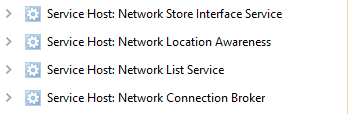
The number of entries therefore does not tell you whether the PC is infected. Instead, identify the exact process ID and the service behind the busy or suspicious instance. Modern Task Manager may show descriptive names such as Service Host: Network Service, while the Details tab shows the underlying svchost.exe processes.
Real or fake svchost.exe: the fast decision
| What you find | Risk and what to do |
|---|---|
C:\Windows\System32\svchost.exe with a valid Microsoft signature |
Usually legitimate. Identify the hosted service before changing anything. |
C:\Windows\SysWOW64\svchost.exe with a valid Microsoft signature |
Can be a legitimate 32-bit Windows component on 64-bit Windows. Do not classify it by folder name alone. |
%LOCALAPPDATA%\Temp\svchost.exe, %APPDATA%\svchost.exe, Downloads, Desktop, or another user-writable folder |
Highly suspicious. Do not run it. Record its path and launcher, then quarantine it. |
A Microsoft-looking user folder such as %LOCALAPPDATA%\Microsoft\OfficeBroker\svchost.exe |
The folder name does not make the file genuine. Check the signature, parent, command line, task, and service. |
| Many Service Host entries in Task Manager | Normal by itself. Windows separates services across multiple host processes. |
| High CPU, memory, disk, or network activity | Investigate the hosted service and executable path. Resource use alone cannot distinguish a broken service from malware. |
| The process or file returns after deletion or reboot | Assume a task, service, Run entry, script, WMI subscription, or Image File Execution Options entry is restoring it. |
How to check the path, signature, and hosted service
1. Open the executable location
Open Task Manager, switch to the Details tab, right-click the specific svchost.exe instance, and choose Open file location. If Windows opens System32 or SysWOW64, continue with the signature and service checks. If it opens a user profile, Temp, Downloads, or an unfamiliar Microsoft-looking subfolder, do not double-click the file.
If the suspicious process exits when Task Manager opens, note the path from the security alert, startup entry, scheduled task, or antivirus history instead. A disappearing process is useful context, but it is not proof by itself.
2. Verify the digital signature
Open the file’s Properties and check the Digital Signatures tab. A normal Windows copy should have a valid Microsoft signature. The absence of that tab, an invalid signature, or a different signer makes a same-name copy more suspicious. For a command-line check, Microsoft Sysinternals Sigcheck can report the file version, hashes, and signing chain.
Get-AuthenticodeSignature 'C:\Windows\System32\svchost.exe' |
  Format-List Status, StatusMessage, SignerCertificate
Run the command against the exact suspicious path you recorded; do not assume a file is safe merely because its name matches a Windows component. If you want a broader pre-run checklist, use our guide to check whether an EXE file is safe.
3. Map the process to its service
The built-in tasklist command can show which services are hosted by each process ID. Run Terminal or PowerShell as administrator:
tasklist /svc /fi "imagename eq svchost.exe"
Compare the PID with Task Manager. A legitimate Service Host normally maps to one or more Windows services. A wrong-path executable with no coherent service mapping, an unusual command line, or a parent process in AppData deserves closer inspection.
This PowerShell view records the path, command line, PID, and parent PID without executing the files:
Get-CimInstance Win32_Process -Filter "Name='svchost.exe'" |
  Select-Object ProcessId, ParentProcessId, ExecutablePath, CommandLine
Protected system processes may return a blank path unless the terminal is elevated. A blank value is not automatically malicious.
Does high CPU mean svchost.exe is a virus?
No. Windows Update, networking, audio, printing, device discovery, telemetry, or another hosted service can make a legitimate Service Host busy. Resource use becomes a useful clue only after you identify the exact PID, hosted service, file path, and signer.
- Sort Task Manager by the affected resource. Note the PID of the
svchost.exeinstance using CPU, memory, disk, or network bandwidth. - Choose Go to service(s). Task Manager highlights the service or services running under that PID. You can also match them with
tasklist /svc. - Check whether the spike persists. Short activity during Windows Update, startup, device connection, printing, or network changes can be normal. A sustained spike needs service-specific troubleshooting.
- Verify the executable. A Microsoft-signed copy in
System32orSysWOW64points toward a stuck service. A user-folder copy, invalid signature, unknown parent, or unrelated startup entry points toward malware impersonation. - Fix the named service, not svchost.exe as a whole. Do not disable random services or delete the system executable. Restart or repair only the component supported by the evidence.
If the busy entry is Service Host: Network Service and the slowdown is bandwidth-related, follow the Network Service high network usage diagnostic steps to separate Microsoft downloads, peer uploads and other services before changing update settings.
If the busy host contains Diagnostic Policy Service (DPS), use the Diagnostic Policy Service high CPU guide to match its PID and recurring Windows events before resetting SRU data or changing diagnostics.
If the symptom is an error popup, crash, or memory read/write message rather than a wrong-path copy, follow the separate svchost.exe Application Error guide. That repair lane covers damaged Windows components and service failures without confusing them with a fake process.
Malware can also inject code into a legitimate process or make the real Service Host load a malicious component. A correct path and signature therefore reduce the chance of a simple filename impersonator, but they do not explain unexplained child processes, blocked outbound traffic, a suspicious service DLL, or activity that begins immediately after an unknown installer.
How to remove a fake svchost.exe safely
- Disconnect the affected PC from the network. This limits mining traffic, payload downloads, and remote control while you investigate. Do not use the PC for banking or password changes until the cleanup is complete.
- Record the evidence. Note the full path, PID, signature result, command line, parent PID, task or service name, and the time the process returned. Do not upload or share the executable.
- Quarantine the wrong-path file with your installed security tool. Do not manually delete
C:\Windows\System32\svchost.exe, the signedSysWOW64copy, or a service solely because its name looks unfamiliar. - Find the launcher. Microsoft Sysinternals Autoruns covers Logon entries, Scheduled Tasks, Services, WMI, and Image Hijacks. Hide verified Microsoft entries, then inspect unsigned entries that point to the same user-writable folder or script. Disable a confirmed malicious entry first; delete it only after you have preserved the path and verified that Windows starts normally.
- Check related persistence. Review Task Scheduler actions, service executable paths, Startup folders, Run keys, PowerShell scripts, and any unexpected
Debuggervalue underHKLM\SOFTWARE\Microsoft\Windows NT\CurrentVersion\Image File Execution Options\svchost.exe. Never remove the entire IFEO branch blindly. Our IFEO hijack guide explains the safer export, validation, and cleanup sequence. - Run a full malware scan. The visible fake file may be only one part of the infection. A loader, scheduled task, service, bundled module, or exclusion can recreate it. Run a full Gridinsoft Anti-Malware scan, remove confirmed detections, reboot, and scan again if the process or security warning returns.
If the process consumes CPU for cryptocurrency mining, use the broader CoinMiner removal guide. If a suspicious Windows service or task keeps restarting the miner, the service miner cleanup guide covers that persistence layer. A fake RuntimeBroker.exe can use a similar impersonation pattern, but it has its own path and scheduled-task checks.
Why the fake process keeps coming back
Deleting the visible executable treats the symptom, not the start mechanism. A scheduled task can run a command script after logon; a service can relaunch the file when stopped; a Run entry can restore it for each user; a WMI subscription can trigger on a system event; and an IFEO Debugger value can redirect launches of a named executable. Miners commonly benefit from recurrence because the operator wants the workload to resume after every reboot.
Match persistence by destination, not by a reassuring label. A task named like a Windows update is still suspicious when its action points to AppData, Temp, an encoded PowerShell command, or an unknown script. Conversely, do not delete a genuine Windows task or service simply because it starts svchost.exe.
Confirm the cleanup after reboot
- The wrong-path file no longer exists and is not restored after two reboots.
- No task, service, Run entry, WMI subscription, or IFEO entry points to its former folder.
- Every remaining
svchost.exepath is expected and the system copies retain a valid Microsoft signature. - CPU and network activity remain normal after the machine has been idle for several minutes.
- A second full scan finds no loader, miner, script, or persistence component.
If the fake file ran after a crack, fake update, or unknown installer, remove that source application too. Change important passwords from a clean device only when the incident also involved browser-session theft, suspicious logins, or a stealer detection; a miner alert alone does not prove that passwords were stolen.
FAQ
Is svchost.exe a virus?
No. The Microsoft-signed Service Host in an expected Windows system folder is legitimate. Treat a same-name file as suspicious when its path, signer, hosted service, command line, parent process, or startup behavior does not match the Windows component.
How do I check if svchost.exe is infected?
Open the exact file location, verify the Microsoft digital signature, map its PID to hosted services, and inspect its command line and startup source. A wrong-path copy in a user-writable folder plus an unknown task, service, script, or recurring alert is much stronger evidence than high CPU or multiple processes alone.
Is every svchost.exe outside System32 malware?
No. On 64-bit Windows, a valid Microsoft-signed copy under C:\Windows\SysWOW64\ can be legitimate. A copy in AppData, Temp, Downloads, Desktop, or another user-writable folder is far more suspicious and needs path, signature, command-line, and persistence checks.
Why are there so many Service Host processes?
Windows separates many services into different host processes for isolation, permissions, and reliability. Multiple instances are normal; their hosted services, paths, and signatures matter more than the count.
Can I end all svchost.exe processes in Task Manager?
No. Ending legitimate Service Host processes can interrupt networking, audio, updates, authentication, and other Windows functions. Identify the exact PID and hosted service before taking action.
Why does the fake svchost.exe return after I delete it?
A separate persistence component is probably recreating it. Check scheduled tasks, services, Run keys, Startup folders, WMI entries, scripts, and IFEO Image Hijacks, then scan for the loader as well as the visible file.
Is a Microsoft-signed svchost.exe always safe?
A valid signature in an expected Windows folder strongly supports that the executable itself is genuine, but it does not explain every behavior. Investigate unusual service DLLs, command lines, child processes, and outbound traffic when the symptoms remain.
References
- Microsoft. “Service host grouping in Windows 10.” Microsoft Learn, updated February 23, 2023; accessed August 23, 2026. Microsoft Learn.
- Microsoft. “tasklist.” Microsoft Learn, updated February 3, 2023; accessed August 23, 2026. Microsoft Learn.
- Russinovich, Mark. “Sigcheck v2.91.” Microsoft Sysinternals, February 4, 2026; accessed August 23, 2026. Microsoft Learn.
- Russinovich, Mark. “Autoruns v14.3.” Microsoft Sysinternals, June 17, 2026; accessed August 23, 2026. Microsoft Learn.