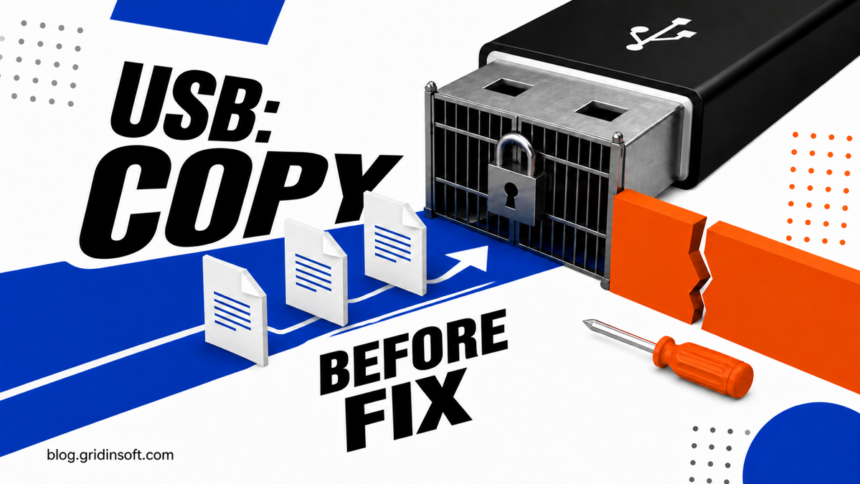
If a USB drive is still readable, copy its files to another device before trying to remove write protection. Windows can clear a software-set read-only attribute, but it cannot safely reverse a flash controller that has locked a worn or corrupted drive to prevent further data loss. A USB that stays read-only on another computer—or shows Current Read-only State: Yes while Read-only: No—should be treated as potentially failing, not as a drive that needs a more aggressive format tool.
The safest sequence is to identify where the restriction follows the drive, inspect its state without changing partitions, and use only the fix that matches the evidence. Do not run DiskPart clean, format the drive, or try controller-flashing utilities while important files exist only on that USB.
What a write-protected USB state usually means
| Situation | What it means and what to do |
|---|---|
| An SD adapter or USB device has a lock switch | Move the switch to the unlocked position, reconnect the device, and test one small file. |
| The drive is writable on another computer | The first PC likely has a permissions, BitLocker, security, or removable-storage policy issue. |
Read-only: Yes in DiskPart |
A disk attribute may have been set. Back up first, select the correct disk, and clear only the read-only attribute. |
Current Read-only State: Yes but Read-only: No |
Windows is receiving a read-only state from somewhere other than that clearable DiskPart attribute. Check policy and another PC; if it follows the drive, suspect controller or flash wear. |
| The drive became read-only after years of use and stays that way everywhere | Copy readable data immediately and replace the drive. SanDisk documents that exhausted or corrupted flash blocks can make a device protect itself against writes.[2] |
| Several USB drives are blocked only on one PC | Check organization policy, BitLocker requirements, and security evidence before changing individual drives. |
1. Preserve readable files before repair
Open the drive in File Explorer and copy irreplaceable documents, photos, and project files to a healthy local disk. Copy the most important small files first if the connection is unstable. Do not reorganize folders, delete files, or repeatedly benchmark the drive: each extra read can matter when flash memory is deteriorating.
If Windows cannot read the files, the drive disconnects, reports No Media or 0 bytes, becomes unusually hot, or repeatedly vanishes from Disk Management, stop DIY repair when the data is valuable. A professional recovery lab can make an evidence-based decision without first erasing partition information.
2. Check the physical device and whether the problem follows it
- Look for a lock. Full-size SD cards and some adapters have a physical write-protect tab. Ordinary USB flash drives usually do not, but a few specialist models do.
- Reconnect directly. Remove unpowered hubs, try another USB port, and use another cable if the device is an external enclosure rather than a one-piece flash drive.
- Try another trusted computer. If the same drive remains read-only there, a policy on the first PC is less likely. If it works elsewhere, focus on Windows policy, encryption, permissions, or security software on the original PC.
- Do not confuse read-only files with a read-only disk. A single file can have its own read-only attribute while the rest of the USB remains writable. The “disk is write protected” error affects the storage device or volume.
3. Check BitLocker before changing disk attributes
In File Explorer, look for a padlock on the drive and make sure it is unlocked. Windows can also be configured to deny writes to removable drives that are not protected by BitLocker. Microsoft documents removable data volumes in the BitLocker status tools and the separate write-denial policy for unprotected media.[3][4]
On Windows Pro, Enterprise, or Education, open Command Prompt as administrator and inspect the target drive letter:
manage-bde -status E:
Replace E: with the USB drive letter. A locked BitLocker volume needs the password or recovery key; clearing a DiskPart attribute does not decrypt or unlock it. On a work or school computer, contact the administrator instead of disabling an organization policy.
4. Inspect the USB with DiskPart
DiskPart changes whichever disk currently has focus. Microsoft therefore requires selecting the disk before the attributes disk command works.[1] Verify the disk by its capacity and, when uncertain, use detail disk. Never assume the USB is always Disk 1.
diskpart
list disk
select disk N
detail disk
attributes disk
Replace N with the confirmed USB disk number. Read both output lines:
Read-only: Yesmeans the clearable disk attribute is set.Current Read-only State: Yesreports the state Windows currently receives. If the ordinaryRead-onlyattribute saysNo,attributes disk clear readonlymay not change the underlying cause.
After readable data is backed up, clear only the read-only attribute:
attributes disk clear readonly
attributes disk
Exit DiskPart, safely disconnect the USB, reconnect it, and test by copying one disposable small file. A “successful” DiskPart message is not proof that failing flash memory is healthy. If the drive returns to read-only, replace it.
5. Check Windows removable-storage policy
If the USB works on another PC or multiple removable drives are blocked on the same computer, open gpedit.msc on supported Windows editions and inspect:
Computer Configuration > Administrative Templates > System > Removable Storage Access
The relevant setting is Removable Disks: Deny write access. A separate BitLocker policy can deny writes to removable drives that are not encrypted. Microsoft lists these controls under the removable-storage policy set and notes that enabled deny-write settings block writes to that device class.[4]
Do not create random StorageDevicePolicies registry keys from a generic tutorial. A managed setting may be deliberate, and an unrelated registry edit will not repair a controller-enforced read-only state. On a personal PC, change a policy only when you can show that it is enabled and is the cause.
6. Separate file-system trouble from failing flash memory
A drive with its normal capacity and a mounted volume can have file-system errors, but that is not the same as a device reporting no usable media or enforcing read-only at the controller. Run file-system repair only after a backup and only against the confirmed drive letter. Formatting is a last step for disposable data, not a diagnostic shortcut.
SanDisk explains that flash drives track usable blocks and can switch to write protection when too few good blocks remain or when redundant storage-block data is corrupted. Its own DiskPart guidance warns that clearing read-only works only when the drive is not exhausted, and its format instructions explicitly require copying files first because formatting destroys data.[2]
Replace the USB rather than trusting it again when any of these remain true:
- write protection follows the drive to another computer;
Current Read-only StatestaysYesafter the clearable attribute isNo;- the drive repeatedly disconnects, changes capacity, reports I/O errors, or becomes 0 bytes;
- write protection returns after a reconnect or reboot;
- the USB is old, heavily used, or already caused corrupted files.
When malware is a realistic possibility
Write protection alone is not evidence of malware. A security check becomes reasonable when several drives are affected only on one PC, policy values changed unexpectedly, the USB contains shortcut files or hidden originals, an unfamiliar autorun entry appears, or suspicious processes started around the same time.
Disconnect other removable drives, inspect the affected PC, and follow the dedicated USB shortcut-virus cleanup steps if folders were replaced by shortcuts. The guide to choosing an offline scan, rescue USB, or reinstall explains when another removable device is safe to use. If corroborating signs exist, run a full Gridinsoft Anti-Malware scan to check for malicious policy changes, startup entries, autorun artifacts, bundled apps, and other persistence. A malware scan cannot repair failed NAND flash or recover files erased by formatting.
What not to do before the files are safe
- Do not use DiskPart
clean; it removes partition information. - Do not format because a guide presents it as the next numbered fix.
- Do not flash an unknown controller firmware or use a “low-level format” utility on a drive with irreplaceable data.
- Do not keep reconnecting a drive that clicks, overheats, disconnects, or changes reported capacity.
- Do not trust the USB for future backups after write protection returns.
Once the files are safe, retire an unreliable USB and review the broader USB drive security risks before reusing removable media. If the problem appeared during malware recovery, build a clean Windows install USB on a known-clean computer rather than trying to rehabilitate suspect media.
FAQ
Can I format a write-protected USB?
Only after all needed files are backed up. Formatting destroys data and may still fail when the flash controller has forced the drive into read-only mode. Even if it succeeds, a drive that repeatedly becomes write-protected should be replaced.
Why does DiskPart say it cleared read-only, but the USB is still protected?
DiskPart may have cleared the software attribute while Windows still receives a current read-only state from policy, encryption, an adapter switch, or the device controller. Test another computer; if the restriction follows the USB, prioritize data recovery and replacement.
What does “Current Read-only State: Yes” and “Read-only: No” mean?
It means the standard DiskPart read-only attribute is not set, but the disk is currently being presented as read-only. A policy or underlying device state can cause that mismatch. Persistent behavior on another PC is a strong warning that the drive itself is protecting failing storage.
Will a registry edit remove USB write protection?
Only when a specific Windows policy or value is actually causing the restriction. Creating keys copied from an unrelated tutorial will not fix worn flash memory and can weaken an intentional organization policy.
Is a write-protected USB infected?
Not necessarily. Hardware wear, a physical lock, BitLocker rules, and Windows policy are more direct explanations. Investigate malware only when other evidence exists, such as shortcut files, unexpected policy changes, autorun artifacts, or several drives affected on one PC.
References
- Microsoft. “attributes disk.” Microsoft Learn, updated February 3, 2023; accessed August 14, 2026. Microsoft Learn command reference.
- SanDisk. “Steps to Solve a Read-Only Disk Is Write Protected Message on a USB Flash, Memory Card, and External Drive.” SanDisk Support, accessed August 14, 2026. SanDisk support article.
- Microsoft. “BitLocker Operations Guide.” Microsoft Learn, updated July 29, 2025; accessed August 14, 2026. Microsoft Learn guide.
- Microsoft. “ADMX_RemovableStorage Policy CSP.” Microsoft Learn, accessed August 14, 2026. Microsoft Learn policy reference.