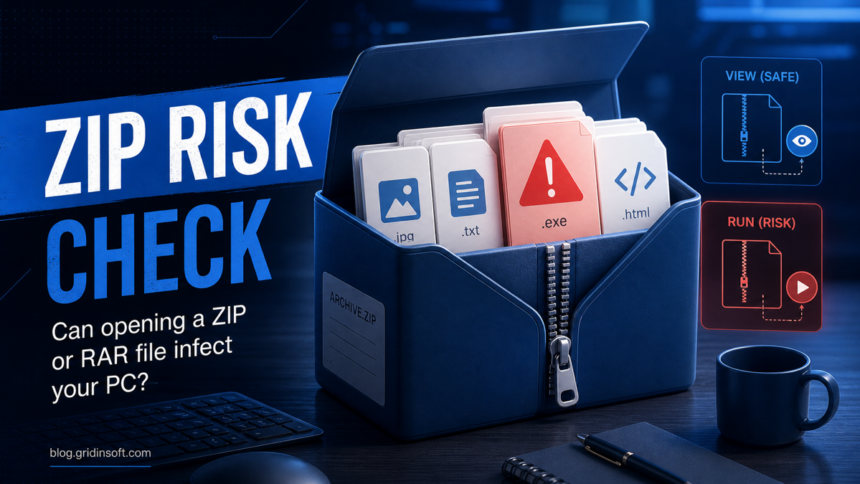
Usually, opening a ZIP or RAR file just to look at the file list does not infect your PC. The higher-risk moment is when you run a file inside the archive, open a malicious document, extract with an outdated archiver that has a known parsing bug, or launch a self-extracting archive that is really an EXE. WinRAR 7.23 is a fresh reminder: RARLAB fixed security issues in RAR5 recovery-volume handling and symbolic-link extraction on June 30, 2026.5 If you only previewed the archive contents and closed it, the risk is usually low, but you should still delete the archive and scan it if it came from a random ad, email, torrent, mod site, crack, or unknown sender.
If an extracted file refuses deletion with the “file is open in another program” message, use our locked suspicious file cleanup checklist before force-deleting it.
If the archive or installer came from a YouTube converter or fake download page, follow the YouTube video downloader virus cleanup guide as well, because the risk often includes browser permissions and startup persistence, not only the downloaded file.
Think of an archive as a box. Looking at the label is different from taking out an item and running it. If your question is about a standalone video instead of an archive, use our MP4 and M4V malware safety checklist before opening the file. Malware authors use ZIP, RAR, 7z, ISO, and SFX archives because they hide payloads, bundle many files together, and make victims curious enough to double-click something inside. Microsoft lists malicious email attachments, macros, bundled downloads, and vulnerable software as common infection paths, which is why archive handling should be cautious even when the archive itself looks harmless.1
If the archive already triggered a Trojan alert or you opened a file from it, use the broader Trojan malware cleanup checklist to decide whether you need a full scan, password changes, or an offline scan.
Quick Risk Ladder
| What happened | Risk level | What to do next |
|---|---|---|
| You only opened the ZIP/RAR and viewed the file names. | Low, if your archive tool is current. | Close it, delete it if untrusted, and scan the archive before touching any file inside. |
| You extracted the archive but did not open anything. | Low to medium. Parser bugs and path-traversal bugs are rare but real. | Update 7-Zip/WinRAR, scan the extracted folder, and remove suspicious files. |
| You opened a document, PDF, shortcut, script, HTML file, or installer from the archive. | Medium to high. | Disconnect if behavior changed, run a full scan, and check browser/session activity. |
| You ran an EXE, SCR, MSI, BAT, CMD, VBS, JS, PS1, or self-extracting archive. | High. | Treat it like an unknown program was executed and follow the cleanup checklist below. |
When Opening an Archive Is Usually Not Enough
Most ZIP and RAR files are containers. A malicious EXE inside the archive cannot do anything while it is simply sitting there. A script cannot change startup entries until something runs it. A document macro cannot execute unless the document is opened and macro protections are bypassed. That is why a user who only saw an EXE inside a ZIP, closed the window, and deleted the download is usually in a much better position than a user who ran the EXE.
Windows also has safety signals around downloaded files. For example, Microsoft documents Mark of the Web behavior for Office files from the internet, where files from untrusted locations are treated differently and macros are blocked by default in supported Office configurations.2 Those warnings are useful, but they are not a reason to test unknown archive contents.
When ZIP or RAR Handling Can Become Dangerous
The practical answer has exceptions. You should be more cautious when any of these apply:
- You ran a file inside. Executables, scripts, shortcuts, fake installers, game cracks, and keygens can start malware immediately.
- You opened a document from the archive. Office files, PDFs, and HTML files can be used for phishing, macro abuse, or exploit chains.
- The archive is self-extracting. An SFX archive is an executable program that unpacks files and can also run commands. See our guide on how SFX archives can launch PowerShell.
- Your archive tool is outdated. GitHub Security Lab disclosed CVE-2026-48095 in 7-Zip 26.00, fixed in 26.01, where a crafted NTFS image handled by 7-Zip could lead to code execution or crashes.3
- You use an affected WinRAR version. ESET reported CVE-2025-8088, a WinRAR path-traversal vulnerability exploited through malicious archives before WinRAR released a patched version in July 2025.4 WinRAR 7.23 later fixed a RAR5 recovery-volume heap overflow and tightened symbolic-link extraction checks, so users who handle RAR files should manually update instead of assuming WinRAR updates itself.5
- The archive came from a high-risk source. Random Discord links, cracked software, fake game mods, ad-popup downloads, password-protected email attachments, and torrent packs deserve a stronger response.
What If Antivirus Says Decompression Bomb or Zip Bomb?
A zip bomb or decompression bomb is a compressed archive that can expand to an extreme size or force a scanner/extractor to spend too much memory, CPU, disk space, or time. It may not contain a normal EXE virus at all, but it is still unsafe to test because the damage comes from decompression itself.
| What you see | Likely meaning | Safer action |
|---|---|---|
| Antivirus says decompression bomb, zip bomb, archive bomb, or high compression ratio. | The archive looks structurally dangerous or too expensive to unpack safely. | Do not extract it. Leave it quarantined, note the file path and source, and delete it if it came from email, chat, cracks, torrents, ads, or unknown downloads. |
| Extraction freezes, disk space drops fast, or the progress bar never moves. | The archive may be expanding far beyond its visible file size. | Cancel extraction, restart if Windows is stuck, remove the partial extracted folder, and run a full scan after the system is responsive again. |
| The warning appears on a trusted backup or developer archive. | It may be a false alarm caused by unusually compressible data, but the source still needs verification. | Do not restore it blindly. Verify the sender/source, update the archiver and security tool, then rescan before extracting in a disposable folder. |
For home users, the practical rule is simple: a zip bomb warning is a reason to stop, not a reason to test the file. If the archive came with instructions to disable antivirus, enter a password from the message body, or run an included installer, treat it as a malicious download path even if the archive itself is only a resource-exhaustion trick.
If your question is about a Defender alert after extracting or downloading an archive, the detection name matters. If the alert is Trojan:Win32/Egairtigado!rfn and the affected file is Default.SFX, check the WinRAR/update source before restoring it. For example, Trojan:Script/Conteban.A!ml and Trojan:Script/Wacatac.B!ml often appear around downloads, archives, scripts, or suspicious installers. Keep the item quarantined and decide based on the source, path, and whether anything ran. For an official WiiUDownloader ZIP or executable, the WiiUDownloader Wacatac.B!ml guide separates a likely false positive from an unsafe mirror copy.
What to Check If You Only Looked Inside
- Do not run anything from the archive. Do not double-click the EXE “just to see,” do not enable macros, and do not open included shortcuts or scripts.
- Delete the archive if the source is unknown. Empty the Recycle Bin only after you are sure you do not need the file for reporting or a scan.
- Update your archive tool. Update 7-Zip, WinRAR, or your preferred extractor from the official site or Microsoft Store. Old archive tools are a bigger risk than Windows’ built-in ZIP viewer for ordinary ZIP browsing.
- Scan the archive or extracted folder. Use your installed security tool first. If you want a second-opinion cleanup check, run Gridinsoft Anti-Malware and scan the download folder, Temp folder, and extracted location.
- Check Protection History or quarantine. If the archive triggered an antivirus alert, note the exact detection name and file path before deleting anything.
- Watch for symptoms. New startup entries, browser redirects, command windows, disabled security tools, or account alerts mean the situation is no longer “just opened a ZIP.”
What to Do If You Extracted or Ran Something
If you extracted files but did not open them, delete the extracted folder, update the archiver, and run a full scan. If you ran an EXE, script, installer, game mod, crack, or SFX archive, handle it like an unknown program executed. That means checking startup entries, scheduled tasks, browser extensions, recent downloads, and account sessions. Our malware activation checklist covers the case where nothing obvious happened after execution.
For possible stealers, the cleanup order matters. Scan and remove malware first, but change passwords and revoke sessions from a clean device if the suspicious file actually ran. The guide on infostealer signs after downloading a game or mod explains what to check for Discord, Steam, browser cookies, Microsoft, Google, and wallet-related accounts.
After uninstalling the suspicious app or deleting the visible threat, use Gridinsoft Anti-Malware to check hidden files, startup entries, scheduled tasks, bundled apps, browser changes, and other persistence points that can restore malware.
Download Anti-MalwareSafe Archive Habits
- Keep 7-Zip, WinRAR, Windows, browsers, Office, and PDF readers updated. For WinRAR, open Help -> About WinRAR; if it is older than 7.23, download the current installer from the official WinRAR/RARLAB site and install it over the existing copy.
- Show file extensions in File Explorer so `photo.jpg.exe` is not mistaken for a picture.
- Do not extract unknown archives into Desktop, Downloads, Startup, or shared folders.
- Be especially suspicious of password-protected archives from email or chat messages.
- Do not trust a file because the archive contains harmless-looking images or text files next to an EXE.
- Use a disposable folder for inspection, then delete the whole folder if the source is not trusted.
- If a PC is already infected and you are preparing reinstall media, use a clean device and follow a clean Windows USB workflow.
FAQ
Can a ZIP file infect me just by downloading it?
Usually no. Downloading an archive makes a file appear on disk. Infection normally requires opening a dangerous file, running something inside, or hitting a software vulnerability. Still, delete suspicious downloads and scan them before opening.
Can previewing files inside a ZIP infect my PC?
Viewing file names is normally low risk. Previewing the contents of a document, image, PDF, or HTML file is a different action because another app may parse that file. Avoid previews for unknown archive contents.
Is extracting a ZIP or RAR the same as running malware?
No. Extraction usually just writes files to a folder. The risk increases if your archive tool is vulnerable, if a path-traversal bug is exploited, or if you open/run the extracted files afterward.
Should I update WinRAR to 7.23?
Yes, if you use WinRAR, RAR, or UnRAR to open untrusted archives. WinRAR 7.23 fixes security issues in RAR5 recovery-volume reconstruction and symbolic-link extraction. Update from the official WinRAR/RARLAB site, then rescan suspicious archives before extracting them.
Are RAR files more dangerous than ZIP files?
Not by format alone. The danger depends on the source, the files inside, whether you run them, and whether your archive tool is up to date.
What if the archive contained an EXE but I did not run it?
Delete the archive and scan the download folder. If you truly did not run the EXE or open any other active content, the chance of infection is much lower.
Is a decompression bomb the same as a virus?
No. A decompression bomb may contain no executable malware. Its risk is that an extractor, antivirus scanner, email gateway, or upload processor can run out of disk space, memory, CPU, or time while trying to unpack it.
What should I do if my antivirus flags a zip bomb?
Do not restore or extract it unless you fully trust the source and have a controlled place to inspect it. Keep the item quarantined, note the detection name and file path, update your security tool, and scan the download or extracted folder before deleting leftovers.
References
- Microsoft Support. “How malware can infect your PC.” Microsoft, accessed May 28, 2026. https://support.microsoft.com/en-US/security/how-malware-can-infect-your-pc
- Microsoft Learn. “Macros from the internet are blocked by default in Office.” Microsoft, updated 2025, accessed May 28, 2026. https://learn.microsoft.com/en-us/microsoft-365-apps/security/internet-macros-blocked
- GitHub Security Lab. “GHSL-2026-140: Heap Buffer Write Overflow in 7-Zip.” GitHub, May 22, 2026, accessed May 28, 2026. https://securitylab.github.com/advisories/GHSL-2026-140_7-Zip/
- ESET Research. “Russian RomCom group exploits new vulnerability, targets companies in Europe and Canada.” ESET, August 11, 2025, accessed May 28, 2026. https://www.eset.com/uk/about/newsroom/press-releases/eset-research-russian-romcom-group-exploits-new-vulnerability-targets-companies-in-europe-and-canada-uk/
- win.rar GmbH / RARLAB. “WinRAR 7.23 Final released.” WinRAR News, June 30, 2026, accessed July 3, 2026. https://www.win-rar.com/singlenewsview.html