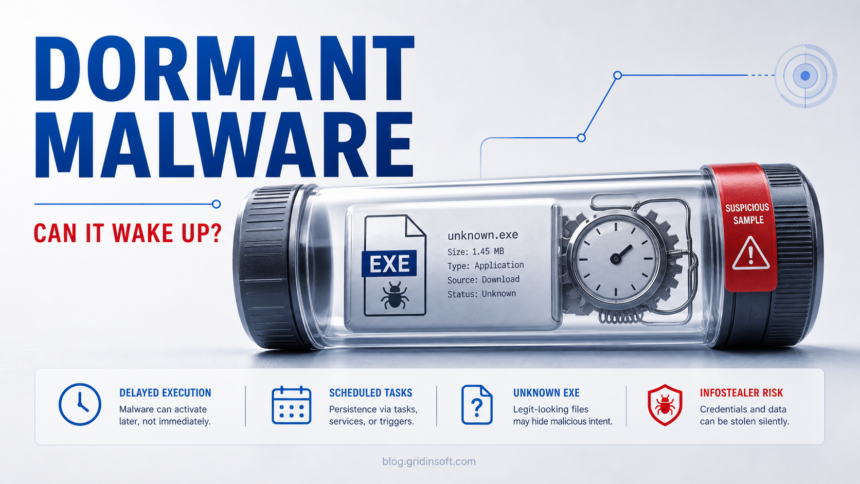
Malware can activate later, but most dangerous files start doing something as soon as they run. If you opened an unknown .exe, game installer, crack, mod, or script and nothing obvious happened, do not assume it was harmless. Treat it as a possible infection until you check the file source, Defender history, startup entries, scheduled tasks, browser sessions, and account activity.
If the suspicious file was still inside a ZIP or RAR and you only viewed the archive contents, start with the archive-specific guide: can opening a ZIP or RAR file infect your PC?
First checks after running an unknown file
- Yes. Some malware waits for reboot, internet access, a command from its server, a scheduled time, or user activity.
- But silence is not safety. Stealers can run quickly, collect browser cookies or tokens, then close without a visible window. For Roblox-specific cases, compare the path against the RobloxCrashHandler.exe safe-or-risky checklist.
- Do not keep testing the file. Delete the source, scan the PC, and change important passwords from a clean device if the file already ran.
- Check accounts too. Email, Discord, Steam, Microsoft, Google, and wallets can be abused even after the malware file is gone.
| Question | Can malware activate later? |
| What it means | Yes, but malware may also steal data immediately and leave few visible signs. |
| Highest-risk sources | Cracks, keygens, ROM packs, fake games, Discord attachments, fake CAPTCHA commands, unknown scripts |
| Best first action | Stop running the file, scan the PC, check persistence, and rotate important passwords from a clean device. |
Can malware jump between Windows, Linux, or another drive?
Usually, Windows malware does not magically start running inside Linux or another operating system just because both systems are on the same computer. The practical risk is simpler: an infected file, script, browser profile, shared folder, removable drive, or weak network share carries the problem across. Worms are the exception to treat seriously; Microsoft notes that worms can spread through network shares, removable drives, and software vulnerabilities [4].
| Setup | Risk and what to do first |
| Windows and Linux dual boot, separate system partitions | A normal Windows EXE will not run as Linux code by itself. Do not open copied installers or scripts on the other OS; scan the Windows side and shared folders before moving files. |
| Shared NTFS, exFAT, or data partition | Malware can drop or alter files there if the infected OS can write to it. Unmount the shared partition, scan it from a clean session, and keep only documents, photos, and known project files. |
| USB drive, external disk, or SD card | Worms and shortcut-style malware may use removable media, especially when users run copied files later. Scan the media before opening it; for USB-specific risks, use the USB drive security checklist. |
| Network share, NAS, or mapped drive | Ransomware and worms may encrypt, copy to, or launch from writable shares. Disconnect mapped drives until the main system is clean, then rotate passwords and review share permissions. |
For a dual-boot scare, isolate before you test. Boot the system you trust most, leave shared drives unmounted, avoid restoring browser profiles or game/mod folders, and scan external media before copying files back. If you already moved files between systems, scan both sides and change important passwords from the cleanest device available.
What dormant malware means
Dormant malware is malware that is present on a device but not visibly active at the moment you are looking at it. That can happen for several reasons. The file may wait for a reboot, a scheduled task, a network connection, a command from a server, or a specific app to open. Some malware also delays activity to avoid sandboxes and quick security checks.
The more common consumer problem is slightly different: malware already ran, stole something, and then stopped. An infostealer does not need to show pop-ups or slow the PC for hours. If it can grab browser cookies, saved passwords, Discord tokens, wallet files, or session data, the account risk may continue after the file is deleted.
When should you worry after running an unknown EXE?
Risk depends on the source and what happened afterward. A blocked file that never ran is different from an installer you approved through SmartScreen or a PowerShell command you pasted from a fake CAPTCHA page.
| Situation | Risk level | What to do |
| Defender quarantined the file before you opened it | Lower | Delete the download, run a full scan, and do not restore it. |
| You ran a random game, ROM installer, crack, or mod | High | Scan the PC, check startup points, and change passwords from a clean device. |
| A command was pasted into Run, PowerShell, Terminal, or CMD | High | Assume script-based malware. Check command history, Defender history, startup entries, and scheduled tasks. |
| Discord, Google, Microsoft, Steam, or email showed login alerts | High | Recover accounts first from a clean device, then revoke sessions and rotate passwords. |
| Nothing happened, but the file source was unknown | Unclear | Do not run it again. Verify the file and scan the whole system. |
What to do in the first 10 minutes
- Stop running the file. Do not open it again to see whether it was really bad.
- Disconnect if activity continues. If new windows, scripts, downloads, or Defender alerts keep appearing, disconnect from the network.
- Save the evidence. Note the filename, path, detection name, download source, and time.
- Run a full malware scan. A quick scan may miss dropped files and persistence points.
- Use a clean device for passwords. Change email and password-manager passwords before other accounts.
Safe file check: what to inspect
If you still have the file and it is quarantined, do not restore it on your main PC. If you can safely inspect the metadata, check these details:
- Path: suspicious files often sit in
Downloads,Temp,AppData, archive folders, or game/mod directories. - Signature: unsigned installers from random file hosts are risky.
- Publisher: compare the publisher with the real vendor or game developer.
- Hash: keep the file hash if you need to ask support or compare detections.
- Behavior: new scheduled tasks, startup entries, browser extensions, or unknown processes matter more than the filename.
Where delayed malware usually comes back from
If the malware is still active after reboot, look for persistence rather than only the original file. Common locations include Startup Apps, Task Scheduler, browser extensions, Windows services, registry Run keys, and recently created files in AppData or Temp.
| Area | What to look for |
| Task Scheduler | Tasks with random names, PowerShell commands, hidden scripts, or recently created triggers |
| Startup Apps | Unknown entries added the same day as the suspicious download |
| Browser | New extensions, changed search engine, notification permissions, injected policies |
| Accounts | New sessions, changed recovery email, unknown OAuth apps, suspicious Discord authorized apps |
| Downloads and archives | Password-protected zips, fake installers, duplicate setup files |
Do you need to change every password?
If the suspicious file actually ran, start with the accounts that protect the rest: email, password manager, Microsoft, Google, Apple, banking, crypto, Discord, Steam, Epic, Roblox, and work accounts. Change them from a clean device. Then revoke sessions and remove unknown recovery methods or connected apps.
This is especially important after a game/mod/crack infection. See our recovery guide for infostealer after downloading a game or mod and the related RenPy fake game installer guide.
What if alerts return after cleanup?
If alerts return, treat the case as persistence. Run Gridinsoft Anti-Malware, remove detected items, reboot, and scan again. Then check Task Scheduler, Startup Apps, services, browser extensions, notification permissions, and recently changed shortcuts. Rotate important passwords from a clean device only after the PC is clean.
If the process path is wrong, the name imitates a Windows component, or high CPU started after an unknown installer, scan for hidden miners, services, startup entries, and bundled components.
Scan for hidden startup itemsFAQ
Can a virus stay hidden for weeks?
Yes. Malware can remain as a scheduled task, startup entry, service, browser extension, or dropped file. Some threats also wait for network access or a command from an attacker.
If I ran an EXE and nothing happened, am I safe?
No visible window does not prove safety. A stealer or downloader can run silently. Check Defender history, scan the PC, and review account activity.
Can malware steal passwords after it is deleted?
The deleted file cannot keep stealing, but data stolen while it ran can still be abused. That is why session revocation and password rotation matter.
Can Windows malware infect Linux in a dual boot?
Not usually by executing as-is. The bigger risk is a shared writable partition, USB drive, copied script, browser profile, archive, or network share that both systems can access. Keep shared drives unmounted until scanned, and do not run copied installers or scripts on the other OS.
What if suspicious behavior continues after cleanup?
Run Gridinsoft Anti-Malware again after reboot, then check startup entries, scheduled tasks, services, browser extensions, and recent files in AppData or Temp. If account abuse continues, rotate passwords from a clean device after the PC is clean.
Related guides
Related: if a fake update page opened a command window, see Fake Chrome Update Virus: Terminal Opened. If PowerShell keeps connecting out after cleanup, see PowerShell outbound connection blocked.
- Infostealer After Downloading a Game or Mod: What to Do First
- MrBeast Discord Scam: Why Your Account Sends Crypto Spam
- Microsoft Defender Detection Names: What They Mean and What to Do
- Fake Chrome Update Virus: Terminal Opened?
- PowerShell Outbound Connection Blocked
References
- MITRE ATT&CK. “Scheduled Task/Job (T1053).” MITRE, accessed June 17, 2026. Technique
- MITRE ATT&CK. “Boot or Logon Autostart Execution (T1547).” MITRE, accessed June 17, 2026. Technique
- Microsoft Learn. “Autoruns for Windows.” Microsoft Sysinternals, accessed June 17, 2026. Tool page
- Microsoft Learn. “Worms.” Microsoft Defender for Endpoint, last updated October 29, 2024, accessed June 17, 2026. Guidance