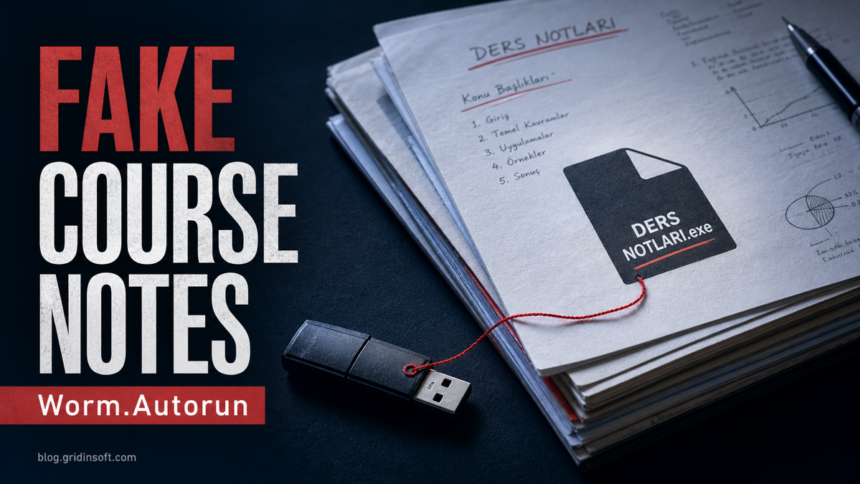
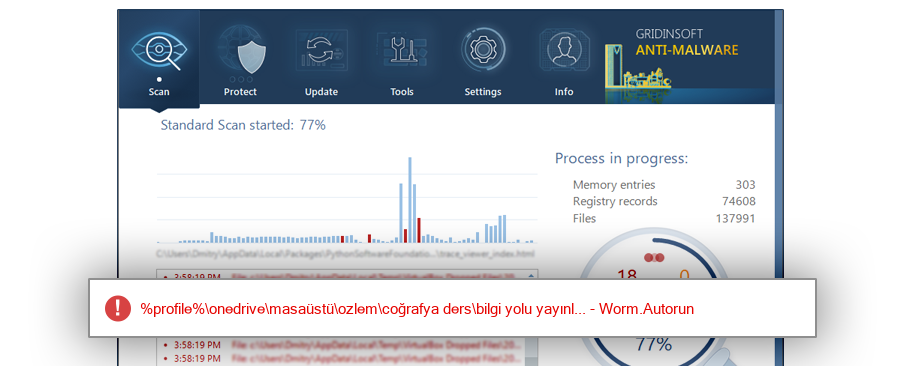
DERS NOTLARI.exe is not a normal course-notes document. If you found this file on a USB drive, in a downloaded archive, on the Desktop, or in a shared school folder, treat it as suspicious until proven otherwise. Gridinsoft ThreatInfo records for this hash/family classify the sample as Worm.Autorun, a removable-media style threat that can use familiar names to make users run an executable by mistake.
The Turkish phrase behind the name means course notes. That is exactly why the filename is risky: real notes are usually PDF, DOCX, PPTX, TXT, or image files, while an .exe file is a Windows program. Do not double-click it to see what it contains.
What DERS NOTLARI.exe Usually Means
A file named DERS NOTLARI.exe is trying to look like study material while keeping an executable extension. That pattern matches a common social-engineering trick: make the file look like a document, folder, archive, or shared class note, then rely on the user to launch it.
| Check | Why It Matters |
|---|---|
| Extension | .exe means the file can run code. Course notes should not need to be an executable. |
| Location | USB roots, shared folders, Downloads, Desktop, Temp, and Startup locations are higher risk. |
| Icon | Malware may use a folder, PDF, Word, or archive-looking icon while still being an application. |
| Copies | Repeating names across folders or drives can indicate worm-style spreading. |
| Companion files | Suspicious shortcuts, autorun.inf, hidden folders, or copied executables deserve a full scan. |
Why Worm.Autorun Uses Removable Drives
Autorun-style worms rely on portability and trust. MITRE ATT&CK describes replication through removable media as a technique where malware copies itself to USB or other removable drives so it can reach another system when the media is connected [2]. Modern Windows versions do not blindly run most USB programs the way older systems did, but the social-engineering part still works: a user sees a familiar name and manually opens the executable.
That is why the response should cover both the PC and every removable drive that touched it. Cleaning only the Windows copy while leaving the same executable on a USB drive can bring the problem back later.
How To Remove DERS NOTLARI.exe Safely
- Do not run the file again. If it is open, disconnect from the internet and close suspicious windows, but do not delete random system files while guessing.
- Unplug other removable drives. Leave the suspicious USB drive aside until you are ready to scan it. Do not copy the executable into a backup folder.
- Run a full anti-malware scan. Use Gridinsoft Anti-Malware to scan the system drive and the removable drive. Let the scanner quarantine the detected object instead of only removing the visible copy.
- Check startup locations. Open Task Manager > Startup apps, Windows Settings > Apps > Startup, and, for advanced checks, Microsoft Sysinternals Autoruns. Autoruns lists many registry and file-system autostart locations, which helps find entries that point to the suspicious file [3].
- Inspect the USB drive after scanning. Remove suspicious
.execopies, strange shortcuts, and unexpectedautorun.inffiles only after the scan identifies the threat. Keep real documents such as PDF, DOCX, PPTX, XLSX, or image files if they scan clean. - Recover documents carefully. If folders were hidden or replaced by lookalike executables, enable file extensions and hidden items in File Explorer, then copy only the real documents to a clean location.
- Change exposed passwords if you executed it. If you ran the file and then saw command windows, new startup entries, browser changes, or blocked outbound traffic, change passwords from a clean device after malware cleanup.
After uninstalling the suspicious app or deleting the visible threat, use Gridinsoft Anti-Malware to check hidden files, startup entries, scheduled tasks, bundled apps, browser changes, and other persistence points that can restore malware.
Download Anti-MalwareHow To Tell Real Course Notes From a Fake EXE
A real course-note file usually opens in a document viewer, browser, office suite, or archive tool. It does not need administrator permission and it should not create startup entries. A suspicious course-notes executable often has one or more of these signs:
- the full name ends in
.exe,.scr,.bat,.cmd,.vbs, or.js; - Windows shows the type as Application, not PDF, Word document, PowerPoint presentation, or archive;
- the file sits in the root of a USB drive next to hidden folders or duplicate shortcuts;
- the same file name appears in several unrelated folders;
- opening it briefly flashes a command prompt, creates new files, or triggers an antivirus alert.
If you are unsure, upload the file to a scanner or check it with Gridinsoft ThreatInfo instead of running it. The goal is to identify the executable safely, not to test it on your main Windows account.
Prevent Reinfection From USB Drives
- Turn off automatic actions for removable media and choose files manually.
- Show file extensions in File Explorer so
notes.pdf.execannot hide behind a fake icon. - Scan USB drives before opening files from unknown school, print-shop, or shared-lab computers.
- Do not keep suspicious executable backups together with real documents.
- Use a standard Windows account for daily work, and keep a separate clean backup of important documents.
For more USB-specific cleanup context, see our guides on shortcut virus behavior, USB drive security risks, and preparing a clean Windows install USB after malware.
FAQ
Is DERS NOTLARI.exe always malware?
No single filename proves malware by itself, but a course-notes-looking .exe is suspicious. If it appears unexpectedly, comes from a USB drive, or is detected as Worm.Autorun, do not run it. Scan and quarantine it first.
Can DERS NOTLARI.exe infect my PC just by being on a USB drive?
The file usually needs execution or a supporting launch path to run code. The risk rises if you double-click it, if a shortcut points to it, or if the drive also contains suspicious autorun or startup artifacts.
Should I delete autorun.inf manually?
Do not start by deleting random files. Run a full scan first, then remove suspicious autorun.inf and related executable copies that the scan or your inspection confirms are not legitimate files.
What if my real notes disappeared?
They may be hidden rather than deleted. After malware cleanup, enable hidden items and file extensions, then recover real PDF, DOCX, PPTX, XLSX, TXT, and image files. Do not keep executable lookalikes as backups.
Does formatting the USB drive fix it?
Formatting can remove files from the USB drive, but it does not clean a Windows PC that already executed the worm. Scan the computer and all removable drives before using them again.
References
- Gridinsoft ThreatInfo. “DERS NOTLARI.exe Removal: Worm.Autorun Detection.” ThreatInfo, accessed May 28, 2026. https://threatinfo.net/files/DERS%2520NOTLARI.exe-dd7440a25c341bde2a3c9296d31a5ed1
- MITRE ATT&CK. “Replication Through Removable Media (T1091).” MITRE, accessed May 28, 2026. https://attack.mitre.org/techniques/T1091/
- Microsoft Learn. “Autoruns for Windows.” Microsoft Sysinternals, updated July 19, 2023, accessed May 28, 2026. https://learn.microsoft.com/en-us/sysinternals/downloads/autoruns