Trojan malware is a malicious program that gets you to run it by pretending to be something safe: a game crack, invoice, browser update, driver, mod, app installer, document, or security tool. If Windows Security or another antivirus says it found a Trojan, treat the alert as a real compromise until you can prove otherwise. Disconnect if the device is still acting strangely, save the detection name and file path, remove the original download, scan the whole system, and change important passwords from a clean device if the Trojan could have stolen browser data or sessions.
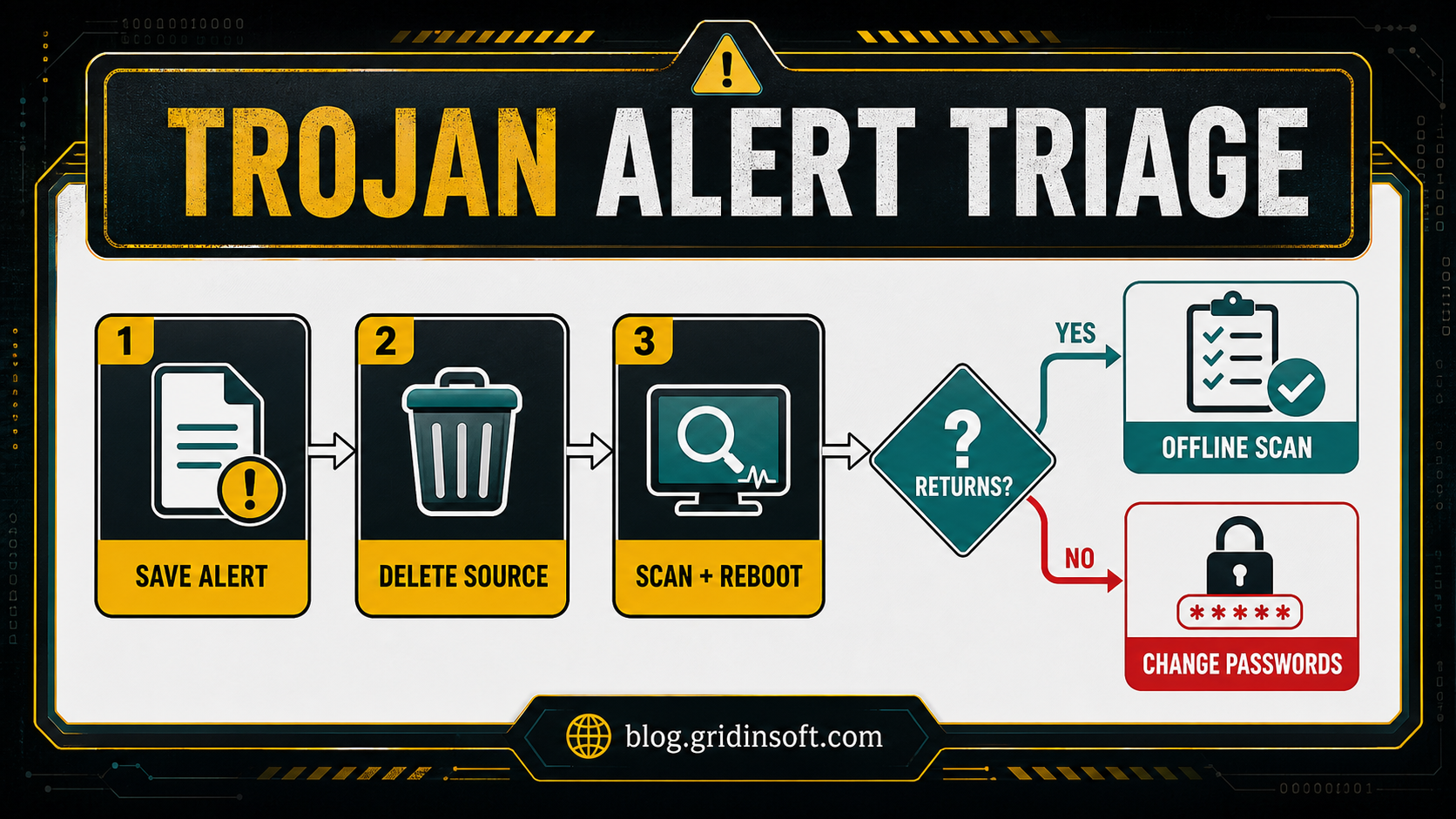
If you just found a Trojan, do this first
- Save the exact detection name, file path, and the app or archive you opened before the alert.
- Disconnect from Wi-Fi or Ethernet if you see unknown remote access, outbound traffic, browser redirects, or account alerts.
- Remove the original installer, crack, mod, attachment, extension, or downloaded archive.
- Run a full scan, then an offline scan if the same Trojan returns after reboot.
- Check startup apps, scheduled tasks, browser extensions, proxy settings, and newly installed programs.
- Change passwords and revoke sessions from a clean device if a stealer, RAT, banking Trojan, or suspicious browser activity was involved.
What Is Trojan Malware?
A Trojan is malware delivered through deception. It does not need to copy itself like a classic virus. Instead, the attacker persuades you to open something that looks useful, urgent, entertaining, or trusted. MITRE classifies this pattern under user execution: attackers rely on a user opening a malicious file, link, script, library, or remote-access tool to start the compromise.[2]
That is why Trojan alerts often begin with a normal-looking action: opening a ZIP file, installing a cracked app, running a fake update, enabling a document, pasting a command from a fake CAPTCHA page, or installing a browser extension. The visible file may disappear quickly while the payload creates persistence, steals data, downloads more malware, or gives the attacker remote control.
Trojan vs Virus: Why the Name Still Confuses People
| Term | Practical meaning |
|---|---|
| Trojan | Malware disguised as something legitimate. It usually needs a user action to run. |
| Virus | Malware that infects other files and can replicate through them. |
| Worm | Malware that spreads across systems without needing to attach to another program. |
| Downloader or dropper | A Trojan-like first stage that installs another payload such as a stealer, RAT, miner, or ransomware. |
Many people still search for “Trojan virus” because antivirus alerts and older articles use that wording. In cleanup terms, the important question is not the label. The important question is what the Trojan did after it ran: steal data, open remote access, change browser settings, install persistence, encrypt files, or download a second payload.
What Victims Usually Search For
People rarely search for Trojan malware as a calm definition. They search when an alert or symptom is already on screen. This guide targets those urgent situations:
- “Windows Defender found Trojan:Win32. Am I safe after removing it?”
- “I downloaded a crack or game mod and got a Trojan alert.”
- “Trojan keeps coming back after quarantine.”
- “Can a Trojan steal my passwords?”
- “Is a Trojan in browser cache a real infection?”
- “Should I reinstall Windows after a Trojan?”
- “How do I know if a Trojan was a false positive?”
The answer depends on the file path, behavior, and detection family. A one-time browser cache detection is different from a RAT running from AppData, a stealer inside a cracked installer, or a Trojan that recreates itself through Task Scheduler after every reboot.
Warning Signs That a Trojan Is Still Active
- The same alert returns after reboot. Persistence may still exist in a startup entry, scheduled task, service, extension, or hidden folder.
- Unknown outbound traffic appears. RATs, stealers, botnet clients, and downloaders often beacon to remote servers.
- Browser redirects, pop-ups, or extensions come back. The visible browser problem may be reinstalled by a local task or updater.
- Passwords, email, or game accounts show strange logins. A stealer may have taken saved passwords, cookies, tokens, or session data before the alert appeared.
- Security tools are disabled or cannot update. Some Trojans try to weaken protection or block cleanup.
- New remote-access, VPN, proxy, or “optimizer” apps appear. Attackers often disguise control or traffic-relay tools as utilities.
- CPU, fan, or GPU usage stays high. The payload may be mining cryptocurrency, scanning, proxying traffic, or unpacking more malware.
Common Trojan Types in 2026
| Trojan type | What to check first |
|---|---|
| Infostealer | Browser passwords, cookies, crypto wallets, Discord/Steam/Telegram sessions, password manager exports, and recent account logins. |
| Remote access Trojan (RAT) | Unknown remote tools, new users, startup entries, webcam/microphone access, firewall rules, and outbound connections. |
| Banking Trojan | Browser injection, banking sessions, payment accounts, email access, and MFA prompts you did not request. |
| Downloader or dropper | Recently created files in Downloads, Temp, AppData, startup folders, and scheduled tasks. |
| Ransomware Trojan | Encrypted files, ransom notes, abnormal file renaming, suspicious backup deletion, and recovery options before paying anything. |
| Proxy or botnet Trojan | Idle network traffic, IP reputation warnings, CAPTCHAs, blocked accounts, and unusual proxy/VPN processes. |
Financial damage is not theoretical. The FBI IC3 reported 1,008,597 cybercrime complaints and $20.877 billion in reported losses for 2025, with fraud, tech-support scams, ransomware, and other cyber-enabled crime continuing to grow.[1] A Trojan is often only the first step that makes those later losses possible.
How Trojans Usually Get In
- Cracked software, keygens, cheats, and game mods. These are high-risk because the victim already expects to bypass security warnings.
- Fake browser, driver, codec, and security updates. A page tells you something is outdated and pushes a malicious installer.
- Email attachments and shared documents. Invoices, delivery notices, resumes, voicemail files, and archives can hide scripts or payloads.
- Fake CAPTCHA and “copy-paste to verify” pages. These trick users into running a command manually.
- Search-result poisoning and malicious ads. Attackers imitate popular tools, wallets, AI apps, and support pages.
- Browser extensions and bundled installers. The visible app may look harmless while another component changes browser settings or loads a payload.
Why Malware Keeps Coming Back After Quarantine
When malware returns after quarantine, the security tool may have removed the visible file but not the source or persistence mechanism that recreates it. The original installer, a synced browser extension, a startup entry, scheduled task, service, Run key, Defender exclusion, or downloader can put the payload back after a reboot or at the next trigger. A target not found message only means that one recorded path is gone; it does not prove the PC is clean.
- Keep the detected item quarantined and record the evidence. Save the exact detection name, full path, detection time, and Protection History entry. Compare the path and timestamp when the alert returns.
- Remove the source before chasing the recreated file. Delete the original crack, repack, archive, attachment, mod, fake update, or unwanted extension. Pause browser sync if it keeps restoring the same extension or setting.
- Inspect what launches the payload. Check Startup Apps, scheduled-task actions, service executable paths, Run keys, recently installed programs, browser policies, and security-tool exclusions. A familiar Microsoft-looking name is not proof of safety, but an unfamiliar name is not enough reason to delete it. Verify the executable path, publisher, command line, and creation time first. Use the focused guides for a suspicious Windows service or miner and a PowerShell downloader or startup command.
- Scan, reboot, and scan again. A clean result after reboot is stronger evidence than a single successful quarantine. If the alert returns, use an offline scan and review the new path or task that recreated it.
- Escalate when persistence or account theft remains possible. Follow the Windows security audit after malware for startup, task, service, account-session, and reinstall checks. Change passwords from a clean device if a stealer, RAT, browser-session theft, or unauthorized remote access may have occurred.
How to Remove Trojan Malware Safely
- Stop using the infected session for sensitive accounts. Do not log in to banking, email, crypto, work, or password-manager accounts from the same device until cleanup is complete.
- Disconnect if the machine is still suspicious. Unplug Ethernet or turn off Wi-Fi when there is active remote access, unknown traffic, or recurring alerts.
- Preserve the detection details. Write down the detection name, file path, process name, and the file you opened before the alert.
- Remove the source file. Delete the original archive, installer, crack, mod, attachment, or extension that introduced the alert.
- Run a full scan. Use your installed protection first. For suspicious individual files, you can also check them with Gridinsoft Online Virus Scanner.
- Inspect persistence. Check Startup Apps, Task Scheduler, Services, browser extensions, proxy settings, DNS settings, and recently installed programs.
- Use an offline scan when the Trojan returns. Microsoft notes that Defender Offline scans after a restart without loading Windows, which makes it harder for persistent malware to hide or defend itself.[3]
- Reboot and scan again. A clean result after reboot matters more than one quarantine message.
- Change passwords from a clean device. Prioritize email, banking, cloud storage, crypto, gaming, social, and work accounts. Revoke active sessions where possible.
- Watch for follow-up fraud. If the Trojan was a stealer or RAT, assume attackers may use stolen cookies, saved cards, documents, or contact lists after the malware is removed.
After uninstalling the suspicious app or deleting the visible threat, use Gridinsoft Anti-Malware to check hidden files, startup entries, scheduled tasks, bundled apps, browser changes, and other persistence points that can restore malware.
Download Anti-MalwareWas It a False Positive?
False positives happen, but do not assume one just because the file was from a familiar site or worked normally. Treat the alert as more credible when the file came from a crack, torrent, unofficial mirror, mod pack, fake update page, unknown extension, or compressed archive with scripts inside.
A false positive is more plausible when the file is from an official vendor, digitally signed, downloaded directly from the vendor’s site, and multiple reputable scanners do not show suspicious behavior. Even then, do not restore the file blindly. Check the file path, hash, signature, source URL, and whether the alert name points to a known family. If the detection is a specific Microsoft Defender label, compare it with focused detection guides such as our Microsoft Defender detections hub. For broad Agent-family alerts, use the Trojan:Win32/Agent triage and removal guide to check the file path, repeat detections, and false-positive risk.
When to Reinstall Windows
A clean reinstall is reasonable when a RAT was active, the Trojan stole credentials, security tools were disabled, alerts keep returning after offline scans, the PC handled financial or work data, or you cannot identify what changed. Back up personal documents, photos, and project files, but do not bring back unknown executables, cracks, scripts, browser extension backups, or old installer folders.
If the alert came from a browser cache, a blocked download that never ran, or a single quarantined file in an archive, a reinstall is usually excessive. In those cases, remove the source, clear browser downloads/cache if needed, run a full scan, and monitor account activity.
How This Guide Fits Related Trojan Pages
Use this page when you need the broad victim workflow: what a Trojan means, what to check first, and how to decide whether passwords, persistence, or reinstall matter. Use our focused detection pages when you have an exact name such as Trojan:JS/Cryxos.ASI!MTB, Trojan:Win32/Skeeyah.A!rfn, or Trojan:Script/Conteban.A!ml. Exact-name pages can answer false-positive and path-specific questions that a general Trojan guide should not try to replace.
FAQ
Is Trojan malware always dangerous?
Yes, treat it as dangerous until proven otherwise. Some detections are false positives or blocked downloads that never ran, but a real Trojan can steal passwords, open remote access, install more malware, or change browser and startup settings.
Can a Trojan steal my passwords?
Yes. Infostealer Trojans can collect browser passwords, cookies, tokens, crypto wallet data, and documents. If a stealer or unknown Trojan may have run, change passwords from a clean device and revoke active sessions.
Am I safe if Windows Defender removed the Trojan?
You may be safe if the file was blocked before it ran and a follow-up full scan is clean. Be more cautious if the same alert returns, the file ran from AppData or Temp, browser settings changed, or account alerts appeared.
Why does the Trojan keep coming back?
Recurring alerts usually mean the source file is still present, a browser extension or sync setting restores it, or persistence remains in startup apps, scheduled tasks, services, or scripts. Remove the source and inspect persistence before restoring normal use.
Should I use System Restore after a Trojan?
System Restore can help with some Windows changes, but it is not a malware-removal guarantee and may not remove stolen credentials, malicious files outside restore coverage, or browser/session compromise. Scan first and change passwords when data theft is possible.
References
- Federal Bureau of Investigation, Internet Crime Complaint Center. “2025 IC3 Annual Report.” FBI IC3, 2026. https://www.ic3.gov/AnnualReport/Reports/2025_IC3Report.pdf
- MITRE ATT&CK. “User Execution (T1204).” MITRE, last modified October 24, 2025, accessed June 7, 2026. https://attack.mitre.org/techniques/T1204/
- Microsoft Support. “Virus and Threat Protection in the Windows Security App.” Microsoft, accessed June 7, 2026. https://support.microsoft.com/en-us/windows/virus-and-threat-protection-in-the-windows-security-app-1362f4cd-d71a-b52a-0b66-c2820032b65e