Trojan:Win32/Egairtigado!rfn is a Microsoft Defender detection for a file Defender considers a severe trojan. Treat it as unsafe until you verify the affected item, but do not decide from the name alone. The same label can appear on unknown files in ProgramData or Temp, and it has also appeared in user reports around legitimate-looking installers, developer tools, and C:\Program Files\WinRAR\Default.SFX. Quarantine first, then check the source, path, signature, and whether the alert returns.
What Trojan:Win32/Egairtigado!rfn Means
Microsoft lists Trojan:Win32/Egairtigado!rfn as a Defender Antivirus detection and says the threat can perform actions chosen by an attacker. Microsoft does not publish a detailed behavior profile for this exact label, so the useful decision is not “what payload family is this?” but “what file was detected, where did it come from, and did it run?”
The !rfn suffix is part of Microsoft’s detection naming. It is not a clean bill of health, and it is not enough to prove a specific stealer, backdoor, or ransomware family. Use the suffix as a clue that Defender’s cloud/signature logic is involved, then judge the case from the affected item details.
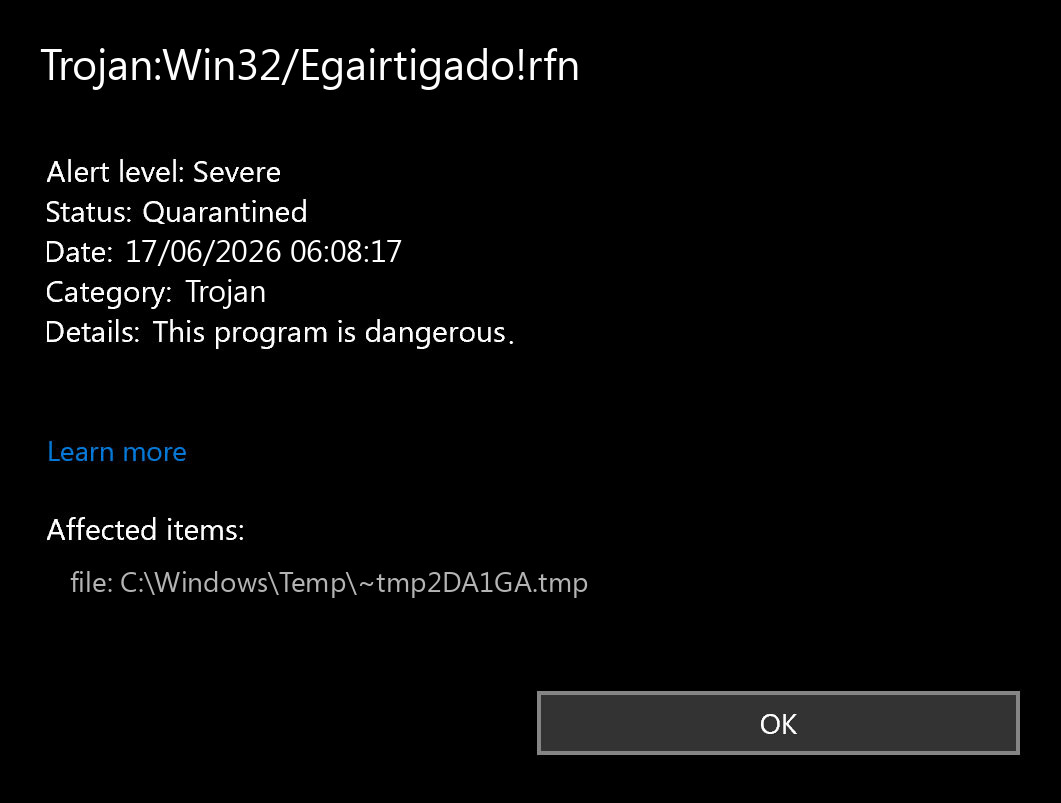
What To Do First
- Open Windows Security > Virus & threat protection > Protection history.
- Open the Trojan:Win32/Egairtigado!rfn entry and copy the affected item path, detection time, and action status.
- Keep the file quarantined while you verify it. Do not restore it just because a forum post mentions a false positive.
- Update Microsoft Defender security intelligence, then run a full scan.
- If the file came from an unofficial mirror, crack, repack, email attachment, Discord/Telegram link, or random download, remove it and scan the system for persistence.
- If the file belongs to a legitimate app update, developer tool, or official installer, reinstall from the vendor source and submit the quarantined file to Microsoft before restoring anything.
If Defender Flags WinRAR Default.SFX
C:\Program Files\WinRAR\Default.SFX is the module WinRAR uses for self-extracting archives. That location can make the alert confusing: it may be a false-positive-style event after an official update, or it may point to a tampered local install, an unofficial installer, or a malicious archive workflow.
Use this decision path:
- Safer signs: WinRAR was installed from the official vendor source, the file sits under
C:\Program Files\WinRAR\, the digital signature and file date match the installed version, and a clean reinstall stops the alert. - Risk signs: the installer came from a bundle site, crack portal, or unknown mirror; the alert repeats after reinstall; the affected path is in
%TEMP%,%APPDATA%,%LOCALAPPDATA%, Downloads, or a randomProgramDatafolder; or other accounts, browsers, or startup items changed around the same time.
If you need WinRAR, remove the quarantined copy, download the current installer from the vendor, reinstall, update Defender, and scan again. If the same detection returns on a clean vendor install, do not whitelist it automatically; submit the file to Microsoft with the product version and detection name.
When It May Be A False Positive
Several public reports around Egairtigado involve legitimate-looking software updates or developer-built files. That does not make every alert safe. It means you should look for evidence that the file is expected:
- the path belongs to a known app you intentionally installed;
- the file is signed by the expected publisher;
- you can reproduce the same file from the official vendor download;
- Defender or Microsoft later clears the same file after submission;
- no persistence, browser changes, new scheduled tasks, or account compromise symptoms appear after the event.
A likely false positive should still stay quarantined until the vendor or Microsoft confirms it. Restoring first and asking later is the risky order.
When To Treat It As Real Malware
Treat Trojan:Win32/Egairtigado!rfn as a real compromise risk when the affected item is in a suspicious location, the file already ran, or the PC shows changes that do not match a normal app update. Pay special attention to:
- random folders in
C:\ProgramData\,%APPDATA%,%LOCALAPPDATA%,%TEMP%, or%USERPROFILE%\Downloads; - new startup entries, scheduled tasks, services, or Run keys such as
HKCU\Software\Microsoft\Windows\CurrentVersion\Run; - browser extensions, notification permissions, proxy settings, or search changes you did not make;
- logins, social accounts, or email sessions behaving strangely after the file ran;
- Defender removing the file, then finding the same or a related threat after reboot.
Cleanup Checklist
- Leave the Defender action set to quarantine or remove.
- Update Windows, Microsoft Defender security intelligence, browsers, and the affected application.
- Run a full Defender scan. If the alert came from an archive or installer you executed, also run Microsoft Defender Offline from Windows Security.
- Uninstall the suspect app if it came from an unofficial installer, bundle, crack, or mirror.
- Check Startup Apps, Task Scheduler, browser extensions, and recently installed programs for entries created around the detection time.
- Change important passwords from a clean device if the file ran and you saw account or browser-session symptoms.
Defender can quarantine the visible file while a loader, scheduled task, service, browser change, or bundled module remains and recreates the alert. If the affected file ran, the detection returns after reboot, or the path points to AppData, Temp, Startup, or Task Scheduler, run a full Gridinsoft Anti-Malware scan to check hidden files, startup entries, bundled apps, browser changes, and persistence before restoring anything.
A false positive is possible, but restore only after checking that the system has no companion detections, startup entries, scheduled tasks, or hidden files tied to the same source.
Scan before restoring the fileRelated Gridinsoft Guides
- Microsoft Defender detection names explains how to read Defender labels, suffixes, severity, and affected-item fields.
- RAR and ZIP file safety covers the difference between opening an archive, extracting it, and running a file from it.
- Trojan:Script/Conteban.A!ml shows a similar Defender exact-detection workflow for false-positive checks and removal decisions.
FAQ
Is Trojan:Win32/Egairtigado!rfn always malware?
No. Defender labels are safety decisions, not full forensic reports. The alert is serious and should stay quarantined, but the final decision depends on the affected path, source, signature, and whether the file was later confirmed clean or malicious.
Should I restore the file if it was WinRAR Default.SFX?
Do not restore it immediately. Remove or quarantine it, reinstall WinRAR from the vendor source if you need it, update Defender, and submit the file if the clean vendor copy is still detected.
What if Defender says the threat was removed?
That is a good first step, but still check Protection History, run a full scan, and look for repeat alerts or new startup/browser changes. A removed file can still leave persistence if it executed before quarantine.
Can I delete the whole folder?
Delete only when you understand what the folder belongs to. Random folders in ProgramData, AppData, or Temp are suspicious, but deleting a legitimate program folder can break the app and make evidence harder to submit.
How do I report a possible false positive?
Use Microsoft’s Security Intelligence file submission portal. Include the detection name, Defender version, file hash if available, the affected path, where the file came from, and why you believe it is a clean vendor or developer file.
References
- Microsoft Security Intelligence. “Trojan:Win32/Egairtigado!rfn threat description.” Microsoft, published and updated July 24, 2025; accessed June 17, 2026. https://www.microsoft.com/en-us/wdsi/threats/malware-encyclopedia-description?Name=Trojan%3AWin32%2FEgairtigado%21rfn&ThreatID=2147925178
- Microsoft Learn Q&A. “Request for Further Investigation: Trojan Detection Related to WinRAR Update.” Microsoft Learn, August 2025; accessed June 17, 2026. https://learn.microsoft.com/en-us/answers/questions/5513434/request-for-further-investigation-trojan-detection
- Microsoft Security Intelligence. “Submit a file for malware analysis.” Microsoft, accessed June 17, 2026. https://www.microsoft.com/en-us/wdsi/filesubmission